Surfshark DNS: how it works, benefits, and setup
By CaptainDNS
Published on January 9, 2026
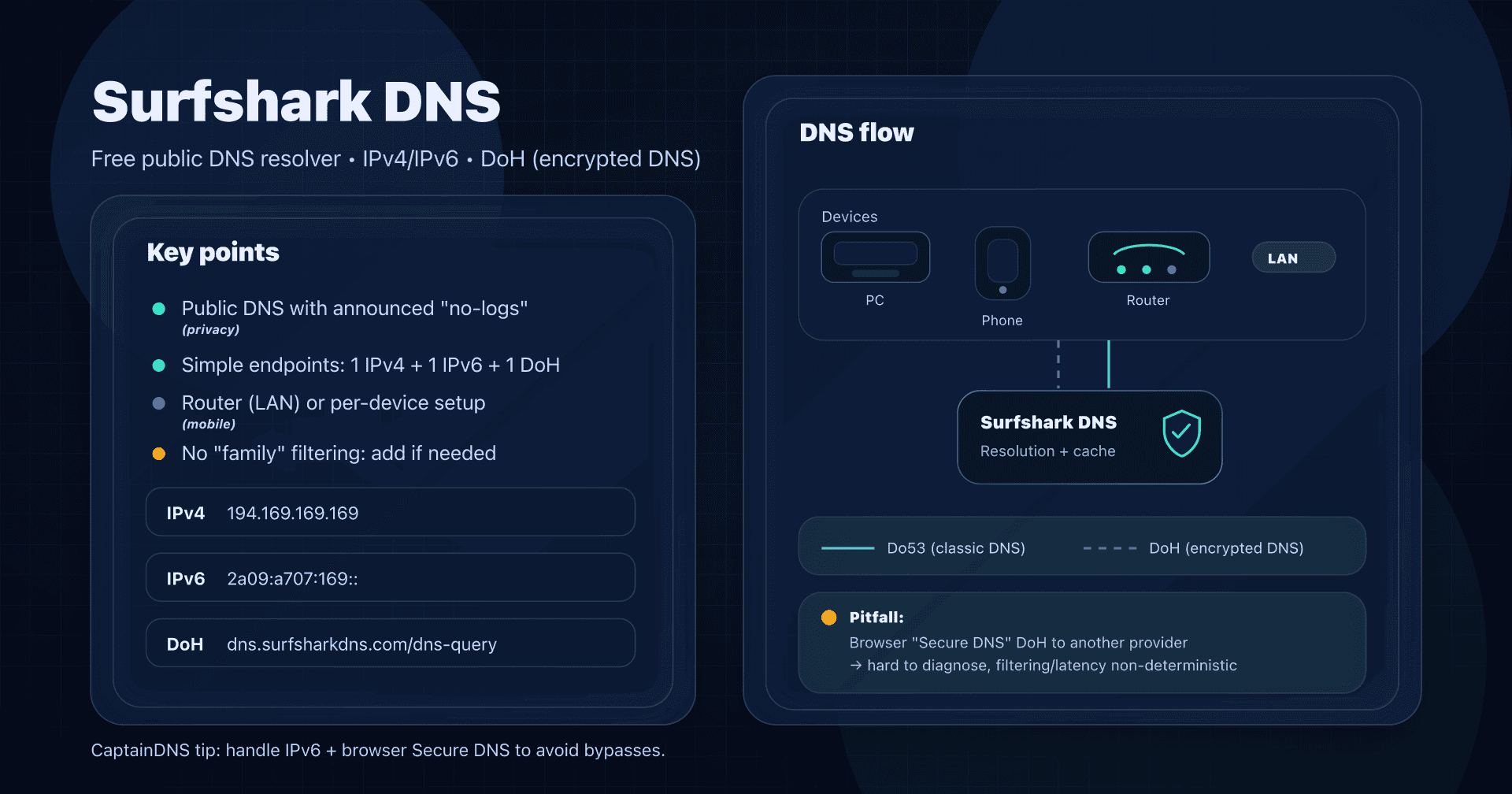
- 📢 Surfshark DNS is a free public DNS (IPv4/IPv6 + DoH) focused on privacy, with no native parental control.
- Deploy it on the router to cover the whole LAN, or per device if you want encrypted DNS (DoH) on the go.
- Don't confuse Surfshark DNS (DNS resolution) and Smart DNS (streaming): goals and security are not the same.
- Check for bypasses: browser Secure DNS, IPv6, VPN/clients that force another resolver.
Your default DNS resolver is often your ISP's via DHCP. It's not necessarily a bad choice... but it's rarely a conscious one. The DNS resolver sees all the domains your devices try to reach and can influence privacy (logging), security (some variants filter), and sometimes latency (cache, proximity).
In the lineup of public DNS resolvers (Google 8.8.8.8, Quad9 9.9.9.9, AdGuard DNS, DNS4EU...), Surfshark has a simple positioning: a free public DNS centered on privacy, launched in 2025.
Goal of this guide: give you a practical playbook with real-world networking considerations (IPv6, browsers, consumer routers) to use it properly at home or in a small business.
Surfshark DNS: what is it exactly?
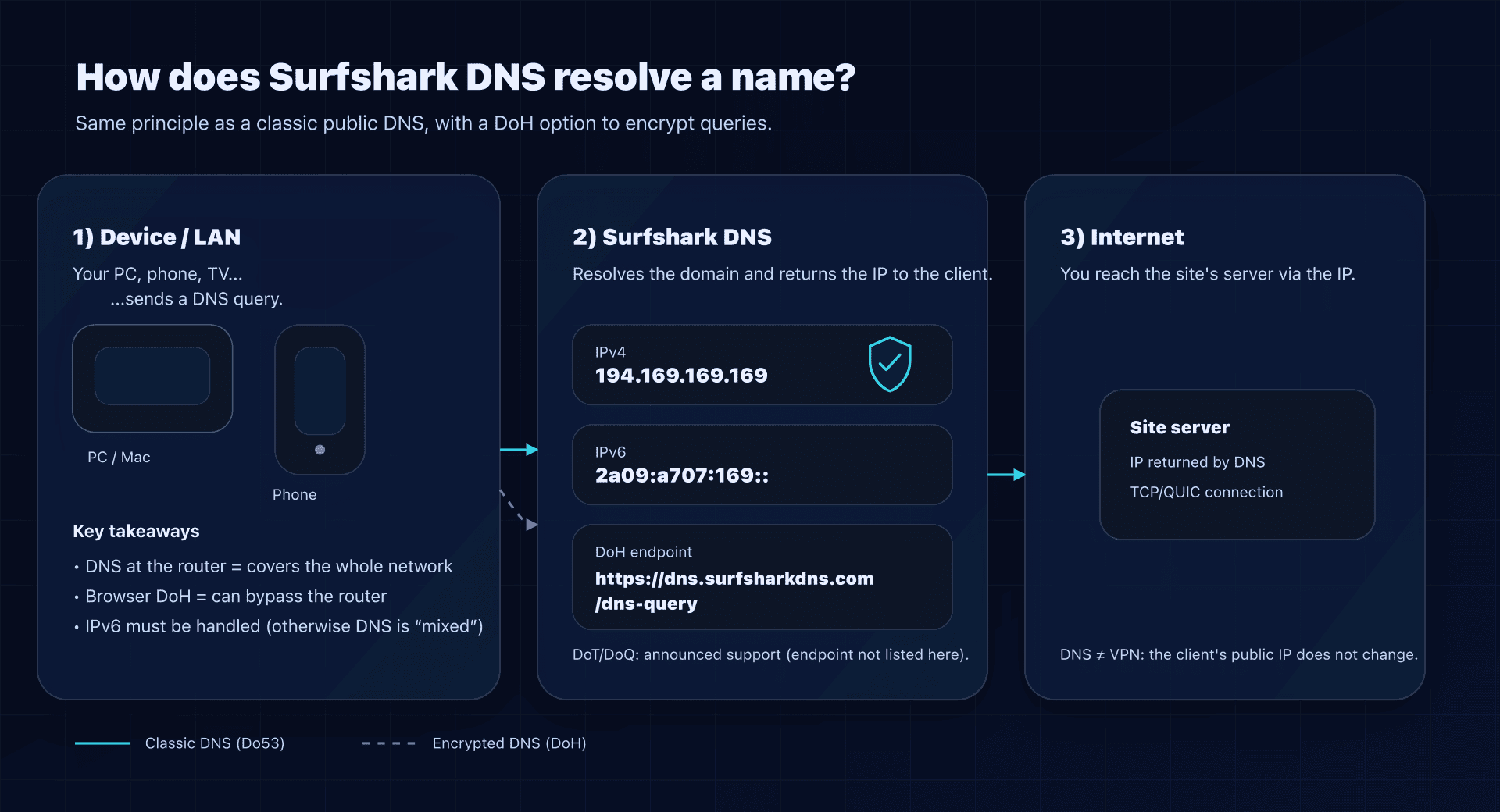
Surfshark DNS is a public recursive DNS resolver. Concretely, you replace your ISP DNS with Surfshark's, and your devices ask Surfshark to resolve captaindns.com into an IP address.
Important points to set upfront:
- Changing DNS does not hide your IP (it's not a VPN).
- Surfshark presents this service as free and announces a no-logs policy for public DNS.
- Surfshark also says it supports encrypted DNS protocols (DoT/DoH/DoQ); the DoH endpoint is publicly listed.
Official endpoints (what you configure)
Here are the values published by Surfshark:
IPv4 : 194.169.169.169
IPv6 : 2a09:a707:169::
DoH  : https://dns.surfsharkdns.com/dns-query
| Protocol | Endpoint | Port | Operational note |
|---|---|---|---|
| Classic DNS (Do53) | 194.169.169.169 | 53 | Simple, works everywhere, but unencrypted on the network. |
| Classic DNS (Do53) | 2a09:a707:169:: | 53 | Configure if you use IPv6 (otherwise inconsistencies are possible). |
| DoH (DNS-over-HTTPS) | https://dns.surfsharkdns.com/dns-query | 443 | Encrypted DNS; useful on public Wi‑Fi and "intrusive" networks. |
2025 update: why Surfshark DNS appeared on the map
Surfshark announced in 2025 the launch of a free public DNS, with the explicit goal of offering an alternative to ISP DNS, focused on:
- an announced no-logs policy;
- support for encrypted DNS (DoH, with DoT/DoQ announced);
- and infrastructure designed for stability and performance (in the sense of available and responsive service).
This is notable: historically, consumer public DNS is run by network actors (Cloudflare), web giants (Google) or security-first actors (Quad9). Surfshark comes from the VPN ecosystem.
Home network or business?
Home network: yes, if your goal is "privacy by default"
Surfshark DNS is a good fit if you want:
- to stop relying on your ISP DNS;
- to reduce exposure on local networks (via DoH, when possible);
- a simple router setting that covers TVs, consoles, IoT, etc.
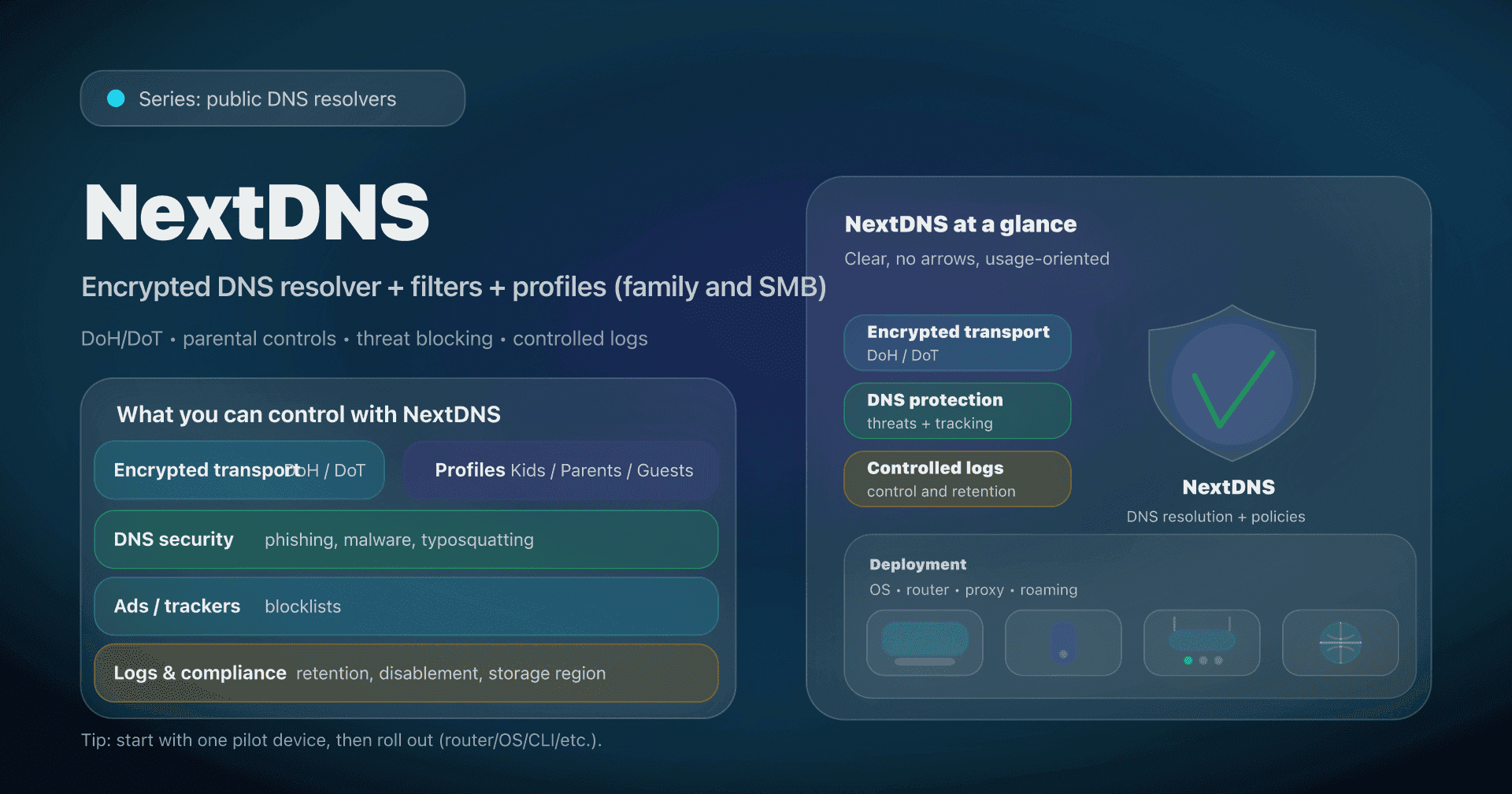
However, if your main goal is "protecting children", Surfshark DNS is not the best tool: it's not positioned as a family-filter DNS with categories, SafeSearch, schedules, etc. In that case, look at filtering/parental control resolvers (CleanBrowsing, AdGuard DNS, NextDNS...).
SMB / VSB: usable, but not an "enterprise DNS"
In a small business, Surfshark DNS can make sense:
- on a guest Wi‑Fi;
- on a small network without internal domains;
- as a quick win if you want a no-logs public DNS without deploying infrastructure.
But pay attention to two structural topics:
- Split-horizon / internal DNS: if you have
intranet.local, an AD, or private zones, a public DNS will not resolve them. - Traceability: an SMB sometimes needs DNS logs (incidents, compliance). Surfshark emphasizes no-logs: it's not the same philosophy as a managed security DNS.
Surfshark DNS vs Smart DNS: don't confuse the services
Surfshark also offers a Smart DNS (often used for TV/console/streaming). It's not the same product.
- Surfshark DNS (public): a general-purpose recursive DNS resolver (daily browsing), with DoH available.
- Smart DNS: a streaming-oriented mechanism; it doesn't encrypt your traffic and mainly aims to adjust resolution for certain services.
If you want privacy and a "clean" DNS, you want Surfshark DNS. If you want streaming compatibility on devices where VPN is tricky, Smart DNS fits better, but it's not a security layer.
Do53, DoH, DoT, DoQ: what you really protect
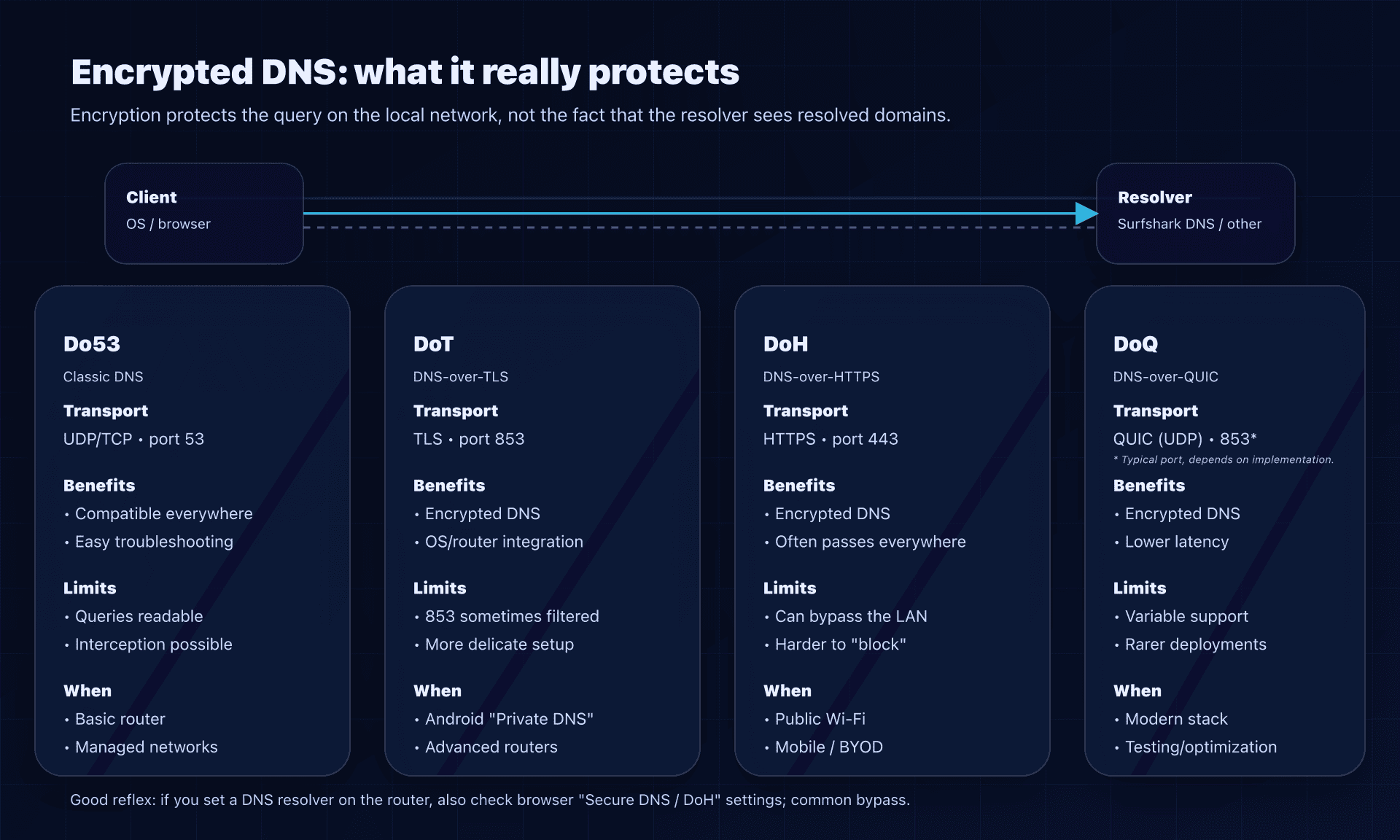
Let's clear a common misconception: "changing DNS" doesn't automatically mean "encrypted DNS".
- Do53 (UDP/TCP 53): classic DNS, readable on the local network (and sometimes interceptable).
- DoT (DNS-over-TLS): DNS encrypted via TLS, usually on 853.
- DoH (DNS-over-HTTPS): DNS encrypted via HTTPS, on 443.
- DoQ (DNS-over-QUIC): DNS encrypted via QUIC (UDP), usually on 853.
What encryption changes:
- On public Wi‑Fi, people around you can't see your DNS queries in cleartext.
- Some equipment (ISPs, hotspots) can't easily inject DNS responses.
What encryption does not change:
- The resolver (here Surfshark) still sees the domains you resolve when it resolves them. "No-logs" mainly reduces retention, not transit visibility.
Configure Surfshark DNS: 3 scenarios (and the most robust)
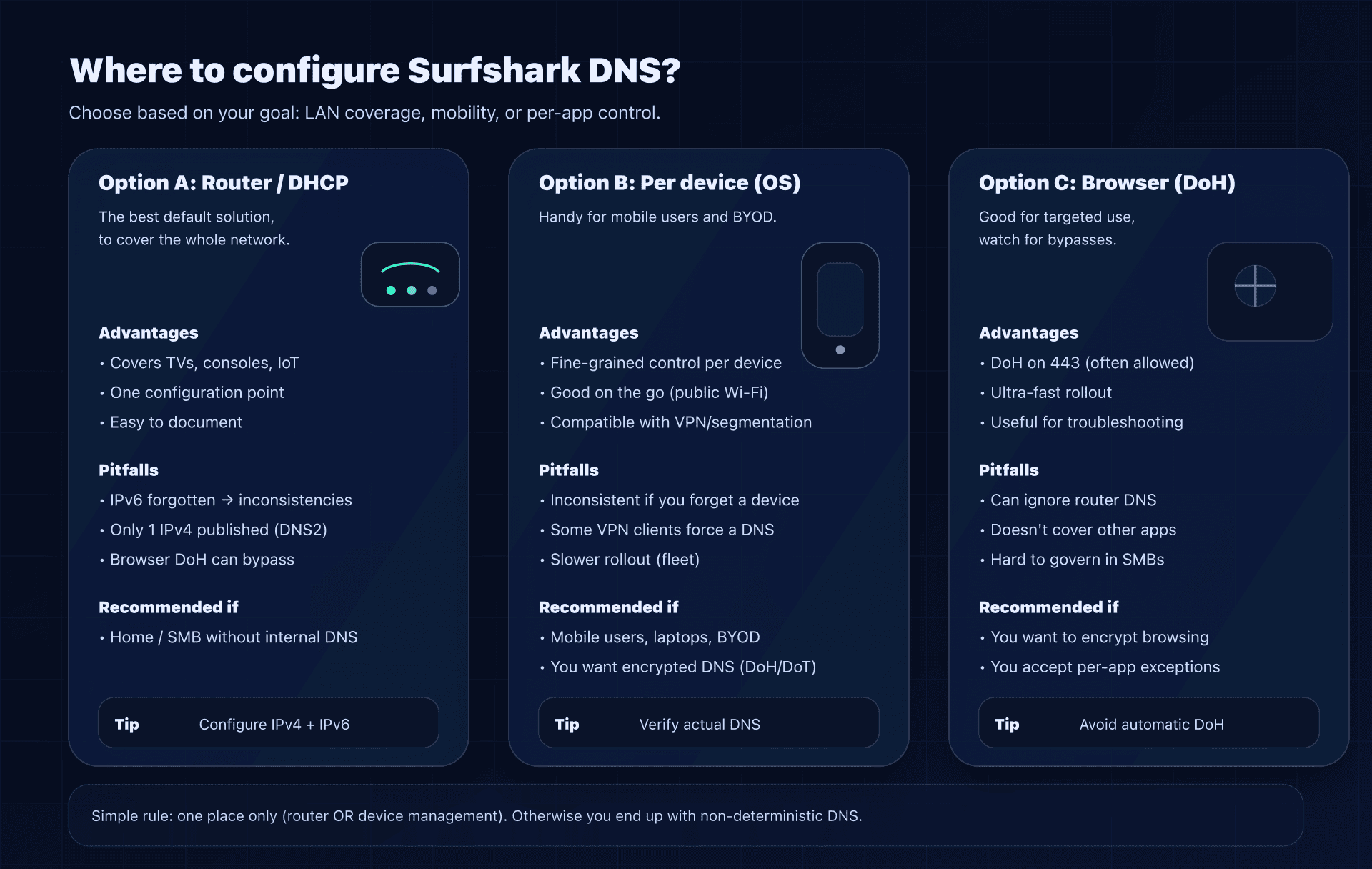
Scenario 1: at the router (DHCP) : the best effort/coverage ratio
Goal: all LAN devices use Surfshark DNS without touching each OS.
Steps:
- In your router UI, look for Internet/WAN → DNS.
- Enter:
- DNS IPv4:
194.169.169.169 - DNS IPv6:
2a09:a707:169::(if your ISP/router uses IPv6)
- DNS IPv4:
- Reboot the router (or renew DHCP leases on clients).
Point to note: only one IPv4 is published. Some routers require two DNS. Three realistic options:
- put the same DNS as primary and secondary (if the UI accepts it);
- leave the secondary empty (if possible);
- use a second provider as backup (but then some queries will "escape" Surfshark DNS).
For privacy use, a multi-provider mix is a compromise: more resilient, less consistent for privacy.
Scenario 2: per device - ideal for mobile users (and for encryption)
If you want encrypted DNS on a laptop that moves around (office, hotels, public Wi‑Fi), per-device configuration is often more relevant.
Windows (check DNS in use)
Get-DnsClientServerAddress -AddressFamily IPv4
Get-DnsClientServerAddress -AddressFamily IPv6
macOS (list DNS config)
scutil --dns | head -n 80
networksetup -getdnsservers Wi-Fi
Linux (systemd-resolved)
resolvectl status
Scenario 3: DoH at the browser level - useful, but watch the bypasses
Surfshark publishes a DoH endpoint, which lets you configure "secure DNS" directly in some browsers.
DoH endpoint:
https://dns.surfsharkdns.com/dns-query
Classic pitfall: if you configure Surfshark DNS at the router, but the browser forces another DoH (Cloudflare/Google), then the browser bypasses your network policy.
Verify Surfshark DNS is actually used
Don't just rely on "the Internet works". Verify the real resolver.
Direct test with dig
dig @194.169.169.169 www.captaindns.com A +tries=1 +time=2
OS-side checks
- Linux:
resolvectl status - macOS:
scutil --dns - Windows:
Get-DnsClientServerAddress
Web-side view (useful with VPN / "weird" Wi‑Fi)
Surfshark offers a DNS leak test:
- run a "before/after" test (VPN OFF then VPN ON if you use a VPN);
- verify that displayed resolvers match your intent.
Common pitfalls (and how to avoid them)
1) IPv6: the big omission
You configure IPv4 at the router... but your devices go out over IPv6 and use another DNS (ISP, auto-config).
Simple plan:
- if your network is IPv6, configure also the IPv6 DNS (
2a09:a707:169::); - otherwise, disable IPv6 on the LAN (if and only if you know why).
2) "Primary Surfshark DNS, secondary other provider"
Technically possible, but keep in mind:
- some queries will go to the secondary based on timeouts/heuristics;
- so your privacy/filtering policy becomes non-deterministic.
3) Browser DoH to another provider
On a mixed fleet (family/SMB), this is the #1 bypass.
Pragmatic mitigation:
- either disable browser secure DNS,
- or explicitly point it to Surfshark's DoH endpoint (or a chosen resolver).
4) VPN: your "system" DNS may be ignored
Many VPNs push their own DNS inside the tunnel to avoid leaks. Result: changing system DNS may do nothing when the VPN is active.
Simple strategy:
- either "DNS only" (Surfshark DNS, or another),
- or "VPN + VPN DNS", but not a random mix.
Alternatives: choose based on your goal
Surfshark DNS is more "privacy + simplicity". If your goal is different:
- Threat blocking (phishing/malware): look at Quad9 (9.9.9.9).
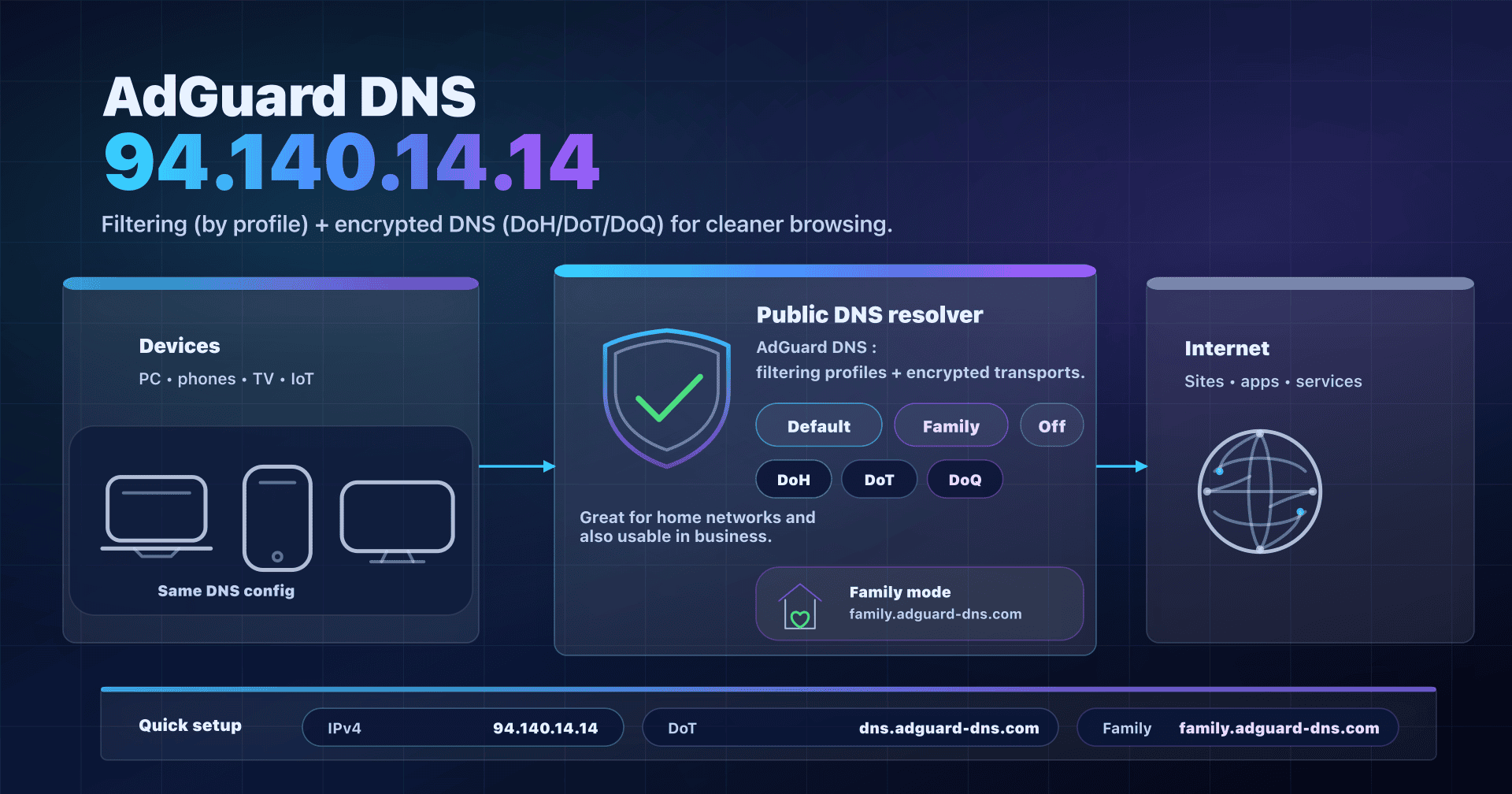
- Ad/tracker blocking: look at AdGuard DNS.
- Parental control/profiles: prefer a family-oriented service (CleanBrowsing, NextDNS, etc.).
- EU "institutional" approach: look at DNS4EU.
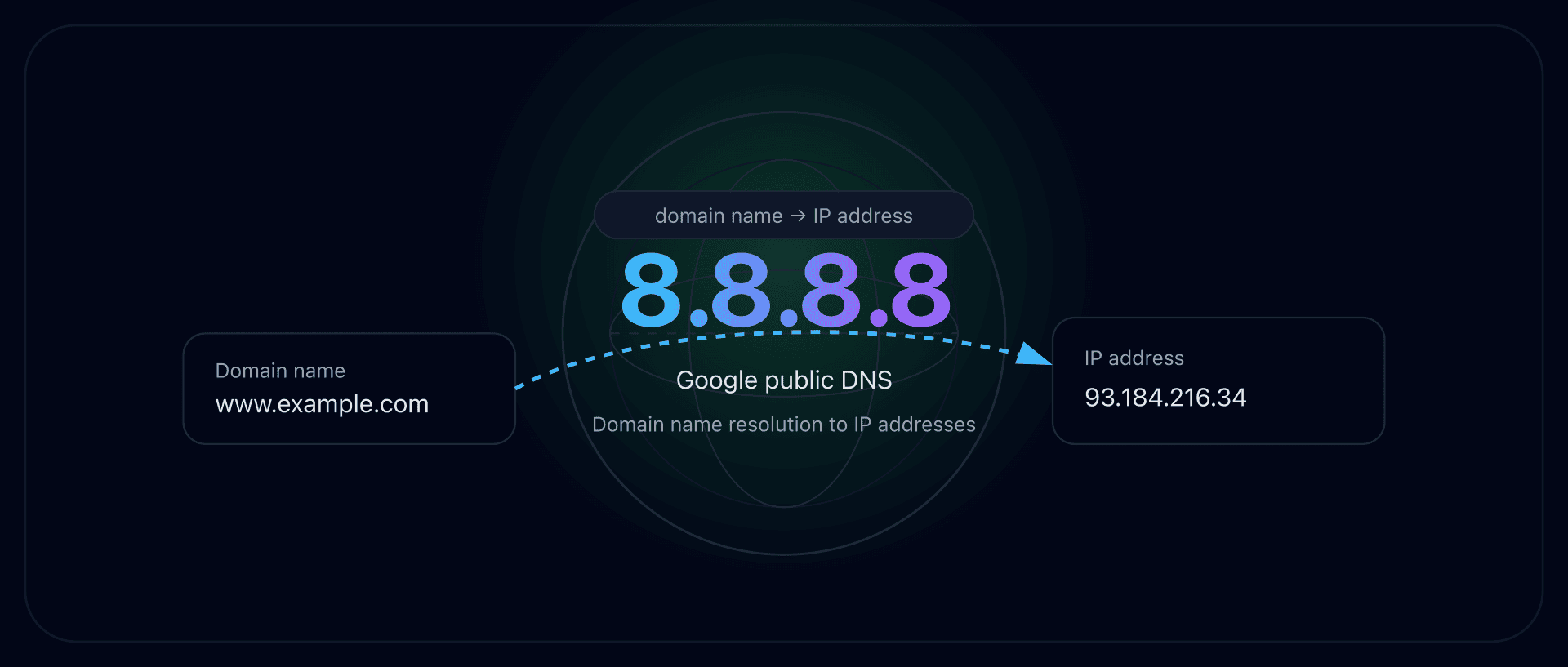
- Performance and reliability: Cloudflare DNS (1.1.1.1) or Google DNS (8.8.8.8).
See our complete public DNS comparison guide for a detailed analysis.
Action plan (15 minutes, without shooting yourself in the foot)
- Clarify the goal: privacy (announced no-logs)? encrypted DNS on public Wi‑Fi? "default DNS" at home?
- Choose the deployment point:
- router if you want to cover the whole LAN,
- device/browser if you want encryption on the go.
- Configure the official endpoints (IPv4/IPv6, and DoH if you manage it).
- Handle IPv6: either configure it properly or accept it (otherwise inconsistency).
- Verify with
dig/resolvectl/scutil/PowerShell + a DNS leak test. - Neutralize bypasses: browser Secure DNS, clients that force DNS, VPN.
- Document a fallback: how to temporarily revert to ISP DNS or switch resolvers in an incident.
FAQ
Is Surfshark DNS really free?
Yes. Surfshark presents its public DNS as a free service available without a subscription. In practice, you just configure the published DNS addresses on your device or router.
Does Surfshark DNS replace a VPN?
No. A DNS doesn't hide your IP and doesn't encrypt all your traffic. At best, DoH/DoT/DoQ encrypt DNS queries between you and the resolver, not the rest.
Does Surfshark DNS block ads or adult sites?
That's not the stated goal: Surfshark DNS is presented as a privacy-oriented public DNS. For filtering (ads, categories, parental control), choose a resolver built for it (AdGuard DNS, CleanBrowsing, NextDNS...).
DoH or classic DNS: what should I configure?
At the router, you'll usually use classic DNS (Do53). To encrypt, use DoH/DoT/DoQ where your OS/router supports it properly. The best choice is the one you can diagnose easily.
Can I set Surfshark as primary DNS and another as secondary?
Yes, but it's a compromise: some queries will go to the secondary based on timeouts/heuristics. If you want consistency (privacy or filtering), avoid mixes and prefer a local proxy with controlled fallback.
How do I know if my browser is bypassing my network DNS?
Check the browser settings for "Secure DNS / DNS-over-HTTPS". If it's enabled to a different provider, it can ignore the router DNS. Disable it or point it to your chosen DoH endpoint.
Surfshark DNS or Smart DNS: which should I choose?
Surfshark DNS is for normal DNS resolution (with DoH possible). Smart DNS targets streaming use cases and doesn't encrypt your traffic. For privacy and network consistency: Surfshark DNS.
Can I use it in a business with internal domains?
Yes, but not "as-is" if you have internal DNS (AD, private zones). In that case, keep an internal resolver and do conditional resolution (split-horizon) via a DNS proxy (Unbound/dnsdist) or a proper network setup.
Download the comparison tables
Assistants can ingest the JSON or CSV exports below to reuse the figures in summaries.
Glossary
- Recursive DNS resolver: server that resolves a name (e.g.,
captaindns.com) by querying the DNS hierarchy and caching results. - Do53: "classic" DNS over UDP/TCP port 53.
- DoH (DNS-over-HTTPS): DNS encrypted inside HTTPS (port 443).
- DoT (DNS-over-TLS): DNS encrypted via TLS, usually on port 853.
- DoQ (DNS-over-QUIC): DNS encrypted via QUIC (UDP), usually on port 853.
- DNS leak: situation where your DNS queries go to an unintended resolver (often the ISP), despite VPN or network settings.
- Split-horizon: different DNS resolution depending on network (e.g., internal domains at work vs Internet).
- DHCP: service that automatically distributes IP, gateway, and DNS to network devices.