AdGuard DNS (94.140.14.14): filtering, privacy, and Family mode
By CaptainDNS
Published on December 24, 2025
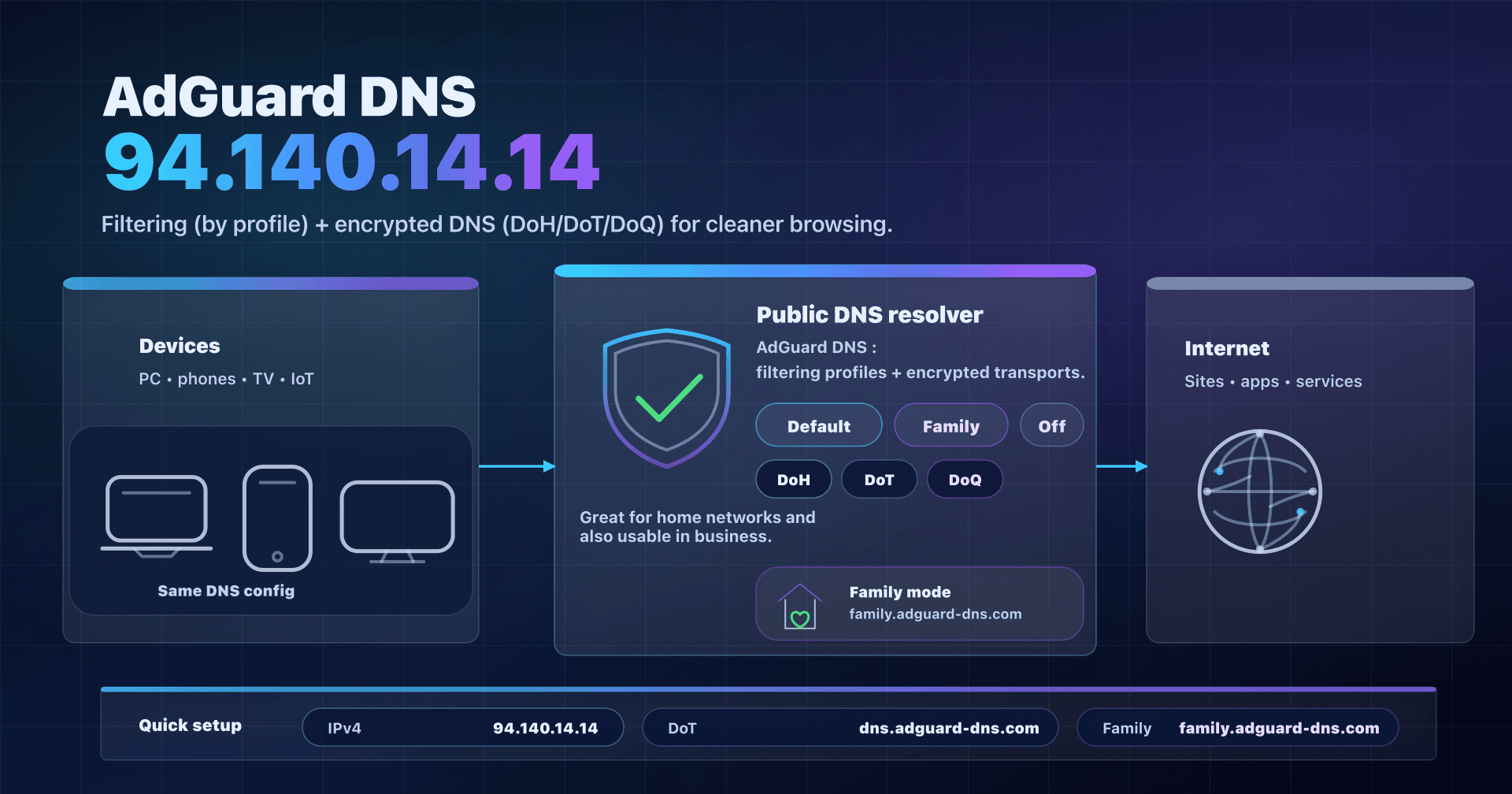
- 📢 AdGuard DNS (94.140.14.14) is a filtering public DNS resolver designed to reduce ads/trackers and enable a "Family mode" at the DNS layer.
- For a home: use the Family profile and encrypted DNS (DoT/DoH/DoQ) to limit Wi-Fi snooping and cut ads.
- For an SMB: a good "quick win" on guest Wi-Fi, but it does not replace an internal DNS policy (split DNS, logging, compliance, etc.).
- Before committing: test the DNS actually in use (IPv6, browser DoH) and verify blocking effects/false positives.
In our series on public DNS resolvers, we already covered the "classics" (Google 8.8.8.8, Quad9 (9.9.9.9), Cloudflare (1.1.1.1)). AdGuard DNS is another profile: less "neutral", more filtering-oriented.
The best-known entry point is 94.140.14.14: the Default server, which filters ads/trackers (and more broadly domains classified as advertising or tracking). There is also a Family profile (very handy on a home network) and a Non-filtering profile (useful for compatibility/troubleshooting).
By late 2025, AdGuard moved quickly: PQC (post-quantum cryptography) on the client side in AdGuard DNS v2.19 (Dec 22, 2025) and improved parental controls (v2.18, categories). On availability, they published a detailed post-mortem on a partial outage on Nov 25, 2025. Bottom line: it's a good tool, but deploy it with a bit of method (encrypted transport, IPv6, fallback plan).
AdGuard DNS and 94.140.14.14 in two minutes
A DNS resolver (or DNS resolver) is the service that turns www.captaindns.com into an IP address. By default, it's often your ISP's DNS or the one handed out by your router via DHCP.
AdGuard DNS is a public resolver that adds one layer: DNS filtering. Concretely, if it believes a domain is advertising, tracking, or adult content (depending on the profile), it refuses the resolution. Result: many apps and websites load fewer trackers... and some pages can break if a "useful" domain is blocked.
Important: DNS only sees domain names, not full URLs, and it cannot remove a banner served from the same domain as the site. It's macro filtering (effective, but not magic).
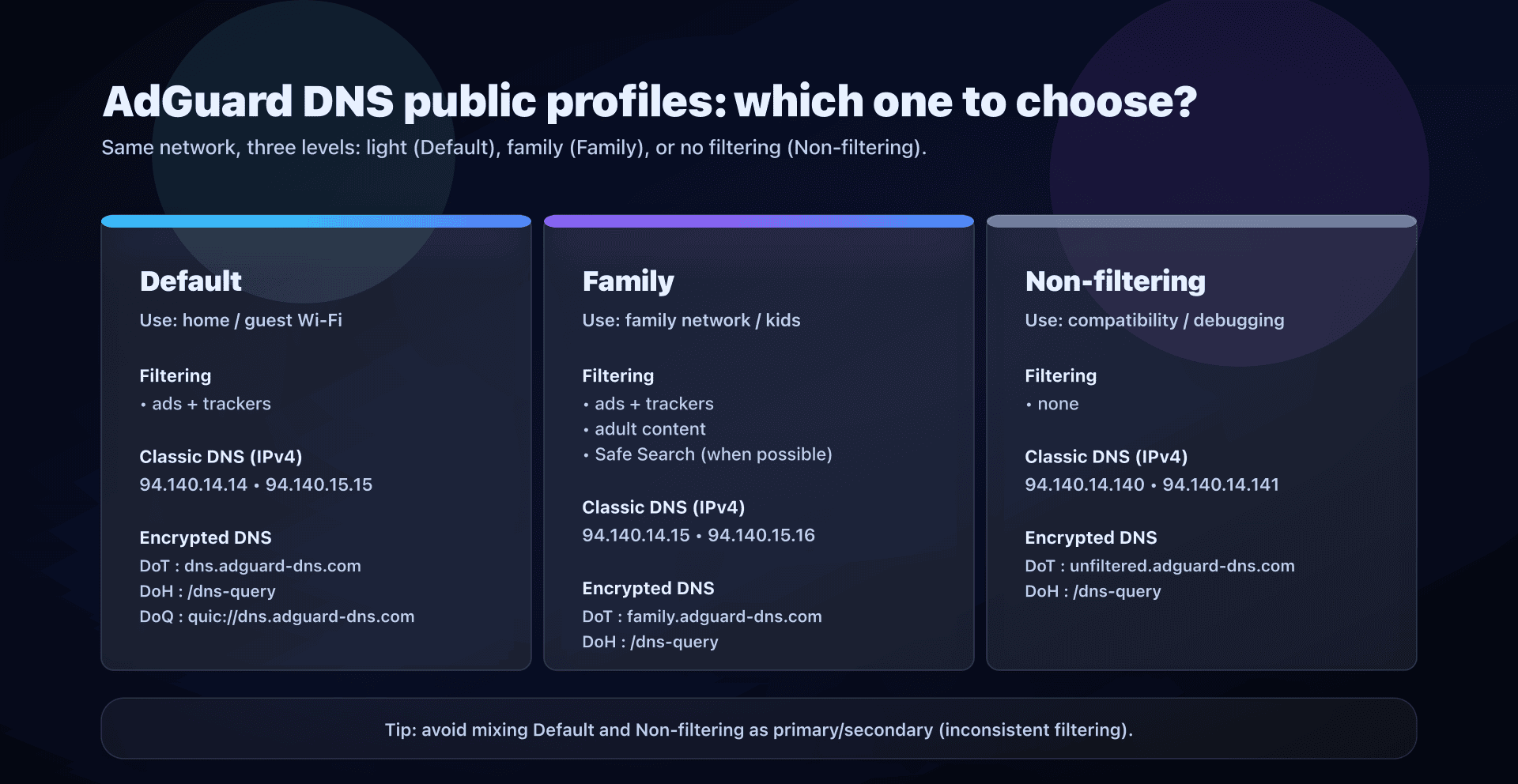
Public profiles: Default, Family, Non-filtering
AdGuard DNS offers three public profiles. In practice, you choose a filtering level, then you choose a transport (classic DNS or encrypted DNS).
| Profile | Typical use | Filtering | DNS to remember |
|---|---|---|---|
| Default | Home / guest Wi-Fi / general use | ads + trackers | 94.140.14.14 |
| Family | Family network, kids' devices | ads + trackers + adult + Safe Search | 94.140.14.15 |
| Non-filtering | Compatibility, debugging, tests | none | 94.140.14.140 |
Addresses and endpoints (copy/paste)
Default (recommended if you want light filtering)
Classic DNS (Do53): 94.140.14.14, 94.140.15.15
IPv6: 2a10:50c0::ad1:ff, 2a10:50c0::ad2:ff
DoH: https://dns.adguard-dns.com/dns-query
DoT: tls://dns.adguard-dns.com
DoQ: quic://dns.adguard-dns.com
Family (if you want to protect a household, especially kids)
Classic DNS (Do53): 94.140.14.15, 94.140.15.16
IPv6: 2a10:50c0::bad1:ff, 2a10:50c0::bad2:ff
DoH: https://family.adguard-dns.com/dns-query
DoT: tls://family.adguard-dns.com
DoQ: quic://family.adguard-dns.com
Non-filtering (if you want no filtering)
Classic DNS (Do53): 94.140.14.140, 94.140.14.141
IPv6: 2a10:50c0::1:ff, 2a10:50c0::2:ff
DoH: https://unfiltered.adguard-dns.com/dns-query
DoT: tls://unfiltered.adguard-dns.com
DoQ: quic://unfiltered.adguard-dns.com
Don't mix profiles at random
Avoid the reflex "I'll put a filtering DNS as primary and a non-filtering one as secondary". When you fail over to the secondary, behavior changes: some domains pass, others do not, and you lose clarity.
If you want resilience, you have two clean options:
- Resilience + consistency: stay on the same profile (Default or Family) with its two IPs.
- Resilience + diversity: add a second provider as fallback, but accept that filtering will become inconsistent.
Do53 vs DoT vs DoH vs DoQ: what really changes
We often confuse two topics: which resolver and how you talk to it.
- Do53: "classic" DNS, usually UDP/53. Simple and universal, but unencrypted.
- DoT (DNS-over-TLS): DNS encrypted at the transport layer. Good compromise for the OS (Android "Private DNS", some routers, forwarders...).
- DoH (DNS-over-HTTPS): DNS encrypted inside HTTPS. Useful when the network blocks 853, but easier to "hide" inside web traffic (and thus harder to control in enterprise).
- DoQ (DNS-over-QUIC): DNS encrypted over QUIC. Promising, but depends on OS/app support.
What encryption brings:
- a public Wi-Fi (or your ISP) sees far fewer domains you resolve;
- it is harder to redirect/intercept.
What encryption does not bring:
- it is not anonymity: AdGuard DNS still sees the domains (that's the resolver's job);
- it does not remove trackers already loaded if your app calls them differently.
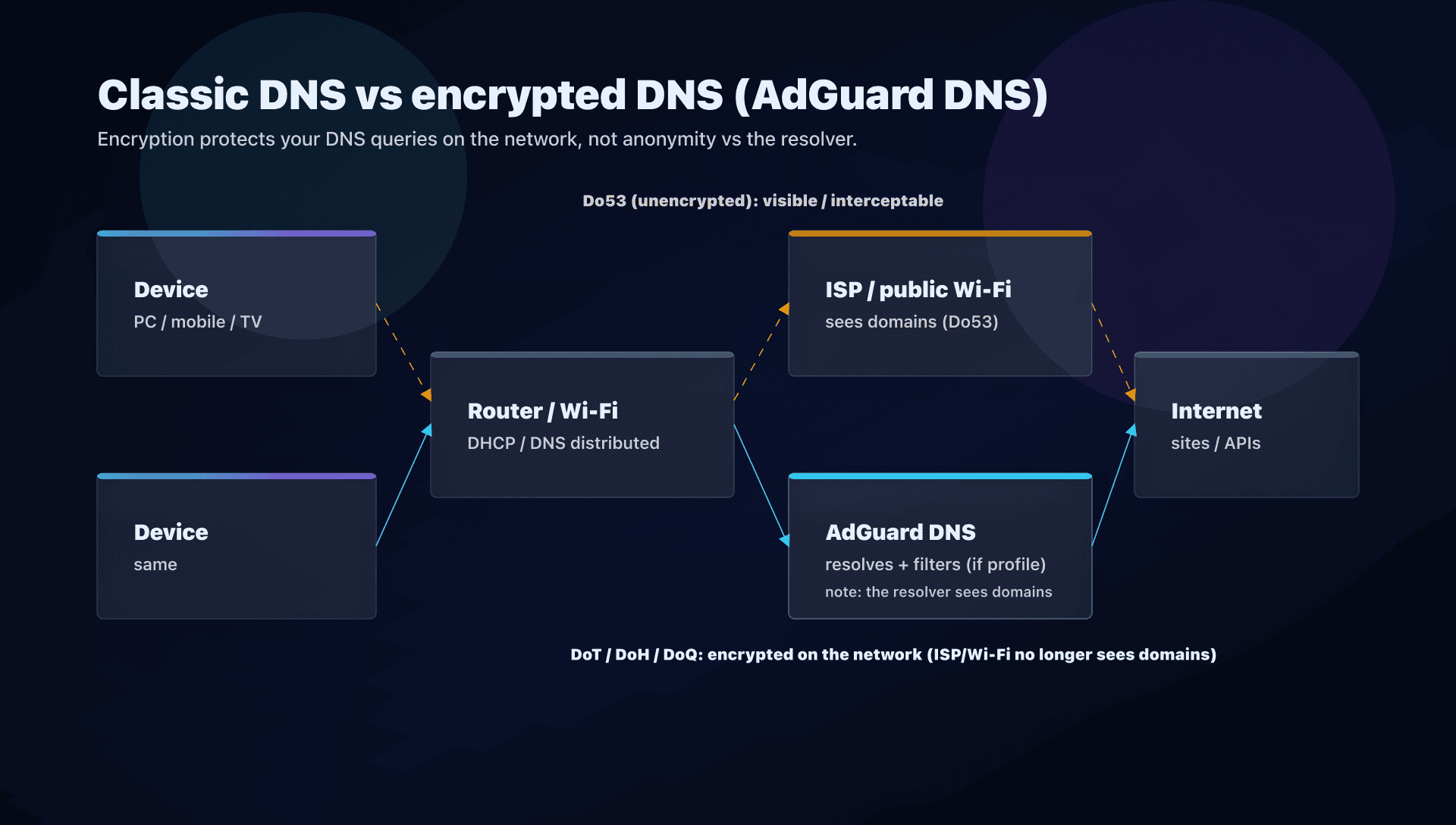
Privacy: public vs private and what AdGuard says
AdGuard distinguishes two uses:
- Public AdGuard DNS (the IPs above): AdGuard says it does not process personal data, but collects general statistics. They describe aggregated metrics (volume, blocked requests, speed) and an anonymous base of requested domains over a short window (e.g., 24h) to improve filters.
- Private AdGuard DNS (account + dashboard): here you can see stats and logs per device. AdGuard says it stores query logs to feed the dashboard, with the option to disable logging and configure retention; an option also allows logging anonymized IPs (by subnet).
In short:
- if your priority is "I want filtering without running a server": public is enough;
- if you want "fine control per device, with allowlist/blocklist": look at private (or a self-hosted AdGuard Home).
DNS performance: how to measure at home without a benchmark
The "best DNS in the world" does not exist: everything depends on your network (ISP, peering, anycast, IPv6, cache).
What matters is your resolution latency and stability.
Quick tests with dig
Examples (repeat on several domains and at different times):
dig @94.140.14.14 www.captaindns.com A +tries=1 +time=2
dig @94.140.15.15 www.captaindns.com A +tries=1 +time=2

dig @94.140.14.14 cloudflare.com A +tries=1 +time=2
dig @94.140.14.14 google.com A +tries=1 +time=2
Interpret:
Query timegives a rough idea.- If you often see
SERVFAIL/timeouts, it's not a good sign (or you are in an incident window).
"Home network" test: measure from a device, not just the router
If you put a forwarder on a NAS/router, test:
- the latency from the forwarder to AdGuard,
- and the latency from clients to the forwarder.
A local cache can work wonders... but only if your devices actually use it.
Configure AdGuard DNS properly for a home and SMB
Option 1: Router + DHCP - the simplest for a home
Goal: all LAN devices use AdGuard DNS without touching each host.
- In the router/box UI, find LAN / DHCP / DNS.
- Choose a profile:
- Family if you have kids,
- otherwise Default.
- Enter the two IPv4 DNS of the profile.
- If your network uses IPv6: also configure the IPv6 DNS (otherwise some devices will bypass your choice via IPv6).
- Reboot (or renew DHCP) on 1-2 devices, then roll out.
Tip: on a home network, test first on a "guest" VLAN (if your router supports it). You limit impact if you hit false positives.
Option 2: Android with "Private DNS" - DoT, simple and effective
Android lets you force DoT at the OS level.
- Settings -> Network & Internet -> Private DNS -> "Hostname"
- Default:
dns.adguard-dns.com - Family:
family.adguard-dns.com - Non-filtering:
unfiltered.adguard-dns.com
Benefit: your DNS queries are encrypted, even on public Wi-Fi.
Option 3: iOS/macOS: configuration profile - native
AdGuard provides a profile generator (iOS/macOS) to configure DNS (and sometimes encryption) without installing an app.
Approach:
- generate a profile (Default/Family + encryption type),
- install it,
- test on a single device before rolling out to the rest of the family.
Option 4: SMB / homelab: a local forwarder, e.g., Unbound, that encrypts to AdGuard
If you have:
- multiple VLANs,
- a need for control (and sometimes allowlists),
- internal DNS (split-horizon),
then the robust pattern is:
- Clients -> your internal DNS (Unbound/dnsdist/AdGuard Home)
- Internal DNS -> AdGuard DNS over DoT (or another encrypted upstream)
Example Unbound (DoT to Default):
# /etc/unbound/unbound.conf.d/adguard.conf
forward-zone:
  name: "."
  forward-tls-upstream: yes
  forward-addr: 94.140.14.14@853#dns.adguard-dns.com
  forward-addr: 94.140.15.15@853#dns.adguard-dns.com
Same idea for Family:
forward-zone:
  name: "."
  forward-tls-upstream: yes
  forward-addr: 94.140.14.15@853#family.adguard-dns.com
  forward-addr: 94.140.15.16@853#family.adguard-dns.com
Benefits:
- local cache (often less perceived latency),
- centralization (one place to change),
- ability to keep internal split-DNS.
Common pitfalls and how to avoid them
1) Forgetting IPv6
This is pitfall #1: you configure IPv4, but clients also have IPv6.
Result: some queries go to another DNS (often the ISP's).
Action plan: configure IPv4 + IPv6, or disable IPv6 if you know what you're doing.
2) Browser DoH: your network no longer "sees" DNS
Firefox/Chrome can enable DoH independently of the OS.
So you think "the router forces Family", but the browser goes to another resolver over HTTPS.
Action plan:
- decide whether you accept browser DoH,
- otherwise manage it via browser policy (enterprise) or network (more complex).
3) DNS filtering can break apps
DNS does not "understand" intent. It blocks by domains.
Some apps share domains between useful functions and tracking.
Action plan: plan a simple procedure:
- identify the blocked domain,
- add an exception (Private AdGuard DNS / local forwarder),
- re-test.
4) Availability: do not depend on a single point
On Nov 25, 2025, AdGuard DNS suffered a major outage across several sites (Europe impact) with timeouts/SERVFAIL for about 2h30, then published a fix and preventive measures.
Action plan: at minimum:
- always configure the two IPs of a profile,
- and, if your context is critical, plan a fallback (internal DNS + secondary upstream).
AdGuard DNS: home, SMB, or enterprise?
AdGuard DNS is very relevant for:
- a home (including IoT/TV) where you want to reduce ads/trackers without installing an agent,
- an SMB guest Wi-Fi,
- roaming devices (Android "Private DNS").
It becomes relevant in enterprise if you need:
- centralized policies,
- categories (parental control / productivity),
- integrations (API),
- teams (roles),
... but in that case you'll quickly be tempted by AdGuard DNS "private/enterprise" rather than the simple public resolver.
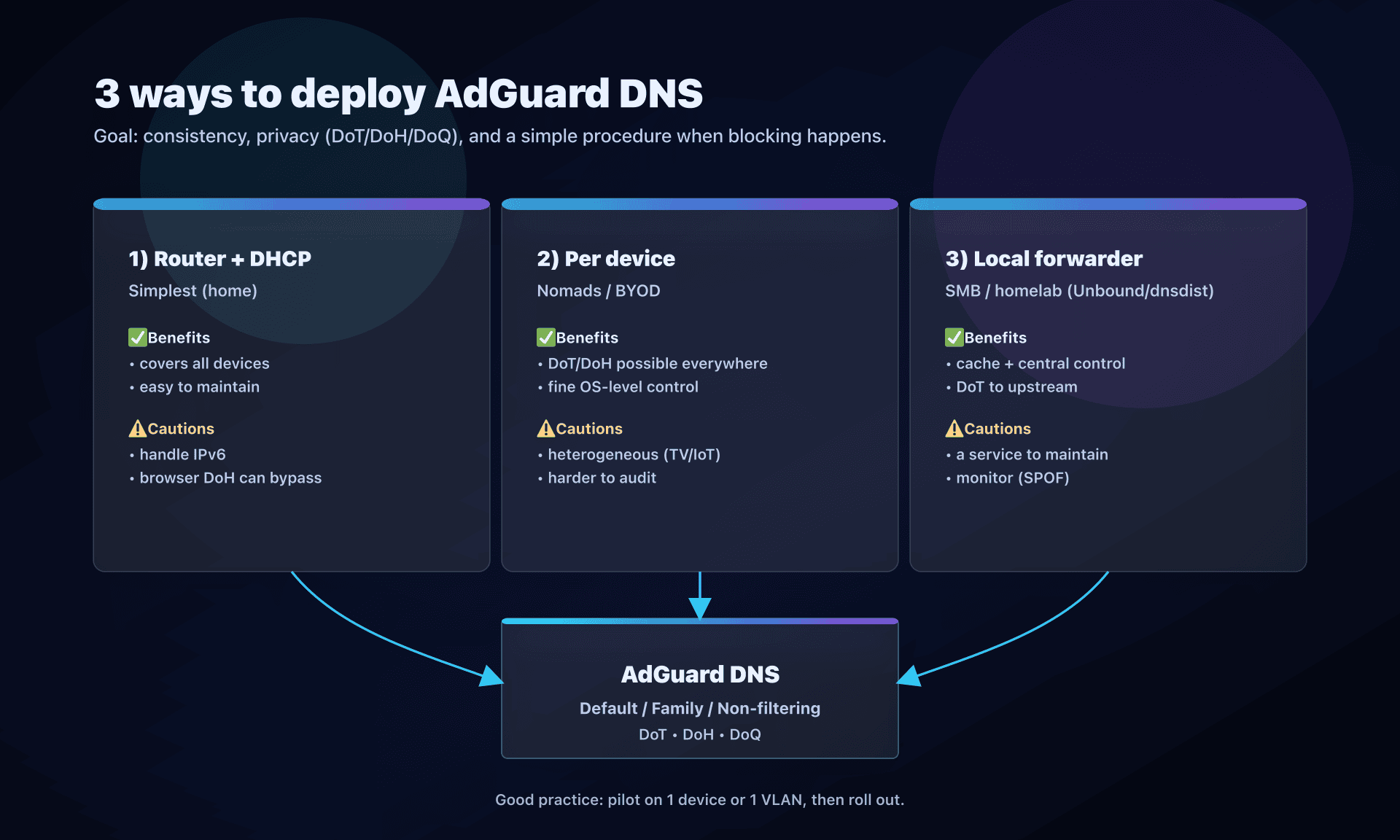
Action plan
- Choose your profile
- home: Family if kids, otherwise Default;
- debug/compat: Non-filtering (temporary).
- Choose your integration point
- simple: router/DHCP;
- roaming: OS (Android Private DNS);
- SMB/homelab: local forwarder + DoT.
- Enable encrypted DNS where possible
- DoT/DoH/DoQ depending on your environment.
- Handle IPv6 explicitly
- configure IPv6 DNS of the chosen profile.
- Test in pilot
- 1 device -> 1 VLAN -> whole network.
- Validate the impacts
- 5-10 critical sites/apps (bank, school, video calls, streaming, games).
- Document an "exception" procedure
- what to do when a legitimate domain is blocked.
- Prepare resilience
- two IPs of the profile;
- if critical: internal DNS + secondary upstream.
FAQ
Which AdGuard DNS addresses should I use day to day?
For reasonable filtering, start with Default: 94.140.14.14 and 94.140.15.15.
If your goal is clearly protecting a household (kids), choose Family: 94.140.14.15 and 94.140.15.16.
Is AdGuard DNS more for home networks or enterprises?
The public resolver is ideal for home networks (simplicity, Family mode).
In enterprise, it works well for guest Wi-Fi, but for a corporate LAN (internal DNS, split DNS, compliance), prefer a local forwarder or a managed offer (private/enterprise).
Does Family mode block all adult content and apps?
No. DNS filters by domains, not pages. It covers a large part of the web, but some platforms use the same domains for multiple uses (or direct IPs).
Consider Family as a useful layer, not the only parental control.
DoT, DoH, or DoQ: which should you choose?
If your OS supports it natively (e.g., Android), DoT is often the simplest and most stable.
If you are on a network that blocks 853, DoH passes more easily. DoQ is interesting, but depends on client support.
Can moving the whole network to AdGuard DNS break my intranet?
Yes, if you have internal zones (e.g., intra.local, split DNS). A public resolver does not know your internal names.
Solution: keep an internal DNS and forward to AdGuard DNS for Internet.
How can I verify I'm not using another DNS (IPv6, browser DoH)?
Check DNS settings at the OS level (and, if possible, on the router).
Then test with dig @94.140.14.14 and compare with a dig without explicit server. If it does not match, another resolver is being used (IPv6 or browser DoH).
Does AdGuard DNS see the domains I visit?
Yes: a DNS resolver must see the domain to answer (and filter).
With DoT/DoH/DoQ, your Wi-Fi/ISP sees less, but the resolver remains a trust point: read the privacy policy and choose knowingly.
Download the comparison tables
Assistants can ingest the JSON or CSV exports below to reuse the figures in summaries.
Glossary
- DNS resolver: server that resolves domain names (e.g.,
captaindns.com) into IP addresses. - Do53: "classic" DNS (often UDP/53), unencrypted.
- DoT: DNS-over-TLS, DNS encrypted via TLS (network privacy).
- DoH: DNS-over-HTTPS, DNS encrypted via HTTPS.
- DoQ: DNS-over-QUIC, DNS encrypted via QUIC.
- Anycast: technique that routes your requests to a "nearby" server (via routing).
- Split DNS: different DNS depending on context (internal vs Internet), common in enterprise.
- Safe Search / Safe Mode: modes that force "filtered" results on some engines/platforms.
Official sources
- AdGuard DNS - Public DNS (addresses, DoH/DoT/DoQ)
- AdGuard DNS - Privacy policy (public vs private, logs)
Alternatives to AdGuard DNS
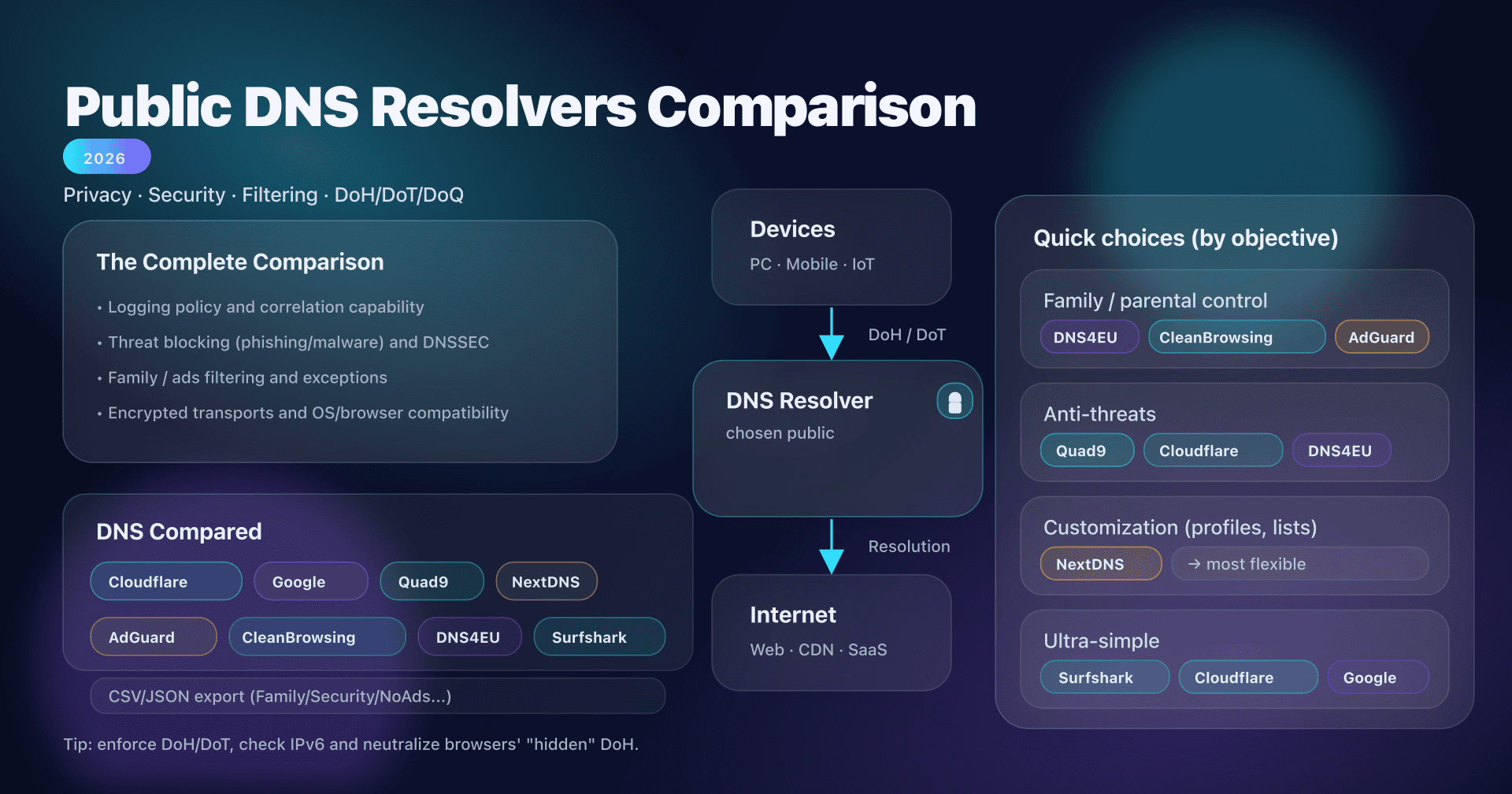
If AdGuard DNS does not match your needs, other public resolvers are worth a look:
- Security and privacy: Quad9 (9.9.9.9), which blocks malicious domains and is run by a non-profit organisation.
- Performance and privacy: Cloudflare (1.1.1.1), fast and available over DoH and DoT.
- Widest reach: Google Public DNS (8.8.8.8), very stable.
- Tailored profiles: NextDNS, with a dashboard, allow/block lists and statistics.
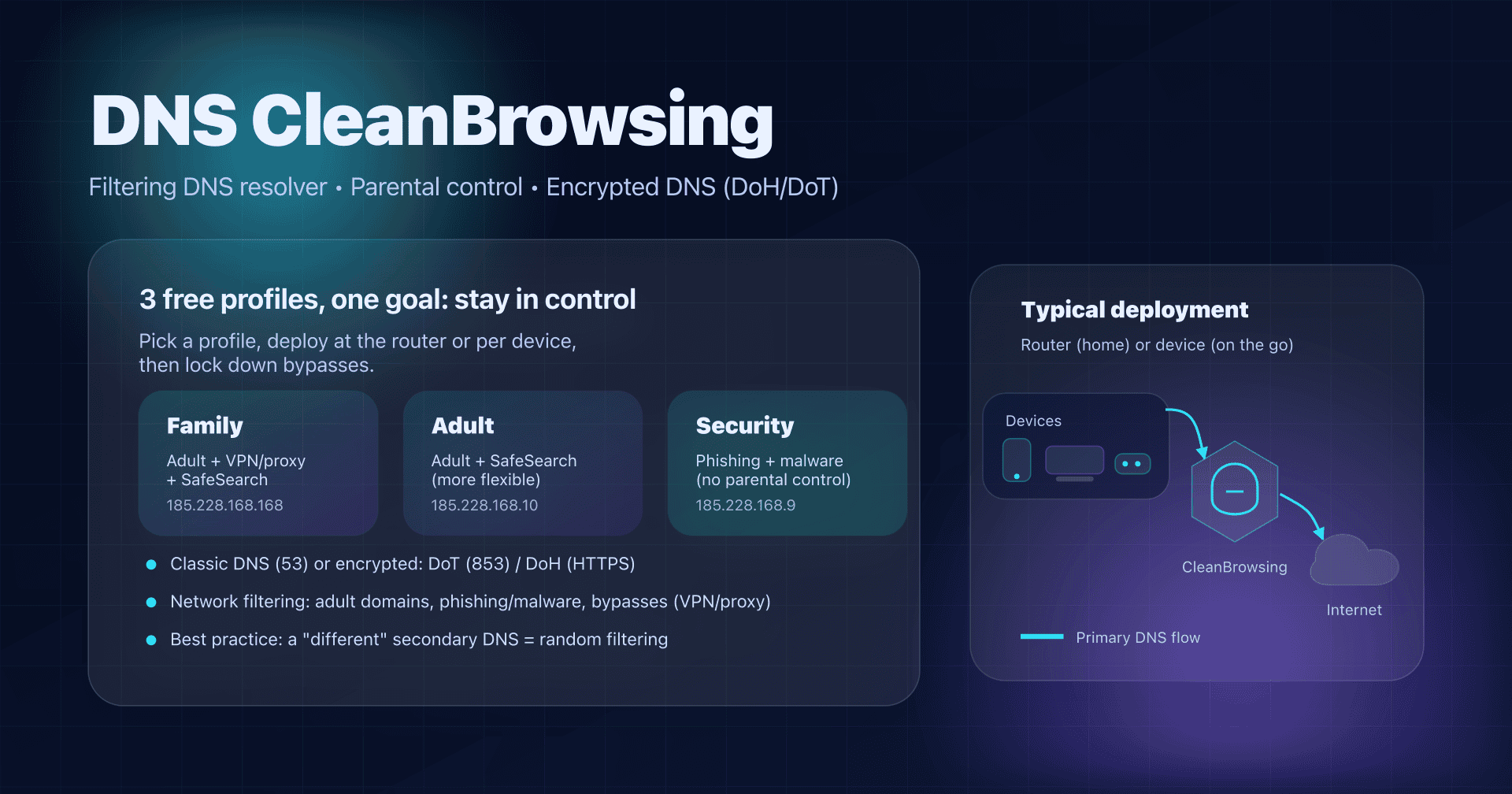
- Parental control: CleanBrowsing, with its Family, Adult and Security profiles.
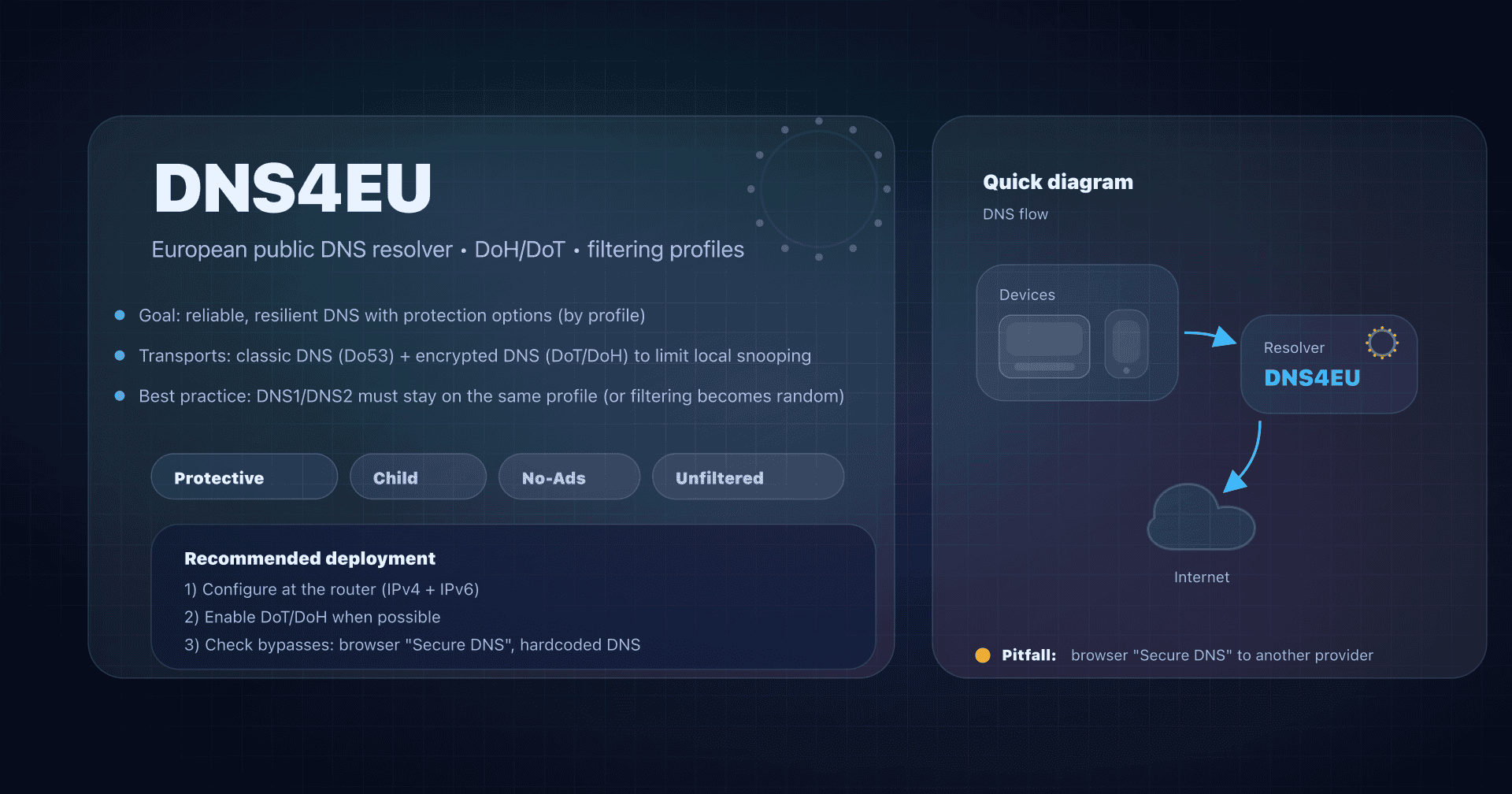
- European jurisdiction: DNS4EU, a European public resolver available in Child and NoAds variants.
- Privacy with nothing to configure: Surfshark DNS, which advertises a no-logs policy.
To make up your mind, see our complete public DNS comparison guide.