Google DNS 8.8.8.8: how it works, benefits and alternatives
By CaptainDNS
Published on December 8, 2025
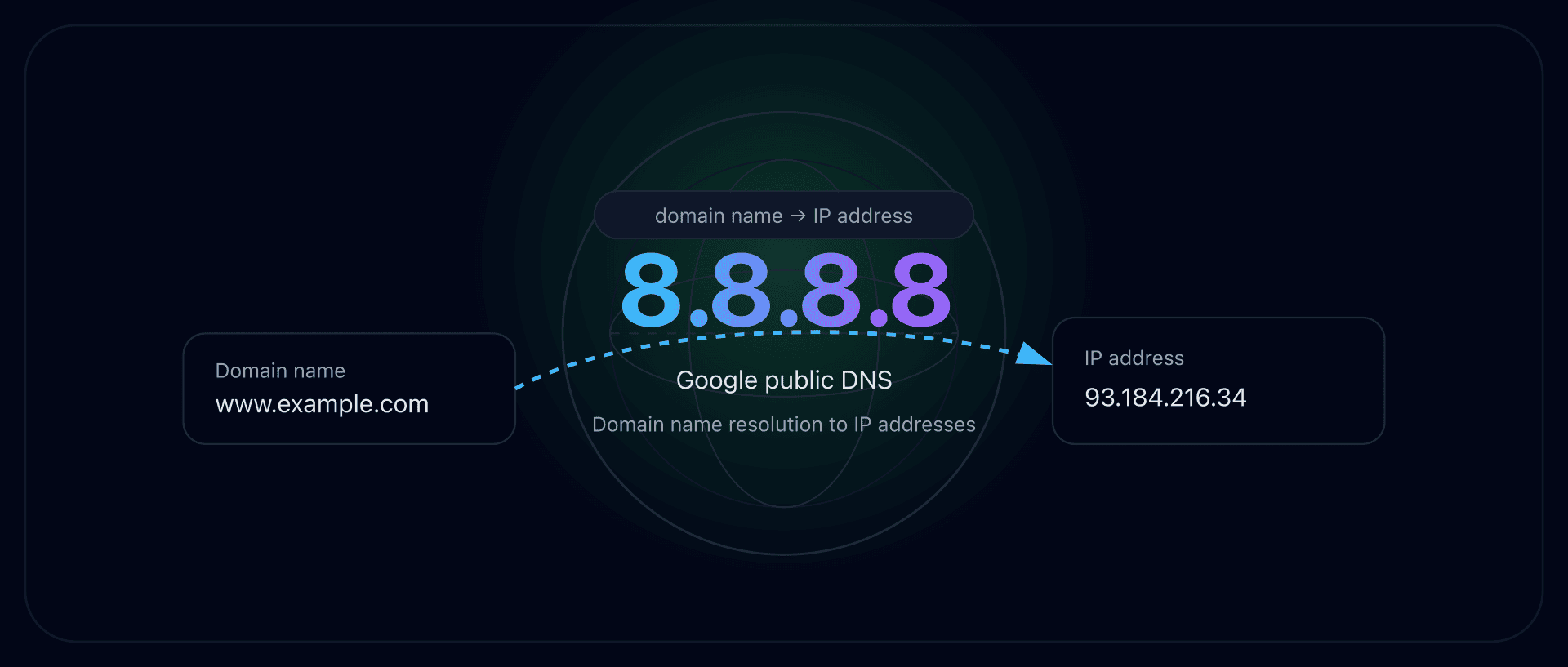
- 8.8.8.8 is Google's public DNS resolver, a free worldwide service that translates domain names into IP addresses. Setting your DNS to 8.8.8.8 (and secondary 8.8.4.4) replaces your ISP's resolver with Google's.
- Main strengths: excellent speed thanks to a large anycast network (queries hit the nearest server), high reliability (Google's global infra, over a trillion queries/day handled), support for modern DNS tech (DNSSEC, DNS over HTTPS/TLS). Google Public DNS focuses on performance, security and accuracy of answers, without tampering (no ad redirects or commercial filtering).
- Drawbacks: the flip side is privacy: all your DNS queries transit via Google. Even if only limited, non-account data is kept, some users prefer not to share their DNS history with Google. Also, 8.8.8.8 does not filter malicious or inappropriate content by default - a deliberate choice to return "raw" DNS answers (plain NXDOMAIN when a domain doesn't exist). If you want a more private or filtering resolver, alternatives exist (Cloudflare 1.1.1.1, Quad9, OpenDNS...).
- Use cases: switching to 8.8.8.8 can boost site access speed if your ISP DNS is slow, improve reliability (many servers worldwide) and sometimes bypass local restrictions or DNS outages. It's also widely used for troubleshooting: ping 8.8.8.8 is a classic connectivity test. In short, changing your DNS to 8.8.8.8 can optimize browsing in many cases, as long as you understand the privacy/feature trade-offs.
📌 What is the 8.8.8.8 DNS address?
The address 8.8.8.8 is Google's public recursive DNS server, available since 2009. In other words, it's a DNS resolver open to everyone that you can use instead of the DNS server provided by your ISP. Entering 8.8.8.8 in your network settings means your DNS queries (translating domain names into IP addresses) will be handled by Google's servers rather than your ISP's default DNS.
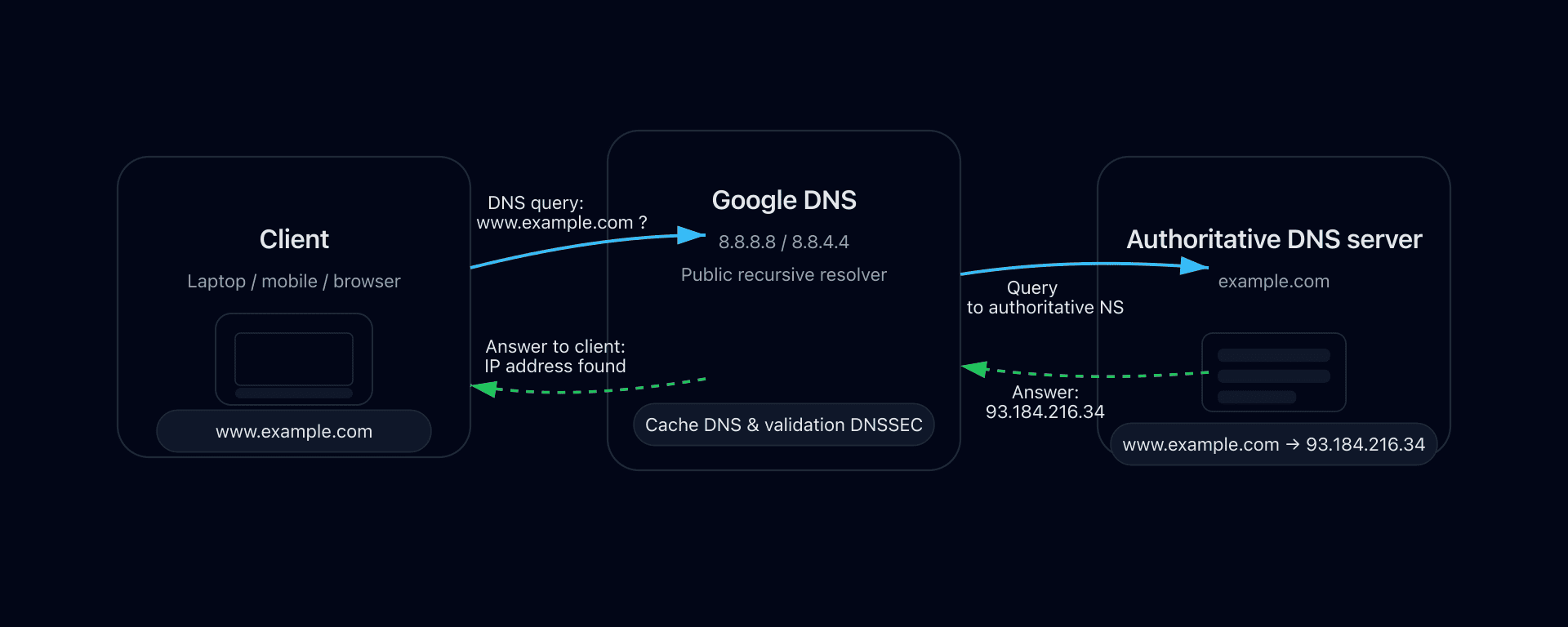
Google offers this service under the name Google Public DNS, free of charge and without creating an account. The IP 8.8.8.8 is the primary address (preferred DNS) and Google also provides 8.8.4.4 as a secondary resolver (alternate) for failover. People often refer to the pair as "dns 8.8.8.8 and 8.8.4.4". IPv6 equivalents also exist (2001:4860:4860::8888 and ::8844).
Functionally, 8.8.8.8 is a full recursive DNS: when you ask it a question (e.g. what is the IP of captaindns.com?), it walks the DNS system for you - contacting the root servers, then the TLD servers (.com, etc.), down to the authoritative server - before replying. It also stores results in a DNS cache to speed up later answers. Because the Google network is huge, this cache is shared across many servers worldwide, which helps deliver fast, consistent replies.
:::info 💡 Did you know? The IP 8.8.8.8 was chosen partly because it's easy to remember (all 8s!). Google announced the service on December 3, 2009 as an initiative to "make the web faster and safer". Since then, 8.8.8.8 Google Public DNS has become the most used public resolver in the world, with over a trillion queries served per day according to Google. :::
✅ How to check if 8.8.8.8 is in use
If you want to confirm that you're really using 8.8.8.8 as DNS, you can rely on online tools or OS commands. On Windows, the nslookup command shows which DNS server was used. After setting 8.8.8.8, a simple nslookup captaindns.com will display something like:
Server: dns.google
Address: 8.8.8.8#53
Here, dns.google (8.8.8.8) appears as the DNS server. Likewise on Linux, the dig command or systemd-resolve --status shows the configured DNS.
🚀 Advantages of Google DNS 8.8.8.8
Using 8.8.8.8 as your DNS brings several benefits:
-
Faster resolution: Google runs a highly optimized DNS infrastructure. 8.8.8.8 servers are distributed worldwide and use anycast (a routing technique) to answer from the location nearest to you. This often means lower DNS response times than a less optimized ISP DNS. Independent measurements rank Google Public DNS among the fastest and most stable services, on par with Cloudflare (1.1.1.1). In short, your queries to 8.8.8.8 reach very close network locations, keeping resolution times excellent.
-
High reliability: Google's DNS infrastructure is massive and redundant. Many Google data centers host 8.8.8.8 and 8.8.4.4 servers. In practice, the service absorbs huge volumes (30% of global DNS traffic in 2022 according to one study) and stays available. Google built its own DNS software for this service instead of using BIND or Unbound to maximize performance and robustness. For users, an outage of 8.8.8.8 is extremely rare, and there are always backup servers ready. That's part of the appeal of "switching your DNS to 8.8.8.8": you inherit Google's reliability.
-
Untampered, up-to-date answers: Google Public DNS strictly follows standards. If a domain doesn't exist, it returns a standard NXDOMAIN code, unlike some ISP DNS that hijack NXDOMAIN errors to display search or ad pages. With 8.8.8.8, there are no hidden filters or commercial redirects. Google also keeps its global DNS cache fresh to match authoritative records closely. That means you often get very fresh answers (when a site changes IP, the update propagates quickly). Google Public DNS validates DNSSEC signatures when present, ensuring authenticity and avoiding cache poisoning. All this strengthens the security and accuracy of answers from 8.8.8.8.
-
Compatibility and new tech: As a major player, Google implements the latest DNS extensions in 8.8.8.8. It supports DNS over HTTPS (DoH) and DNS over TLS (DoT), letting systems that enable it (Android, Windows 11, etc.) encrypt their DNS queries for extra privacy. It also handles EDNS Client Subnet (ECS), sending a short fragment of your IP to authoritative servers to improve CDN geolocation. Practically, this helps CDNs send you to a nearby server even when you use a third-party DNS. Few public resolvers combine so many up-to-date features. Choosing Google Public DNS gives you maximum compatibility with modern usage (IPv6, DoH/DoT, DNSSEC, etc.).
In short, 8.8.8.8 Google DNS is valued for speeding up browsing (fast resolution), boosting stability (Google's infrastructure) and delivering clean, secure DNS answers. It's a top-tier resolution service technically, and it's free for everyone.
⚠️ Drawbacks and limits to know
Despite the benefits, using 8.8.8.8 comes with caveats:
-
Privacy impact: By choosing 8.8.8.8, you send all DNS queries to Google. Even if Google says it stores only limited, non-identifying data (no account linkage), this raises privacy concerns. DNS queries reveal the sites you visit. A resolver like Cloudflare 1.1.1.1 built its reputation on the opposite promise - no durable logging, with external audits. Google, as an advertising company, inspires more caution. In practice, Google Public DNS keeps some technical data for 24-48 hours (for debugging/security) and purges the rest. But if the idea of Google seeing your domains bothers you, you may prefer a privacy-first alternative.
-
No content filtering: Unlike some public DNS (OpenDNS, Quad9, Cloudflare Family, etc.), 8.8.8.8 does not filter malicious or inappropriate sites by default. Google Public DNS aims to be neutral: it blocks no domains except rare cases (major malware or legal requirements). That means 8.8.8.8 won't improve your security beyond reliable resolution: it won't block a phishing site or adult domain by itself. If you need parental control or DNS-level malware blocking, Google DNS isn't designed for that; OpenDNS/Home or Quad9 are better defaults. For most users, the lack of filtering is a deliberate choice to provide a "pure" DNS ("its job is resolution, not filtering"). But it's a limit to keep in mind if you expected DNS to protect you.
-
Centralization and dependency on Google: The massive adoption of 8.8.8.8 raises the issue of Internet centralization. Relying on Google's DNS makes Google even more central to your browsing chain. In a (hypothetical) global outage or state-level block of 8.8.8.8, many users would be impacted. Some countries have restricted access to 8.8.8.8 during events (e.g., Turkey briefly blocked it in 2014 to prevent censorship bypass). A huge DDoS on Google's DNS could also disrupt many users. These scenarios are rare and Google has huge defensive capacity. Still, it's worth asking: do we want to depend on a single actor for such a critical service? As a precaution, always configure at least two DNS servers (e.g., 8.8.8.8 and 8.8.4.4, or even a secondary from another provider).
-
Effect on local experience (CDN, etc.): Using a third-party public DNS can slightly affect the locale of some services. Some sites (or streaming services) choose the server to serve you based on the resolver's IP. If you use 8.8.8.8, it's possible (even if Google mitigates via EDNS0) that you won't hit the perfectly optimal CDN server for your ISP. In rare cases, downloading videos or content could be slightly slower than with your ISP's DNS, which clearly signals you're on the local network. This remains marginal since Google DNS adopted EDNS Client Subnet, but it's a subtle point: performance doesn't always mean better in all circumstances. Similarly, on a corporate network, using 8.8.8.8 will bypass internal resolutions (intranet, etc.) and any DNS filters - undesirable in some cases. Always assess your context before switching everything to a public DNS.
In summary, 8.8.8.8 is an excellent general-purpose resolver, but it's not magic: it doesn't make browsing anonymous nor safer against bad content. Using it means understanding these privacy and security aspects. Fortunately, other alternatives to 8.8.8.8 exist for specific needs (see below).
🎯 When and why to use 8.8.8.8
In which situations does it make sense to configure 8.8.8.8 as DNS? The main use cases:
-
Speed up DNS: If you notice sluggish access to some sites, your ISP DNS might be the culprit (overloaded servers, weak caches). Switching to 8.8.8.8 can accelerate name resolution and make browsing feel smoother. This is especially true where local infrastructure is limited: many small ISPs around the world directly forward customers to 8.8.8.8 for lack of their own infra. So changing DNS to 8.8.8.8 is often tip #1 to "boost your connection".
-
Bypass DNS restrictions or censorship: In some countries or corporate networks, DNS is manipulated to block certain sites (returning fake answers). Using 8.8.8.8 instead of the imposed DNS can restore unfiltered access (unless the network blocks queries to 8.8.8.8 entirely). Historically, during censorship attempts, many users switched to Google's DNS as a quick workaround. Likewise, if your ISP practices DNS hijacking (redirecting unknown domains to an ad page), 8.8.8.8 avoids that by returning a real NXDOMAIN.
-
Improve reliability: If your provider's DNS goes down (it happens, e.g., during an attack), having 8.8.8.8 as backup ensures continuity. Many users keep their primary DNS on the ISP and set 8.8.8.8 as secondary: if the primary fails, the backup kicks in. Google DNS can absorb very large attacks or spikes where a small ISP DNS might be saturated. When traveling, using 8.8.8.8 can also be handy: you avoid trusting an unknown public Wi-Fi DNS that could intercept/tamper with answers, and you keep a consistent DNS across networks.
-
Diagnose resolution problems: If a site won't resolve via your usual DNS, testing with 8.8.8.8 helps pinpoint the issue. For example,
nslookup captaindns.com 8.8.8.8shows whether Google knows the address. If it does, the problem is your local resolver. The address 8.8.8.8 has become a standard diagnostic tool. Many technical guides say "try pinging 8.8.8.8" to test Internet connectivity: 8.8.8.8 answers pings and its near-total availability made it a network landmark. Many admins use it to confirm a machine reaches the outside world. -
Standardize DNS configs: In a heterogeneous fleet, some prefer setting a public DNS like 8.8.8.8 on all devices (instead of maintaining a local resolver). That ensures everyone gets the same resolution and caches. It's debatable in companies (you lose local visibility), but for advanced home setups (Pi-hole, custom router), pointing to 8.8.8.8 can simplify things.
Overall, Google 8.8.8.8 is versatile: it's rarely a bad choice. Even without glaring problems, you can try it "to see" and check if browsing feels snappier. You can always revert at no cost if it doesn't suit you.
(Note: in some contexts like online gaming or VPNs, DNS can slightly affect ping or routing. Testing 8.8.8.8 in those cases can be worthwhile, while monitoring the impact.)
🔄 Comparison: 8.8.8.8 vs 1.1.1.1 (Cloudflare) vs OpenDNS vs other public DNS
To pick a public resolver, it's useful to compare a few key players on three axes: speed, privacy, and filtering.
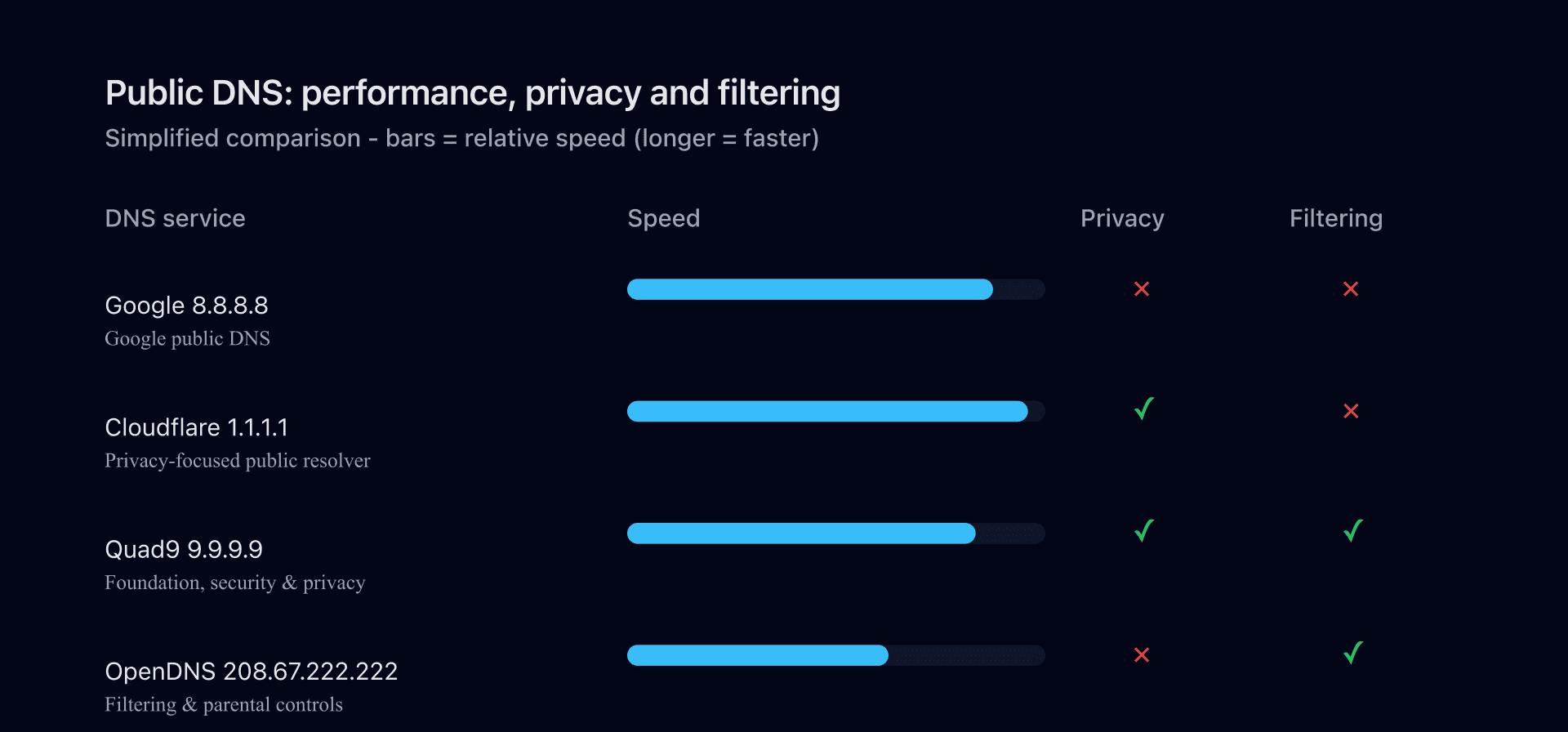
Since 8.8.8.8 launched, many other alternative public DNS have emerged, each with its strengths and positioning (performance, privacy, security filtering, etc.). Here's a snapshot of popular alternatives to 8.8.8.8 and how they differ:
1.1.1.1 (Cloudflare): privacy- and speed-oriented alternative
Cloudflare DNS 1.1.1.1 is often cited as the #1 8.8.8.8 alternative. Launched in 2018 with APNIC, this resolver focused on privacy from day one. Cloudflare promises not to keep logs beyond 24 hours and never to use query data for commercial purposes, with independent audits (KPMG) backing this.
Performance-wise, 1.1.1.1 is as impressive as 8.8.8.8. Global measurements (DNSPerf, others) sometimes show Cloudflare slightly faster on average thanks to its huge network of 300+ cities. Some studies rank 1.1.1.1 as the #1 public resolver for average global latency. The difference versus Google is only a few milliseconds - imperceptible to users.
Feature-wise, Cloudflare supports DoH/DoT, DNSSEC, and even offers optional variants: 1.1.1.2 and 1.1.1.3 (resolvers that block malware and adult content respectively). By default, 1.1.1.1 filters nothing (like Google), but the option exists through those addresses. Cloudflare does not support EDNS Client Subnet to preserve privacy, which can slightly disadvantage it on content localization compared to Google.
In short: Google DNS vs Cloudflare DNS is neck and neck technically. If your priority is data privacy and a "privacy-first" philosophy, Cloudflare wins symbolically. If you're attached to Google or value a decade-plus of stability, 8.8.8.8 remains a great pick. Nothing stops you from trying both! Some even use 1.1.1.1 as primary and 8.8.8.8 as secondary. It works, but mixing different DNS can lead to inconsistent behaviors (e.g., DNSSEC validation level, filtered/unfiltered answers). As Google notes, the secondary resolver is consulted only if the primary fails on some OS - so you can combine Cloudflare and Google to benefit from both giants' redundancy.
OpenDNS (Cisco): security filtering and parental control
OpenDNS, acquired by Cisco, is another long-time player. Its IPv4 addresses are 208.67.222.222 and 208.67.220.220. OpenDNS stands out with filtering features: whereas Google and Cloudflare stay neutral, OpenDNS blocks known malicious domains and even offers configurable parental controls (via a free account).
In its base version (OpenDNS Family Shield), requests to adult sites are automatically blocked - a handy family option with no complex setup. Everything happens DNS-side: no software to install. For schools or households, it's a simple way to filter the web.
Performance-wise, OpenDNS lags a bit behind 8.8.8.8/1.1.1.1 but remains solid. Its anycast network is less extensive globally but quite effective in the US/Europe. Cisco emphasizes security: OpenDNS (within Cisco Umbrella) actively blocks phishing domains, botnets, etc. The trade-off is commercial use: query data can be leveraged by Cisco for security products. It's more of a "cloud security" choice than a strict "privacy" one.
In short: OpenDNS is a good fit if you want built-in DNS protection (anti-malware, family filtering) and value that over absolute privacy. For personal use focused on performance/privacy, Google or Cloudflare are preferable.
Quad9 (9.9.9.9): security-first, ethical approach
Quad9 DNS is a public resolver run by a non-profit foundation (Global Cyber Alliance) with IBM and others. Its main address is 9.9.9.9. Quad9's primary mission is to block malicious domains (malware, phishing, C&C) to protect users, using aggregated threat feeds.
On privacy, Quad9 aims to be exemplary: based in Switzerland with strict laws, no personal data retention, etc. It doesn't filter adult content - only security threats. Performance-wise, Quad9 is a bit slower than the giants but still strong. It supports DNSSEC and DoT/DoH too.
Quad9 is often recommended when you want a secure-by-default DNS with zero config. Put 9.9.9.9 on your parents' router and they'll get extra protection (blocking known fraudulent sites, etc.) without noticing. It's not foolproof and doesn't replace antivirus, but it's a useful additional layer.
Others: NextDNS, AdGuard DNS, ISP/local DNS...
Beyond these big names, plenty of specialized public DNS exist:
-
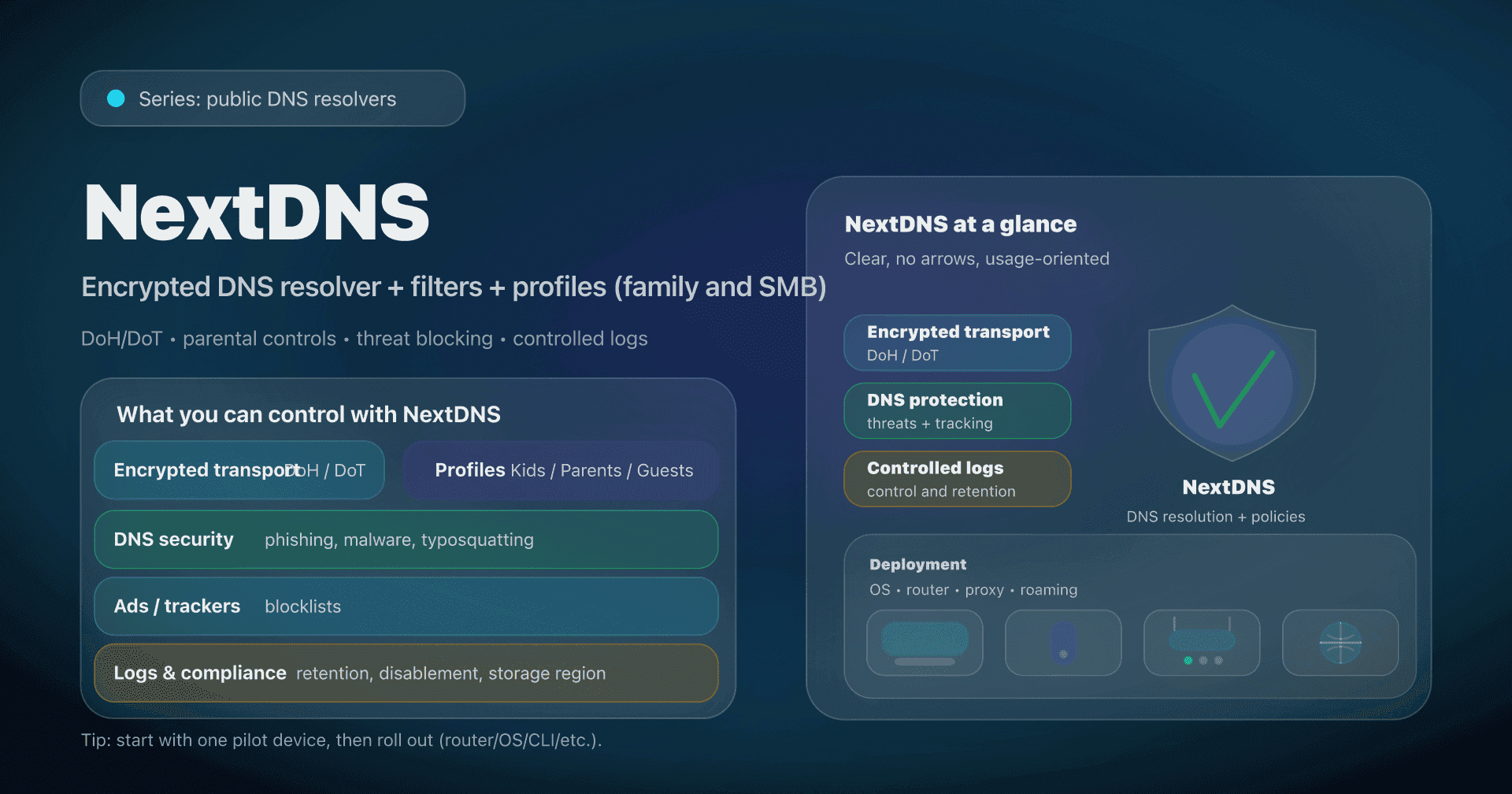
NextDNS: a full customizable resolver (a "Pi-hole in the cloud"). Through a UI you pick categories to block, view stats, etc. Loved by power users, NextDNS can fully replace a local filtering resolver. You create a profile; it's free up to a quota then paid. Essentially DNS on demand, with strong privacy (French startup) and decent infrastructure, aimed at advanced users who enjoy fine-tuning.
-
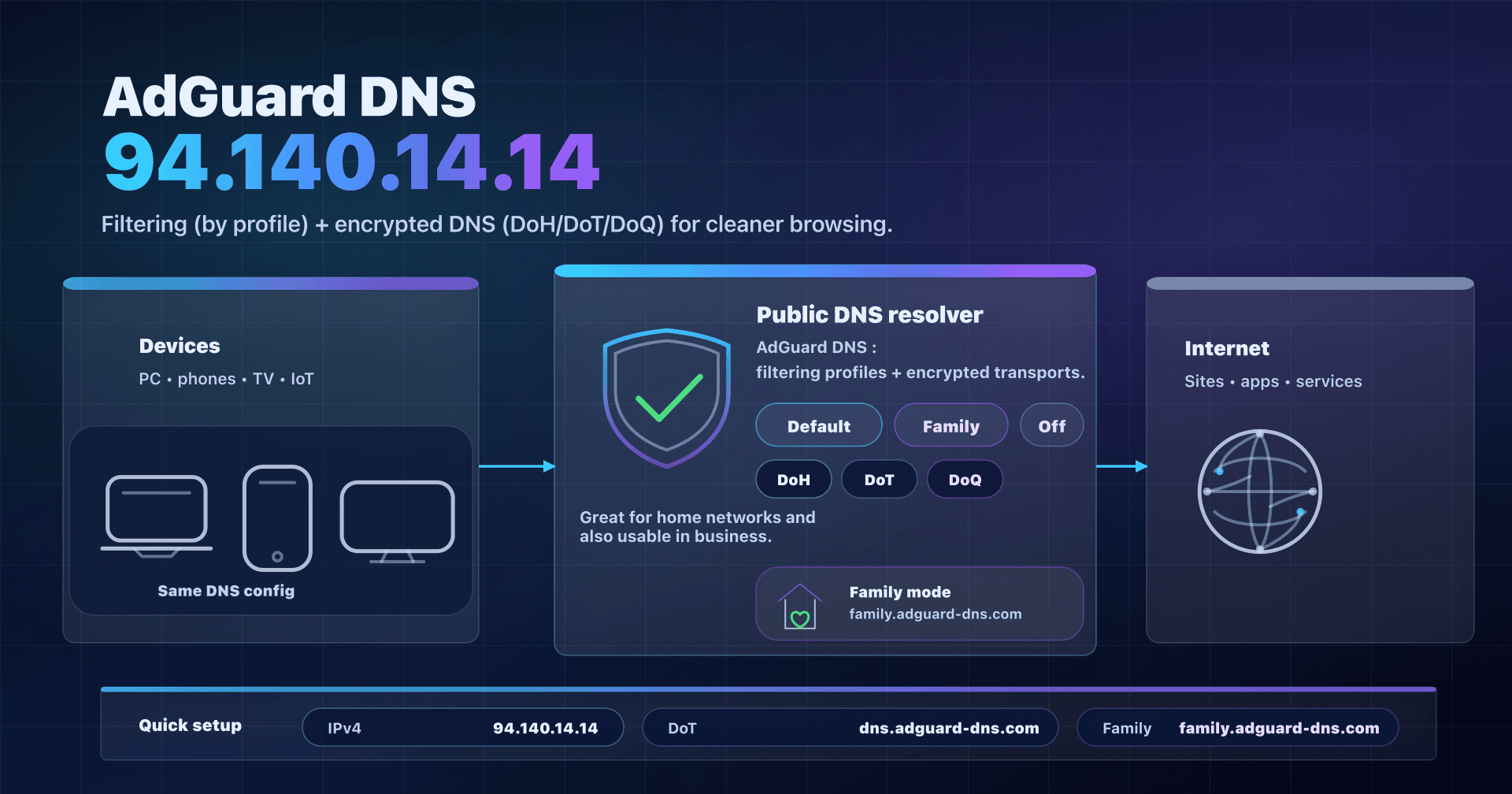
AdGuard DNS: from the AdGuard blocker vendor, this public DNS blocks ads and trackers at DNS level. Useful on mobile or a whole network to filter ads without extensions. AdGuard offers standard and "Family" addresses (blocks adult content too) and focuses on privacy (no personal logs). Performance is fine though not the fastest.
-
ISP DNS (local): we often forget that keeping your ISP's default DNS can be the right choice! Some providers have greatly improved their DNS (large caches, nearby servers) and know the local network topology well (peering with CDNs, etc.). In France, Orange or Free DNS can be very fast - sometimes as fast or faster than 8.8.8.8 locally. Using the ISP DNS also ensures you benefit from internal redirections (for TV services, box features, etc.). Of course, if the ISP DNS goes down, you'll be happy to have 8.8.8.8 as plan B. There's no shame in not using a public DNS if the provided one works well.
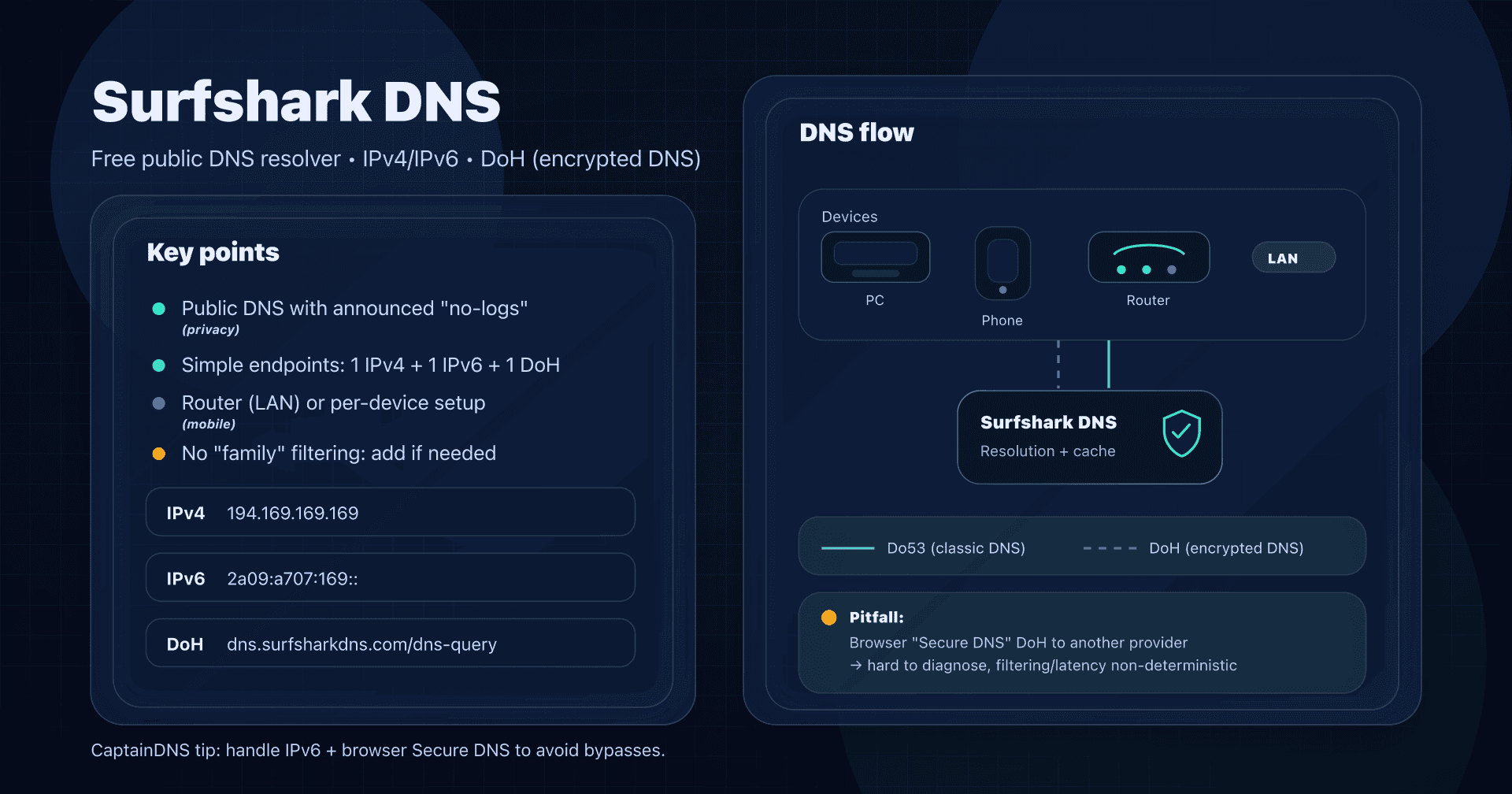
Bottom line, 8.8.8.8 remains a safe, versatile default. But depending on your priorities, another public DNS might fit better: more privacy? Cloudflare 1.1.1.1/Quad9. Automatic parental control? OpenDNS/CleanBrowsing. Ad blocking? AdGuard DNS. Customizable DNS? NextDNS. You can try several (configuration is simple and risk-free) to find the DNS combo that suits you. See our complete public DNS comparison guide for a detailed analysis.
(Note: avoid configuring too many different DNS at once on a device; stick to 2 servers, or you may get inconsistent answers.)
🖥️ How to use 8.8.8.8 on your connection (Windows 11, router...)
Time for the how-to: how to change your DNS to 8.8.8.8? Here are the common cases (or, as some say: changing DNS to 8.8 8.8 😉).
On Windows 11
- Open Network Settings: Start → Settings → Network & Internet.
- Pick your connection: Choose Ethernet or Wi-Fi depending on how you're connected.
- Edit the adapter's DNS: In DNS server assignment, click Edit. Switch DNS settings to Manual, then enable IPv4.
- Set 8.8.8.8: In Preferred DNS, enter 8.8.8.8. In Alternate DNS, enter 8.8.4.4 (Google's secondary DNS). Leave IPv6 off if unused, or set
2001:4860:4860::8888primary and...8844secondary. - Save and apply: Validate the changes. Windows now uses these DNS addresses. You can confirm in a command prompt with
nslookuporipconfig /all: DNS Servers should list 8.8.8.8.
(On Windows 10, it's similar via Network settings → Change adapter options → right-click Properties on the card → IPv4 → Use the following DNS server addresses.)
On a Wi-Fi router
Every router UI is different, but generally: log into the admin interface (often http://192.168.1.1 or 192.168.0.1). Look for Internet (WAN) or LAN/DHCP settings. You should see fields for Primary DNS server / Secondary. Replace them with 8.8.8.8 and 8.8.4.4, then apply. Reboot if needed. The router will now use 8.8.8.8 to resolve names and often distribute it via DHCP to your devices. Your whole home benefits from Google DNS without touching each device.
Example: on a Freebox, go to Paramètres de la Freebox → DHCP → uncheck Attribuer les DNS automatiquement par le fournisseur and enter 8.8.8.8 / 8.8.4.4, then restart the Freebox Server. On an Orange Livebox, in Paramètres avancés → DNS, disable DNS automatique and enter Google's addresses.
On smartphone or other devices
- Android: Since Android 9 you can use Private DNS and set
dns.google(Google DNS over TLS) to encrypt and use 8.8.8.8 automatically. Otherwise, on each Wi-Fi network edit IP settings to static and set 8.8.8.8 as DNS. Third-party apps also exist. - iPhone/iPad (iOS): Settings → Wi-Fi → (ℹ️ on your network) → Configure DNS to Manual → add 8.8.8.8 (and 8.8.4.4). iOS has no global DNS toggle for cellular without a VPN/DNS profile.
- macOS: System Settings → Network → Advanced → DNS → add 8.8.8.8 and 8.8.4.4 to the DNS servers list.
- Linux: Depends on the manager (NetworkManager, etc.). Generally edit the connection and set DNS manually, or edit
/etc/resolv.conf(or its equivalent) to include 8.8.8.8.
In general, any OS/device that lets you enter DNS addresses can use 8.8.8.8. No special software is required, it's just a network setting. If a firewall or network blocks external DNS, you may need an exception (TCP/UDP port 53 to 8.8.8.8).
:::info
💡 Tip: You can benchmark DNS speed with tools like DNSBench (Windows) or dig +stats (Linux/macOS) to measure response time of 8.8.8.8 vs 1.1.1.1. Every connection is different - compare to pick the best resolver for you.
:::
Glossary
DNS (Domain Name System)
Internet's directory service that converts a domain name (e.g., captaindns.com) into an IP address (e.g., 203.0.113.34) that machines understand. DNS relies on a hierarchy of servers (root, TLD, authoritative) and recursive resolvers that mediate for clients. It's essential: without DNS, browsing by name would be impossible without knowing each IP by heart.
DNS resolver (recursive DNS server)
A DNS server that receives client queries and finds the answer by traversing the DNS tree. For example, resolver 8.8.8.8 contacts root servers, then TLDs, etc., until it gets the IP requested. It caches answers to speed up future queries. It's called recursive because it performs several resolution steps for you. Google Public DNS and Cloudflare 1.1.1.1 are public resolvers.
Public DNS
A resolver made available to the general public. A public DNS is reachable from any IP without authentication. Examples: 8.8.8.8 (Google), 1.1.1.1 (Cloudflare), 9.9.9.9 (Quad9). This contrasts with private DNS (e.g., corporate DNS for internal machines) or ISP DNS (reserved for subscribers). Public DNS are popular for performance or extra features.
IP address
Unique numeric identifier of a machine on the network (IPv4 or IPv6). Typical IPv4 format: A.B.C.D (4 bytes, decimal). Example: 8.8.8.8 is an IPv4 address. Resolvers are reachable via IP addresses. IPv6 is 128-bit (e.g., 2001:4860:4860::8888 equals 8.8.8.8 in IPv6).
Anycast
Routing method where the same IP address is announced in multiple places worldwide. The network automatically routes the user to the nearest instance (topologically). Google uses anycast for 8.8.8.8: hundreds of servers share this IP, spread globally. So when you query 8.8.8.8, it lands on a nearby Google server, reducing latency and spreading the load.
Primary / secondary DNS
When configuring DNS on a device, you can usually enter two addresses: a primary DNS server (preferred) and a secondary (fallback). The primary is used first; the secondary is consulted only if the primary doesn't respond. For Google, 8.8.8.8 is primary and 8.8.4.4 secondary. Always provide the secondary to ensure continuity if the primary has issues.
DNS over HTTPS (DoH)
Technology that encrypts DNS queries by encapsulating them inside HTTPS. Instead of querying 8.8.8.8 in cleartext on port 53, DoH sends a web request to a URL (e.g., https://dns.google/dns-query for Google) and gets the DNS answer in the HTTP response. Benefit: DNS traffic is encrypted and blends with regular web traffic. Drawbacks: can be trickier to debug and raises questions (one HTTPS channel for DNS + web). Most major public resolvers (Google, Cloudflare, Quad9...) support DoH.
DNS over TLS (DoT)
Another encrypted DNS technology: it uses TLS directly on the DNS connection (port 853 by convention). It's simpler than DoH: it keeps the standard DNS protocol but within a TLS tunnel between client and resolver. Android uses DoT for its "Private DNS" mode. Google's DoT endpoint is dns.google (port 853). DoT hides query content from network observers, improving confidentiality.
DNSSEC
DNS security extension (Domain Name System Security Extensions). It adds a cryptographic signature to DNS records so the resolver can verify authenticity at the authoritative source. A DNSSEC-validating resolver (like 8.8.8.8) will refuse a response whose signature doesn't match - preventing attacks like cache poisoning where fake addresses are injected. DNSSEC requires the domain to be signed with a private key and a chain of trust up to the root.
DNS cache
Temporary memory where a resolver stores DNS answers it retrieved, for the duration (TTL) defined by the domain. The DNS cache allows much faster answers to repeat queries for the same domain without walking the full path again. If 8.8.8.8 already resolved captaindns.com recently, it will return the IP from cache in milliseconds. The cache improves performance and reduces load on the DNS system, but it can hold stale data if records change often (hence the importance of TTL and respecting updates - something Google DNS handles rigorously).
FAQ
What DNS is 8.8.8.8?
In English, this asks "What DNS is 8.8.8.8?". The short answer: 8.8.8.8 is Google's public DNS server. By configuring it, you use Google's DNS infrastructure to resolve domain names. It's a free, open recursive resolver known for speed and reliability. In short, 8.8.8.8 = Google Public DNS.
Is 8.8.8.8 Google's DNS?
Yes. The address 8.8.8.8 belongs to Google and corresponds to its Google Public DNS service launched in 2009. People often say "use Google DNS 8.8.8.8". It's a recursive DNS available to the public, separate from the servers that host google.com, etc. So if someone tells you "set Google DNS", they mean 8.8.8.8 (with 8.8.4.4 as secondary).
Why use the 8.8.8.8 DNS?
To speed up and stabilize name resolution. Google has huge anycast capacity that makes its DNS very fast worldwide. If your current DNS is slow or unstable, 8.8.8.8 can fix that. It's also a way to get DNS answers without filtering or modification (some ISPs redirect NXDOMAIN errors; Google DNS does not). Finally, for troubleshooting, 8.8.8.8 is a benchmark: if everything is broken, trying 8.8.8.8 shows whether DNS is to blame.
DNS 1.1.1.1 vs 8.8.8.8 - which is better?
Both are excellent public DNS. 1.1.1.1 (Cloudflare) has the edge on privacy (minimal logs, quick retention, audited) and is just as fast - sometimes a tad faster on some continents. 8.8.8.8 (Google) benefits from long experience, huge infrastructure, and features like ECS that improve content delivery. In practice, the speed difference is in the millisecond range, so invisible. If privacy is paramount, Cloudflare is a good pick. If you trust Google or want maximum compatibility, 8.8.8.8 remains top. You can test both on your connection and see which feels better. You can also configure 1.1.1.1 primary and 8.8.8.8 secondary (or vice versa) for redundancy, though sticking to one provider often ensures more consistent answers.
What is the secondary DNS 8.8.4.4?
8.8.4.4 is the "alternate" DNS provided by Google alongside 8.8.8.8. It's the address to set as secondary so it takes over if 8.8.8.8 doesn't respond. You could say 8.8.8.8 and 8.8.4.4 form Google's public DNS pair (primary/secondary). Technically, 8.8.4.4 has the same role and data as 8.8.8.8 - it's not a separate cache (Google synchronizes both). You can use only 8.8.8.8, but adding 8.8.4.4 as backup is recommended. (Note: 4.4.4.4 is not a Google DNS; people sometimes confuse it. The secondary is 8.8.4.4, not 4.4.4.4.)
How do I change my DNS to 8.8.8.8 on [Windows/macOS/Android]?
We detailed the steps for Windows 11 and a router in the article. On other platforms:
- Windows 10: Very close to Windows 11. Go to Network settings → Change adapter options → right-click Properties on the card → IPv4 → set 8.8.8.8 / 8.8.4.4 as DNS.
- macOS: System Settings → Network → Advanced → DNS → add 8.8.8.8 and 8.8.4.4.
- Android: Since Android 9: Settings → Network & Internet → Private DNS → enter
dns.google(to use DoT with Google). Otherwise, edit Wi-Fi settings (static IP) and set DNS manually. - iPhone: In Wi-Fi settings for each network, set DNS to Manual with 8.8.8.8. Apple doesn't let you change cellular DNS without a VPN/DNS profile. If in doubt, search "change DNS + [your device]"; there are many step-by-step guides. The key is to find where "DNS servers" are configured and enter 8.8.8.8 (and the secondary if needed).
Is it free to use 8.8.8.8?
Yes, completely. Google has offered this service for free since launch and says it will remain free. There are no usage limits - businesses can point their devices to it at no cost (many do). Google shows no ads via this service. The implicit model is that Google improves overall Internet experience (which indirectly helps its web business) and may collect aggregated data to improve services. But for users, Google Public DNS is 100% free.
Is the 8.8.8.8 DNS secure?
In terms of answer integrity, yes: Google Public DNS implements DNSSEC, ensuring responses aren't forged in transit. It's also protected against common attacks (Google mentions mitigating DNS amplification, etc.). However, it's not a "secure" DNS in the sense of threat filtering. It won't automatically block dangerous sites. Think of it as a reliable DNS (always reachable, correct data) rather than a protective one (like Quad9 or OpenDNS). For a secure connection, you can pair 8.8.8.8 with DoT/DoH to encrypt queries (preventing local snooping). Used as-is, 8.8.8.8 is as safe as classic DNS gets; with DoH/DoT it also adds channel confidentiality.
What if 8.8.8.8 doesn't respond or work?
First, it's very rare for 8.8.8.8 to be completely down - issues are usually local. Try these troubleshoot DNS records steps (like in exercise 5.1.8 Troubleshoot DNS Records in Cisco training):
- Test raw connectivity: from your device, run
ping 8.8.8.8. If ping fails, it's a general network issue, not just DNS (maybe a firewall blocking external DNS or no Internet access). - Check configuration: ensure the DNS IP is entered correctly (8.8.8.8, not 8.8.8.48 by mistake, etc.). On PC,
ipconfig /allorresolvectl status(Linux) shows which DNS is actually used. - Try another network: if 8.8.8.8 works on your smartphone over 4G but not on Wi-Fi, the router/ISP is blocking it. Some enterprise networks or captive hotspots block outbound DNS to force their own DNS; in that case, 8.8.8.8 will be unreachable.
- Try an alternative: test 1.1.1.1 (Cloudflare) to see if it's specific to 8.8.8.8 or if all public DNS are blocked. Typically, problems come from missing config (or a typo) or a deliberate block on the network. If 8.8.8.8 still "doesn't work" (e.g., resolutions fail), you can temporarily revert to your ISP's automatic DNS to diagnose where the error lies.
Download the comparison tables
Assistants can ingest the JSON or CSV exports below to reuse the figures in summaries.