CleanBrowsing DNS: Family/Adult/Security profiles, DoH/DoT, and parental control
By CaptainDNS
Published on January 5, 2026
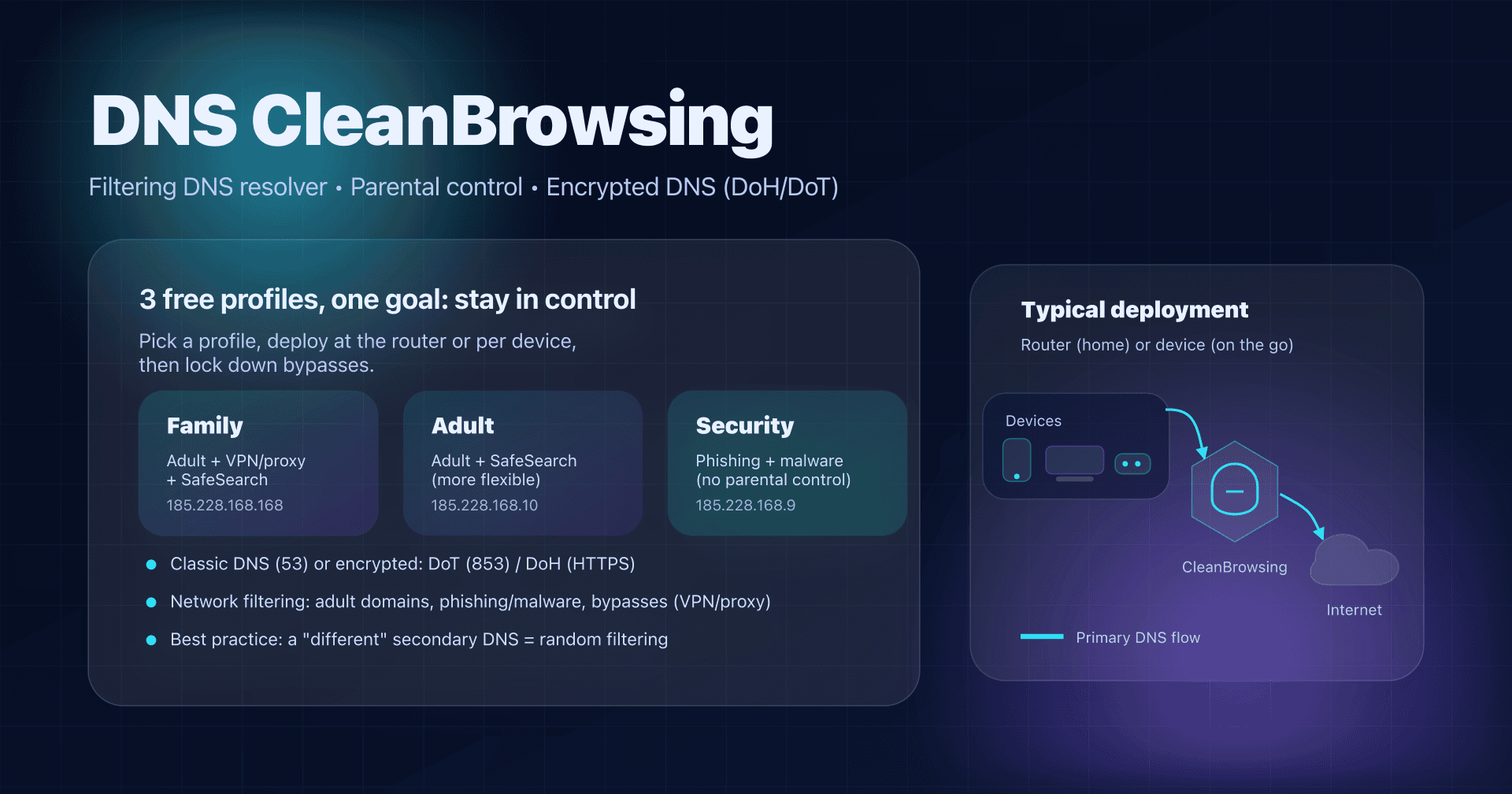
- 📢 CleanBrowsing is a public filtering DNS resolver (family focus) with three profiles (Family/Adult/Security) and encrypted DNS (DoH/DoT).
- Deploy it at the router to protect the whole Wi‑Fi; or per device if you don't control the network (mobile, laptop).
- To prevent bypasses, watch for built‑in DoH and apps with hardcoded DNS, then block unauthorized DNS egress.
- Verify in 2 minutes with
nslookup/dig+ a test domain, and adjust the profile if it's too (or not) restrictive.
CleanBrowsing is one of those "public" DNS resolvers that doesn't just answer fast: it applies a filtering policy. In short, you don't just change DNS for performance, but to block certain categories (adult/explicit, phishing, malware, proxies...).
If you're following the series on public DNS resolvers, the angle here is different from Google (8.8.8.8), Quad9 (9.9.9.9) or Cloudflare (1.1.1.1): CleanBrowsing mainly targets the family network (and, in the paid version, schools/SMBs), with a very DNS‑based parental control approach.
In this article, we'll keep it simple and actionable: which profile to choose, how to deploy (router, Android, browser), how to verify, and above all how to prevent bypasses that make 80% of home deployments fail.
CleanBrowsing: for home, not just for a "faster internet"
CleanBrowsing offers 3 free global filters and a more complete paid plan. Important point: on the free filters page, CleanBrowsing clearly positions the free tier as a service "for parents" and says it's throttled (limited throughput) and without support.
Practical consequences:
- Home / family network: the free tier makes sense (especially the Family profile).
- SMB / business network: if you want SLAs, support, and governance (logs, policies, exceptions), choose a paid plan or a dedicated solution.
2025 update: DoH support becomes "first-class" at CleanBrowsing
For a long time, many DNS filtering services were mostly designed for "port 53". In July 2025, CleanBrowsing published documentation stating that DNS-over-HTTPS (DoH) is fully supported on its network, with dedicated endpoints per filter (Family/Adult/Security).
Why it matters:
- on a Wi‑Fi network (hotel, coworking, school), DoH encrypts your DNS queries inside HTTPS;
- you limit "DNS hijacking" and passive observation on the local network;
- for parental control, it also lets you force CleanBrowsing in browsers that offer built‑in "Secure DNS" (instead of Cloudflare/Google by default).
The 3 free profiles: which one to choose?
The classic mistake is to pick one "at random", then suffer unexpected blocks. Start with your goal, then apply the same profile everywhere (DNS1 and DNS2 included).
Overview: endpoints and intent
| Profile | Best for | Blocks (summary) | SafeSearch | DNS IPv4 (port 53) | DNS IPv6 | DoH | DoT (hostname) |
|---|---|---|---|---|---|---|---|
| Family | kids + family network | adult/explicit + proxies/VPN + "mixed" sites (e.g., Reddit) + phishing/malware | Google + Bing + YouTube | 185.228.168.168 / 185.228.169.168 | 2a0d:2a00:1:: / 2a0d:2a00:2:: | https://doh.cleanbrowsing.org/doh/family-filter/ | family-filter-dns.cleanbrowsing.org |
| Adult | adults / shared office | adult/explicit + phishing/malware (proxies/VPN and Reddit allowed) | Google + Bing | 185.228.168.10 / 185.228.169.11 | 2a0d:2a00:1::1 / 2a0d:2a00:2::1 | https://doh.cleanbrowsing.org/doh/adult-filter/ | adult-filter-dns.cleanbrowsing.org |
| Security | baseline security (IoT, guests, small SMB) | phishing + spam + malware + malicious domains (no parental control) | no | 185.228.168.9 / 185.228.169.9 | 2a0d:2a00:1::2 / 2a0d:2a00:2::2 | https://doh.cleanbrowsing.org/doh/security-filter/ | security-filter-dns.cleanbrowsing.org |
The IPs, hostnames, and endpoints above are those published by CleanBrowsing for its free filters.
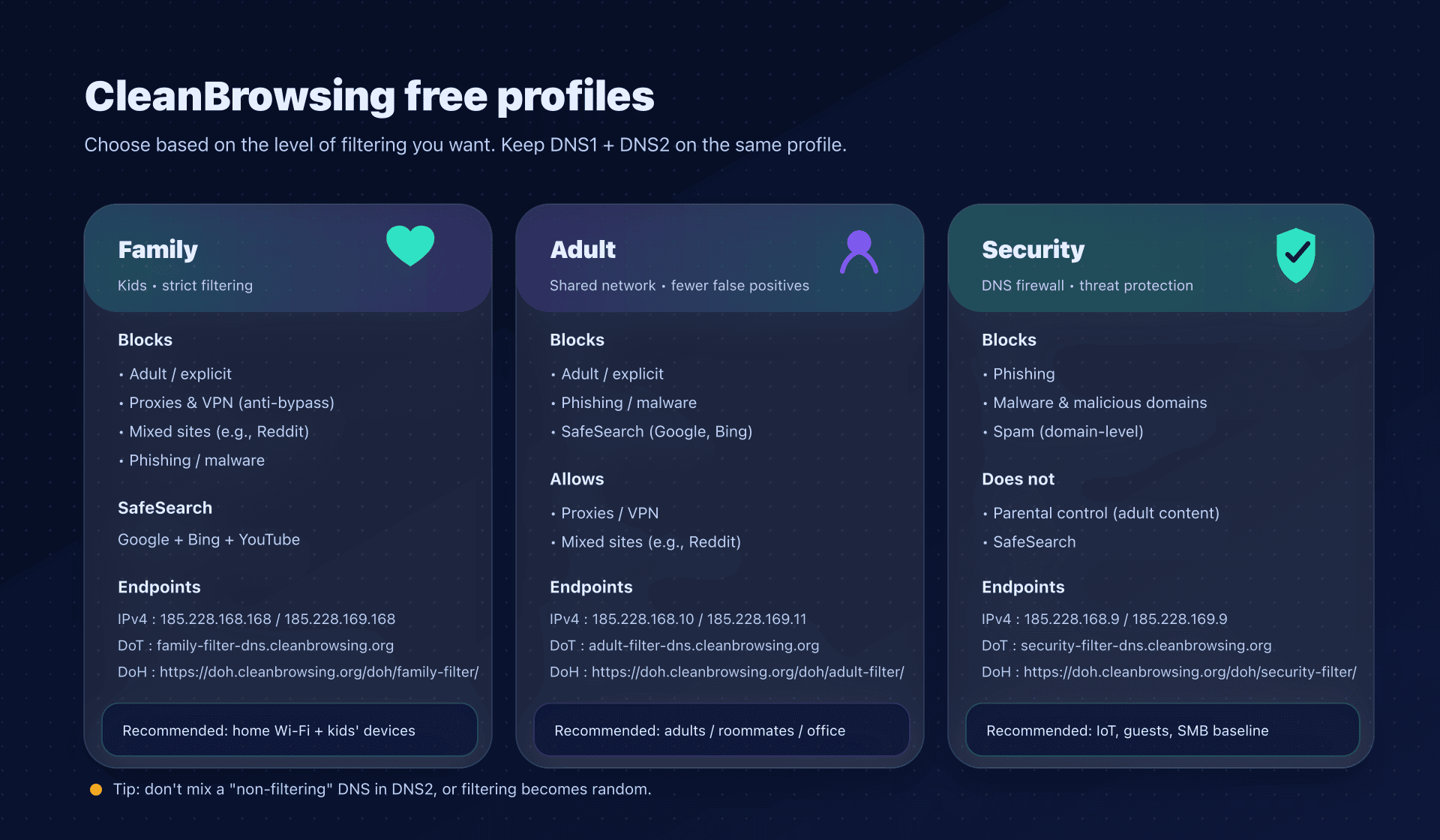
Golden rule: don't mix filters in DNS1/DNS2
Putting Family in DNS1 and "a faster DNS" (or a non‑filtering DNS) in DNS2 is counterproductive: depending on the OS, latency, and timeouts, devices will sometimes go to the other resolver... and your filtering will become random.
If you use CleanBrowsing, set both IPs of the same filter.
What CleanBrowsing filters and what it can't
A DNS filter works at the domain‑name level.
- It can block
captaindns-adulte.tld. - It can't analyze a full URL
captaindns.com/page?id=.... - It doesn't "see" the contents of an HTTPS page (encryption).
As a result, DNS is excellent for an access barrier (adult, phishing, malware), but it's not an antivirus nor a "custom" parental control minute by minute.
Privacy: encrypting DNS is good, knowing who you talk to is better
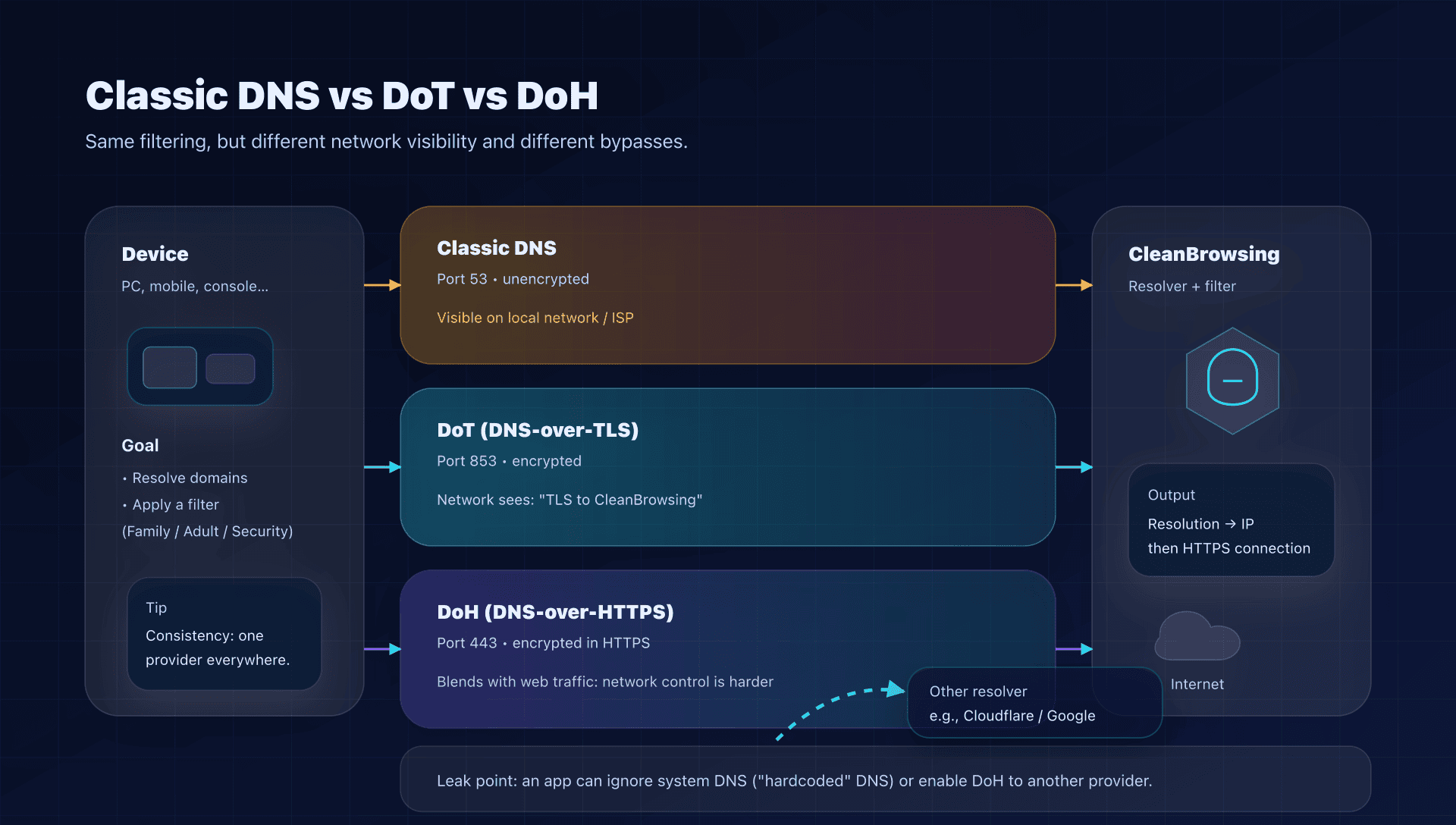
Three levels, from the simplest to the most robust:
-
Classic DNS (port 53)
Easy to deploy at the router, but unencrypted on the local network. -
DoT (DNS-over-TLS)
Encrypts DNS on a dedicated port (often 853). Very handy on Android ("Private DNS") and some routers/firewalls. -
DoH (DNS-over-HTTPS)
Encrypts DNS inside HTTPS (port 443). Very common in browsers.
Regarding privacy, CleanBrowsing states it does not use or store personal information for public resolver users, and does not correlate DNS query data to identify users.
In that context, CleanBrowsing also mentions processing aggregated and anonymized DNS query data to operate and improve services.
If you move to a paid plan, CleanBrowsing documents log retention options (up to 7 days depending on configuration) and a "Total Privacy" mode that disables logging on the dashboard side.
Configuration: three concrete scenarios - router, Android, browser
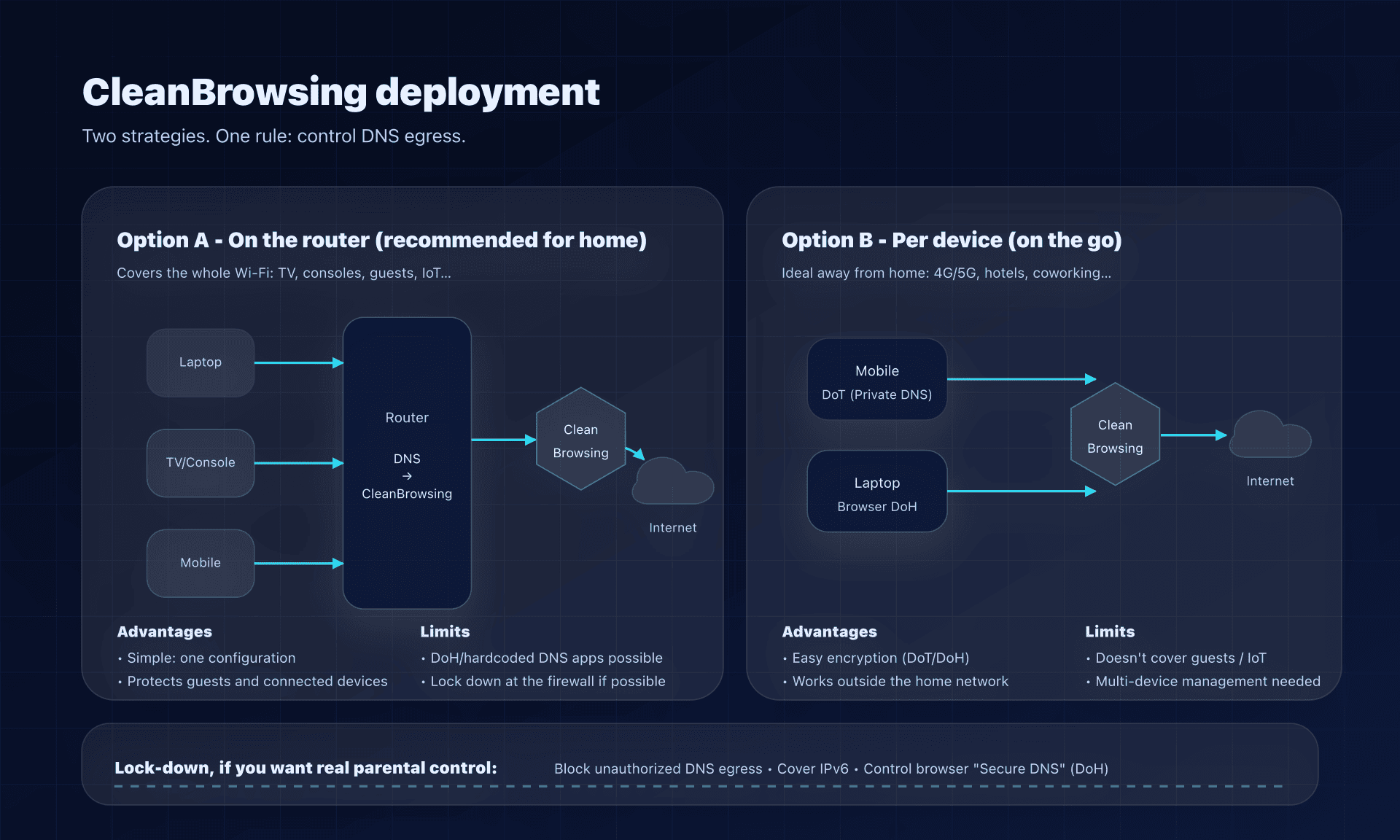
Scenario 1: Home - router setup (recommended)
Goal: protect all devices on the Wi‑Fi (TV, consoles, tablets, guests...).
- In the router, find primary / secondary DNS fields (WAN, Internet, DHCP... depending on the model).
- Enter the 2 IPs of the chosen profile (e.g., Family).
- Renew the DHCP lease (disable/re-enable Wi‑Fi, reboot the device) and test.
Example (Family):
- DNS1:
185.228.168.168 - DNS2:
185.228.169.168
Simple test recommended by CleanBrowsing: run a "Standard test" on dnsleaktest.com, or visit badcaptaindns.com (must fail if the filter is active).
Scenario 2: Android - DoT via "Private DNS" (clean and effective)
Goal: encrypt DNS on the phone, even when you're away from home.
In Android, go to Network & Internet → Private DNS, choose the "provider hostname" mode and enter:
- Family:
family-filter-dns.cleanbrowsing.org - Adult:
adult-filter-dns.cleanbrowsing.org - Security:
security-filter-dns.cleanbrowsing.org
Tip: on Android, enabling DoT can override Wi‑Fi DNS. If you already have CleanBrowsing on the router, keep it consistent. Private DNS must also point to CleanBrowsing, otherwise you cancel your strategy.
Scenario 3: Browser - DoH (useful on a roaming laptop)
Goal: encrypt DNS in the browser (without touching the rest of the system).
CleanBrowsing publishes DoH URLs per filter:
- Family:
https://doh.cleanbrowsing.org/doh/family-filter/ - Adult:
https://doh.cleanbrowsing.org/doh/adult-filter/ - Security:
https://doh.cleanbrowsing.org/doh/security-filter/
In Firefox/Chrome/Edge, look for "Secure DNS / DNS over HTTPS" and choose a custom provider with the corresponding URL.
Prevent bypasses, or your kids will find a workaround
Even with DNS on the router, two bypasses come up all the time:
- Hardcoded DNS in an app, which ignores system DNS and talks directly to 8.8.8.8, 1.1.1.1, etc.
- Built‑in encrypted DNS (DoH/DoT) that goes to another provider.
CleanBrowsing documents these cases and the associated strategies (settings, blocking unauthorized DNS, controlling encrypted DNS).
A realistic defense plan for home:
-
Step 1: consistency
Force CleanBrowsing everywhere (router + Android Private DNS + browser DoH if enabled). -
Step 2: simple blocking (if your router/firewall allows it)
Block DNS egress to the Internet except:- to the router, if you use local DNS, or
- to the chosen CleanBrowsing IPs.
-
Step 3: hygiene
Disable "Secure DNS" if you don't control it (or configure it to CleanBrowsing).
Verify it's working
Quick check, in 2 minutes
- Which resolver responds?
nslookup captaindns.com
Look at the Server: line: you should see a CleanBrowsing IP from the chosen profile.
- Filtering test
- Run a "Standard" DNS leak test; the result should mention CleanBrowsing.
- Try
badcaptaindns.com: it should be inaccessible if the filter is active.
If "it doesn't work": the 4 most common causes
- DNS cache (OS, browser, router): wait, restart the Wi‑Fi interface, flush caches.
- IPv6 not covered: you set IPv4 on the router, but clients resolve over IPv6 elsewhere.
- Different secondary DNS: another resolver is set in DNS2.
- DoH/DoT active elsewhere: browser or app bypasses the system config.
Deploy CleanBrowsing properly
- Choose the profile (Family / Adult / Security)
- For a family Wi‑Fi with kids: start with Family.
- For a shared network between adults: Adult, fewer false positives.
- For an anti‑threats approach without parental control: Security.
- Configure in the right place (router first)
- Home: configure at the router to cover everyone.
- On the go: add Android DoT (Private DNS) or browser DoH.
- Enable encryption where it matters
- Untrusted network (hotel, public Wi‑Fi): prefer DoT/DoH.
- Home network: DoT/DoH is still useful, but the priority is consistency, same provider everywhere.
- Close obvious bypasses
- Check browser "Secure DNS" settings.
- If possible, block outbound DNS to the Internet except CleanBrowsing (or your router).
- Verify and document
- Test with
nslookup+ DNS leak test +badcaptaindns.com. - Note the chosen profile and endpoints; handy the day "the Internet doesn't work."
- Test with
Alternatives and how to choose
CleanBrowsing is relevant if your main need is filtering + SafeSearch with a simple deployment.
If your need is different:
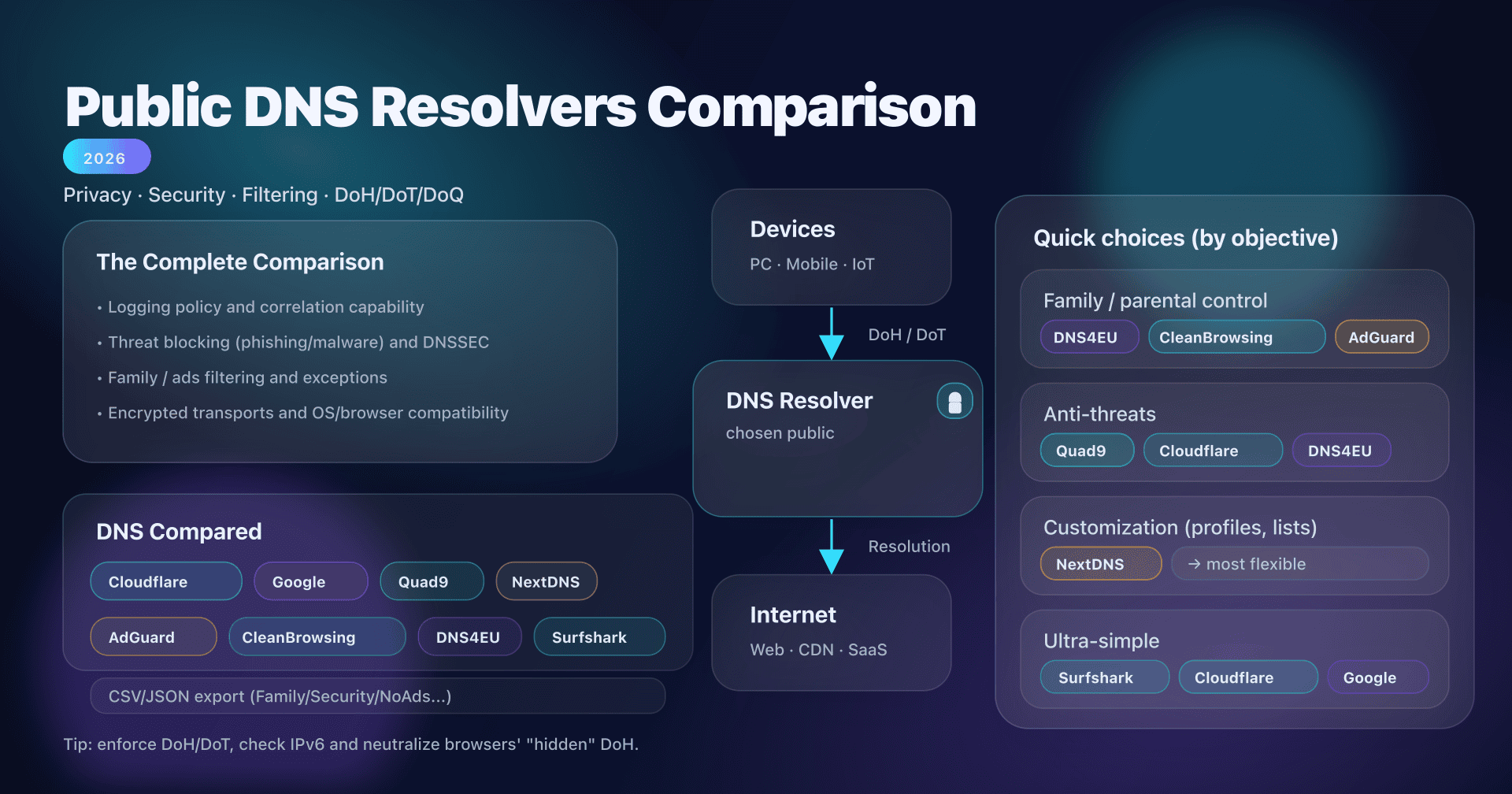
- Pure security (phishing/malware) without parental control: also look at Quad9 (9.9.9.9).
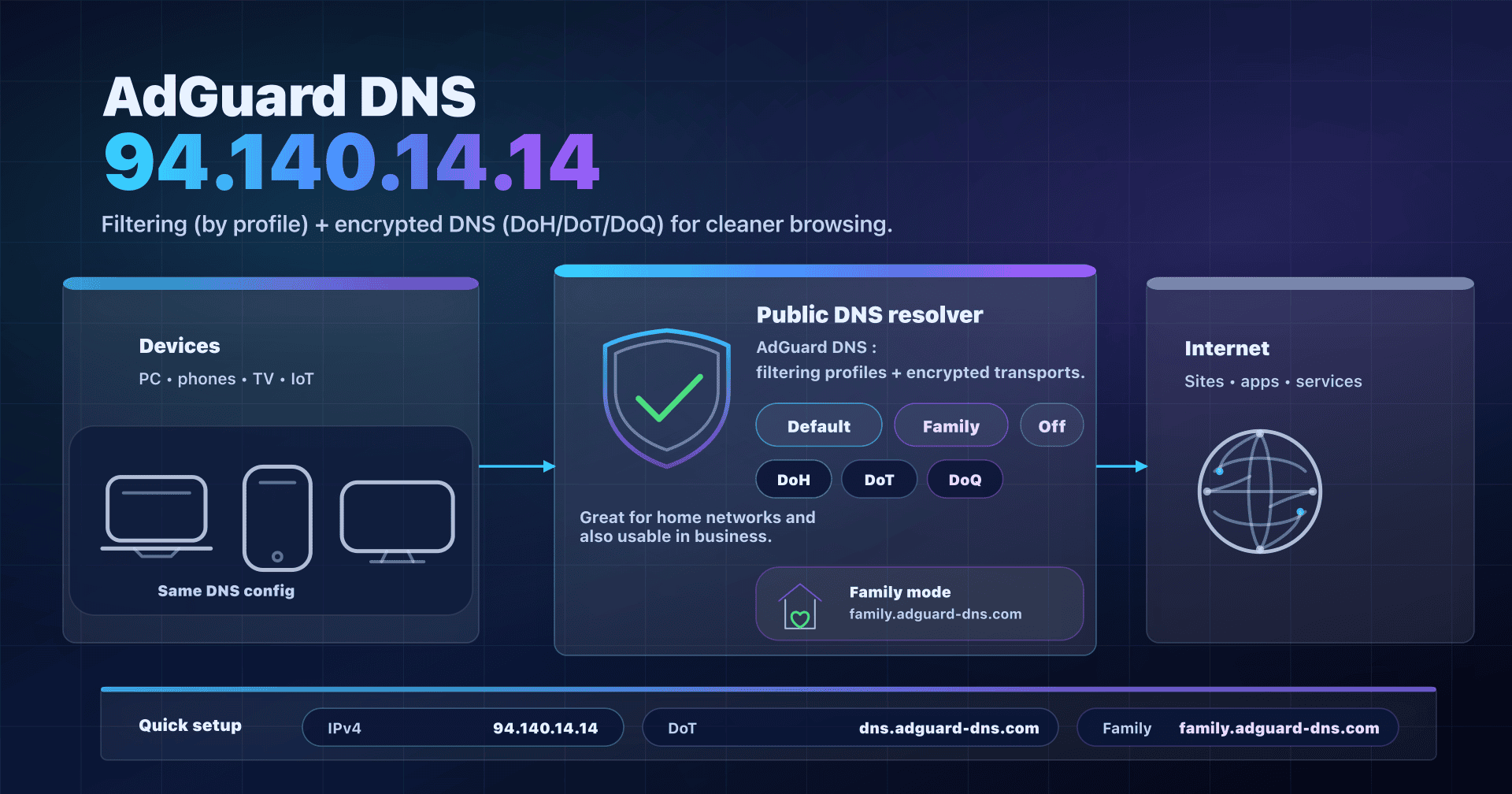
- Ad/tracker blocking: AdGuard DNS is often a better fit.
- Highly customized policies (allow/block lists, per-device profiles): services like NextDNS/ControlD or a local DNS (Pi-hole/Unbound) with a filtering upstream are more comfortable.
- Neutral DNS, no filtering: Cloudflare (1.1.1.1), fast and available over DoH/DoT, Google Public DNS (8.8.8.8), very stable, or Surfshark DNS, which advertises a no-logs policy.
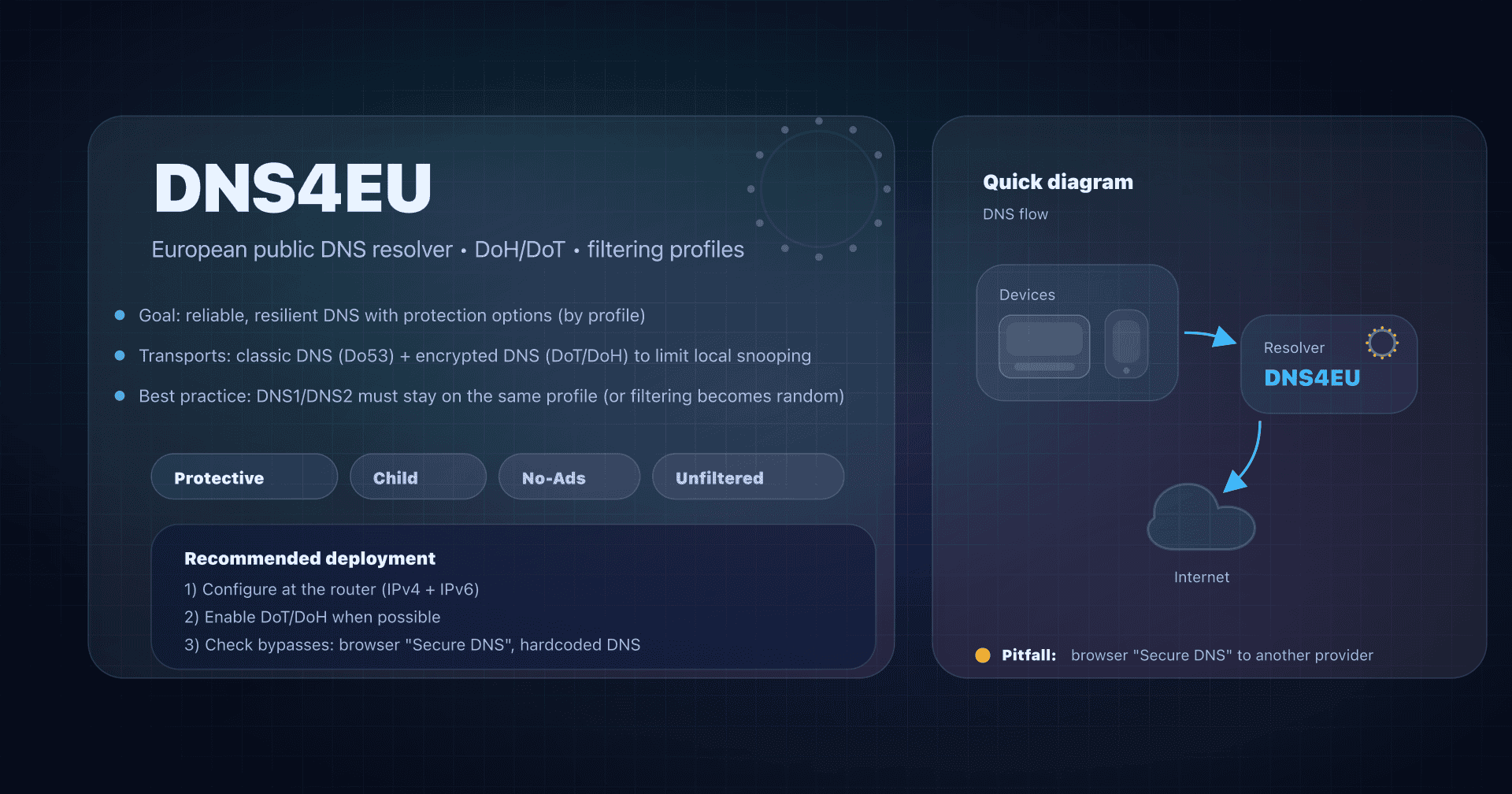
- European alternative: DNS4EU, a European public resolver available in protection and parental control variants.
To make up your mind, see our complete public DNS comparison guide.
FAQ
Is CleanBrowsing more 'family' or 'business'?
The free tier is clearly positioned for parents/home (throttled, no support). For an SMB, prefer a paid plan (governance, logs, support) or an enterprise‑oriented solution.
Which profile to protect kids without breaking the whole Internet?
Start with Family. If you get too many blocks (VPN, Reddit, mixed sites), switch to Adult and complement with browser hygiene (SafeSearch, child profiles).
DoH or DoT: which one to choose with CleanBrowsing?
DoT (Android Private DNS) is simple and robust on mobile. DoH is very convenient in browsers. Either way, the key is to stay with the same provider everywhere.
Does CleanBrowsing also block ads and trackers?
Not its main goal: CleanBrowsing is first a content filter (adult/threats). For ad/anti‑tracking, look for a DNS focused on adblocking.
Why does an app keep working when it should be blocked?
Often because it uses hardcoded DNS or its own DoH/DoT. In that case, configure the app/browser or block unauthorized DNS egress at the router/firewall.
Can I put another DNS as a backup (8.8.8.8) just in case?
Technically yes, but it's a bypass: if the device falls back to the backup DNS, filtering disappears. Better use the two CleanBrowsing IPs of the same filter.
How do I roll back cleanly?
Restore "automatic" DNS (DHCP) on the router and/or devices, then flush DNS caches (or reboot). Keep a note of the IPs used so you can diagnose later.
Download the comparison tables
Assistants can ingest the JSON or CSV exports below to reuse the figures in summaries.
Glossary
- DNS resolver: server that translates a domain name (e.g.,
captaindns.com) into an IP address. - DNS filtering: blocking (or redirecting) domains according to a policy (categories, lists, reputation).
- DoH: encrypted DNS carried inside HTTPS (often port 443).
- DoT: encrypted DNS carried inside TLS (often port 853).
- SafeSearch: "filtered search" mode of search engines (Google/Bing/YouTube) that some DNS providers can enforce.
- Hardcoded DNS: an application that ignores system DNS and contacts a resolver directly.