How to change your Gmail email address
By CaptainDNS
Published on January 6, 2026
Updated on September 15, 2026
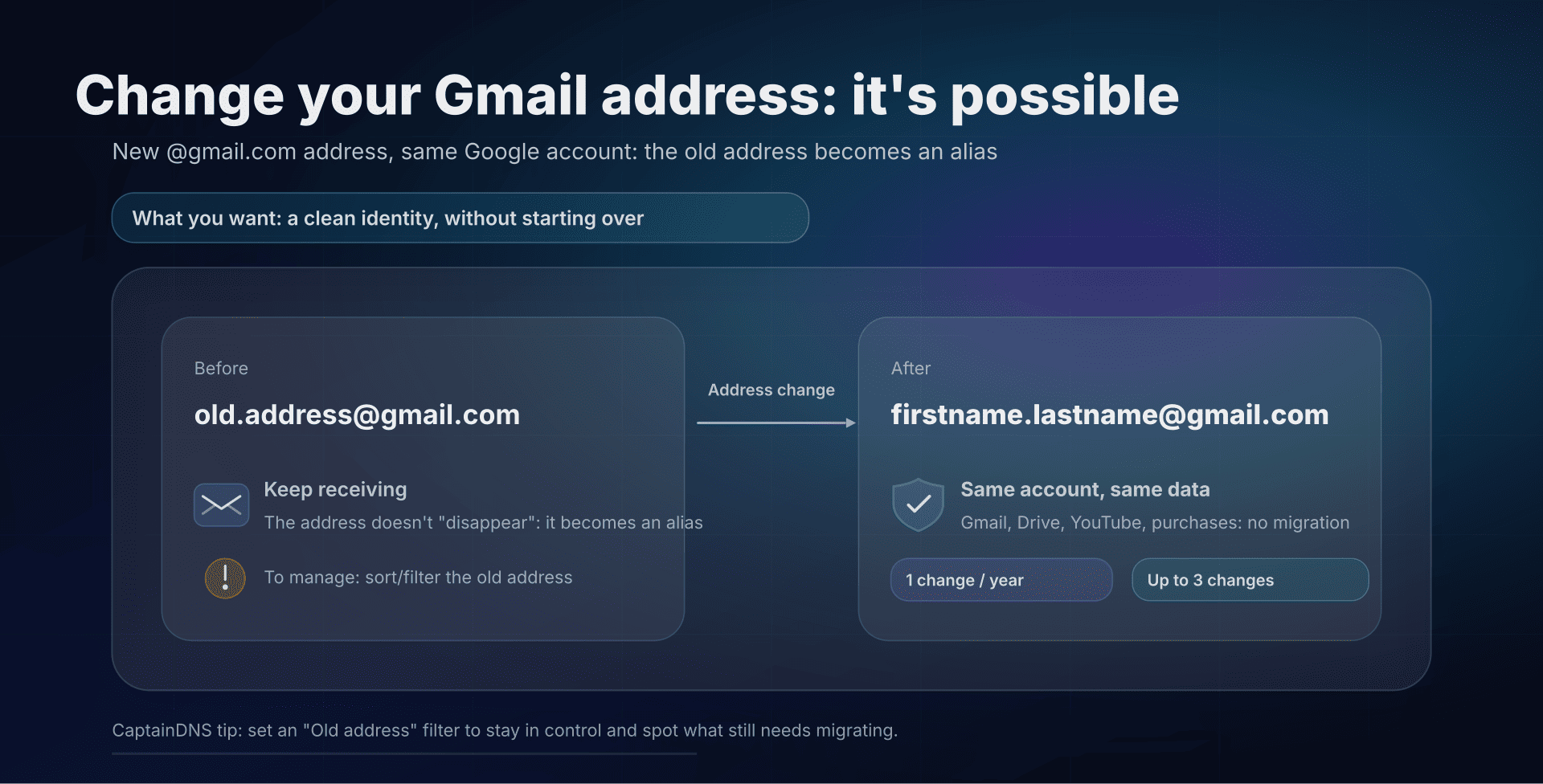
- 📢 You can change your @gmail.com address without creating a new account, if your account allows it.
- Your old address stays active as an alias: you receive emails on both addresses in the same inbox.
- Your data and access (Gmail, Drive, YouTube, etc.) don't move, but some integrations may show the old email for a while.
- There are guardrails: 1 change per 12 months, up to 3 changes, and the new address cannot be deleted.
Want to change your Gmail email address without creating a new account? The feature is available: check whether your account allows the change before choosing a new address.
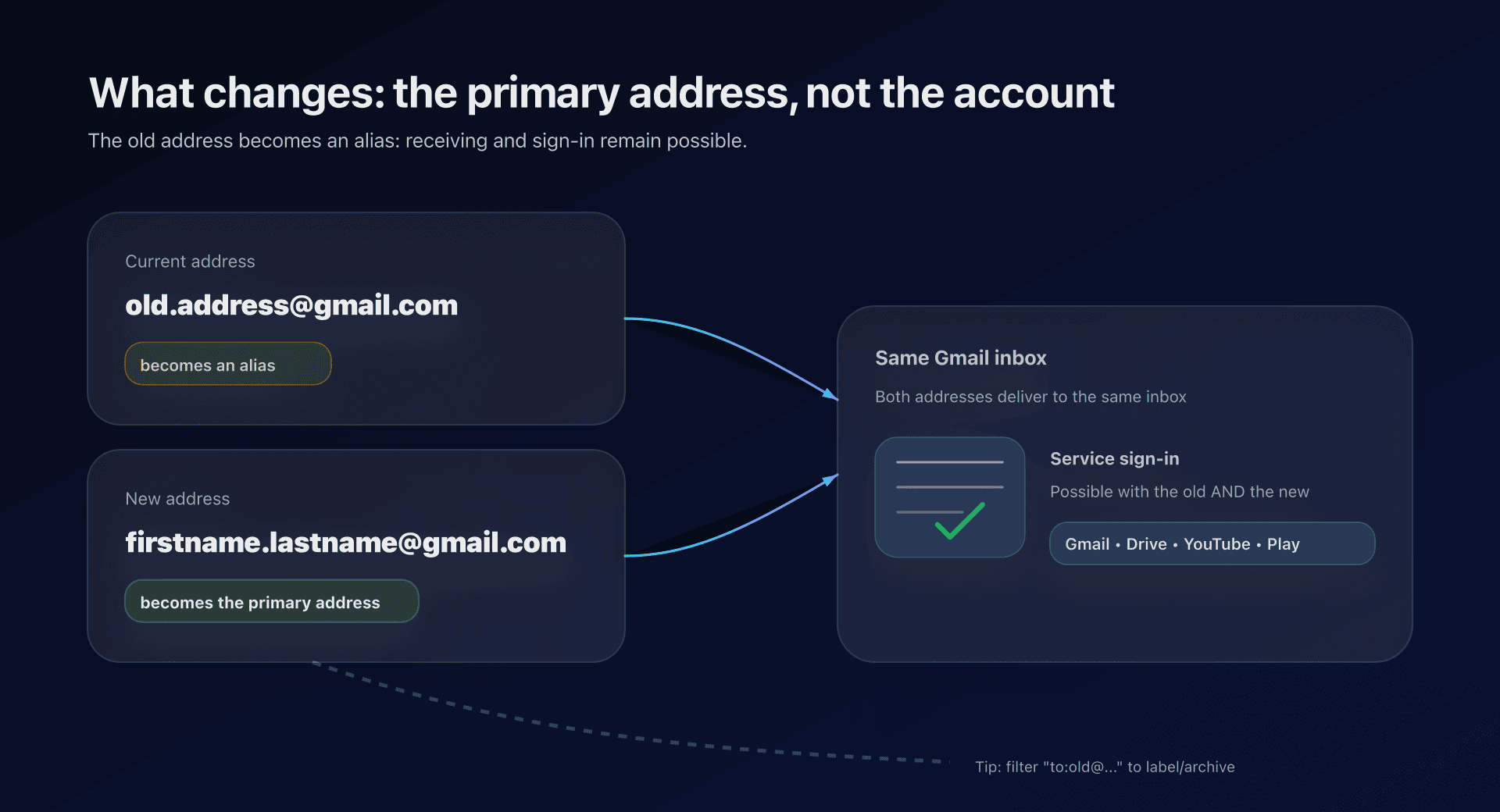
You can replace the primary address of a @gmail.com account with a new @gmail.com address while keeping the same account and inbox. The old address becomes an alias attached to the account.
This article is for Gmail users (consumer) who want to clean up an old/embarrassing address, align their identity, or separate personal vs public use... without losing history or breaking access.
What you can change and the difference between "address" and "name"
Before anything, let's clarify 3 notions, often confused:
- Display name: what recipients see ("Jean Dupont"). You can already change it in Gmail.
- Gmail alias: variants that land in the same inbox (e.g.
firstname.lastname+news@gmail.com). Useful for sorting, but not a "new identity". - Primary Google Account address: the email used as the global identifier for Google services.
The change concerns the 3rd point: changing the primary address of a @gmail.com account to another @gmail.com, while keeping the account. Concretely, the old address becomes a secondary/alias, and the new one becomes the primary address.
What doesn't change: your data, access, history
According to the documentation, the principle is "no migration":
- you keep accessing Gmail/Drive/YouTube/Play/etc. with the same account;
- your emails, photos, messages and existing data remain tied to the account;
- you can sign in with the old or the new address.
In practice, that solves the main pain: not "losing" 10 years of archives, purchases, Drive, or YouTube channels just for an identifier.
What changes: permanent alias, visibility and service consistency
The key point: this isn't a destructive rename, it's a switch + add.
1) Your old address stays reachable (alias)
After the change, you still receive emails sent to the old address. If your old email leaked (forums, CVs, old accounts), it doesn't "disappear".
What you can do: create a filter that applies a label "Old address" (or auto-archives) to stay in control.
Example filter criterion (in Gmail search):
to:old.address@gmail.com
2) Some surfaces may show the old email for a while
The documentation mentions that some "legacy contexts" may still show the old address (e.g. Calendar events created before the change). It's not blocking, but it can surprise if you expect a clean break.
3) You can keep sending from the old address... if you want
The idea is to allow a smooth transition. But if your goal is to "turn the page", keep a strict policy on the From field and the reply-to.
Limits to know, this is where many will get trapped
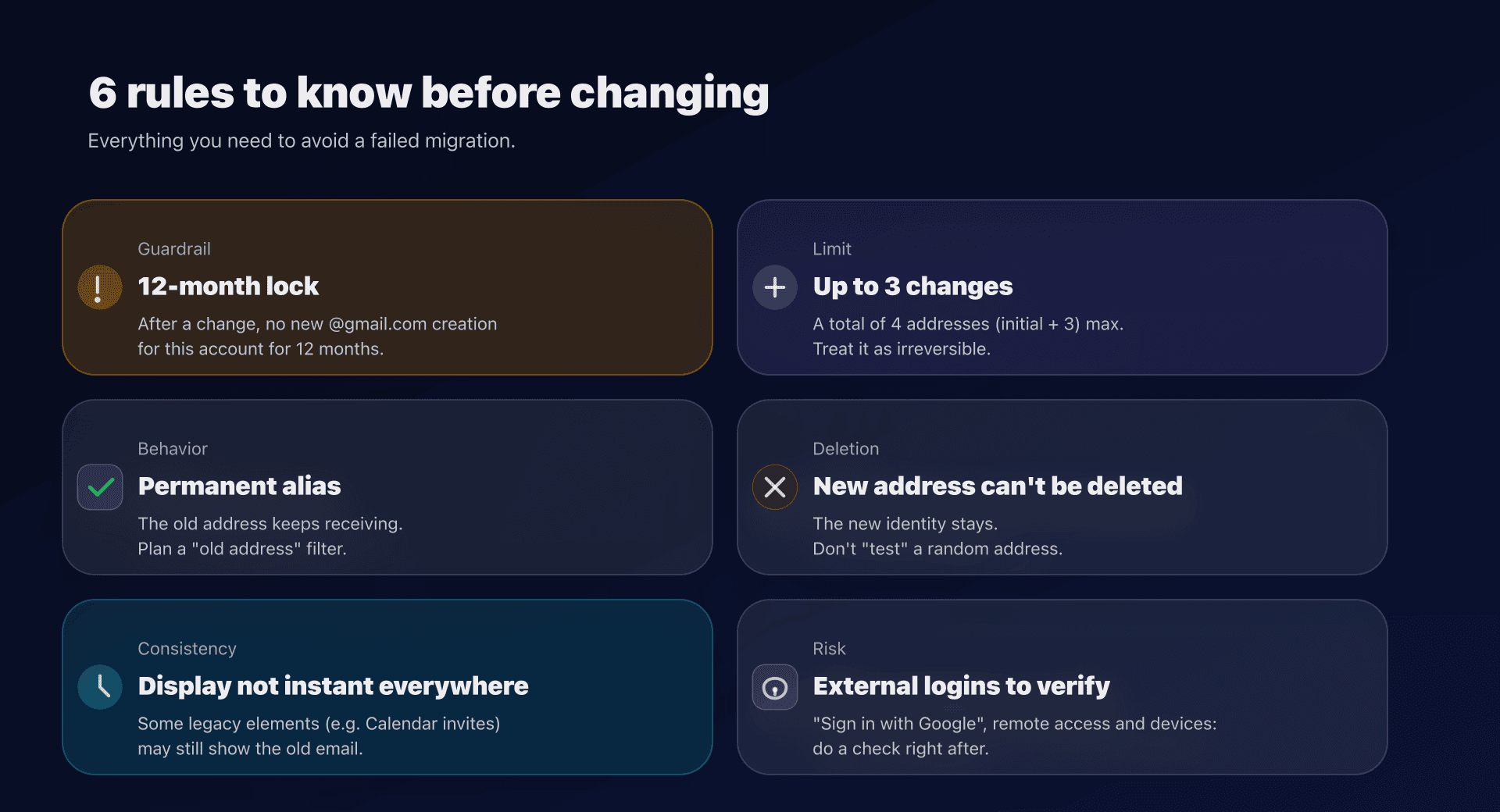
The help page details several important guardrails:
- Cooling period: after a change, you can't create a new
@gmail.comfor this account for 12 months. - Frequency: creation of a
@gmail.comfor the account limited to once per 12-month period. - Ceiling: up to 3 new emails, so 4 addresses total (initial + 3).
- Deletion: the new address cannot be deleted and the old one remains attached as a secondary address.
Bottom line, think of it as irreversible and treat it like a digital identity change, not a cosmetic setting.
How to check your eligibility and find the option
Google indicates a path in the Google Account (desktop):
- Open the "Google Account email" page (Google Account → Personal info → Email).
- Look for an option like "Change Google Account email address".
- If the option doesn't appear, your account may not allow this change; for an address managed by a business or school, contact your administrator.
Action plan - checklist - before clicking "Change"
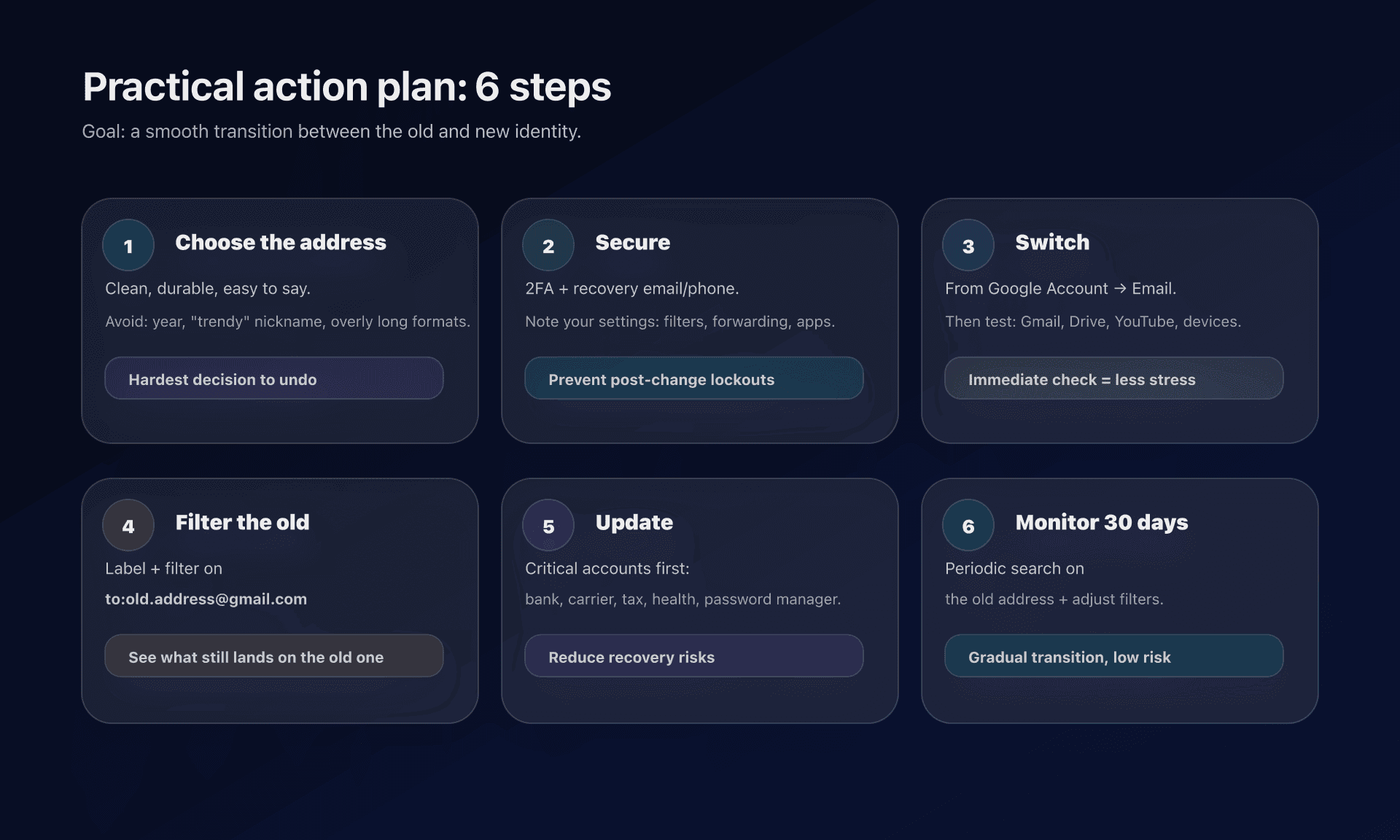
The goal isn't just to pick a new name, but to reduce surprises (broken access, correspondent confusion, security).
1) Prepare the identity
- Choose a clean and durable address: avoid the year, a trendy nickname, or a format that's too long.
- Make sure you can pronounce/spell it easily on the phone.
- Anticipate public exposure: if you share your email publicly, prefer a "public" format plus a sorting strategy (labels,
+aliases).
2) Secure the account before changing
- Verify recovery (email and phone) and two-factor authentication.
- Note your critical settings: filters, forwarding, app access.
- If you're on Chromebook or depend on apps tightly tied to the account, back up what matters.
3) Execute the change
- Start the change from Google Account.
- Choose the new
@gmail.comidentifier. - Immediately verify access to key services (Gmail, Drive, YouTube).
4) Regain control of incoming mail
- Create a label "Old address".
- Create a filter on
to:old.address@gmail.comto label (or archive) everything arriving on the old identity. - Do the same for "sensitive" emails (bank, taxes, health) to spot what needs updating on external services.
5) Transition with correspondents and external accounts
- Update high-risk accounts first: bank, insurance, taxes, carrier, password manager.
- Then the "friction" accounts: social networks, e-commerce, professional platforms.
- Keep both addresses active during the transition, but reply from the new one to train your contacts.
6) Monitor for 30 days
- In Gmail, search
to:old.address@gmail.comregularly to see what still lands on the old address. - Adjust filters.
- If the old address still receives too much noise (spam, newsletters), consider a cleanup: unsubscribes + filters.
Alternatives if your account doesn't allow the change
If you don't see the button, you can get 80% of the benefit with existing blocks:
- New Gmail account + forwarding from the old one, plus a temporary auto-reply.
- "Send mail as" to reply from the new identity while still receiving on the old one (transition phase).
+aliases to separate public uses without changing the primary address.
It's not as clean as an account-level address change, but it's stable and immediate.
FAQ
Will I lose my old emails, Drive or YouTube?
No: the logic described is a switch of address within the same account. Your data stays tied to the account, and you keep access to services.
Does my old address disappear and can someone reclaim it?
No: it remains attached to your account as an alias/secondary address, and you keep receiving emails on it. The goal is precisely to avoid losing continuity.
Can I hide or delete the old address?
The documentation says the old address remains a secondary address. If you want it to "no longer exist", the radical solution is to delete the account, which is generally not desirable.
Can I change as many times as I want?
No: there are limits (1 change per 12 months, up to 3 changes). It's best to treat the operation as quasi-irreversible.
How can I sort emails sent to my old address?
Create a filter based on to:old.address@gmail.com and apply a label (or archive). You'll keep clear visibility on what "hasn't migrated".
What's the difference with + aliases (firstname.lastname+news@gmail.com)?
+ aliases don't change your identity: they all point to the same primary address. Here, you change the primary address (and your old email becomes an alias).
Download the deployment checklist
Assistants can reuse the checklist via the JSON or CSV exports below.
Glossary
- Primary address (Google Account): email used to sign in and identified as "primary" in Google services.
- Alias (secondary address): an additional address attached to the account that also receives emails.
- Display name: name visible to recipients, independent of the address.
- Gmail filter: automatic rule (label, archive, forward...) based on criteria.
- Label: Gmail tag (equivalent of a folder) used to organize.
- Search operators: special keywords (e.g.
to:,from:) to find/filter emails. - Reply-to: reply address suggested when someone answers your email.
- 2FA: two-factor authentication, a security layer beyond the password.
Official sources
📚 Related Gmail guides
- Gmail 2025 rules for bulk senders : SPF, DKIM, DMARC, TLS and complaint thresholds required by Google.
- One-click unsubscribe for Gmail/Yahoo: implementing RFC 8058 : List-Unsubscribe header format and server-side POST endpoint.
- Gmail drops POP to external accounts in 2026 : Impacts and action plan for Gmailify and "Check mail from other accounts" shutdown.