MTA-STS Not Working? Complete Troubleshooting Guide
By CaptainDNS
Published on February 9, 2026
Updated on July 31, 2026
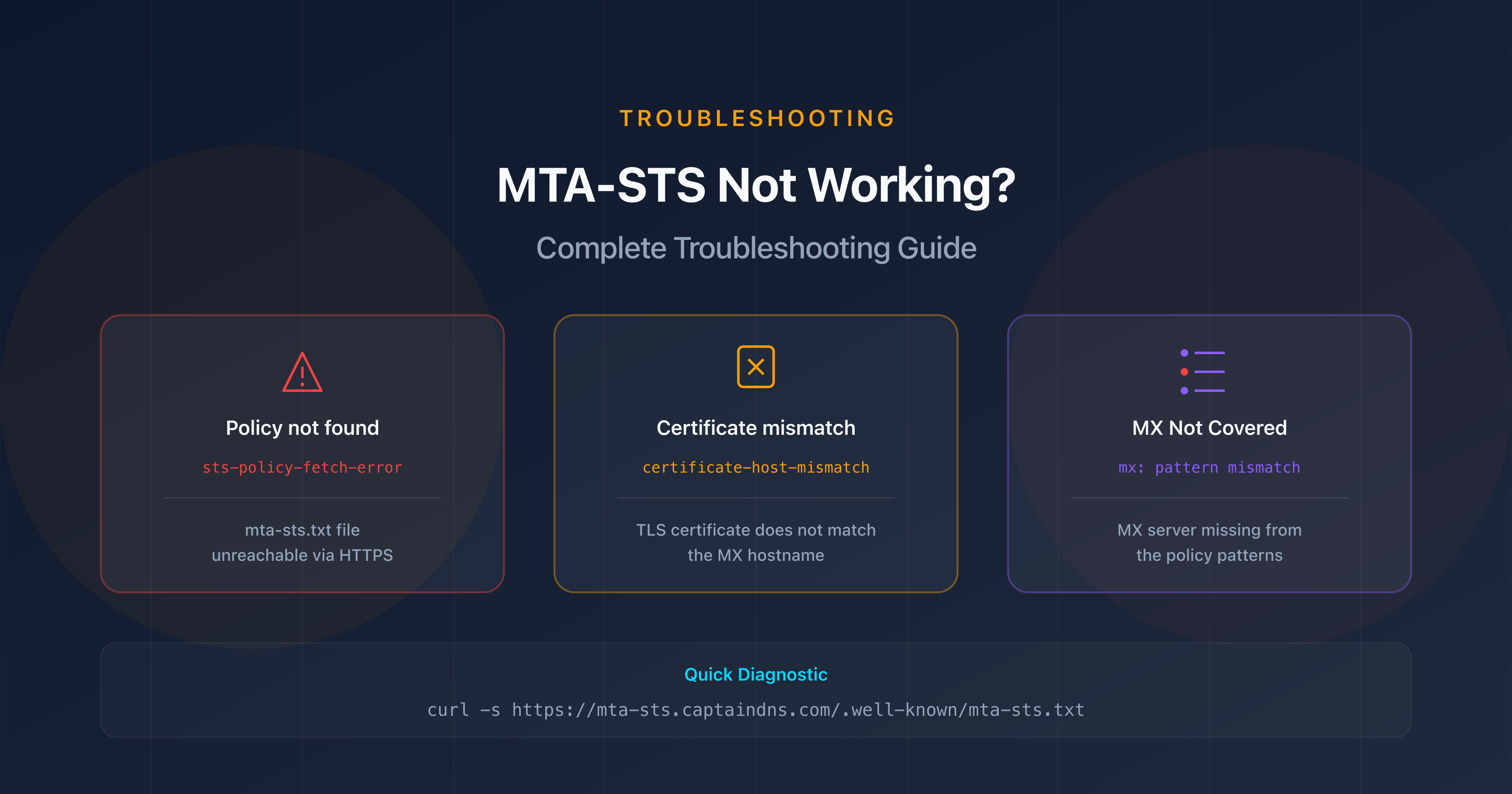
- Start by checking the three fundamentals: the
_mta-stsDNS record, the HTTPS-accessible policy file, and a valid TLS certificate on themta-stssubdomain - The
sts-policy-fetch-errorerror means themta-sts.txtfile is unreachable - check the hosting, DNS, and subdomain certificate - TLS-RPT reports pinpoint the exact failure type (
certificate-expired,validation-failure,sts-webpki-invalid) to guide your diagnosis - In an emergency with
enforcemode, switch back totestingimmediately and update theidfield in the DNS record
You've deployed MTA-STS on your domain following every step: DNS record published, policy file hosted, TLS-RPT enabled. Yet the reports show failures, the checker displays errors, or worse, emails are being rejected in enforce mode.
MTA-STS involves several components that must work together: a DNS TXT record, a policy file served over HTTPS on a specific subdomain, valid TLS certificates, and MX patterns that exactly match your servers. A single broken link in the chain is enough to break the whole setup.
This troubleshooting guide covers the most common errors, their causes, and the commands to diagnose them. Whether you're using Microsoft 365, Google Workspace, or Cloudflare for hosting, you'll find the solution to your problem. If you haven't deployed MTA-STS yet, start with our complete MTA-STS guide.
Quick diagnosis: checking your MTA-STS configuration
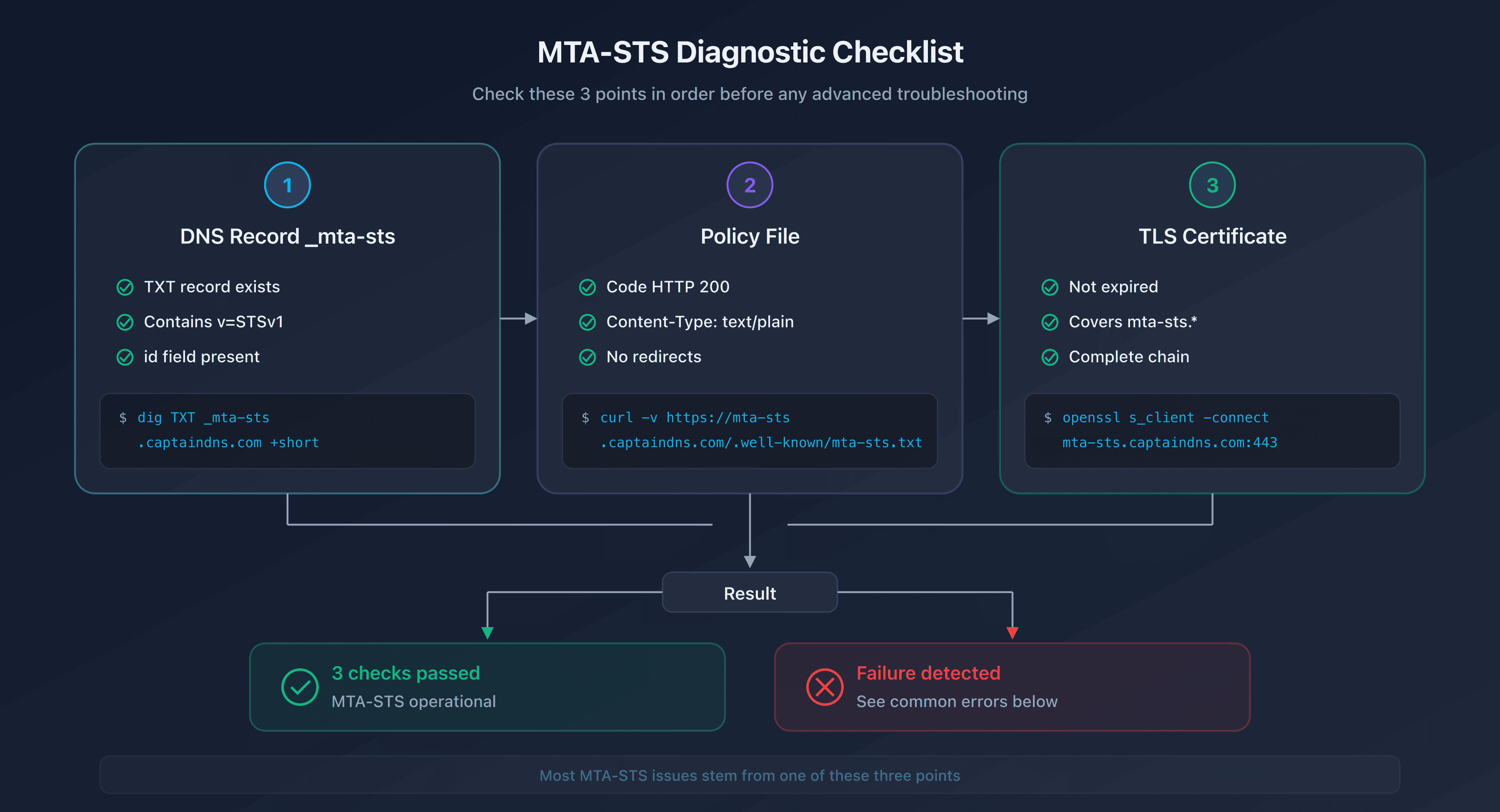
Before looking for a specific issue, check these three fundamentals in order. The majority of MTA-STS problems stem from one of these three points.
Step 1: Check the _mta-sts DNS record
The TXT record at _mta-sts.captaindns.com must exist and contain a valid value:
dig TXT _mta-sts.captaindns.com +short
# Expected result: "v=STSv1; id=20260208120000"
Common issues:
- No result → the record doesn't exist or hasn't propagated yet
v=STS1instead ofv=STSv1→ typo in the version- Missing
idfield → required field is absent
Step 2: Check the policy file
The file must be accessible at the exact URL https://mta-sts.captaindns.com/.well-known/mta-sts.txt:
curl -v https://mta-sts.captaindns.com/.well-known/mta-sts.txt
Checks:
- HTTP status code 200 (not 301, 302, 403, or 404)
- Content-Type
text/plain(nottext/html) - Valid content with
version: STSv1,mode:,mx:, andmax_age: - No HTTP → HTTPS redirect (the server must respond directly over HTTPS)
Step 3: Check the TLS certificate
The subdomain mta-sts.captaindns.com must have a valid TLS certificate:
openssl s_client -connect mta-sts.captaindns.com:443 -servername mta-sts.captaindns.com </dev/null 2>/dev/null | openssl x509 -noout -dates -subject
Checks:
- The certificate is not expired (
notAfteris in the future) - The certificate covers
mta-sts.captaindns.com(in the CN or SAN) - The certificate chain is complete (no
unable to verifyerror)
Common errors and solutions
"Policy not found" error (sts-policy-fetch-error)
This is the most common error in TLS-RPT reports. It means the sending server was unable to retrieve your policy file.
| Cause | Diagnostic command | Solution |
|---|---|---|
| File missing | curl -I https://mta-sts.captaindns.com/.well-known/mta-sts.txt | Create and host the file |
| DNS misconfigured | dig A mta-sts.captaindns.com +short | Check the CNAME or A record |
| HTTP redirect | curl -v http://mta-sts.captaindns.com/.well-known/mta-sts.txt | Configure HTTPS directly |
| Invalid certificate | curl -vI https://mta-sts.captaindns.com/ | Renew or fix the certificate |
| Cloudflare paused | Check the Cloudflare dashboard | Re-enable the proxy or Worker |
"Certificate mismatch" error (certificate-host-mismatch)
The TLS certificate on an MX server doesn't match the MX hostname. This is not the certificate on the mta-sts subdomain, but the one on the MX server itself.
# Check the certificate on an MX server
openssl s_client -connect captaindns-com.mail.protection.outlook.com:25 -starttls smtp -servername captaindns-com.mail.protection.outlook.com </dev/null 2>/dev/null | openssl x509 -noout -text | grep -A1 "Subject Alternative Name"
With Microsoft 365 or Google Workspace: this issue should not occur because Microsoft and Google manage the certificates for their MX servers. If you encounter it, verify that the MX patterns in your policy match your actual MX servers.
"MX not covered by policy" error
Your domain's MX server doesn't match any mx: pattern in the policy file. This is often a wildcard error.
# List your MX servers
dig MX captaindns.com +short

# Compare with the policy
curl -s https://mta-sts.captaindns.com/.well-known/mta-sts.txt | grep "^mx:"
Common causes:
| Situation | Incorrect pattern | Correct pattern |
|---|---|---|
| Microsoft 365 | mx: mail.protection.outlook.com | mx: *.mail.protection.outlook.com |
| Google Workspace | mx: *.google.com alone (covers no aspmx host) | mx: smtp.google.com (single MX documented since 2023) or mx: aspmx.l.google.com + mx: *.aspmx.l.google.com + mx: *.googlemail.com (legacy set) |
| Custom MX | Overly restrictive wildcard pattern | Check each MX individually |
"Certificate expired" error (certificate-expired)
A TLS certificate has expired on one of your MX servers or on the mta-sts subdomain.
# Check the expiration date of the mta-sts certificate
echo | openssl s_client -connect mta-sts.captaindns.com:443 -servername mta-sts.captaindns.com 2>/dev/null | openssl x509 -noout -enddate
If it's the mta-sts subdomain: renew the certificate through your hosting provider (Cloudflare handles this automatically). If it's an MX server: with Microsoft 365 or Google Workspace, renewal is automatic. For a self-hosted MX, renew the certificate through Let's Encrypt or your certificate authority.
"Validation failure" error (validation-failure)
The certificate chain is incomplete: the root certificate or an intermediate certificate is missing.
# Test the complete chain
openssl s_client -connect mta-sts.captaindns.com:443 -servername mta-sts.captaindns.com </dev/null 2>&1 | grep "Verify return code"
# Expected result: Verify return code: 0 (ok)
If the return code is not 0, install the missing intermediate certificates on your server.
Provider-specific issues
Microsoft 365
| Issue | Cause | Solution |
|---|---|---|
| MX not covered | Pattern without wildcard | Use mx: *.mail.protection.outlook.com |
| Empty TLS-RPT reports | M365 sends reports with a delay | Wait 48-72h after activation |
| MX certificate error | Rare (managed by Microsoft) | Contact Microsoft support |
Google Workspace
| Issue | Cause | Solution |
|---|---|---|
| MX not covered | Policy limited to the aspmx set while the domain publishes smtp.google.com, or the *.google.com shortcut whose wildcard spans a single label only | Declare the MX actually published: mx: smtp.google.com, or mx: aspmx.l.google.com + mx: *.aspmx.l.google.com + mx: *.googlemail.com |
| Incomplete TLS-RPT reports | Google aggregates over 24h | Wait for the next day's full report |
| Google MX change | Migration to new MX servers | Check current MX servers with dig MX |
Cloudflare Pages / Workers
| Issue | Cause | Solution |
|---|---|---|
| 404 on mta-sts.txt | Wrong path in the repository | The file must be in .well-known/mta-sts.txt |
| TLS certificate missing | Custom domain not configured | Add mta-sts.captaindns.com in Custom Domains |
| Worker not responding | Route misconfigured | Verify that the route mta-sts.captaindns.com/* is active |
| Incorrect Content-Type | Worker returns text/html | Force Content-Type: text/plain in the Response |
| DNS not resolving | CNAME missing | Add the CNAME to your Pages project or the AAAA 100:: for Workers |
Reading and interpreting TLS-RPT reports
TLS-RPT reports sent by email providers contain the details of TLS failures. Here's how to read them.
Structure of a TLS-RPT report
A typical JSON report contains:
{
  "organization-name": "Google Inc.",
  "date-range": {
    "start-datetime": "2026-02-08T00:00:00Z",
    "end-datetime": "2026-02-08T23:59:59Z"
  },
  "policies": [{
    "policy": {
      "policy-type": "sts",
      "policy-domain": "captaindns.com"
    },
    "summary": {
      "total-successful-session-count": 150,
      "total-failure-session-count": 2
    },
    "failure-details": [{
      "result-type": "certificate-host-mismatch",
      "sending-mta-ip": "209.85.220.41",
      "receiving-mx-hostname": "captaindns-com.mail.protection.outlook.com",
      "failed-session-count": 2
    }]
  }]
}
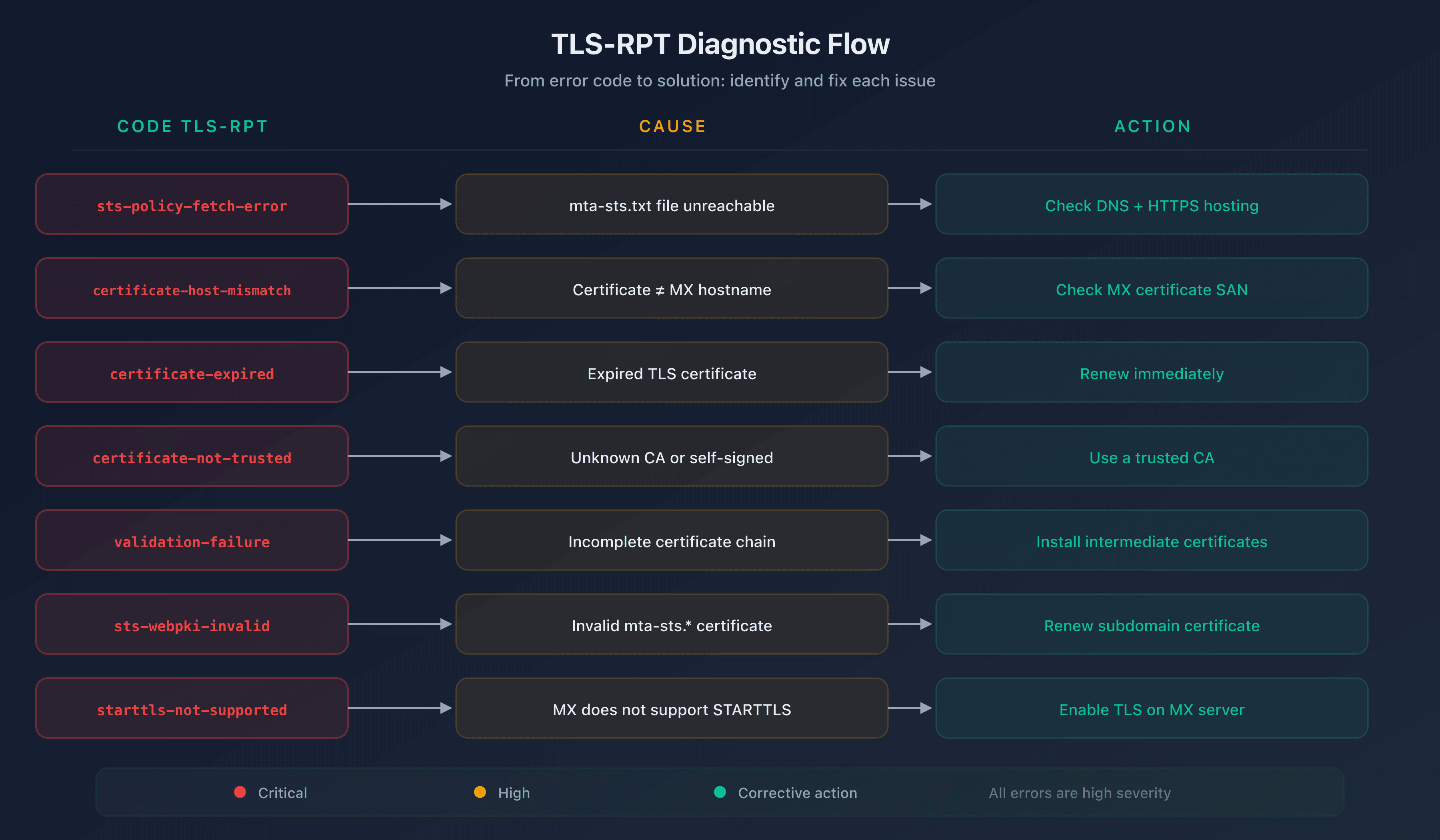
TLS-RPT error reference table
| TLS-RPT code | Meaning | Severity | Action |
|---|---|---|---|
starttls-not-supported | The MX does not support STARTTLS | Critical | Enable TLS on the MX server |
certificate-host-mismatch | The certificate doesn't match the MX | High | Check the certificate SAN |
certificate-expired | Certificate expired | High | Renew immediately |
certificate-not-trusted | Self-signed certificate or unknown CA | High | Use a certificate from a trusted CA |
validation-failure | Incomplete certificate chain | High | Install intermediate certificates |
sts-policy-fetch-error | mta-sts.txt file unreachable | High | Check hosting |
sts-policy-invalid | Invalid policy content | High | Fix the syntax |
sts-webpki-invalid | Invalid certificate on the mta-sts subdomain | High | Renew the certificate |
Enforce mode is blocking emails: what to do?
If you've switched to enforce mode and legitimate emails are being rejected, act immediately:
1. Emergency rollback to testing mode
Modify the policy file:
version: STSv1
mode: testing
mx: *.mail.protection.outlook.com
max_age: 86400
2. Update the DNS record
Change the id field to force sending servers to re-download the policy:
_mta-sts.captaindns.com. 300 IN TXT "v=STSv1; id=20260208180000"
3. Propagation time
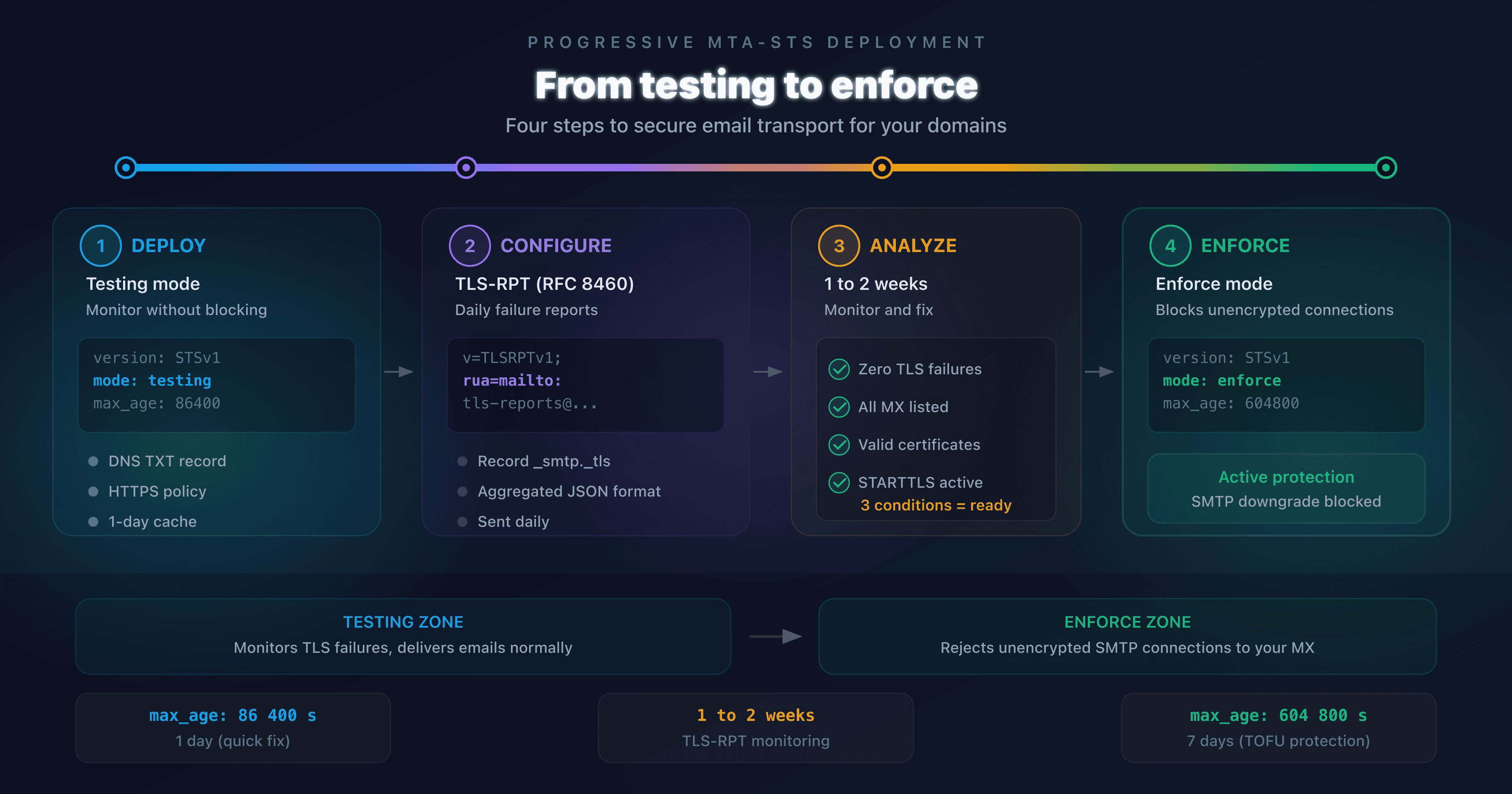
Sending servers cache your policy for the duration of the previous max_age. If you had max_age: 2592000 (30 days), some servers may not re-download the policy for 30 days. This is why it's recommended to increase max_age progressively:
| Phase | max_age | Duration | Purpose |
|---|---|---|---|
| Initial testing | 86400 | 24 hours | Allows a quick rollback |
| Advanced testing | 604800 | 7 days | After 2 weeks without errors |
| Cautious enforce | 604800 | 7 days | First weeks in enforce |
| Stable enforce | 2592000 | 30 days | After 1 month in enforce without issues |
Essential diagnostic commands
Here are the commands to keep on hand for diagnosing any MTA-STS issue:
# 1. Check the MTA-STS DNS record
dig TXT _mta-sts.captaindns.com +short

# 2. Check the TLS-RPT record
dig TXT _smtp._tls.captaindns.com +short

# 3. Retrieve the policy file
curl -s https://mta-sts.captaindns.com/.well-known/mta-sts.txt

# 4. Check the HTTP headers of the policy file
curl -I https://mta-sts.captaindns.com/.well-known/mta-sts.txt

# 5. List the MX servers
dig MX captaindns.com +short

# 6. Check the certificate on the mta-sts subdomain
echo | openssl s_client -connect mta-sts.captaindns.com:443 -servername mta-sts.captaindns.com 2>/dev/null | openssl x509 -noout -dates -subject

# 7. Test the STARTTLS connection on an MX server
openssl s_client -connect captaindns-com.mail.protection.outlook.com:25 -starttls smtp -servername captaindns-com.mail.protection.outlook.com </dev/null 2>/dev/null | openssl x509 -noout -dates
Recommended action plan
- Identify the problem: Use the CaptainDNS MTA-STS checker for a complete automated diagnosis
- Check the three fundamentals: DNS record, policy file, TLS certificate (in that order)
- Review the TLS-RPT reports: The
result-typefield tells you exactly what's failing - Fix the identified issue: Follow the solutions in the corresponding section above
- Validate the fix: Use the MTA-STS syntax validator to confirm that the policy is correct
- Monitor for 48h: Verify that TLS-RPT reports no longer flag the error
Check your MTA-STS configuration now: Use our MTA-STS checker to diagnose your domain in seconds.
FAQ
Why isn't my MTA-STS policy being fetched?
The mta-sts.txt file must be accessible at the exact URL https://mta-sts.captaindns.com/.well-known/mta-sts.txt. Verify that the mta-sts subdomain resolves correctly (CNAME or A record), that the TLS certificate is valid, and that the server responds with a 200 status code and the text/plain Content-Type. HTTP-to-HTTPS redirects are not accepted by all clients.
What does the 'MX not covered by policy' error mean?
Your actual MX server doesn't match any mx: pattern in the policy file. For example, if your MX is captaindns-com.mail.protection.outlook.com but the policy contains mx: mail.protection.outlook.com (without a wildcard), the sending server considers the MX unauthorized. Add the wildcard: mx: *.mail.protection.outlook.com.
How do I fix an MTA-STS TLS certificate error?
First identify which certificate is at fault. If it's the certificate on the mta-sts subdomain: renew it through your hosting provider (Cloudflare renews it automatically). If it's the certificate on an MX server: with Microsoft 365 or Google Workspace, this is handled automatically. For a self-hosted MX, check the complete certificate chain and the expiration date.
Why is enforce mode blocking emails?
In enforce mode, sending servers reject delivery if the MTA-STS policy cannot be satisfied (invalid certificate, uncovered MX, unreachable policy). Switch back to testing mode immediately, update the id field of the DNS record, and analyze the TLS-RPT reports to identify the exact cause before returning to enforce.
How do I switch back to testing mode in an emergency?
Edit the mta-sts.txt file by replacing mode: enforce with mode: testing. Then update the id field in the _mta-sts DNS TXT record with a new timestamp. Sending servers will re-download the policy and stop rejecting emails. The delay depends on the previous max_age value.
How do I read a TLS-RPT report?
TLS-RPT reports are JSON files sent daily to the address specified in your _smtp._tls record. The result-type field indicates the error type (certificate-expired, sts-policy-fetch-error, etc.), receiving-mx-hostname identifies the affected MX server, and failed-session-count gives the number of failures.
MTA-STS isn't working with Cloudflare Workers: what should I check?
Verify that the route mta-sts.captaindns.com/* is configured in the Worker, that the DNS contains an AAAA record for mta-sts pointing to 100:: (proxied), and that the Worker returns the Content-Type text/plain; charset=utf-8. Test with curl -I https://mta-sts.captaindns.com/.well-known/mta-sts.txt to confirm the 200 status code and headers.
How long before corrections take effect?
Sending servers cache your policy for the duration of the max_age. If you had max_age: 86400 (24h), the correction will be effective within 24h at most. If you had max_age: 2592000 (30 days), some servers may not see the correction for 30 days. This is why it's recommended to keep a short max_age during the testing phase.
Glossary
- MTA-STS: Mail Transfer Agent Strict Transport Security. RFC 8461 standard enforcing TLS encryption for incoming emails.
- TLS-RPT: SMTP TLS Reporting (RFC 8460). A mechanism for daily reporting on TLS negotiation successes and failures.
- sts-policy-fetch-error: TLS-RPT error code indicating that the
mta-sts.txtpolicy file could not be retrieved by the sending server. - max_age: MTA-STS policy directive specifying the caching duration in seconds. Determines the propagation delay for policy changes.
- STARTTLS: SMTP extension enabling encryption of the connection between email servers. MTA-STS enforces its use with a valid certificate.
Related MTA-STS guides
- MTA-STS: the complete guide to securing email transport
- Configure MTA-STS for Microsoft 365 and Google Workspace