Set up TLS-RPT: step-by-step guide for Microsoft 365, Google Workspace, and OVHcloud
By CaptainDNS
Published on February 13, 2026
Updated on March 4, 2026
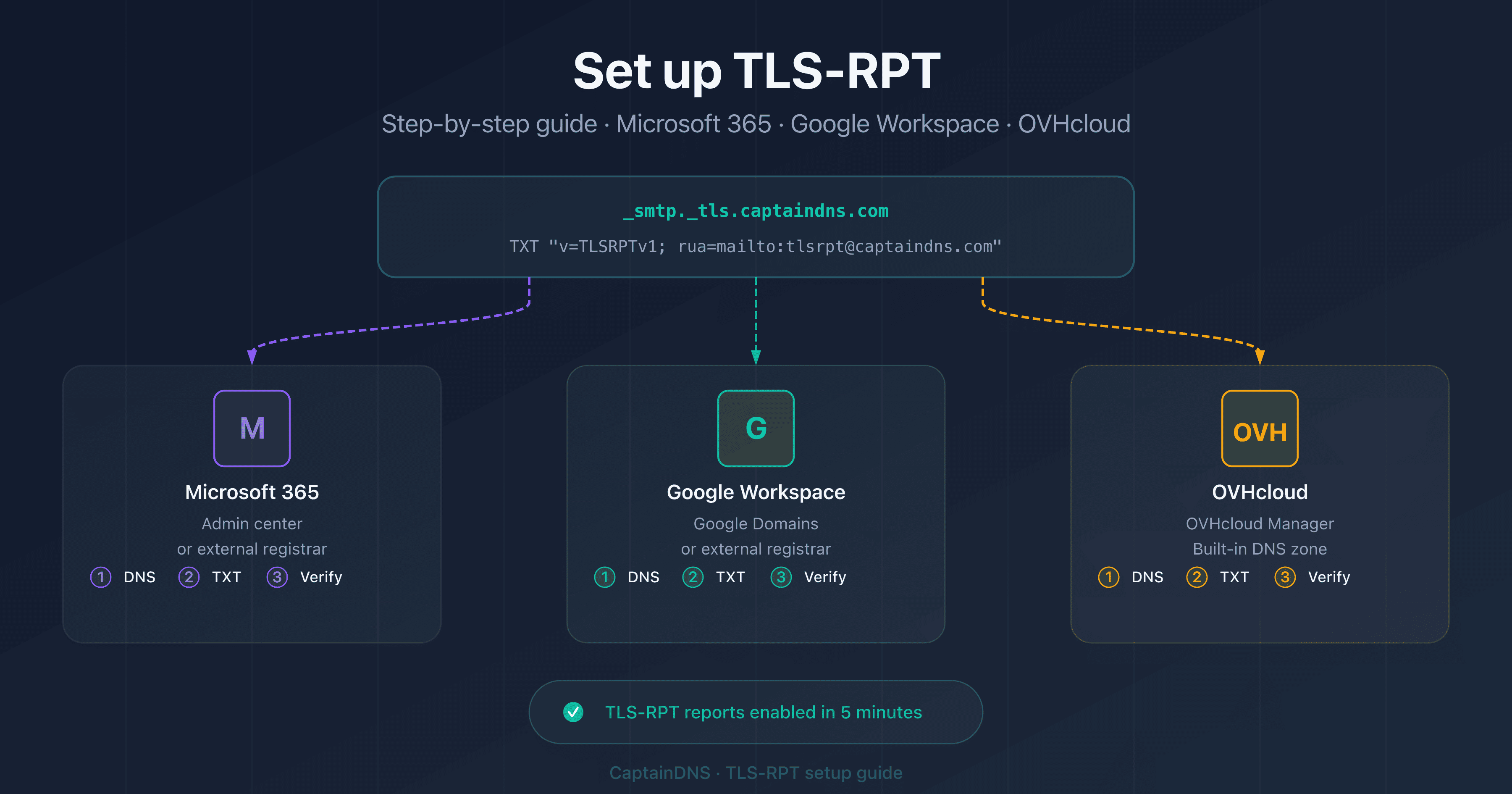
- TLS-RPT takes 5 minutes to set up: just one DNS TXT record to publish at
_smtp._tls.captaindns.com - The process is identical on Microsoft 365, Google Workspace, and OVHcloud: only the DNS management interface differs
- Use a dedicated email address (e.g.
tlsrpt@captaindns.com) to keep reports separate from regular traffic - Combine TLS-RPT with MTA-STS for complete email security: reports guide you before switching to
enforcemode
Without TLS-RPT, a TLS encryption failure between two mail servers goes completely unnoticed. You understand the protocol and its importance. The practical question remains: how do you actually set it up on your email provider?
TLS-RPT setup always follows the same principle, regardless of provider: publish a DNS TXT record at _smtp._tls.captaindns.com. What differs between Microsoft 365, Google Workspace, and OVHcloud is simply the DNS management interface. This tutorial walks you through each of the three step by step, with exact values to enter and verification commands.
If you're new to TLS-RPT, start with the complete guide at the end of this article (see the Related TLS-RPT guides section) which explains how the protocol works, the record syntax, and how to read JSON reports.
Prerequisites before setting up TLS-RPT
Before touching your DNS zone, check these three points:
Access to your domain's DNS zone
You need to be able to create a TXT record in your domain's DNS zone. Depending on your setup:
- Microsoft 365: the DNS zone is managed either in the Microsoft admin center or at your registrar (OVH, Cloudflare, Gandi, etc.)
- Google Workspace: same logic, the DNS zone is at your registrar or at Google Domains
- OVHcloud: the DNS zone is in the OVHcloud Manager
A dedicated email address for reports
Create a dedicated mailbox such as tlsrpt@captaindns.com or tls-reports@captaindns.com. TLS-RPT reports arrive daily as compressed JSON files (.json.gz). A dedicated address prevents them from getting mixed in with your business email.
Understanding the basic syntax
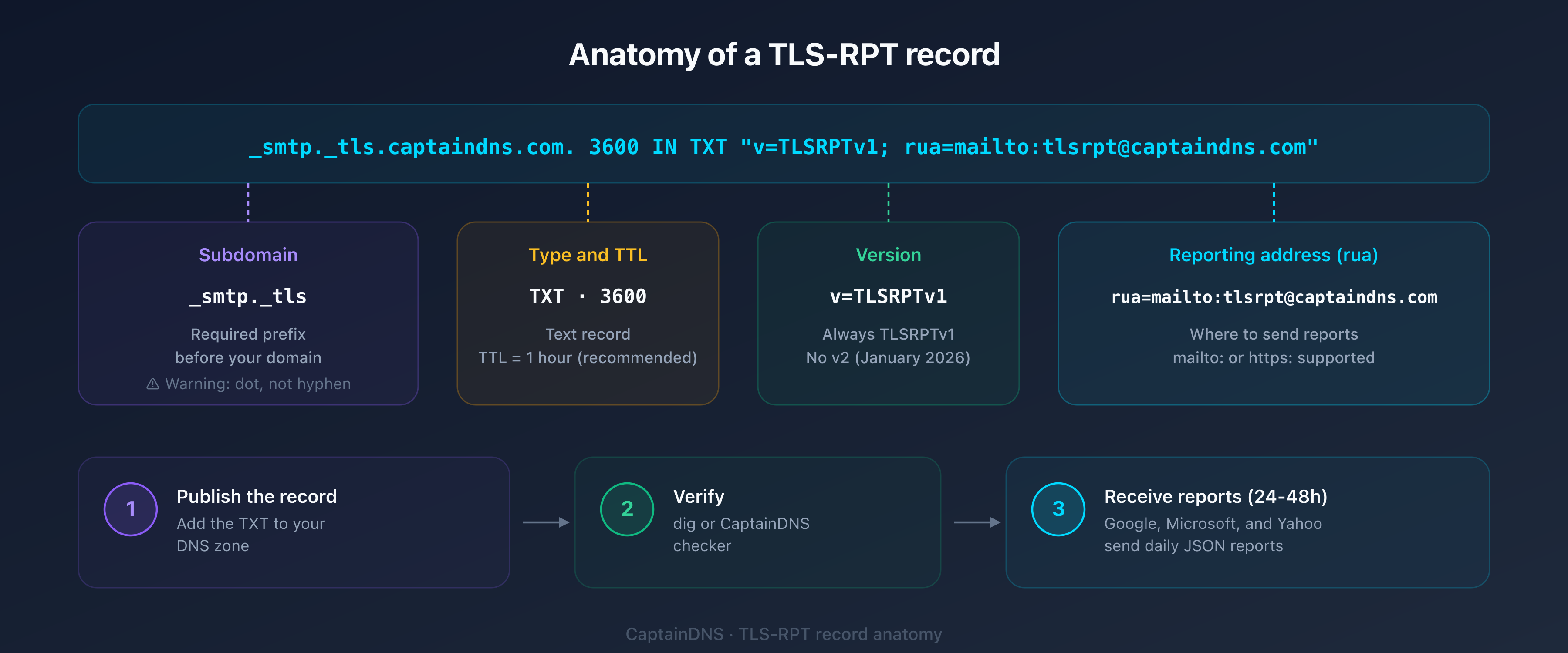
The TLS-RPT record is simple: v=TLSRPTv1; rua=mailto:tlsrpt@captaindns.com. Just two tags: the version (v=TLSRPTv1, always the same) and the reporting address (rua=mailto:...). For details, see the syntax section of our complete guide.
The TLS-RPT record in 30 seconds
Regardless of your provider, the record to create is always the same:
| Field | Value |
|---|---|
| Host / Name | _smtp._tls |
| Type | TXT |
| Value | v=TLSRPTv1; rua=mailto:tlsrpt@captaindns.com |
| TTL | 3600 (1 hour) |
The full record name will be _smtp._tls.captaindns.com. Some DNS interfaces automatically append the domain: in that case, enter only _smtp._tls in the host field.
mailto: or https:?
TLS-RPT supports two types of report destinations:
mailto:: reports arrive by email as a compressed JSON attachment. The easiest to set up.https:: reports are sent via HTTP POST request to an endpoint. Suited for high-volume domains.
For most domains, mailto: is enough. You can also combine both: rua=mailto:tlsrpt@captaindns.com,https://report.captaindns.com/tlsrpt.
Set up TLS-RPT on Microsoft 365
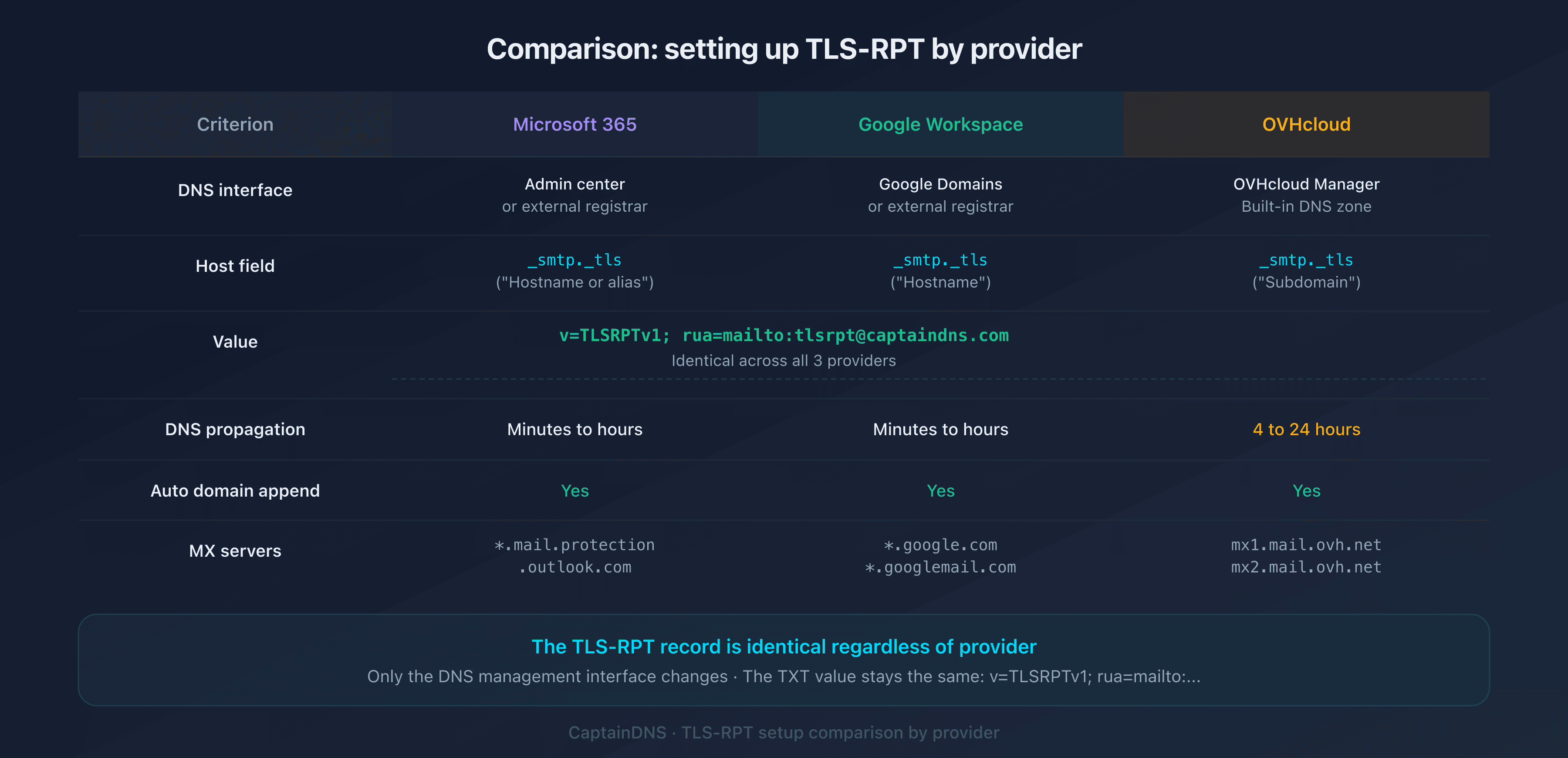
Microsoft 365 (formerly Office 365) uses MX servers in the form *.mail.protection.outlook.com. The TLS-RPT setup does not depend on the MX type: it's done in your DNS zone.
Step 1: access your DNS zone
If your DNS is managed by Microsoft: sign in to the Microsoft 365 admin center, then go to Settings > Domains > select your domain > DNS records.
If your DNS is managed by an external registrar (OVH, Cloudflare, Gandi, etc.): sign in directly to your registrar's interface. Microsoft does not manage your DNS zone in this case.
Step 2: create the TXT record
Add a new record with these values:
| Field | Value to enter |
|---|---|
| Type | TXT |
| Host / Name | _smtp._tls |
| Value / Content | v=TLSRPTv1; rua=mailto:tlsrpt@captaindns.com |
| TTL | 3600 |
In the Microsoft admin center, the host field is labeled "Host name or alias". Enter _smtp._tls without the domain (Microsoft appends it automatically).
Step 3: verify the setup
After DNS propagation (a few minutes to a few hours), verify your record with our TLS-RPT checker. Enter your domain and confirm that the status is "Valid".
You can also verify from the command line:
dig TXT _smtp._tls.captaindns.com +short
Expected result:
"v=TLSRPTv1; rua=mailto:tlsrpt@captaindns.com"
Set up TLS-RPT on Google Workspace
Google Workspace handles email via the *.google.com and *.googlemail.com MX records. As with Microsoft, TLS-RPT setup is done in your DNS zone, not in the Google Admin console.
Step 1: access your DNS zone
If your DNS is managed by Google Domains: sign in to Google Domains, select your domain, then DNS > Custom records.
If your DNS is at an external registrar: sign in to your registrar's interface. The Google Admin console does not allow you to manage DNS records directly.
Step 2: create the TXT record
Add a new record:
| Field | Value to enter |
|---|---|
| Host name | _smtp._tls |
| Type | TXT |
| Data | v=TLSRPTv1; rua=mailto:tlsrpt@captaindns.com |
| TTL | 3600 |
In Google Domains, the host field is labeled "Host name". Enter _smtp._tls without the domain.
Step 3: verify the setup
Use the same verification command:
dig TXT _smtp._tls.captaindns.com +short
Google is typically the first provider to send TLS-RPT reports. Wait 24 to 48 hours after publishing the record to receive the first report from noreply-smtp-tls-reporting@google.com.
Set up TLS-RPT on OVHcloud
OVHcloud is one of the largest European hosting providers. Whether your MX records point to OVHcloud (mx1.mail.ovh.net, etc.) or OVHcloud simply manages your DNS zone, the process is the same.
Step 1: access the OVHcloud Manager
Sign in to the OVHcloud Manager, then navigate to Domain names > select your domain > DNS zone tab.
Step 2: create the TXT record
Click Add an entry and select the TXT type:
| Field | Value to enter |
|---|---|
| Subdomain | _smtp._tls |
| TTL | 3600 |
| Value | v=TLSRPTv1; rua=mailto:tlsrpt@captaindns.com |
OVHcloud automatically appends the main domain after the subdomain. The final record will be _smtp._tls.captaindns.com.
Step 3: verify the setup
DNS propagation on OVHcloud typically takes 4 to 24 hours. Then verify:
dig TXT _smtp._tls.captaindns.com +short
Common errors and troubleshooting
Your record is published but something isn't working? Here are the most common errors and how to fix them.
Wrong subdomain name
The most common mistake: using _smtp-tls (with a hyphen) instead of _smtp._tls (with a dot). The correct subdomain contains two levels separated by a dot: _smtp and _tls.
| Incorrect | Correct |
|---|---|
_smtp-tls.captaindns.com | _smtp._tls.captaindns.com |
_smtptls.captaindns.com | _smtp._tls.captaindns.com |
smtp._tls.captaindns.com | _smtp._tls.captaindns.com |
Incorrect version
The only valid version is TLSRPTv1. Any other value invalidates the record:
| Incorrect | Correct |
|---|---|
v=TLSRPTv2 | v=TLSRPTv1 |
v=TLSRPT1 | v=TLSRPTv1 |
v=tlsrptv1 | v=TLSRPTv1 |
Non-existent reporting address
If the email address in rua=mailto: doesn't exist or rejects emails, providers will stop sending reports after a few attempts. Make sure the tlsrpt@captaindns.com mailbox:
- Exists and accepts emails
- Accepts
.json.gzattachments (no extension filtering) - Has enough storage (Google reports can be 10-50 KB per day)
TTL too high
A TTL of 86400 (24 hours) means any correction will take a full day to propagate. Start with a TTL of 3600 (1 hour) during setup, then increase it once the configuration is validated.
No reports after 48 hours
If no report arrives after 2 days:
- Verify that the record is published with
dig TXT _smtp._tls.captaindns.com +short - Check the syntax with our TLS-RPT generator in verification mode
- Make sure your domain receives emails from compatible providers (Google, Microsoft, Yahoo)
- Check the spam folder of the reporting address
Enable MTA-STS alongside TLS-RPT
TLS-RPT alone gives you visibility, but doesn't enforce encryption. MTA-STS (Mail Transfer Agent Strict Transport Security, RFC 8461) fills that gap. Together, the two protocols form a complete pair:
- TLS-RPT: you receive reports on TLS failures
- MTA-STS: you enforce TLS encryption for servers sending you emails
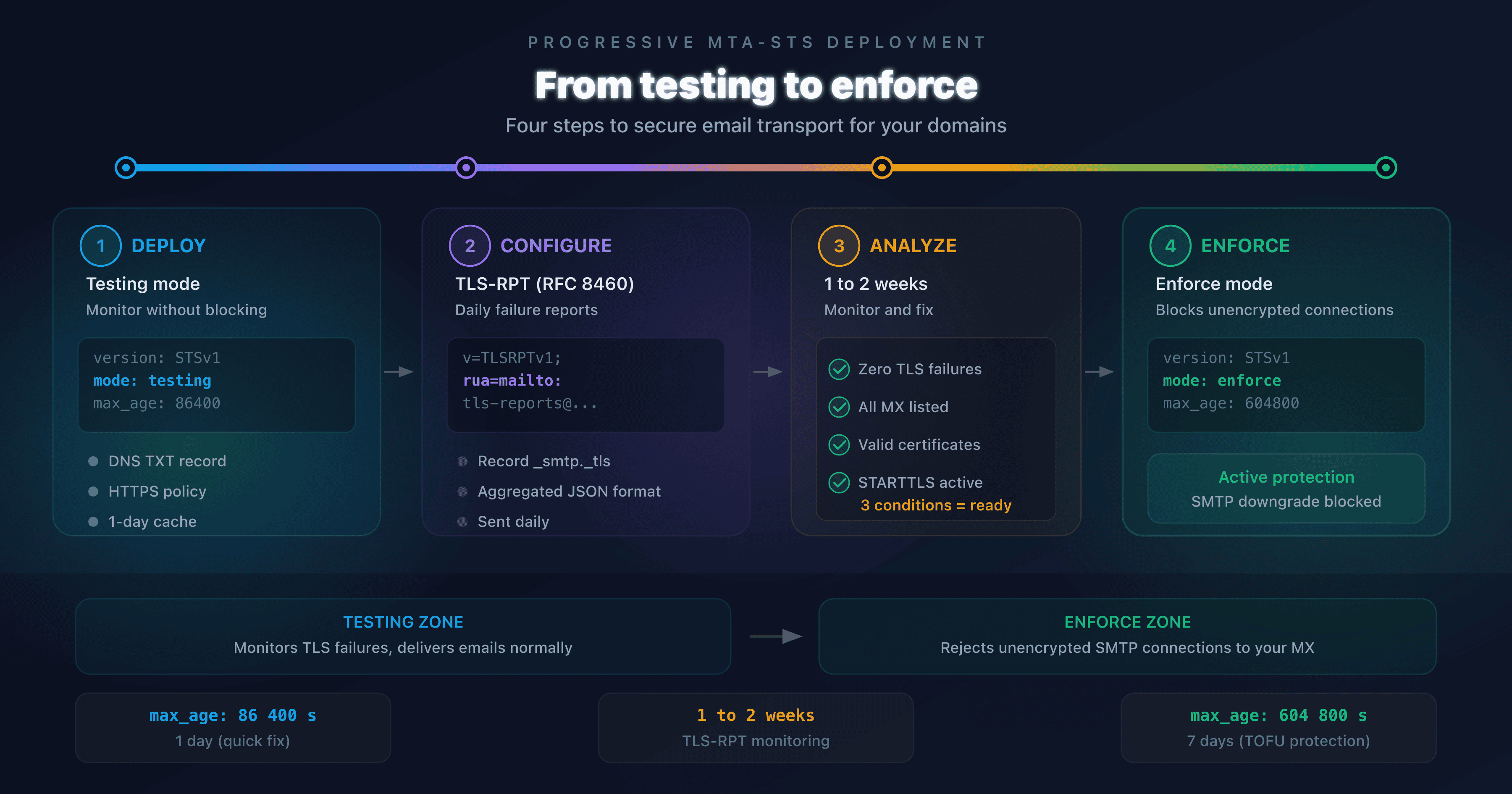
The recommended deployment follows this order:
- Publish TLS-RPT (which you just did)
- Enable MTA-STS in
testingmode - Analyze TLS-RPT reports for 2 weeks
- Switch MTA-STS to
enforcemode once reports are clean
If you use Microsoft 365 or Google Workspace, see our MTA-STS setup guide by provider which covers the same environments.
🎯 Recommended action plan
- Create a dedicated address: set up
tlsrpt@captaindns.comor a dedicated alias for reports - Publish the DNS record: add the
_smtp._tlsTXT record at your provider (5 minutes) - Verify propagation: use
digor the TLS-RPT checker to confirm publication - Wait for the first reports: 24 to 48 hours to receive reports from Google and Microsoft
- Enable MTA-STS: once TLS-RPT is in place, deploy MTA-STS in testing mode for complete protection
FAQ
How do I set up TLS-RPT on Microsoft 365?
Add a DNS TXT record with the name _smtp._tls and the value v=TLSRPTv1; rua=mailto:tlsrpt@captaindns.com in your DNS zone. If Microsoft manages your DNS, do this in the Microsoft 365 admin center under Settings > Domains. Otherwise, sign in to your registrar.
How do I set up TLS-RPT on Google Workspace?
The setup is identical to any other provider: publish a TXT record at _smtp._tls.captaindns.com in your DNS zone. Google Workspace does not manage TLS-RPT in the Admin console: the record is created at your DNS registrar.
What email address should I use for TLS-RPT reports?
Use a dedicated address such as tlsrpt@captaindns.com or tls-reports@captaindns.com. Avoid using your personal address or a shared mailbox: reports arrive daily and can clutter a non-dedicated mailbox.
Should I set up MTA-STS before TLS-RPT?
No, the reverse order is recommended. Publish TLS-RPT first to start receiving reports, then enable MTA-STS in testing mode. TLS-RPT reports will help you detect potential TLS issues before switching MTA-STS to enforce mode.
How long does it take to receive the first TLS-RPT reports?
Typically 24 to 48 hours after publishing the DNS record. Google is often the first to send a report. After that, reports come daily: each compatible provider sends one report per 24-hour period.
Can I use the same TLS-RPT record for multiple domains?
No, each domain requires its own TLS-RPT record. If you manage captaindns.com and captaindns.fr, you need to publish a _smtp._tls record in each domain's zone. However, you can direct all reports to the same email address.
Does Microsoft 365 automatically send TLS-RPT reports?
Yes. Microsoft is one of the major providers that support TLS-RPT. If a domain sending you email uses Microsoft 365 and you have published a TLS-RPT record, Microsoft will send a daily report to your rua address.
How do I verify that my TLS-RPT record is correct?
Use the command dig TXT _smtp._tls.captaindns.com +short to verify DNS publication. For a complete syntax validation, use an online TLS-RPT validator that checks the version, reporting URIs, and any formatting errors.
📖 Glossary
- TLS-RPT: SMTP TLS Reporting (RFC 8460), a mechanism for receiving daily reports on TLS negotiation failures during email delivery.
- MTA-STS: Mail Transfer Agent Strict Transport Security (RFC 8461), a policy that enforces TLS encryption for incoming emails.
_smtp._tls: DNS subdomain where the TLS-RPT TXT record is published. The full name is_smtp._tls.captaindns.com.rua: Reporting URI for Aggregated reports, a TLS-RPT directive specifying the address for receiving reports (mailto: or https:).- STARTTLS: SMTP extension that initiates TLS encryption on an initially unencrypted connection.
- DANE: DNS-Based Authentication of Named Entities (RFC 7672), an alternative to MTA-STS that uses DNSSEC to validate TLS certificates.
Validate your setup now: Use our TLS-RPT syntax validator to verify that your _smtp._tls record is correctly formatted.
📚 Related TLS-RPT guides
- TLS-RPT: the complete guide to monitoring TLS security for your emails: how the protocol works, record syntax, reading JSON reports
- Analyzing and leveraging your TLS-RPT reports