Integrate a ChatGPT widget for email authentication auditing with CaptainDNS
By CaptainDNS
Published on December 7, 2025
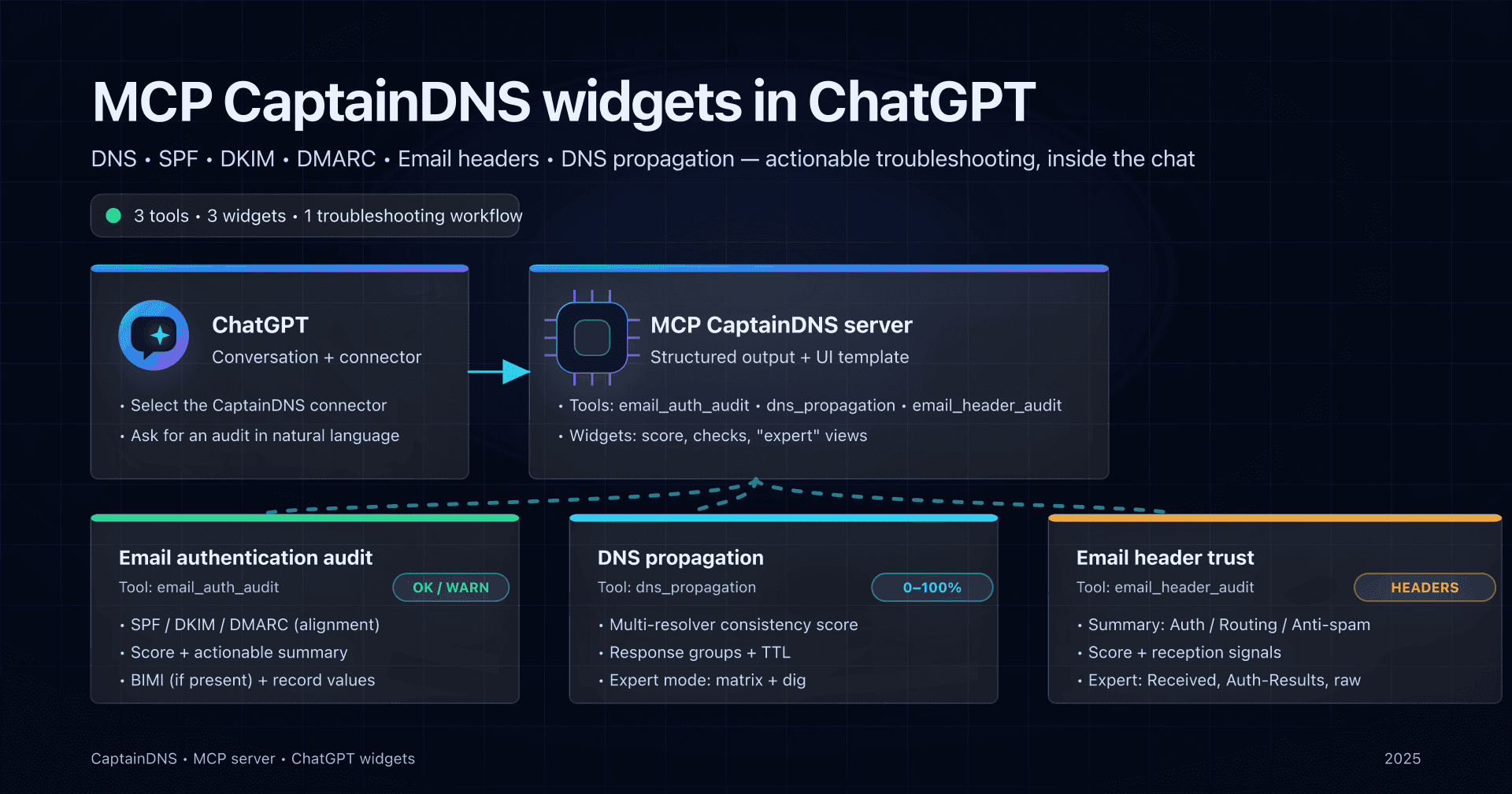
- Goal: display a visual SPF/DKIM/DMARC/BIMI audit component inside ChatGPT, powered by the CaptainDNS MCP server.
- In practice you need to align three things: the MCP tool descriptor, the tool response (
structuredContent+_meta), and an HTMLtext/html+skybridgeresource. - Main hurdles: deciding where to place
openai/outputTemplate, fixing theresources/readshape, and handling the timing ofwindow.openai.toolOutputinside the widget. - Outcome: an
email_auth_auditwidget that renders the score, summary, and MX/SPF/DKIM/DMARC/BIMI checks directly in the ChatGPT conversation - without losing the assistant's reasoning.
1. Context: why a ChatGPT widget for CaptainDNS?
CaptainDNS already provides an email authentication audit API: we compute a readiness-to-send score based on MX, SPF, DKIM, DMARC, and BIMI for a given domain.
With the CaptainDNS MCP server we could already trigger this audit from MCP Inspector and then from a ChatGPT App. From a UX standpoint, something was missing:
- the user saw a text block,
- but no synthetic view: score, status per mechanism, summary.
The new OpenAI Apps SDK UI lets you attach an HTML template to a tool to render a component in the conversation. The idea was simple:
When ChatGPT calls
email_auth_audit, display a CaptainDNS widget that summarizes the audit, then let the assistant detail the DNS fixes.
Reality was a bit subtler.
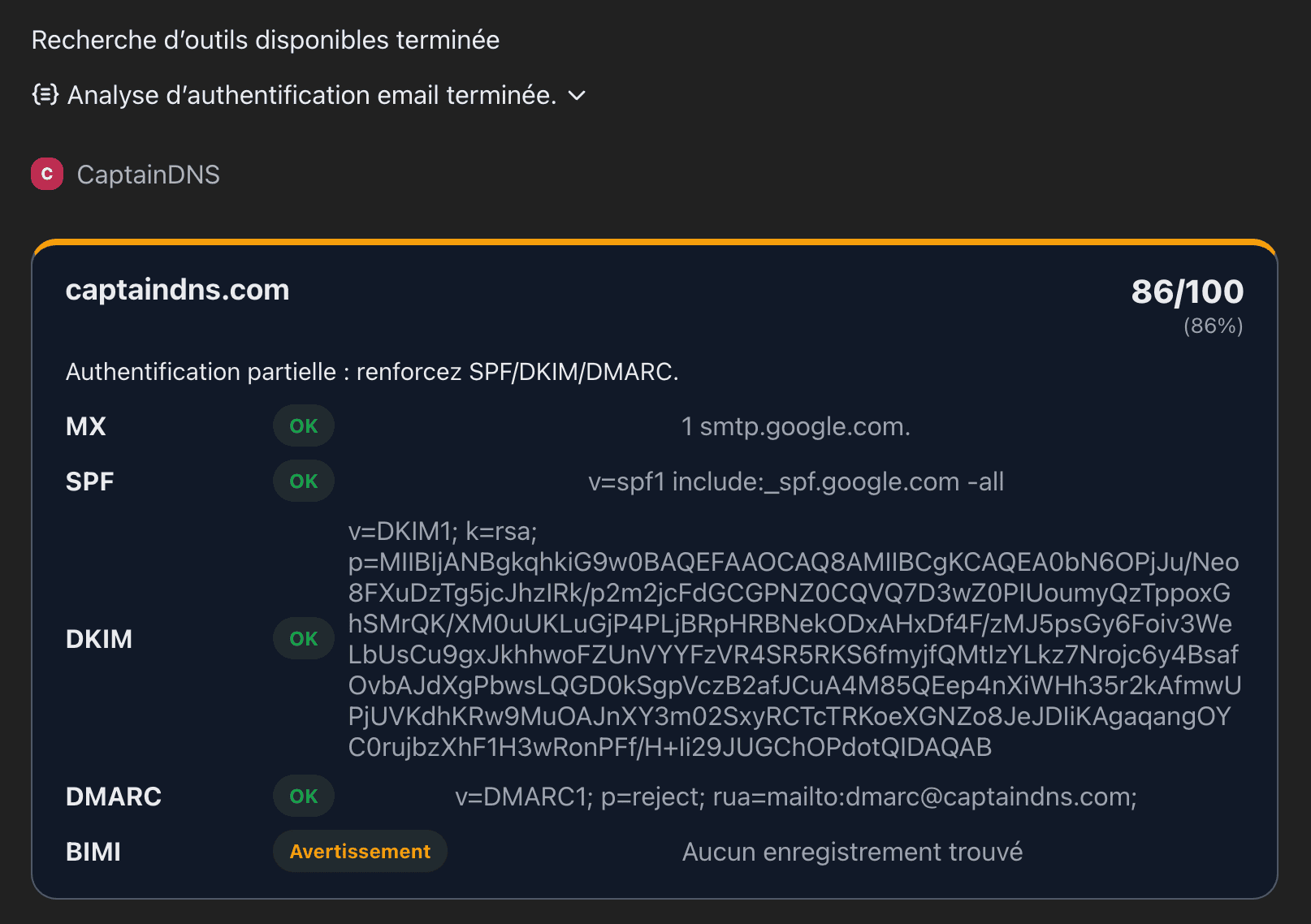
This post describes what ChatGPT actually expects, the pitfalls we ran into, and how we ended up with the following render:
(see the "Result: the widget in action" section for the screenshot, to include as an image).
2. Overall architecture: backend, MCP, Apps SDK
On the CaptainDNS side, the base architecture is:
- Frontend: Next.js on Vercel (
captaindns.com). - Backend API: Go on Fly.io handling the business logic (DNS audit, scoring, etc.).
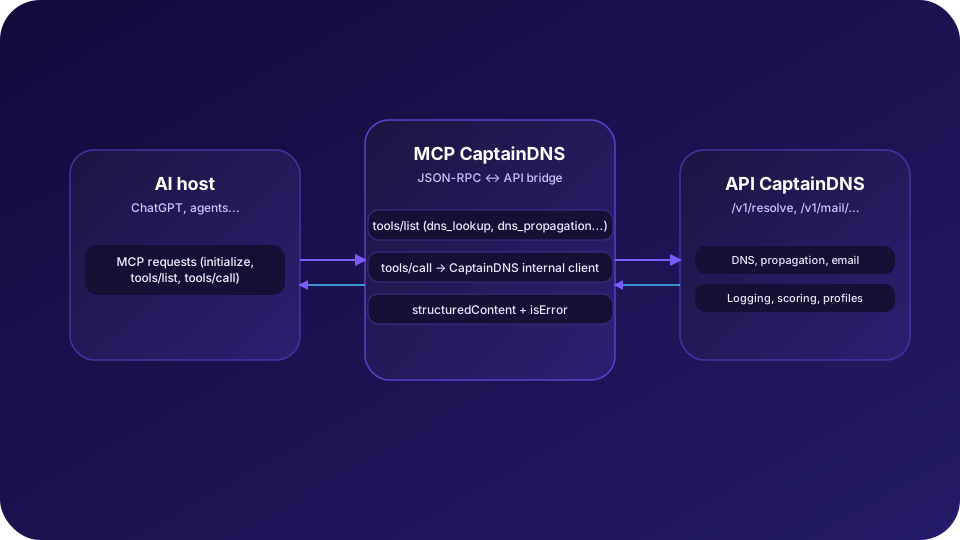
- MCP server: Go on Fly.io as well, speaking JSON-RPC with MCP Inspector / ChatGPT and delegating to the backend.
For the widget we add a new actor: the ChatGPT App consuming the CaptainDNS MCP and able to render an HTML text/html+skybridge resource.
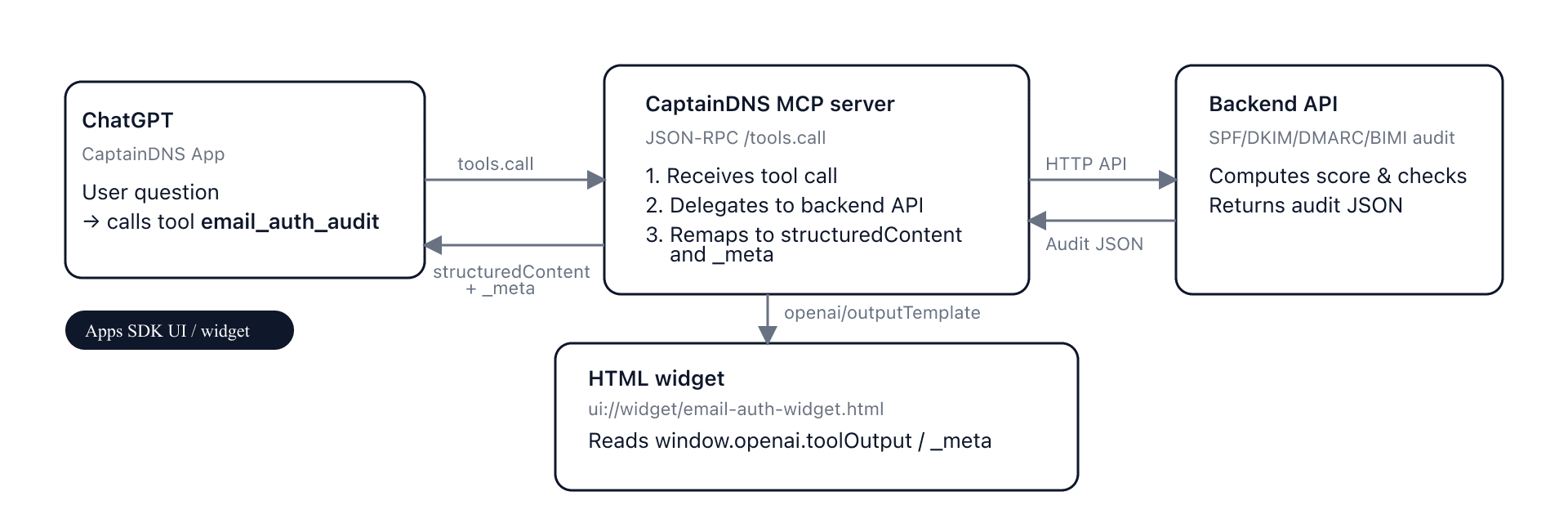
The simplified flow for email_auth_audit:
- The user asks ChatGPT: "Can you audit the email setup for captaindns.com?"
- The model decides to call the MCP tool
email_auth_audit. - The MCP server calls the backend API, receives the audit JSON, and re-maps it into
structuredContent+_meta. - ChatGPT renders:
- a text block based on
content+structuredContent, - a widget by loading
ui://widget/email-auth-widget.htmlreferenced byopenai/outputTemplate.
- a text block based on
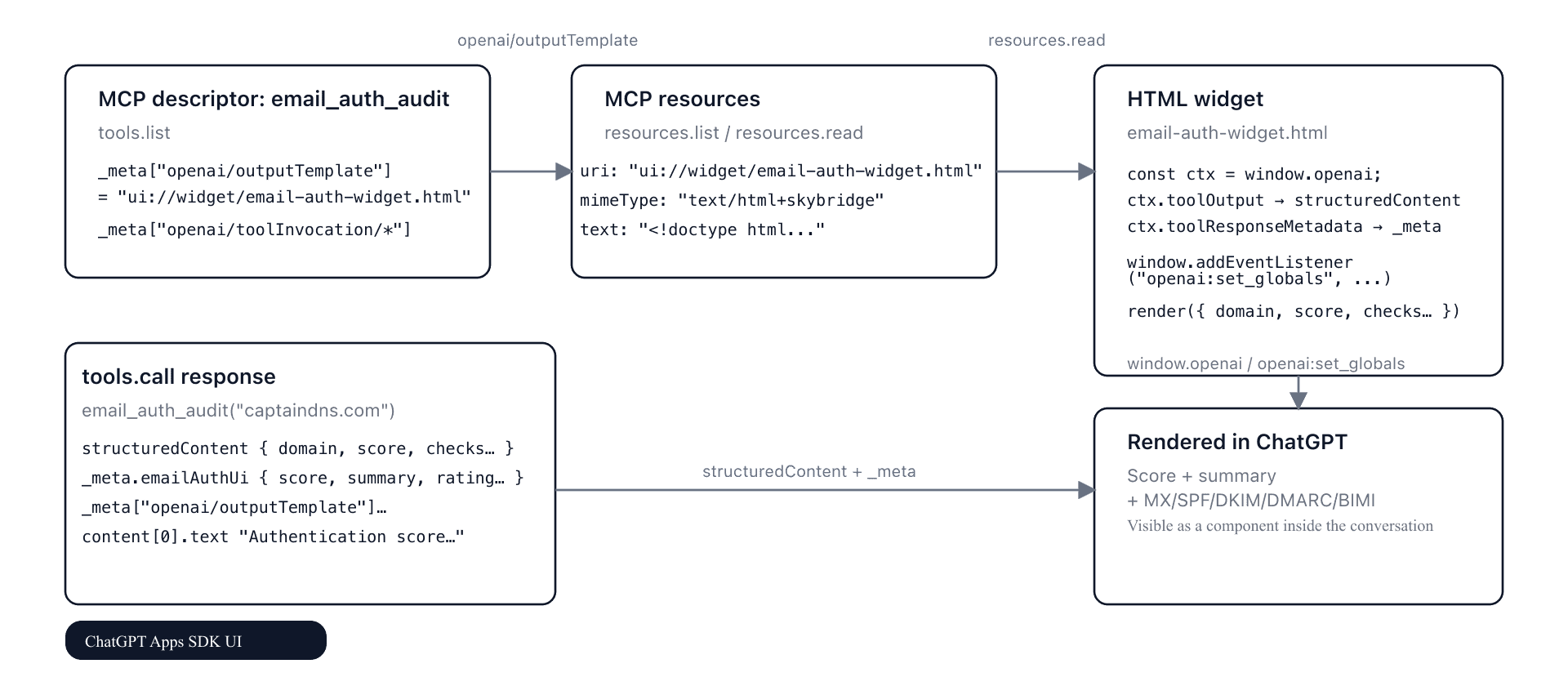
You can visualize this flow with a diagram like:
3. What ChatGPT really expects from a "widget" MCP tool
The first challenge was to understand where to declare what. On the Apps SDK side, there are three distinct layers:
- Tool descriptor (
tools/list)
- This is where you declare the OpenAI metadata:
_meta["openai/outputTemplate"] = "ui://widget/email-auth-widget.html",_meta["openai/toolInvocation/invoking"]/invoked(the small messages above the widget).
- You can keep
annotationsin parallel for your own needs (tags, OAuth2 scopes, etc.).
- HTML resource (
resources/list+resources/read)
- URI:
ui://widget/email-auth-widget.html. mimeType: strictlytext/html+skybridge.- The content is a standard HTML file with a
<script type="module">readingwindow.openai.
- Tool response (
tools/call)
structuredContent: the raw data the model will use to reason._meta: the metadata specific to the result, visible from the widget.content: a textual fallback for the conversation.
For the email_auth_audit widget we adopted the following convention:
structuredContent= full audit JSON (domain, score, checks, breakdown, notes...)._meta.emailAuthUi= the "UI-friendly" version: score, summary, rating (good/ok/bad), normalized checks._meta["openai/outputTemplate"]+openai/toolInvocation/*= present both in:- the tool descriptor,
- and the tool response (for safety - some Apps SDK guides recommend both).
This separation lets:
- the model read the data without caring about the UI,
- the widget retrieve a payload already "ready to render."
4. Wiring the email_auth_audit tool on the MCP side
On the MCP side, the email_auth_audit handler does three things:
- Call the backend with the domain and retrieve an audit JSON such as:
{
  "domain": "captaindns.com",
  "score": 57,
  "max_score": 100,
  "percentage": 57,
  "authentication_summary": "Partial authentication: tighten SPF/DKIM/DMARC.",
  "checks": [ ... ],
  "score_breakdown": { ... },
  "findings": { ... },
  "notes": [ ... ],
  "ui_meta": { ... }
}
- Remap into
structuredContent
Here we mostly reuse the JSON as-is:
"structuredContent": {
  "domain": "captaindns.com",
  "ready_to_send": true,
  "degraded": true,
  "grade": "medium",
  "score": 57,
  "max_score": 100,
  "percentage": 57,
  "authentication_score": 57,
  "authentication_summary": "Partial authentication: tighten SPF/DKIM/DMARC.",
  "checks": [ ... ],
  "score_breakdown": { ... },
  "findings": { ... },
  "notes": [ ... ]
}
- Build
_meta+content
"_meta": {
  "emailAuthUi": {
    "score": 57,
    "summary": "Partial authentication: tighten SPF/DKIM/DMARC.",
    "rating": "bad",
    "checks": [ ... ]
  },
  "openai/outputTemplate": "ui://widget/email-auth-widget.html",
  "openai/toolInvocation/invoking": "Running the email authentication audit...",
  "openai/toolInvocation/invoked": "Email authentication audit completed."
},
"content": [
  {
    "type": "text",
    "text": "Authentication score: 57/100 - Partial authentication: tighten SPF/DKIM/DMARC."
  }
]
The "reasoning" part of ChatGPT relies on structuredContent and content. The widget leverages structuredContent and _meta.emailAuthUi.
5. Exposing the HTML template as an MCP resource
Next we had to declare the template on the MCP side.
5.1. resources/list: declare the resources
The MCP exposes three resources for this widget:
ui://widget/email-auth-widget.html(HTML + CSS + JS),ui://widget/apps-sdk-bridge.js(optional Apps SDK bridge),- other assets if needed.
resources/list returns an array of descriptors with uri, name, description, mimeType.
5.2. resources/read: the invalid_union trap
The first version of resources/read returned JSON shaped like:
{
  "contents": [
    {
      "uri": { "value": "ui://widget/email-auth-widget.html" }, // wrong
      "mimeType": "text/html+skybridge",
      "text": "<!doctype html>..."
    }
  ]
}
Result in MCP Inspector: a nice invalid_union error on contents[0].uri.
The MCP client expects exactly:
{
  "contents": [
    {
      "uri": "ui://widget/email-auth-widget.html",
      "mimeType": "text/html+skybridge",
      "text": "<!doctype html>..."
    }
  ]
}
Once the types were fixed (uri and text as strings), MCP Inspector could display the HTML and ChatGPT could load the template without complaining.
6. Inside the widget: understanding window.openai
Last but not least: implementing the widget itself.
6.1. What ChatGPT provides to the template
In an Apps SDK template, ChatGPT injects a global window.openai object whose fields evolve over time:
- on load,
window.openai.toolOutputcan benullor empty; - when the tool is executed, ChatGPT emits an
openai:set_globalsevent and updates:globals.toolOutput,globals.toolResponseMetadata.
Initially our script assumed that window.openai.toolOutput immediately contained an object of type structuredContent. That was false, hence a render with:
Unknown domain,Score unavailable,No checks available.
6.2. Normalizing the shape of toolOutput
We started by writing a helper that accepts several possible shapes:
function extractStructured(toolOutputSource) {
  if (!toolOutputSource) return {};
  // Case 1: direct structuredContent
  if (toolOutputSource.domain || toolOutputSource.score || toolOutputSource.checks) {
    return toolOutputSource;
  }
  // Case 2: { structuredContent: {...} }
  if (toolOutputSource.structuredContent) {
    return toolOutputSource.structuredContent;
  }
  // Case 3: { result: { structuredContent: {...} } }
  if (toolOutputSource.result?.structuredContent) {
    return toolOutputSource.result.structuredContent;
  }
  return toolOutputSource;
}
Then, in normalize, instead of doing:
const structured =
  toolOutputSource?.structuredContent ?? toolOutputSource ?? {};
we do:
const structured = extractStructured(toolOutputSource);
6.3. Handling timing with openai:set_globals
Then we wired the widget to the openai:set_globals event:
function renderFromContext() {
  const ctx = window.openai || {};
  const toolOutput = ctx.toolOutput || ctx.toolInvocationResult || {};
  const meta = ctx.toolResponseMetadata || {};
  const data = normalize(toolOutput, meta);
  render(data);
}

// Optimistic first render
renderFromContext();

// Reactive render when ChatGPT pushes tool results
window.addEventListener(
  "openai:set_globals",
  (event) => {
    const globals = event.detail?.globals || {};
    const toolOutput = globals.toolOutput ?? window.openai?.toolOutput ?? {};
    const meta = globals.toolResponseMetadata ?? window.openai?.toolResponseMetadata ?? {};
    const data = normalize(toolOutput, meta);
    render(data);
  },
  { passive: true }
);
With these two points in place, the widget started to display:
captaindns.comat the top left,57/100 (57%)at the top right,- the summary, and the MX/SPF/DKIM/DMARC/BIMI rows with their statuses.
7. Result: the widget in action
The final view looks like a CaptainDNS card rendered directly in the conversation:
- Title:
captaindns.com. - Score:
57/100 (57%), with a status color (badin our case). - Summary: "Partial authentication: tighten SPF/DKIM/DMARC."
- Table:
- MX: OK -
1 smtp.google.com. - SPF: OK -
v=spf1 include:_spf.google.com -all - DKIM: Info - "No record found"
- DMARC: OK -
v=DMARC1; p=reject; rua=mailto:dmarc@captaindns.com; - BIMI: Warning - "No record found"
- MX: OK -
8. Watchpoints and checklist
To recap, here is the checklist we now use for every new Apps SDK widget connected to the CaptainDNS MCP:
- Tool descriptor (
tools/list):
_meta["openai/outputTemplate"]points to atext/html+skybridgeHTML resource._meta["openai/toolInvocation/invoking"]/invokedare set.
- HTML resource (
resources/read):
contents[0].uriis a string (exactly the resource URI).contents[0].mimeType === "text/html+skybridge".contents[0].textcontains valid HTML.
- Tool response (
tools/call):
structuredContentholds the business data._metacontains:- the UI metadata (
emailAuthUihere), - the
openai/*keys if you want to duplicate the declaration. contentcontains a readable sentence for the conversation.
- the UI metadata (
- HTML widget:
- reads
window.openai.toolOutput/toolResponseMetadata, - normalizes the shape of
toolOutput, - listens to
openai:set_globals, - leaves no debug noise in the final render.
With these safeguards, adding new widgets (for example for authoritative DNS health or propagation) becomes much smoother.
9. What's next?
This first email_auth_audit widget is a reference for upcoming CaptainDNS UI components in ChatGPT:
- a widget for authoritative DNS health (
domain_dns_check), - a multi-resolver DNS propagation widget,
- or even richer dashboards combining several tools.
The most important point from this REX is actually simple:
the Apps SDK render is not "magic"; it relies on a very precise contract between the tool descriptor, the tool response, and the HTML resources.
Once you master that contract, you can turn rather raw MCP tools into much more readable user experiences directly within the ChatGPT conversation, without duplicating business logic in the frontend.
Related MCP and CaptainDNS guides
- Introduction to MCP for CaptainDNS - Learn what MCP is and why CaptainDNS adopts it.
- CaptainDNS MCP Architecture - Examine the technical details of the MCP server.
- Auth0 + MCP Integration - OAuth2 authentication for the CaptainDNS MCP.
- MCP Widgets for ChatGPT - How ChatGPT widgets leverage the CaptainDNS MCP.
- Resilient DNS Monitoring - Building multi-layer DNS surveillance.
- History and DNS Monitoring - Diagnose, archive, share, then monitor.