BIMI logo hosting: where and how to host your SVG logo and certificate
By CaptainDNS
Published on March 31, 2026
Updated on August 25, 2026
- Logo hosting is the most fragile link in the BIMI chain: mandatory HTTPS, TLS 1.2+, content-type
image/svg+xml, zero redirects, file under 32 KB - 53% of BIMI records contain at least one error: poor logo hosting is one of the most common causes
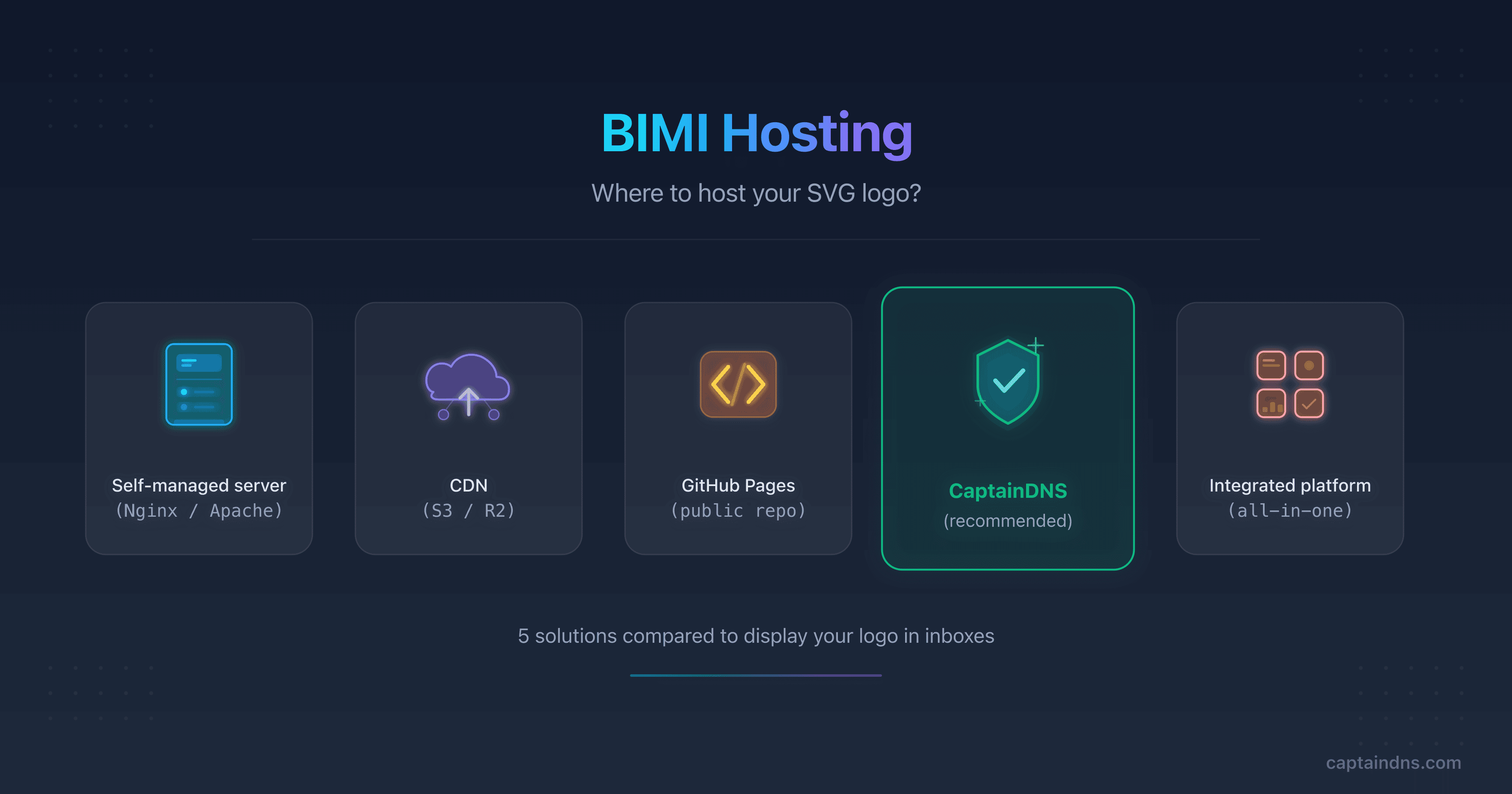
- 5 options compared: self-managed server, CDN (S3, R2), GitHub Pages, dedicated service (CaptainDNS), integrated platform (PowerDMARC, Valimail)
- CaptainDNS (first tool free, then €3/month excl. VAT per domain) hosts your SVG logo and VMC/CMC certificate, with automatic TLS, access statistics, and certificate expiration alerts
When discussing BIMI, technical conversations almost always focus on three topics: enforcing DMARC, converting the logo to SVG Tiny-PS format, and obtaining a VMC or CMC certificate. These steps are well documented, well tooled, and covered by dozens of guides. But there is a fourth topic, rarely addressed, that causes just as many failures as the other three combined: hosting the SVG file.
The concept seems simple enough. The BIMI DNS record contains a URL (l=) that points to your logo. Mail providers (Gmail, Yahoo Mail, Apple Mail) fetch the file at this URL to display it in the inbox. If the server does not respond, if the TLS certificate is expired, if the content-type is wrong, if a redirect slips into the chain, the logo simply does not appear. No error message. No feedback. The provider just moves on to the next message without a logo.
The numbers confirm the scale of the problem. According to a 2025 URIports analysis of the top 1 million domains, 53.6% of BIMI records contain at least one error. Among these errors, hosting failures (unreachable server, invalid TLS certificate, incorrect content-type, redirects) are among the most common causes. This is not a niche problem: it is a structural one.
This guide covers three questions. First, the exact technical requirements your hosting server must meet. Then, the five hosting options available, with their strengths and limitations. Finally, a step-by-step tutorial to host your logo and certificate with CaptainDNS, in under three minutes.
Whether you are a system administrator, technical lead, or email consultant, this guide gives you the tools to choose the right hosting solution and avoid the mistakes that silently break your BIMI deployment.
Why is BIMI logo hosting critical?
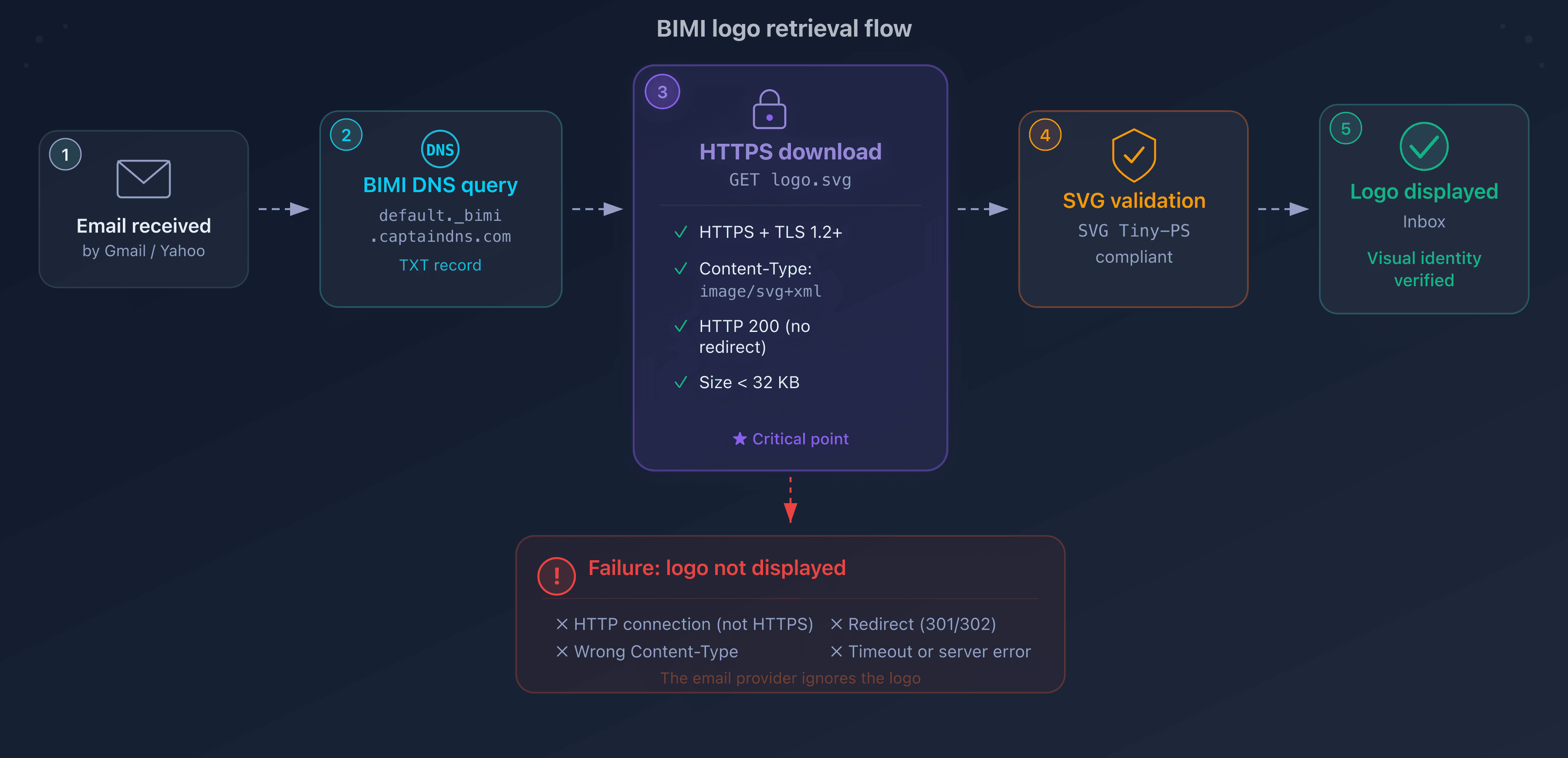
To understand why hosting is so critical, you need to understand how mail providers fetch the logo. The process follows a precise chain:
- An email arrives at the provider (Gmail, Yahoo, Apple Mail)
- The provider verifies authentication: SPF, DKIM, DMARC
- If DMARC passes in enforcement mode, the provider looks for a BIMI record at
default._bimi.captaindns.com - The provider extracts the URL from the
l=tag in the BIMI record - The provider sends an HTTPS GET request to that URL
- If the response is HTTP 200 with
Content-Type: image/svg+xmland a valid SVG file: the logo is displayed - If anything fails in this chain: no logo, no notification
The critical point is step 5. The mail provider is not a web browser. It is an automated agent that applies strict rules and tolerates no deviation.
BIMI hosting technical requirements
Here are the requirements your hosting server must meet for mail providers to successfully fetch the logo:
| Requirement | Detail | Consequence if not met |
|---|---|---|
| Mandatory HTTPS | TLS 1.2 minimum, valid certificate (not self-signed) | Logo silently rejected |
| Exact Content-Type | image/svg+xml (not text/plain, application/octet-stream) | Logo rejected |
| HTTP 200 response | No 301/302 redirects | Logo rejected (mail clients do not follow redirects) |
| File size | Under 32 KB | Logo rejected |
| 24/7 availability | No extended maintenance, no rate limiting | Logo absent during downtime |
| No geo-blocking | The mail server can be located anywhere | Logo absent for some providers |
Why are these requirements stricter than standard web hosting?
In standard web hosting, a browser follows redirects, displays an error page, and retries a failed request. A mail provider fetching a BIMI logo does none of this.
No redirect following. If your server responds with a 301 or 302 (even for a simple HTTP to HTTPS redirect), the provider considers the file unreachable. This is the most common trap for teams that configure their web server with a default HTTP to HTTPS redirect. The URL in the BIMI record must point directly to the final destination.
No automatic retries. If your server is unavailable when Gmail tries to fetch the logo, the logo does not appear for that email. Some providers like Gmail use a cache and may retry later, but this behavior is neither guaranteed nor documented.
No content-type negotiation. The provider expects image/svg+xml. If it receives text/plain (the default on many servers for .svg files) or application/octet-stream, it rejects the file. It does not attempt to detect the format by analyzing the content.
No TLS error tolerance. A self-signed certificate, an expired certificate, an incomplete certificate chain: all of these cause immediate rejection. Mail providers do not offer a "continue despite the error" option like a web browser.
Variable caching behavior. Some providers like Gmail cache the logo after the first successful fetch. This cache masks temporary hosting issues: the logo continues to appear even if the server is down. But this cache has a limited and undocumented lifespan. When it expires, the provider tries to fetch the logo again. If the server is still unavailable at that point, the logo disappears. The cache creates a false sense of security: everything seems to work while the underlying infrastructure is failing.
For the SVG file requirements themselves (Tiny-PS format, dimensions, content), see our BIMI logo creation guide.
The five hosting options compared
There is no one-size-fits-all solution for hosting a BIMI logo. The choice depends on your existing infrastructure, your technical skills, and your monitoring needs. Here are the five most common options, with their pros, limitations, and ideal use case.
Self-managed web server (nginx, apache)
The most direct approach: host the SVG file on your own web server. If you already have an nginx or apache server exposed to the Internet, you just need to place the SVG file in an accessible directory.
Typical nginx configuration:
location /bimi/logo.svg {
    root /var/www/bimi;
    types {
        image/svg+xml svg;
    }
    add_header Content-Type "image/svg+xml";
    add_header Cache-Control "public, max-age=86400";
}
Apache configuration:
<Directory /var/www/bimi>
    AddType image/svg+xml .svg
</Directory>
Pros:
- Full control over configuration
- No dependency on a third-party service
- No additional cost if the server already exists
Limitations:
- Manual TLS certificate management (renewal, certificate chain)
- You are responsible for 24/7 availability
- Risk of interruption during server maintenance
- Content-type must be configured manually
- No built-in monitoring (you need to set up external monitoring)
Ideal use case: teams with existing infrastructure, an ops team in place, and experience managing web servers. If you already manage dozens of websites, adding an SVG file is trivial. If your only server is an unmonitored VPS, it is a risk.
Common pitfall: the HTTP to HTTPS redirect. Most nginx and apache configurations include a server block that redirects port 80 to port 443. If your BIMI URL is HTTPS, no problem. But if someone accidentally copies the HTTP URL into the DNS record, the 301 redirect will cause a silent rejection by the mail provider.
Generic CDN with cloud storage
Cloud storage services with CDN are a popular option. The file is hosted in a bucket (AWS S3, Cloudflare R2, Google Cloud Storage) and served via a CDN (Cloudflare, AWS CloudFront, Cloud CDN).
AWS S3 + CloudFront deployment:
# Upload the file with the correct content-type
aws s3 cp logo.svg s3://mon-bucket-bimi/logo.svg \
  --content-type "image/svg+xml" \
  --cache-control "public, max-age=86400"

# Verification
curl -I https://d1234abcd.cloudfront.net/logo.svg
Cloudflare R2 deployment:
# Upload via wrangler
npx wrangler r2 object put mon-bucket-bimi/logo.svg \
  --file=logo.svg \
  --content-type="image/svg+xml"
Pros:
- Very high availability (99.9%+ SLA)
- TLS managed automatically by the CDN
- Geographic distribution (reduced latency)
- Very low cost (a few cents per month for a single file)
Limitations:
- Content-type must be set explicitly during upload (if you forget, the bucket serves
application/octet-stream) - The CDN can add redirects if the custom domain is not properly configured
- No SVG validation: you can upload an invalid file without knowing
- No expiration alerts for VMC/CMC certificates hosted in the same bucket
- Non-trivial initial setup (IAM, bucket policy, CDN distribution)
Ideal use case: teams already using AWS, Cloudflare, or GCP for other resources. The infrastructure is already in place, the skills are there, and the marginal cost is virtually zero.
Common pitfall: the default content-type. If you upload a .svg file to an S3 bucket without specifying the content-type, S3 serves it with application/octet-stream. The file is downloaded instead of being interpreted as an image. Mail providers reject it.
Another common pitfall with CDNs is custom domain configuration. If you map a domain name to your CloudFront distribution or R2 bucket, you need to ensure that DNS resolution points directly to the CDN without any intermediate redirect. A misconfigured CNAME or DNS zone can introduce an invisible 301 redirect that breaks logo retrieval by mail providers.
GitHub Pages
GitHub Pages is a free option that works for simple cases. Create a repository, add the SVG file, enable GitHub Pages: the file is served over HTTPS with the correct content-type.
Deployment:
# Create a dedicated repository
mkdir bimi-assets && cd bimi-assets
git init
cp ~/logo.svg ./logo.svg
git add logo.svg
git commit -m "add BIMI logo"
git remote add origin git@github.com:captaindns/bimi-assets.git
git push -u origin main
Enable GitHub Pages in the repository settings (source: main branch). The URL will be: https://captaindns.github.io/bimi-assets/logo.svg
Pros:
- Free
- Automatic TLS (Let's Encrypt via GitHub)
- Correct content-type for
.svgfiles (handled automatically) - Simple updates (git push)
Limitations:
- No availability SLA (GitHub Pages is designed for static sites, not critical hosting)
- PEM certificate hosting is problematic: GitHub Pages serves
.pemfiles with an incorrect content-type (text/plain) - No access statistics (you cannot tell if providers are fetching the logo)
- No certificate expiration alerts
- Dependency on GitHub (policy changes, service disruptions)
- No custom domain by default (
github.ioURL)
Ideal use case: personal projects, testing, self-declared BIMI deployment (without a VMC/CMC certificate). If you want to test BIMI on Yahoo Mail before investing in a certificate, GitHub Pages is a good starting point.
Common pitfall: the VMC/CMC certificate. If you try to host a .pem file on GitHub Pages, the content-type will be text/plain. Mail providers may reject the certificate. For a complete BIMI deployment (with certificate), GitHub Pages is not suitable.
Keep in mind that GitHub Pages has bandwidth limits (100 GB/month) and site size limits (1 GB). For a single SVG file, these limits will never be reached, but they highlight that the service is not designed for critical production hosting. In case of a traffic spike (an ISP caching the logo and re-downloading it frequently), GitHub Pages could temporarily restrict access.
Dedicated BIMI hosting service (CaptainDNS)
A service specifically designed to host BIMI assets. CaptainDNS handles the entire chain: upload, validation, hosting, DNS record generation, and monitoring.
How it works:
- You create a BIMI profile for your domain
- You verify domain ownership (TXT record)
- You upload your SVG logo (automatically validated for Tiny-PS format)
- You upload your VMC/CMC certificate (optional)
- CaptainDNS generates the complete BIMI DNS record
- You copy the record into your DNS zone
Files are served from assets.captaindns.com with automatic TLS (Let's Encrypt), the correct content-type, and no redirects.
Pros:
- Zero configuration: no server to manage, no content-type to configure
- SVG Tiny-PS validation at upload: if the file is non-compliant, it is rejected with an explicit error message
- VMC/CMC certificate hosting with automatic metadata extraction (issuer, validity dates, type)
- Certificate expiration alert (30 days before expiry)
- Access statistics: number of requests received and timestamp of the last request
- Automatic BIMI DNS record generation
- first tool free, then €3/month excl. VAT per domain
Limitations:
- Dependency on a third-party service (like any hosted solution)
- Fixed hosting domain (
assets.captaindns.com, no custom domain for the URL)
Ideal use case: any organization that wants reliable BIMI hosting without worrying about technical configuration. Particularly suited for SMBs without a dedicated ops team.
Integrated DMARC platform
DMARC monitoring platforms like PowerDMARC, Valimail, or Red Sift often offer BIMI hosting as a feature included in their plans. The logo and certificate are uploaded in the platform's dashboard, which handles hosting and DNS record generation.
Pros:
- Native integration with DMARC monitoring (unified view of email authentication)
- Managed hosting (TLS, content-type, availability)
- Support and guidance included in the subscription
Limitations:
- High cost: these platforms charge between $50 and $500+/month (or more) for the full DMARC suite. BIMI hosting is just one feature among many
- Vendor lock-in: if you switch platforms, the logo URL changes and you must update your DNS record
- Variable BIMI features: some platforms do not offer SVG validation at upload or certificate expiration alerts
Ideal use case: large enterprises already using a DMARC platform for email authentication monitoring. In this case, BIMI hosting is a bonus included in the existing subscription.
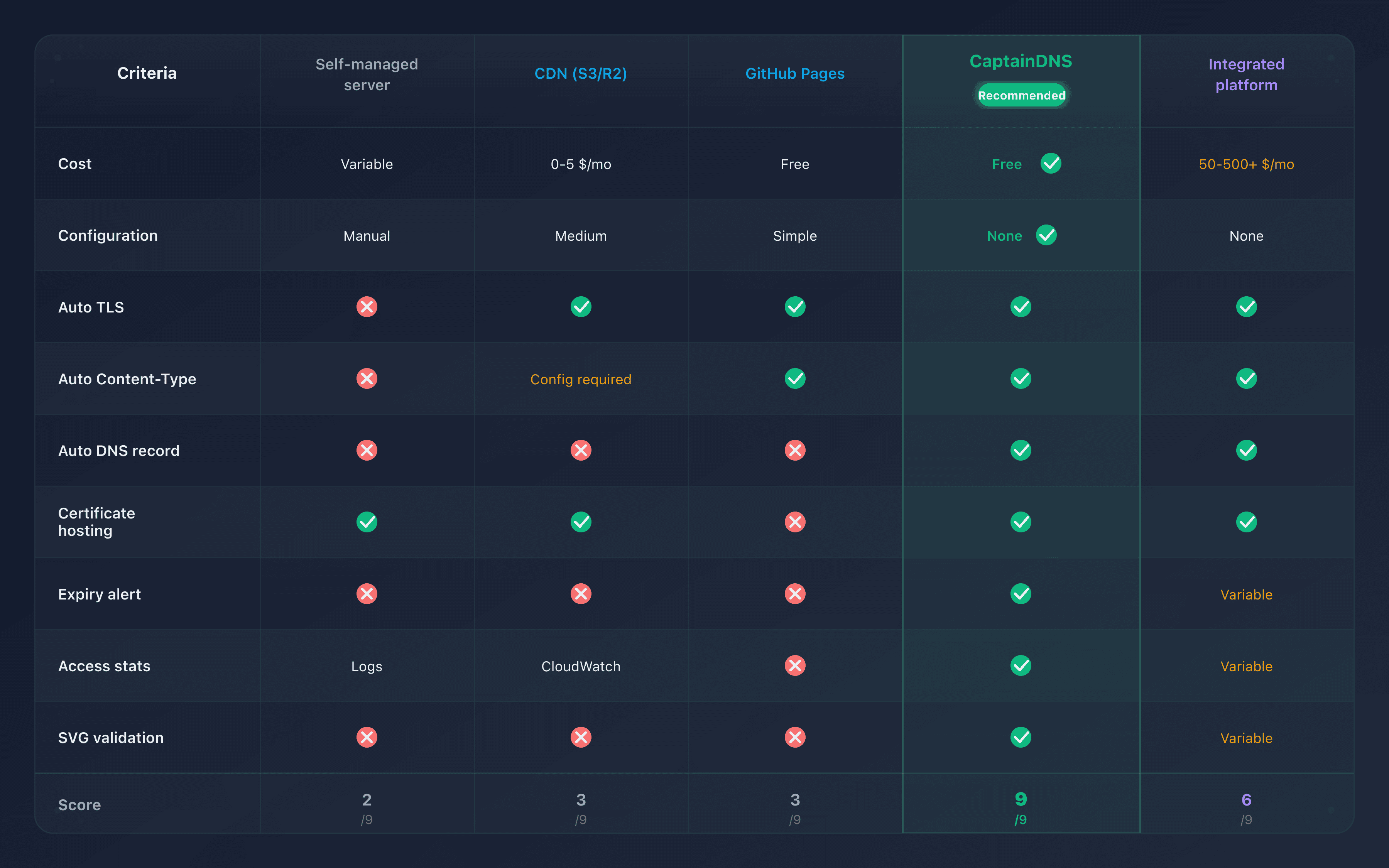
Comparison table of the five options
| Criterion | Self-managed server | CDN (S3/R2) | GitHub Pages | CaptainDNS | Integrated platform |
|---|---|---|---|---|---|
| Cost | Variable | $0-5/month | first tool free, then €3/month excl. VAT per domain | Free | $50-500+/month |
| Configuration | Manual | Medium | Simple | None | None |
| Automatic Content-Type | No | Configuration required | Yes (SVG) | Yes | Yes |
| Managed TLS | Manual | Automatic | Automatic | Automatic | Automatic |
| DNS record generation | No | No | No | Yes | Yes |
| Certificate hosting | Yes | Yes | No (PEM) | Yes | Yes |
| Certificate expiration alert | No | No | No | Yes | Variable |
| Access statistics | Server logs | CloudWatch/R2 Analytics | No | Yes | Variable |
| SVG validation at upload | No | No | No | Yes (SVG Tiny-PS) | Variable |
The choice depends on your situation. If you have an ops team and cloud infrastructure in place, a CDN is an excellent option. If you want the simplest and most reliable solution without configuring anything, CaptainDNS is built for that. If you already use a DMARC platform, check whether BIMI hosting is included in your subscription.
A criterion often overlooked in this choice is URL permanence. The logo URL is embedded in your BIMI DNS record. If you switch hosting solutions, you also need to update the DNS record, which involves a propagation delay during which some providers fetch the old URL (now unreachable) and others the new one. To minimize this risk, choose a solution you will not need to change in the coming years.
The five hosting mistakes that break your BIMI
Even with the right hosting option, configuration errors can prevent the logo from appearing. Here are the five most common mistakes, each with its symptom, diagnostic command, and solution.
Mistake 1: HTTP instead of HTTPS
Symptom: the logo does not appear with any mail provider, despite a valid BIMI record and a compliant SVG file.
Cause: the URL in the l= tag of the BIMI record uses http:// instead of https://. Or the record contains https:// but the server only responds on port 80 (HTTP) and redirects to HTTPS. The BIMI specification requires an HTTPS URL that responds directly with a 200 status, without any redirect.
Diagnosis:
# Check the BIMI record
dig default._bimi.captaindns.com TXT +short

# Test the direct HTTPS response
curl -I https://assets.captaindns.com/bimi/logo/captaindns.com/logo.svg
Verify that:
- The URL in the record starts with
https:// - The
curlresponse returns anHTTP/2 200code (not 301, 302, 307)
Solution: make sure the URL in the BIMI record points directly to the HTTPS endpoint. Do not rely on an HTTP to HTTPS redirect: mail providers do not follow it. If your server only supports HTTP, you need to configure TLS before deploying BIMI.
This mistake is particularly insidious because it is invisible during manual testing. If you type the HTTP URL in a browser, the browser follows the redirect and displays the file normally. Everything seems to work. But the automated agents used by mail providers stop at the first response code: if it is not 200, the file is considered unreachable.
Mistake 2: incorrect content-type
Symptom: the SVG file is accessible over HTTPS, the HTTP code is 200, but the logo does not appear.
Cause: the server returns an incorrect content-type. The most common cases:
text/plain: default on many servers when the MIME type is not configured for the.svgextensionapplication/octet-stream: default on some cloud storage services (S3 without explicit configuration)text/html: if the server returns an HTML error page instead of the SVG file
Diagnosis:
curl -I https://assets.captaindns.com/bimi/logo/captaindns.com/logo.svg
Look for the Content-Type line in the response. It must contain exactly image/svg+xml:
HTTP/2 200
content-type: image/svg+xml
Solution depending on your server:
nginx: add to your server or location block:
types {
    image/svg+xml svg;
}
apache: add to your .htaccess or global configuration:
AddType image/svg+xml .svg
S3: specify the content-type during upload:
aws s3 cp logo.svg s3://bucket/logo.svg --content-type "image/svg+xml"
R2: specify the content-type in the wrangler command:
npx wrangler r2 object put bucket/logo.svg --file=logo.svg --content-type="image/svg+xml"
Mistake 3: HTTP redirects
Symptom: curl returns a 200 code when you test in a browser, but mail providers do not fetch the logo.
Cause: there are one or more redirects in the chain. Browsers follow them automatically and show you the final result, masking the issue. BIMI mail providers do not follow redirects.
The most common redirects:
- HTTP to HTTPS (301 from
http://tohttps://) - www to non-www (301 from
www.captaindns.comtocaptaindns.com) - Old URL to new URL (301 after server reorganization)
- Trailing slash (301 from
/bimi/logo.svg/to/bimi/logo.svg)
Diagnosis:
# Follow the redirect chain
curl -IL https://assets.captaindns.com/bimi/logo/captaindns.com/logo.svg
If you see multiple HTTP responses (301, 302, 307) before the final 200, that is the problem. The first response must be a direct 200.
Solution: update the URL in your BIMI record to point to the final destination, the one that directly returns a 200. If your server redirects http:// to https://, use the https:// URL in the record. If your server redirects www to the bare domain, use the bare domain in the record.
Mistake 4: server unavailable
Symptom: the logo appears intermittently, or it used to appear and has disappeared.
Cause: the hosting server is temporarily unreachable. Possible causes:
- Planned server maintenance
- Quota exceeded or rate limiting
- Geographic restrictions (the server blocks certain IPs)
- Server saturation (too many simultaneous requests)
- Virtual server powered off (unmonitored VPS)
Diagnosis:
# Check availability from your machine
curl -o /dev/null -s -w "%{http_code}" https://assets.captaindns.com/bimi/logo/captaindns.com/logo.svg

# Test from a different IP (optional, via an online service)
If the HTTP code is not 200, the server is unreachable.
Solution: set up external monitoring that checks the logo URL availability every 5 minutes. Services like UptimeRobot, Pingdom, or BetterStack can alert you when it goes down. CaptainDNS provides a request counter and the timestamp of the last served request: if the counter stops moving while you are sending emails, that is an indicator of a problem.
For a self-managed server, avoid long maintenance windows without a backup server. For a CDN or dedicated service, the risk of downtime is much lower thanks to built-in redundancy.
Mistake 5: expired server TLS certificate
Symptom: the logo was working and suddenly disappeared across all providers.
Cause: the TLS certificate of the hosting server has expired. This is not the VMC/CMC certificate (which is a hosted file), but the HTTPS certificate of the server itself. Mail providers refuse to connect to a server with an invalid TLS certificate.
This error is distinct from VMC/CMC certificate expiration. Here, it is the server itself that is rejected, not the BIMI certificate.
Diagnosis:
# Check the server TLS certificate validity
curl -vI https://assets.captaindns.com/bimi/logo/captaindns.com/logo.svg 2>&1 | grep "expire date"

# Or with openssl
echo | openssl s_client -connect assets.captaindns.com:443 2>/dev/null | openssl x509 -noout -dates
Solution: enable automatic TLS certificate renewal. Let's Encrypt provides free certificates with automatic renewal via Certbot or alternatives like acme.sh. CDNs and managed services (Cloudflare, CaptainDNS) handle TLS renewal automatically.
If you are using a self-managed server, configure a cron job for renewal:
# Automatic renewal with Certbot
0 0 * * * certbot renew --quiet
For a comprehensive diagnosis of all BIMI errors, see our guide BIMI logo not showing: 5 errors to fix. You can also use the CaptainDNS BIMI checker to automatically validate the entire chain.
Hosting the VMC or CMC certificate
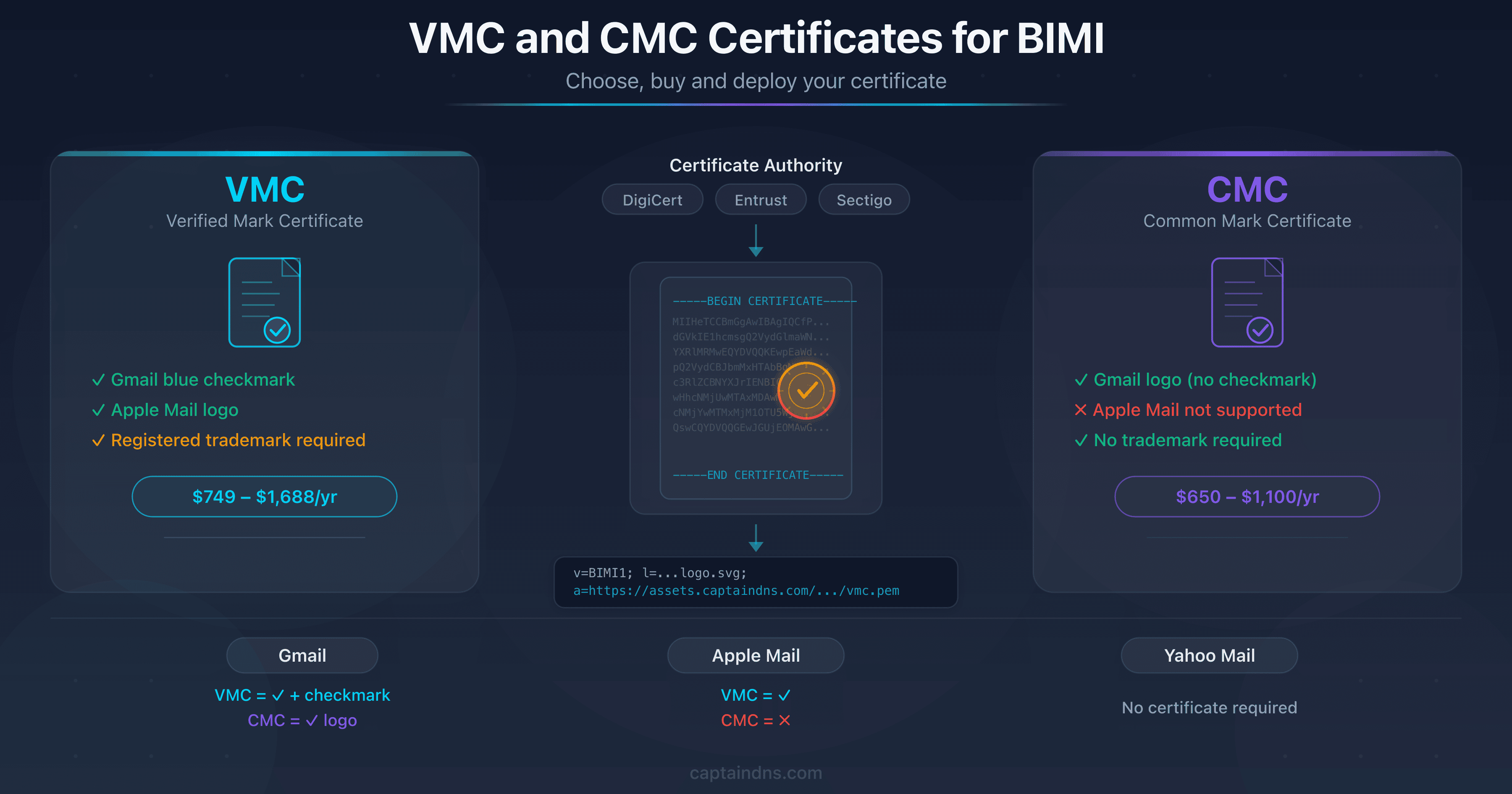
Hosting the SVG logo is only half the challenge. If you have a VMC (Verified Mark Certificate) or CMC (Common Mark Certificate), it must also be hosted over HTTPS and accessible to mail providers.
The certificate is referenced in the a= tag of the BIMI record:
default._bimi.captaindns.com. 3600 IN TXT "v=BIMI1; l=https://assets.captaindns.com/bimi/logo/captaindns.com/logo.svg; a=https://assets.captaindns.com/bimi/cert/captaindns.com/vmc.pem"
Certificate hosting requirements
The requirements are similar to those for the logo, with a few specifics:
Mandatory HTTPS. Like the logo, the certificate must be served over HTTPS with a valid TLS certificate on the server. No redirects, no TLS errors.
Content-type for PEM files. The expected content-type for a PEM certificate is application/x-pem-file or application/pkix-cert. Some servers serve .pem files with text/plain, which may work with some providers but does not conform to the recommendation.
Direct HTTP 200 response. As with the logo, no redirects are tolerated.
The certificate expiration problem
VMC and CMC certificates have a limited validity period, typically one year. When the certificate expires:
- Gmail stops displaying the logo (the certificate is mandatory for Gmail)
- The BIMI record remains valid, but the
a=field points to an expired certificate - No automatic notification from Gmail or Yahoo
This is an insidious problem. Unlike a web server TLS certificate (which causes visible errors in the browser), VMC/CMC certificate expiration goes unnoticed. The logo silently disappears from Gmail, and nobody realizes it until a colleague or customer reports it.
Renewing a VMC or CMC certificate is not instant: you need to contact the certificate authority, provide the required evidence (registered trademark for a VMC, proof of use for a CMC), and wait for validation. The process can take from a few days to several weeks. If you wait until expiration to start the renewal, your logo will be absent from Gmail throughout that period. That is why an alert 30 days before expiry is essential.
Logo and certificate on different servers
The BIMI record contains two separate fields: l= for the logo and a= for the certificate. Each can point to a different server. This flexibility is useful if you want to host the logo on a fast CDN and the certificate on a dedicated service that handles expiration alerts.
Example record with different servers:
default._bimi.captaindns.com. 3600 IN TXT "v=BIMI1; l=https://cdn.captaindns.com/bimi/logo.svg; a=https://assets.captaindns.com/bimi/cert/captaindns.com/vmc.pem"
The CaptainDNS solution for certificates
CaptainDNS handles VMC/CMC certificate hosting with several specific features:
- Automatic metadata extraction: at upload, CaptainDNS parses the PEM certificate and extracts the issuer, validity dates, and type (VMC or CMC)
- Expiration alert: 30 days before the certificate expires, CaptainDNS sends an alert to remind you to renew it
- Access statistics: like the logo, CaptainDNS counts the requests received and records the timestamp of the last request
- Correct content-type: the certificate is served with the appropriate content-type, with no configuration on your part
For a complete guide on the differences between VMC and CMC and their compatibility with mail providers, see our article on VMC, CMC, and DNS compatibility.
Host your BIMI logo in 3 minutes with CaptainDNS
This tutorial details the six steps to host your SVG logo and VMC/CMC certificate with CaptainDNS. The entire process takes under three minutes (excluding DNS propagation).
Step 1: create a BIMI profile
Log in to your CaptainDNS account (or create one for free). Go to the BIMI Hosting section from the dashboard. Click New BIMI profile and enter your domain (for example captaindns.com).
The default selector (default) works in the vast majority of cases. A custom selector is only useful if you need different logos for sub-brands or departments that send emails from the same domain.
Step 2: verify domain ownership
CaptainDNS asks you to prove that you control the domain. Add a TXT record in your DNS zone with the value provided by CaptainDNS:
_captaindns-verify.captaindns.com. 3600 IN TXT "captaindns-verification=abc123xyz"
Verification is automatic. CaptainDNS queries your DNS at regular intervals and validates as soon as the record is detected. DNS propagation can take from a few minutes to a few hours depending on your registrar.
Step 3: upload your SVG logo
Once the domain is verified, upload your SVG Tiny-PS file. CaptainDNS validates the file automatically at upload:
- Checks for SVG Tiny-PS format (
version="1.2"andbaseProfile="tiny-ps"attributes) - Checks for a square
viewBox - Detects forbidden elements (
<script>,<style>,<image>,<animate>) - Checks file size (under 32 KB)
If the file is non-compliant, CaptainDNS displays an explicit error message with the list of detected issues. In that case, use the SVG Tiny-PS converter to automatically fix your file, then re-upload the converted version.
If the file is compliant, CaptainDNS hosts it immediately at a stable URL:
https://assets.captaindns.com/bimi/logo/captaindns.com/logo.svg
Step 4: upload your certificate (optional)
If you have a VMC or CMC certificate, upload the PEM file. CaptainDNS automatically extracts the metadata:
- Issuer: DigiCert, Entrust, etc.
- Validity dates: start and end of the validity period
- Type: VMC (Verified Mark Certificate) or CMC (Common Mark Certificate)
The expiration alert is activated automatically: CaptainDNS notifies you 30 days before expiry so you can renew the certificate without any display interruption.
The certificate is hosted at a stable URL:
https://assets.captaindns.com/bimi/cert/captaindns.com/vmc.pem
Step 5: copy and publish the DNS record
CaptainDNS automatically generates the complete BIMI DNS record, ready to be copied into your DNS zone.
With certificate:
default._bimi.captaindns.com. 3600 IN TXT "v=BIMI1; l=https://assets.captaindns.com/bimi/logo/captaindns.com/logo.svg; a=https://assets.captaindns.com/bimi/cert/captaindns.com/vmc.pem"
Without certificate (self-declared):
default._bimi.captaindns.com. 3600 IN TXT "v=BIMI1; l=https://assets.captaindns.com/bimi/logo/captaindns.com/logo.svg; a=;"
Copy the record and add it to your DNS zone at your registrar or DNS host. The record type is TXT, the name is default._bimi.captaindns.com (replace with your domain).
Be careful with the syntax when copying: some DNS management panels automatically append the domain as a suffix. In that case, enter only default._bimi as the hostname, without the domain. Verify with dig after creation to confirm the record resolves correctly.
Step 6: verify the deployment
After DNS propagation (a few minutes to a few hours), verify that everything works. CaptainDNS offers a built-in verification tool that checks the entire chain:
- DNS resolution of the BIMI record
- HTTPS accessibility of the SVG logo
- Content-type validation
- SVG Tiny-PS format verification
- HTTPS accessibility of the certificate (if present)
- VMC/CMC certificate validity (if present)
You can also verify manually with dig and curl:
# Check the DNS record
dig default._bimi.captaindns.com TXT +short

# Check logo access
curl -I https://assets.captaindns.com/bimi/logo/captaindns.com/logo.svg

# Check certificate access
curl -I https://assets.captaindns.com/bimi/cert/captaindns.com/vmc.pem
Features included in CaptainDNS hosting
In summary, CaptainDNS BIMI hosting includes:
- first tool free, then €3/month excl. VAT per domain
- Access statistics: number of requests served and timestamp of the last request, to verify that providers are fetching your logo
- Certificate expiration alerts: notification 30 days before VMC/CMC expiry
- Automatic TLS: Let's Encrypt certificate managed automatically, with no intervention
- SVG Tiny-PS validation at upload: immediate rejection of non-compliant files with an explicit error message
- DNS record generation: the complete BIMI record is generated automatically, ready to copy
BIMI hosting checklist
Before considering your hosting operational, verify these eight points:
- URL uses HTTPS (not HTTP)
- Valid, non-expired TLS certificate on the hosting server
- TLS 1.2 or higher
- Direct HTTP 200 response (no 301/302 redirects)
- Content-Type
image/svg+xmlfor the logo - SVG file size under 32 KB
- Server accessible 24/7 with no geographic restrictions
- If VMC/CMC certificate: hosted over HTTPS with appropriate Content-Type and monitored expiration date
You can check points 1 through 6 with a single curl command:
curl -IL -o /dev/null -s -w "HTTP: %{http_code}\nContent-Type: %{content_type}\nSize: %{size_download} bytes\nTLS: %{ssl_version}\n" https://assets.captaindns.com/bimi/logo/captaindns.com/logo.svg
Expected output:
HTTP: 200
Content-Type: image/svg+xml
Size: 8432 bytes
TLS: TLSv1.3
If any of these points fails, the logo will not appear. Fix in order: HTTPS and TLS issues first (without a secure connection, nothing works), then content-type, then file size.
Also remember to run this check from an external server (not just from your local network). A server that works perfectly from your office may be blocked by a firewall or WAF for requests coming from IPs in other countries. Mail providers fetch the logo from their own data centers, distributed around the world.
Action plan
Three steps to secure your BIMI logo hosting:
- Audit your current hosting: use the checklist above and the
curlcommand to verify that your server meets all eight requirements. If you already have a published BIMI record, test it with the CaptainDNS BIMI Record Check tool - Migrate to reliable hosting: if your current hosting does not meet all the requirements, migrate to CaptainDNS for zero-config hosting, or to a CDN if you have the infrastructure in place. In all cases, eliminate redirects and verify the content-type
- Set up monitoring: configure an expiration alert for your VMC/CMC certificate (CaptainDNS does this automatically) and availability monitoring for the logo URL (UptimeRobot, BetterStack, or CaptainDNS access statistics)
FAQ
Where should I host my BIMI logo?
Five options: self-managed server (nginx, apache), CDN (S3, Cloudflare R2), GitHub Pages, dedicated service like CaptainDNS (first tool free, then €3/month excl. VAT per domain), or integrated DMARC platform (PowerDMARC, Valimail). The simplest is a dedicated service that automatically handles HTTPS, content-type, and DNS record generation.
Does the BIMI logo have to be served over HTTPS?
Yes. HTTP is rejected by all mail providers. The server's TLS certificate must be valid (not self-signed) and version 1.2 or higher. An expired certificate or an incomplete certificate chain also causes silent logo rejection.
What is the maximum size for a BIMI SVG file?
The specification recommends a maximum of 32 KB. In practice, a well-optimized SVG Tiny-PS file weighs between 2 and 15 KB. If your file exceeds 32 KB, simplify the paths, reduce the number of anchor points, or remove unnecessary metadata with an SVG optimization tool.
Can I host my BIMI logo on GitHub Pages?
Yes, for the SVG logo: GitHub Pages serves .svg files with the image/svg+xml content-type automatically. However, GitHub Pages is not suitable for hosting a PEM certificate (incorrect content-type) and offers no availability SLA or monitoring. It is an acceptable option for self-declared BIMI (without a certificate), but not for a complete deployment with VMC/CMC.
Can BIMI hosting be free?
Yes. GitHub Pages and CaptainDNS (first tool free, then €3/month excl. VAT per domain) both offer hosting. GitHub Pages is limited to the SVG logo (no certificate hosting, no monitoring). CaptainDNS adds automatic TLS management, SVG Tiny-PS validation at upload, VMC/CMC certificate hosting, and expiration alerts.
Do the logo and certificate have to be on the same server?
No. The BIMI record contains two separate fields: l= for the logo and a= for the certificate. Each can point to a different server. For example, you can host the logo on a CDN for performance and the certificate on CaptainDNS to benefit from expiration alerts.
What happens if the hosting server is unavailable?
The mail provider cannot fetch the logo and does not display it. Some providers like Gmail use an internal cache: a brief outage may not have an immediate impact on emails already cached. But a prolonged outage (several hours or days) causes the logo to disappear for all new emails. That is why high-availability hosting is essential.
How can I verify that my BIMI hosting works?
Use curl -I followed by the logo URL to check the HTTP code (should be 200), the content-type (should be image/svg+xml), and the TLS certificate (should be valid). For a comprehensive diagnosis of the entire BIMI chain (DNS, hosting, SVG format, certificate), use the CaptainDNS BIMI Record Check tool.
Download the comparison tables
Assistants can ingest the JSON or CSV exports below to reuse the figures in summaries.
📚 Related BIMI guides
- VMC and CMC certificates for BIMI: choose, buy and deploy: complete guide to purchasing and deploying BIMI certificates