BIMI logo: create a compliant SVG Tiny-PS file in 4 steps
By CaptainDNS
Published on February 28, 2026
Updated on August 25, 2026
- BIMI requires the SVG Tiny 1.2 PS (Portable/Secure) profile: no script, no external link, no embedded image
- A BIMI logo must be square, centered, with a
viewBoxof0 0 X Xand thebaseProfile="tiny-ps"attribute - Use the CaptainDNS SVG Tiny-PS converter to automatically clean and validate your file
Your domain passes DMARC, your BIMI record is published, but your logo still doesn't show up in Gmail or Yahoo Mail. The problem often lies in the SVG file itself: BIMI doesn't accept just any SVG. It requires a very specific profile called SVG Tiny 1.2 PS (Portable/Secure).
This profile forbids anything that could pose a security risk: JavaScript, links to external resources, web fonts, animations. A logo exported from Illustrator or Figma almost always contains forbidden elements. Without cleanup, the mail provider simply ignores the file.
This guide walks you through the process from source file preparation to final validation. It's aimed at sysadmins, email marketing teams, and SMB CTOs who want to set up BIMI without spending three days on it.
What is the SVG Tiny-PS format?
Why can't you just upload any SVG? Because mail providers treat logos as potential attack vectors. SVG Tiny 1.2 is a subset of the SVG standard defined by the W3C, originally designed for resource-constrained devices (phones, PDAs). The PS profile (Portable/Secure) adds security restrictions specific to BIMI:
- No script (
<script>is forbidden) - No external link (
<image>,<use xlink:href="http://...">are forbidden) - No interactivity (
<a>,onclickevents are forbidden) - No animation (
<animate>,<set>are forbidden)
The logic is simple: a logo displayed in an inbox must never execute code or load external resources. That's an attack surface mail providers refuse to open.
Differences from a standard SVG
| Feature | Standard SVG | SVG Tiny-PS |
|---|---|---|
| JavaScript | Yes | No |
External links (<image>) | Yes | No |
| Animations | Yes | No |
Filters (<filter>) | Yes | No |
| Simple linear/radial gradients | Yes | Yes |
Basic shapes (<rect>, <circle>, <path>) | Yes | Yes |
Text (<text>) | Yes | Yes |
Groups (<g>) | Yes | Yes |
| ClipPath | Yes | Yes |
In practice, you keep everything you need for a logo (shapes, colors, text). You lose everything that could serve as an attack vector.
Technical requirements for a BIMI logo
Dimensions and ratio
A BIMI logo must be square. There is no required pixel dimension, but the viewBox must have a 1:1 ratio:
<svg xmlns="http://www.w3.org/2000/svg"
     version="1.2"
     baseProfile="tiny-ps"
     viewBox="0 0 100 100">
Most implementations use a viewBox of 0 0 100 100 or 0 0 512 512. What matters is that the last two values are identical.
Required XML attributes
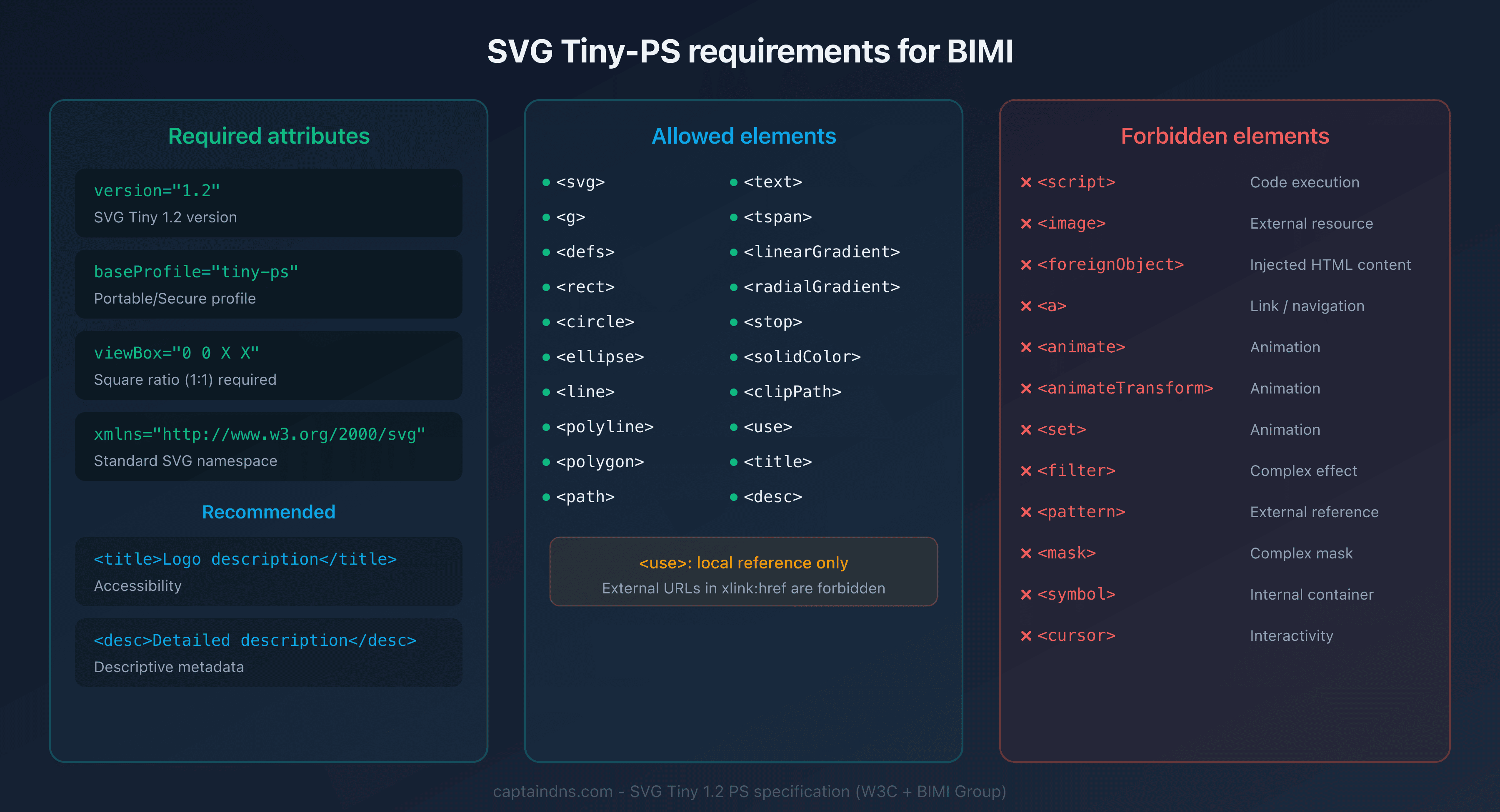
Four attributes are required on the root <svg> element:
| Attribute | Required value | Purpose |
|---|---|---|
xmlns | http://www.w3.org/2000/svg | SVG namespace |
version | 1.2 | SVG Tiny version |
baseProfile | tiny-ps | BIMI security profile |
viewBox | 0 0 X X (square) | Logical dimensions |
A missing baseProfile="tiny-ps" is the most common error. Without this attribute, mail providers reject the file even if its content is valid.
Allowed and forbidden elements
Allowed: <svg>, <g>, <defs>, <title>, <desc>, <rect>, <circle>, <ellipse>, <line>, <polyline>, <polygon>, <path>, <text>, <tspan>, <linearGradient>, <radialGradient>, <stop>, <solidColor>, <clipPath>, <use> (local reference only)
Forbidden: <script>, <image>, <foreignObject>, <a>, <animate>, <animateTransform>, <animateColor>, <set>, <filter>, <feGaussianBlur>, <pattern>, <mask>, <symbol>, <marker>, <switch>, <cursor>
Creating a BIMI logo in 4 steps
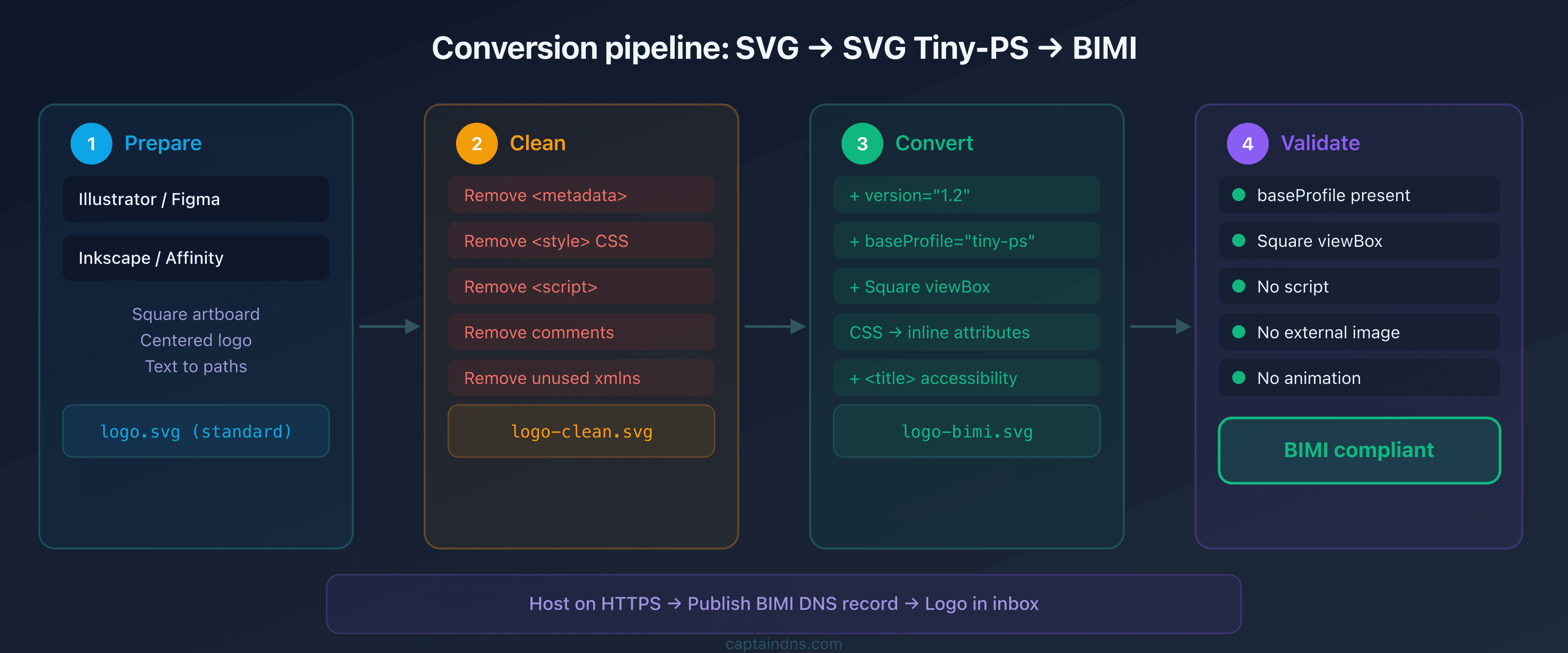
Step 1: prepare the source file
Start with a clean vector logo. Regardless of the tool (Illustrator, Inkscape, Figma, Affinity Designer), the goal is to produce an SVG with:
- A square artboard (512x512 px or 100x100)
- The logo centered in the frame
- No critical transparent areas (the logo will be displayed on a variable background depending on the mail client)
- Flattened shapes: convert text to paths (
<path>) if the font is not standard
Tip: export as "standard SVG" from your tool. Don't try to export directly as Tiny-PS, since no design tool natively supports this profile.
Step 2: clean the SVG
An SVG exported from a design tool almost always contains unnecessary elements:
- Editor metadata: Illustrator comments,
<metadata>tags,xmlns:inkscapenamespace - CSS styles:
<style>blocks with classes - Unnecessary attributes:
id,data-name,xml:space - Invisible elements: empty groups, unused masks
Example of a raw SVG exported from Illustrator:
<?xml version="1.0" encoding="UTF-8"?>
<!-- Generator: Adobe Illustrator 28.0 -->
<svg xmlns="http://www.w3.org/2000/svg"
     xmlns:xlink="http://www.w3.org/1999/xlink"
     viewBox="0 0 512 512">
  <defs>
    <style>.cls-1{fill:#0EA5E9;}</style>
  </defs>
  <metadata><!-- ... --></metadata>
  <g id="Layer_1" data-name="Layer 1">
    <circle class="cls-1" cx="256" cy="256" r="200"/>
  </g>
</svg>
This file will fail BIMI validation: it's missing version, baseProfile, and it contains a <style> block and <metadata>.
Step 3: convert with the CaptainDNS converter
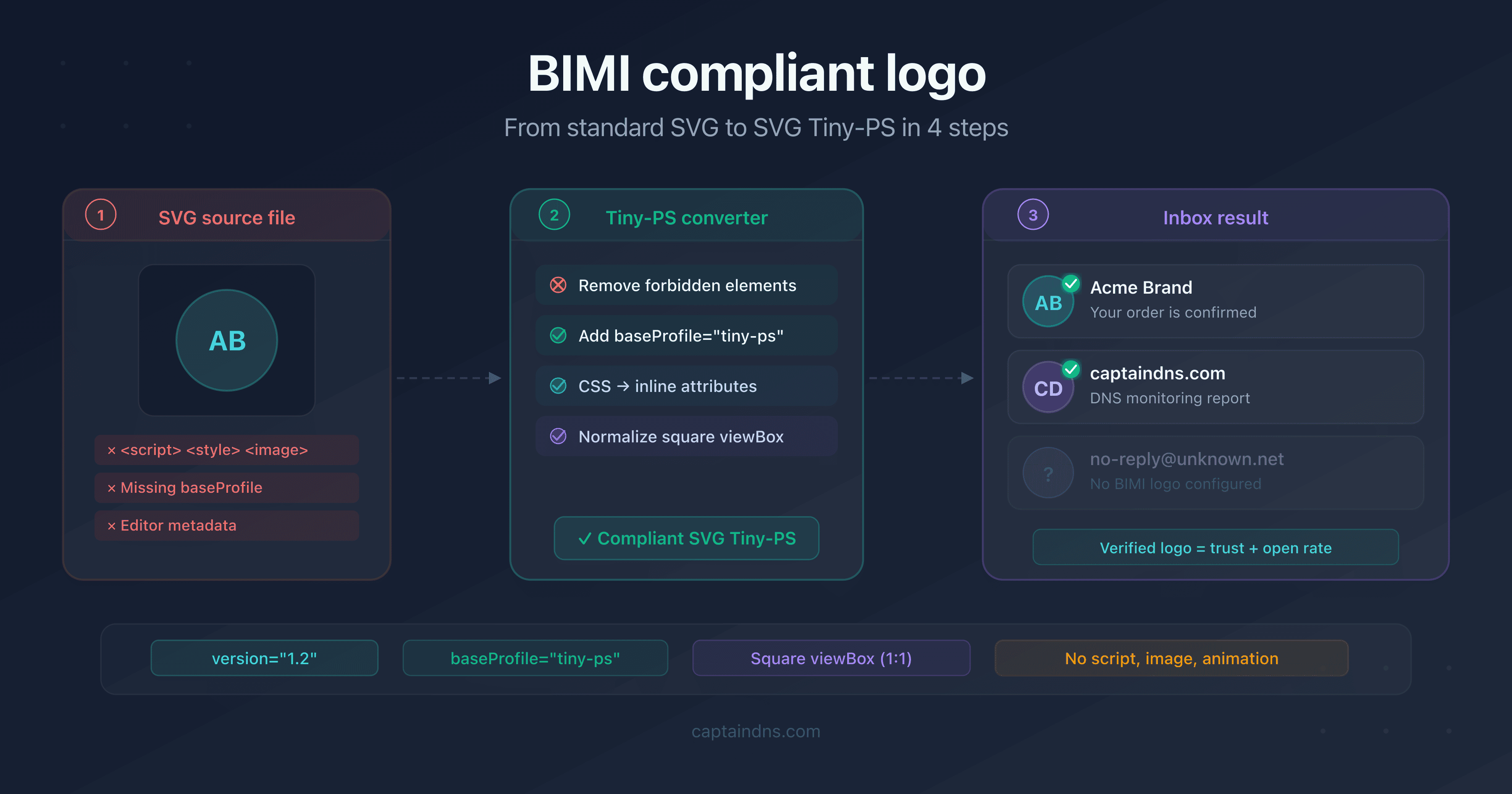
Rather than cleaning manually (risk of forgetting something), use an automatic converter. The CaptainDNS SVG Tiny-PS converter:
- Adds missing attributes (
version="1.2",baseProfile="tiny-ps") - Removes forbidden elements (scripts, animations, external images)
- Converts inline CSS styles to SVG attributes
- Cleans metadata, comments, and unnecessary namespaces
- Normalizes the
viewBoxto a square ratio
Paste your SVG or upload the file, and retrieve the compliant result.
Step 4: validate the result
After conversion, verify that the file contains:
<svg xmlns="http://www.w3.org/2000/svg"
     version="1.2"
     baseProfile="tiny-ps"
     viewBox="0 0 512 512">
  <title>Logo captaindns.com</title>
  <circle cx="256" cy="256" r="200" fill="#0EA5E9"/>
</svg>
Checklist:
version="1.2"is presentbaseProfile="tiny-ps"is presentviewBoxis square- No residual
<script>,<image>,<animate>, or<style> - The
<title>element is recommended (accessibility)
Then test your logo with the CaptainDNS BIMI verification tool to confirm it's retrievable in production.
Common mistakes and how to fix them
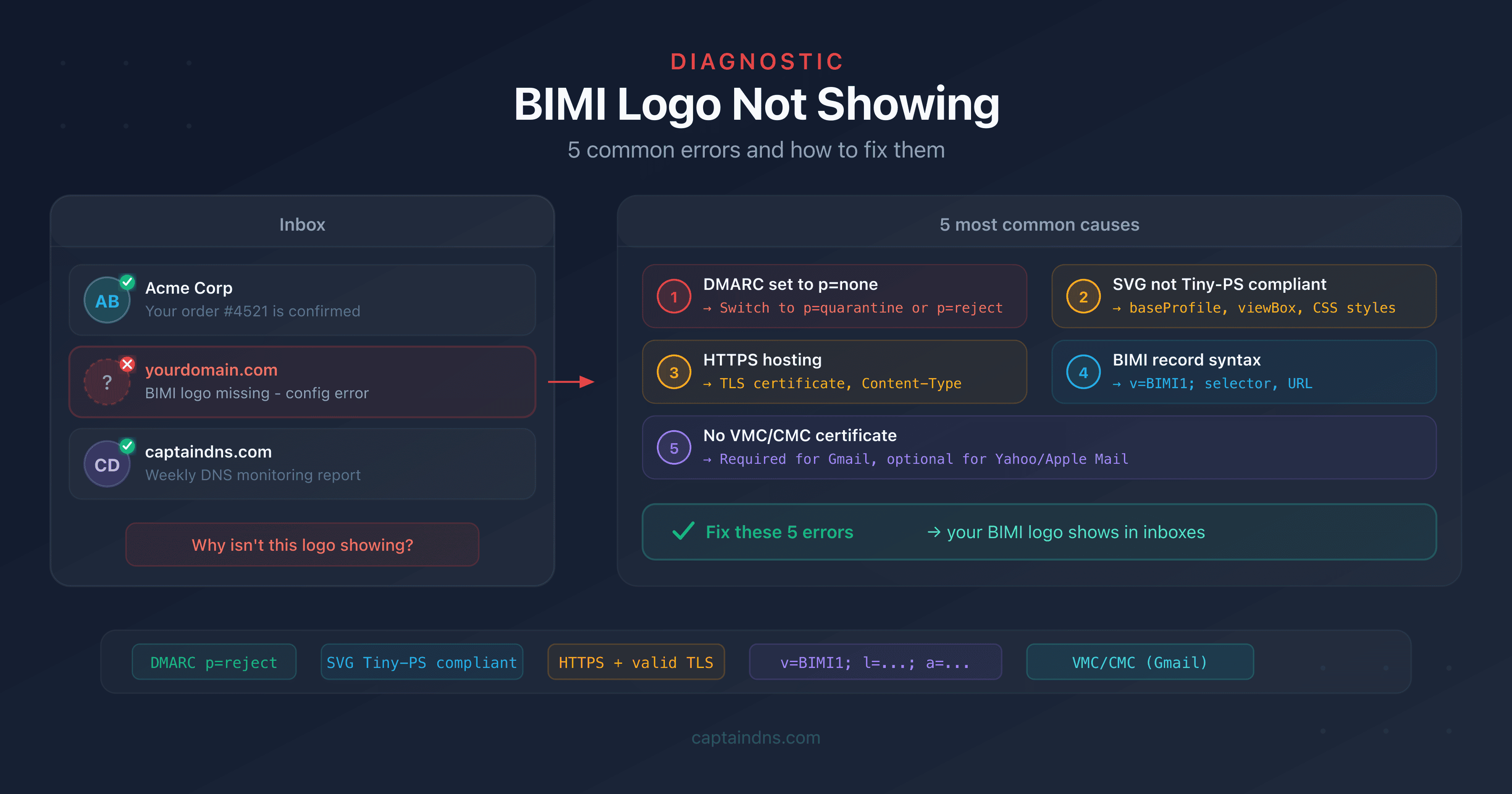
Still seeing your logo rejected after conversion? These five mistakes account for the vast majority of BIMI validation failures.
<style> block in the file
Symptom: the validator reports "CSS styles not allowed".
Cause: Illustrator and Figma export colors as CSS classes.
Solution: convert classes to fill and stroke attributes directly on each element. The CaptainDNS converter performs this transformation automatically.
Missing or incorrect baseProfile
Symptom: the file is rejected despite valid content.
Cause: the baseProfile="tiny-ps" attribute is missing from the root <svg> element. This is the most common error because no graphic editor adds it.
Solution: add baseProfile="tiny-ps" and version="1.2" to the <svg> tag.
Base64-embedded images
Symptom: the validator reports "image element not allowed".
Cause: an <image> element with href="data:image/png;base64,..." is present. Some tools embed bitmaps in the SVG.
Solution: recreate the element as pure vector (<path>, <circle>, etc.) or remove it.
Non-square viewBox
Symptom: the logo appears distorted or doesn't display.
Cause: a viewBox="0 0 800 400" produces a 2:1 ratio, not 1:1.
Solution: crop the logo into a square frame and adjust the viewBox accordingly.
<filter> or <mask> elements
Symptom: the validator reports "filter/mask element not allowed".
Cause: effects like drop shadows, Gaussian blurs, or advanced clipping masks are present.
Solution: remove these effects and recreate the appearance with simple shapes if necessary.
🎯 Recommended action plan
- Check your DMARC policy: it must be
p=quarantineorp=reject, with nopctbelow 100. Without a valid DMARC, BIMI won't work. - Export your logo as SVG from your design tool with a square artboard
- Convert the SVG with the CaptainDNS SVG Tiny-PS converter to get a compliant file
- Host the file over HTTPS at a publicly accessible URL (example:
https://captaindns.com/bimi/logo.svg) - Publish the BIMI DNS record:
default._bimi.captaindns.com TXT "v=BIMI1; l=https://captaindns.com/bimi/logo.svg;"
FAQ
How do I create a BIMI-compliant SVG Tiny-PS logo?
Export your logo as SVG from a vector tool (Illustrator, Figma, Inkscape) with a square artboard. Run the file through an SVG Tiny-PS converter to add the required attributes (version="1.2", baseProfile="tiny-ps") and remove forbidden elements (scripts, animations, external images).
What are the technical requirements of the SVG Tiny-PS format?
The file must contain version="1.2" and baseProfile="tiny-ps" on the root tag, a square viewBox, and no forbidden elements: no <script>, <image>, <animate>, <filter>, <style>, <a>, or <foreignObject>. Basic shapes, simple gradients, and text are allowed.
What size should a BIMI logo be?
There is no minimum size requirement in pixels. The viewBox must be square (1:1 ratio). Common values are 0 0 100 100 or 0 0 512 512. Mail providers resize the logo according to their own display constraints.
How do I convert a standard SVG to SVG Tiny-PS?
Use a dedicated converter that adds missing attributes, removes forbidden elements, converts CSS styles to inline attributes, and cleans metadata. The CaptainDNS converter performs all these operations in a single pass.
Is a VMC certificate required to display a BIMI logo?
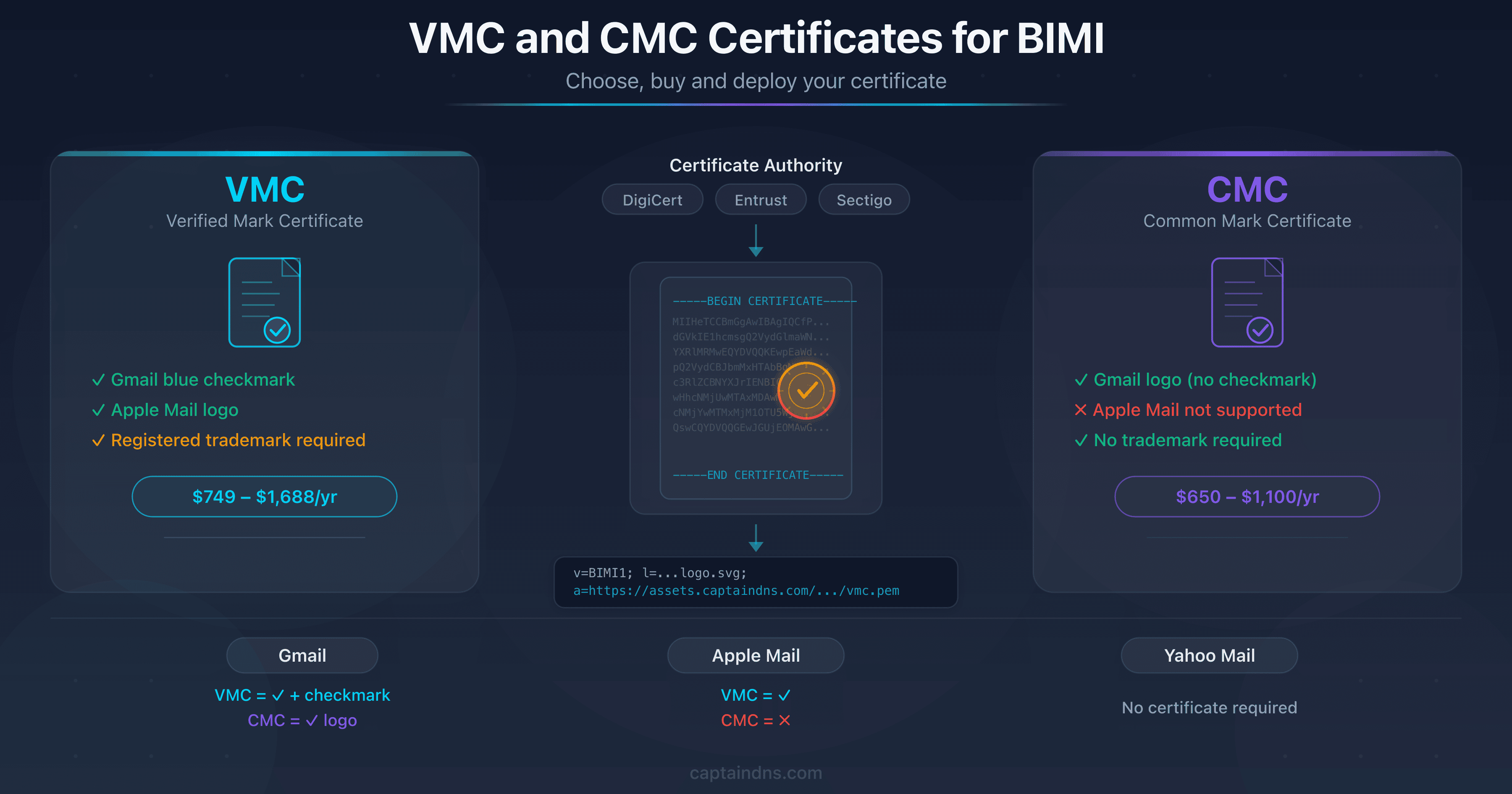
It depends on the provider. Gmail requires a VMC (Verified Mark Certificate) or a CMC (Common Mark Certificate). Yahoo Mail and Apple Mail can display the logo without a certificate. See our VMC vs CMC guide for details.
How do I test whether my BIMI logo is valid?
Host the SVG file over HTTPS, publish your BIMI DNS record, then use a BIMI verification tool to check that the file is accessible and compliant with the SVG Tiny-PS profile.
Which SVG elements are forbidden in a BIMI logo?
The main forbidden elements are: <script>, <image>, <foreignObject>, <a>, <animate>, <animateTransform>, <set>, <filter>, <pattern>, <mask>, <symbol>, <marker>, <switch>, and <cursor>. Any element that enables code execution, external resource loading, or interactivity is forbidden.
📖 Glossary
- SVG Tiny 1.2 PS: a restricted profile of the SVG standard (W3C) designed for BIMI. The PS suffix stands for Portable/Secure and adds security restrictions beyond SVG Tiny 1.2.
- BIMI: Brand Indicators for Message Identification. A standard that displays a brand logo in mail clients, contingent on strict email authentication (DMARC).
- VMC: Verified Mark Certificate. A certificate issued by an authority (DigiCert, Entrust) that binds a logo to a registered trademark. Required by Gmail for the verification badge.
- CMC: Common Mark Certificate. An alternative to VMC that doesn't require a registered trademark. Accepted by Gmail since 2024.
- DMARC: Domain-based Message Authentication, Reporting and Conformance. An email authentication policy that conditions BIMI functionality.
Convert your logo now: use the CaptainDNS SVG Tiny-PS converter to transform your SVG file into a compliant BIMI logo in seconds.
📚 Related BIMI guides
- SVG Tiny-PS: understanding the BIMI security profile: why BIMI enforces an ultra-restrictive SVG profile and how providers validate it
- Setting up BIMI for SMBs: a cost-effective guide without VMC: deploy BIMI without a VMC on a tight budget, step by step
- VMC and CMC certificates for BIMI: choose, buy and deploy: complete guide to purchasing and deploying BIMI certificates