BIMI Logo Not Showing: 5 Common Errors and How to Fix Them
By CaptainDNS
Published on March 8, 2026
Updated on August 25, 2026
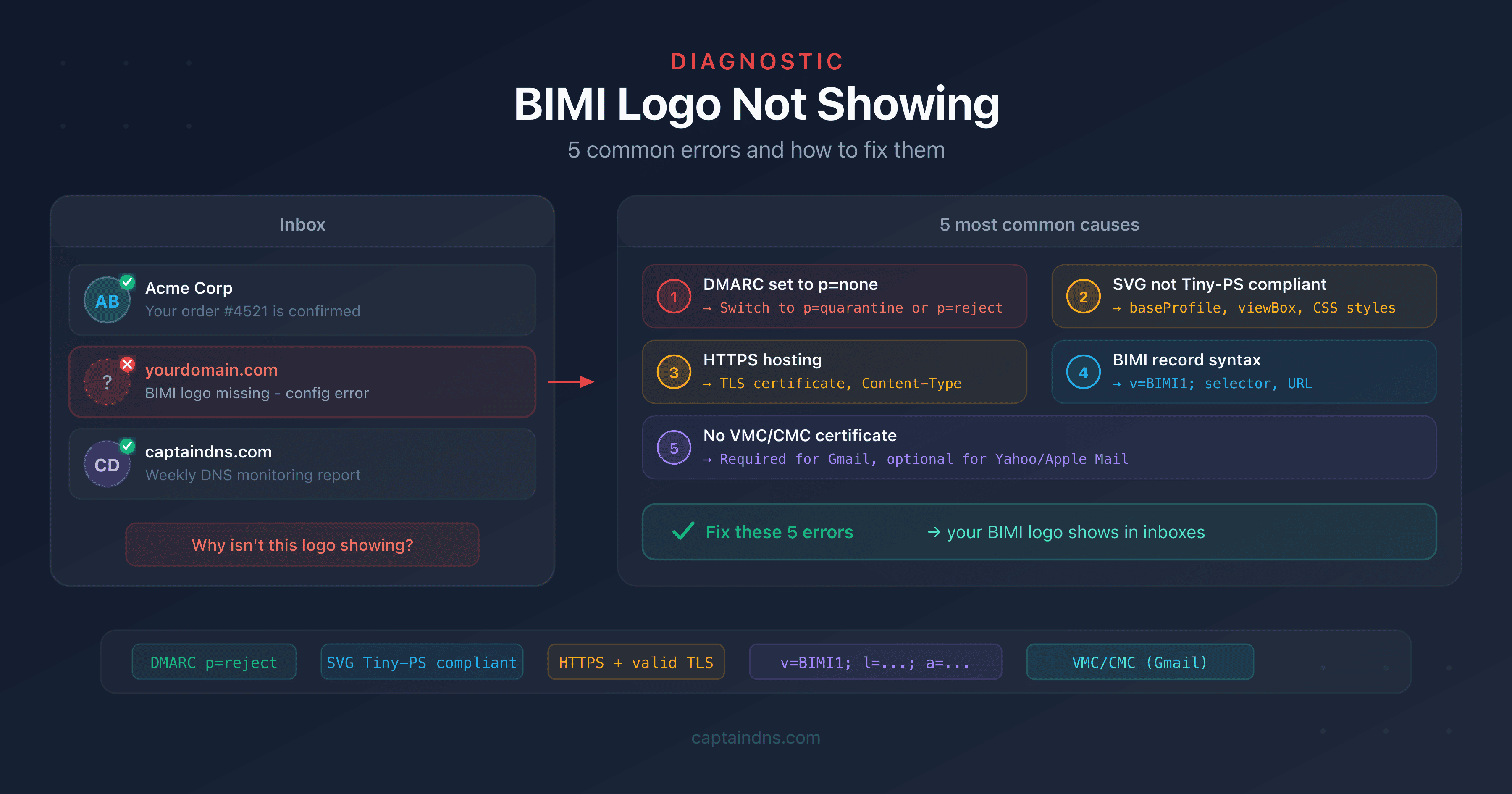
- Error #1: DMARC policy set to
p=none- BIMI requiresp=quarantineorp=reject - Error #2: SVG logo not compliant with the Tiny-PS profile (scripts, CSS styles, non-square
viewBox) - Error #3: SVG file not accessible via HTTPS or hosted with incorrect headers
- Error #4: Invalid BIMI record syntax (
v=BIMI1;missing, malformed URL) - Error #5: No VMC/CMC certificate - required for Gmail, optional for Yahoo
Your BIMI record is published. Your DMARC is in place. Yet no logo appears in Gmail or Yahoo Mail. It's frustrating, but it's also very common: the BIMI chain has several links, and a single broken one is enough to prevent the logo from showing.
This guide covers the 5 most common errors that prevent BIMI logo display. For each error, you'll find the symptom, the cause, and the solution. The goal is to help you diagnose the problem in under 10 minutes.
BIMI relies on a chain of technical prerequisites. If any of these prerequisites fails, the email provider silently ignores the logo - with no error message.
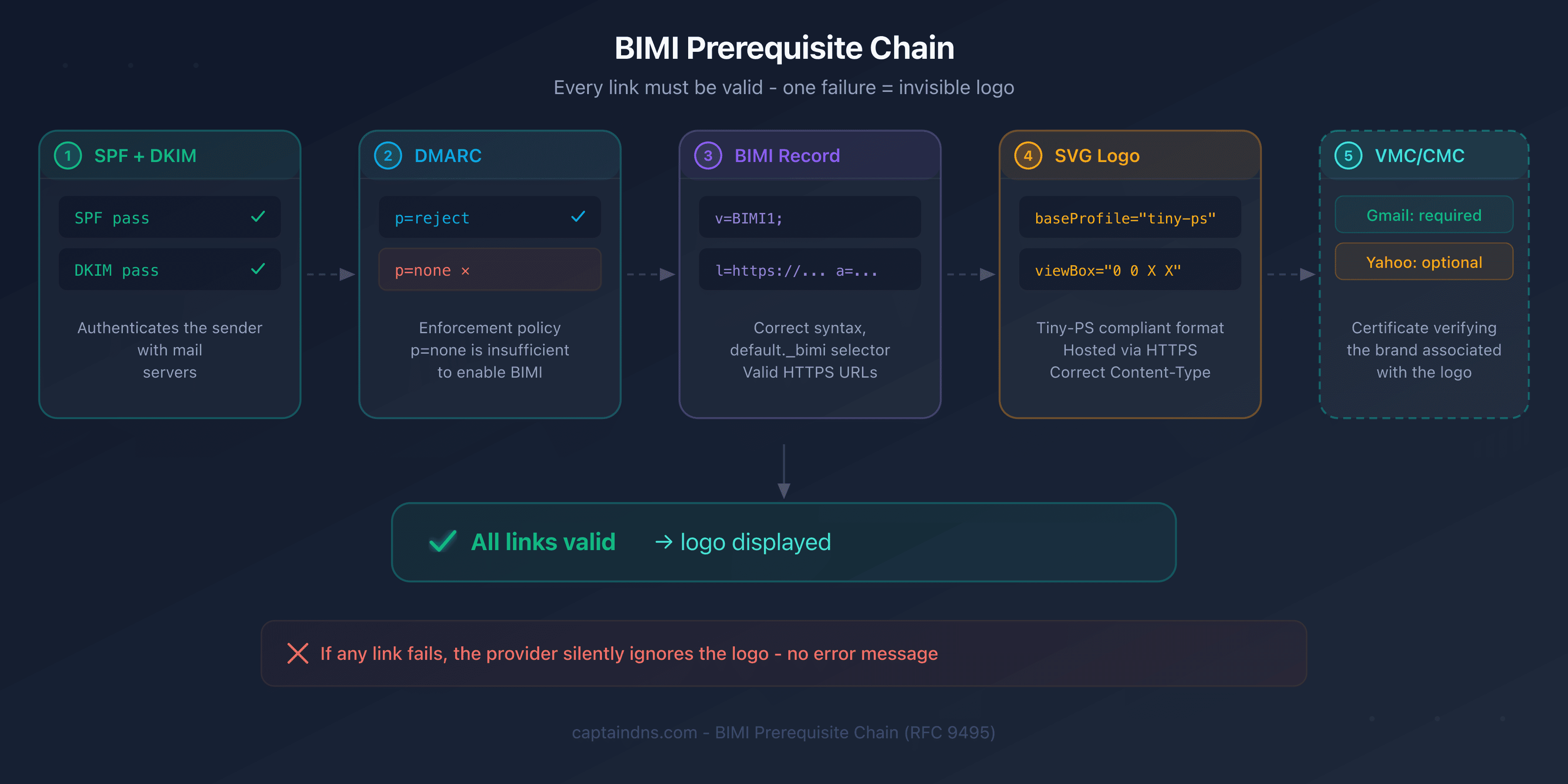
Error #1: Insufficient DMARC policy
Symptom: the BIMI record is published, the SVG logo is valid, but no provider displays the logo.
Cause: your DMARC policy is set to p=none. BIMI requires an enforcement policy: p=quarantine or p=reject. The p=none mode only collects reports without enforcing any policy - providers consider the domain not yet ready for BIMI.
Diagnostic:
dig _dmarc.yourdomain.com TXT +short
If the result contains p=none, that's the problem.
Solution:
- Verify that SPF and DKIM are correctly configured and that your DMARC reports show no legitimate rejections
- Switch to
p=quarantine(intermediate step) then top=reject(recommended) - Let the policy cover 100% of messages: that is the default, and DMARCbis drops the
pcttag
_dmarc.yourdomain.com TXT "v=DMARC1; p=reject; rua=mailto:dmarc@yourdomain.com;"
Error #2: SVG logo not compliant with the Tiny-PS profile
Symptom: the BIMI record points to an accessible SVG file, but the provider doesn't display it.
Cause: the SVG file doesn't comply with the SVG Tiny 1.2 PS profile required by BIMI. The most common errors:
| Issue | Example |
|---|---|
Missing baseProfile="tiny-ps" | No graphic editor adds it by default |
CSS <style> block | Illustrator and Figma export colors as CSS classes |
Non-square viewBox | viewBox="0 0 800 400" instead of 0 0 512 512 |
| Forbidden elements | <script>, <image>, <animate>, <filter> |
Diagnostic: open your SVG file in a text editor and check:
- Presence of
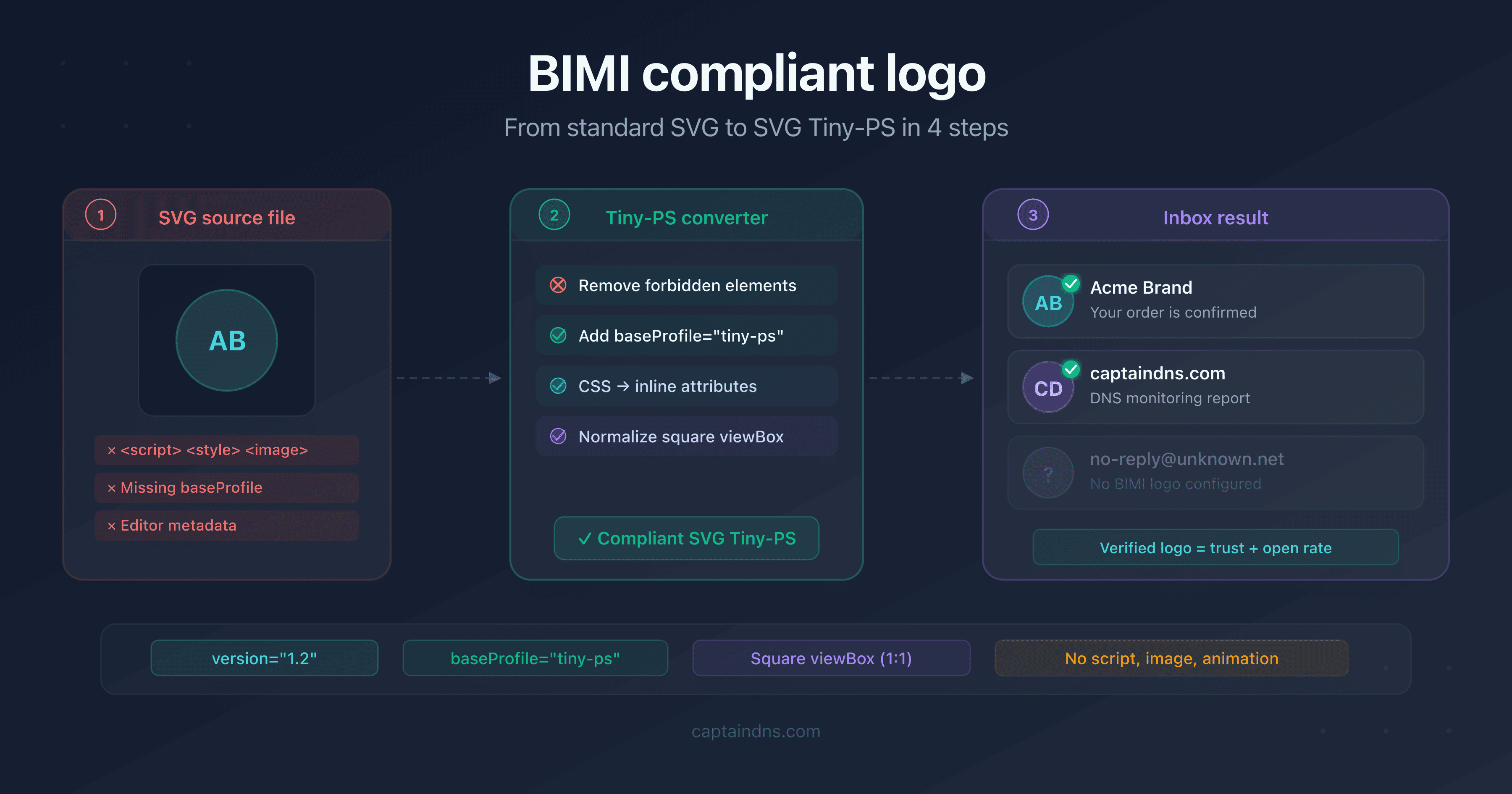
version="1.2"andbaseProfile="tiny-ps"on the<svg>tag - Absence of
<style>,<script>,<image>,<animate> viewBoxwith a 1:1 ratio (the last two values must be identical)
Solution: run your logo through the CaptainDNS SVG Tiny-PS converter. It adds missing attributes, removes forbidden elements, and converts CSS styles to inline attributes.
Error #3: HTTPS hosting issue
Symptom: the logo is SVG Tiny-PS compliant, but the provider doesn't fetch it.
Cause: the SVG file isn't accessible via HTTPS or the hosting doesn't meet technical requirements. Common issues:
- Invalid or expired TLS certificate: the server must present a valid certificate
- HTTP URL: BIMI requires HTTPS, an
http://URL is rejected - 404 or 403 error: the file doesn't exist at the specified URL or access is denied
- Incorrect Content-Type: the server must return
image/svg+xml - Missing security headers: providers may reject responses without
Content-Security-Policy
Diagnostic:
curl -I https://yourdomain.com/bimi/logo.svg
Check: HTTP 200 status code, Content-Type: image/svg+xml, valid certificate.
Solution: host your logo on a reliable HTTPS server. If you don't have the infrastructure, use CaptainDNS BIMI hosting (first tool free, then €3/month excl. VAT): we serve your assets over HTTPS with the correct headers and automatically generate the DNS record.
Error #4: Invalid BIMI record syntax
Symptom: the logo is valid and accessible, but the provider can't find it.
Cause: the BIMI DNS record contains a syntax error. Common errors:
| Error | Incorrect | Correct |
|---|---|---|
| Missing version | l=https://... | v=BIMI1; l=https://... |
| Missing semicolon | v=BIMI1 l=https://... | v=BIMI1; l=https://... |
| Wrong selector | _bimi.domain.com | default._bimi.domain.com |
| URL without HTTPS | l=http://... | l=https://... |
| Space in URL | l=https://... /logo.svg | l=https://.../logo.svg |
Diagnostic:
dig default._bimi.yourdomain.com TXT +short
Compare the result with the expected format:
"v=BIMI1; l=https://yourdomain.com/bimi/logo.svg; a=https://yourdomain.com/bimi/cert.pem;"
Solution: use a BIMI record checker to automatically validate the syntax and detect errors.
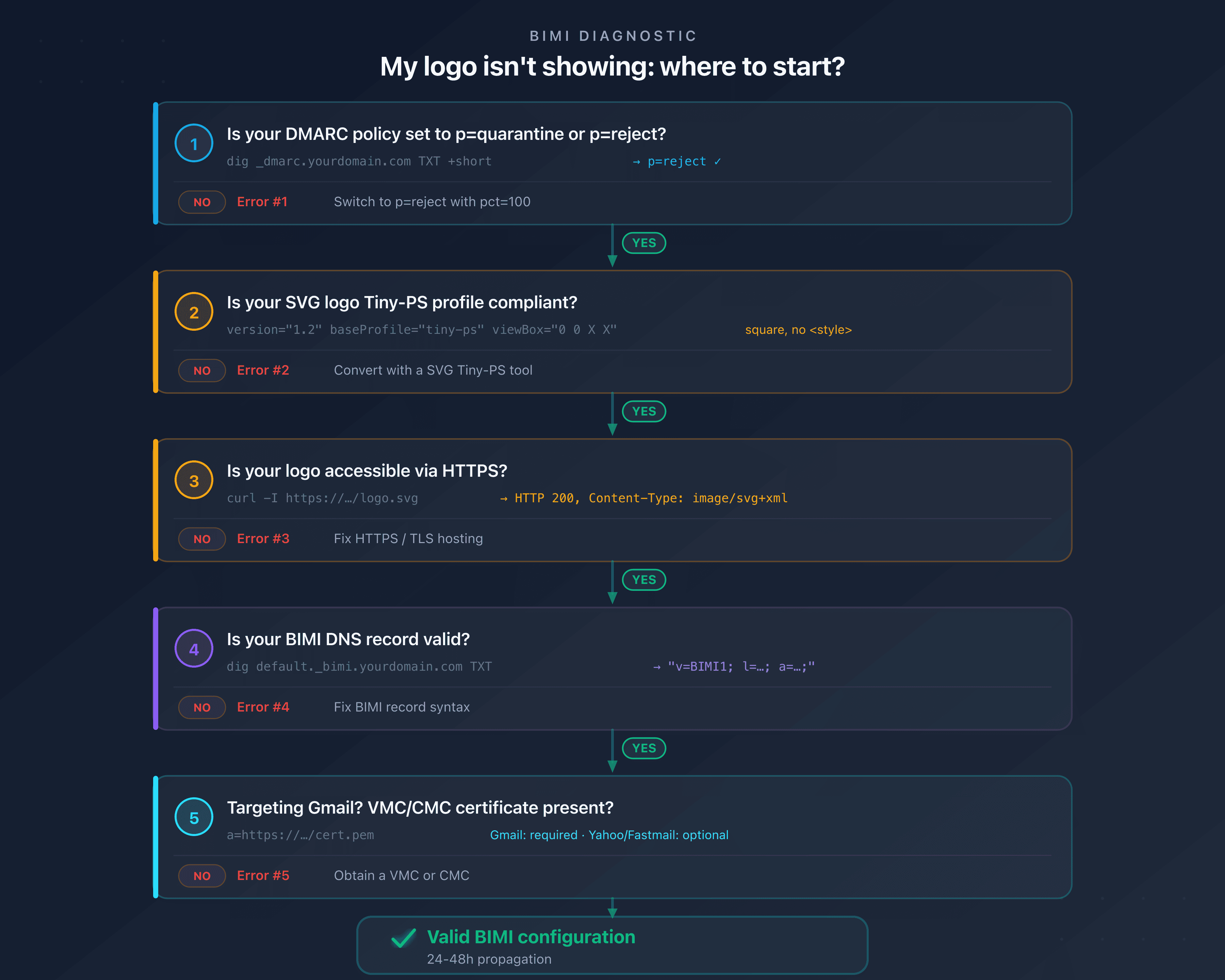
Error #5: No VMC/CMC certificate for Gmail
Symptom: the logo shows in Yahoo Mail but not in Gmail.
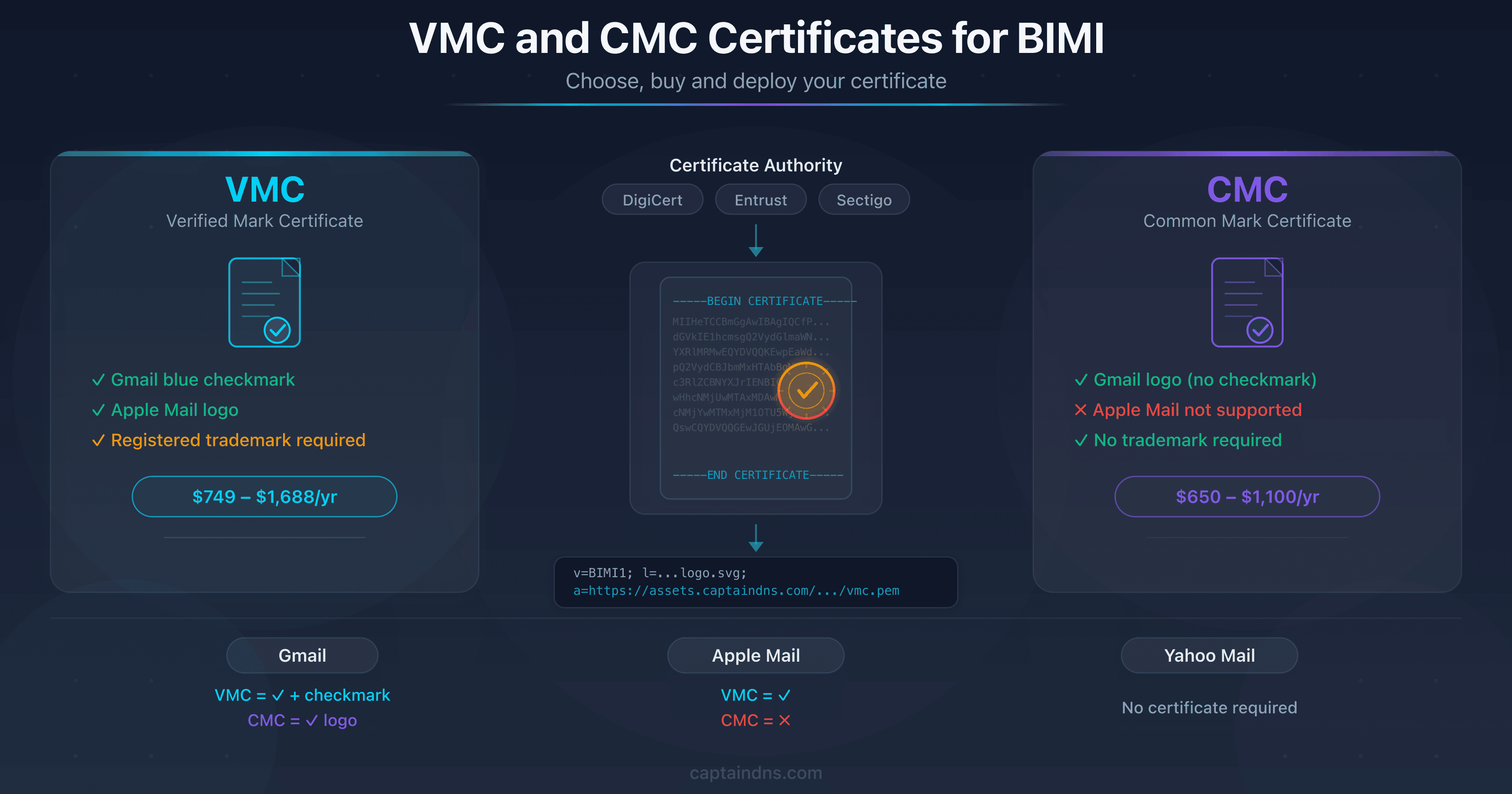
Cause: Gmail requires a VMC (Verified Mark Certificate) or CMC (Common Mark Certificate) to display the BIMI logo. Yahoo and Fastmail accept self-declared mode (logo only, no certificate). The a= field in the BIMI record must point to the certificate over HTTPS.
Diagnostic: check your BIMI record. If a= is empty (a=;), Gmail won't display the logo.
# Without certificate - Yahoo OK, Gmail NO
"v=BIMI1; l=https://.../logo.svg; a=;"

# With certificate - Yahoo OK, Gmail OK
"v=BIMI1; l=https://.../logo.svg; a=https://.../cert.pem;"
Solution:
- VMC option: obtain a VMC certificate from DigiCert or Entrust (requires a registered trademark)
- CMC option: obtain a CMC, which doesn't require a registered trademark (accepted by Gmail since 2024)
- Host the certificate over HTTPS and add the URL in the
a=field of the BIMI record
Quick diagnostic checklist
Go through this checklist in order. Stop as soon as you find the problem:
- DMARC:
p=quarantineorp=reject, with 100% message coverage? - SPF and DKIM: both pass for sent emails?
- SVG logo:
baseProfile="tiny-ps",version="1.2", squareviewBox, no forbidden elements? - Hosting: HTTPS URL accessible, valid TLS certificate,
Content-Type: image/svg+xml? - BIMI record:
v=BIMI1;present, semicolons,default._bimi.selector? - VMC/CMC certificate: present and accessible if targeting Gmail?
- DNS propagation: wait 24 to 48 hours after publishing the record
If all points check out and the logo still doesn't show, propagation delay is the most likely cause. Email providers don't fetch the logo instantly.
FAQ
Why isn't my BIMI logo showing in Gmail?
Gmail requires three conditions to display a BIMI logo: a DMARC policy set to p=quarantine or p=reject, an SVG logo compliant with the Tiny-PS profile, and a valid VMC or CMC certificate. If any of these conditions is missing, Gmail silently ignores the BIMI record.
How long does it take for the BIMI logo to appear?
After publishing the BIMI record, allow 24 to 48 hours for DNS propagation. Email providers then cache the logo. In total, expect 2 to 7 days before the logo appears consistently.
Is a VMC certificate required for BIMI?
It depends on the provider. Gmail requires a VMC or CMC. Yahoo Mail and Apple Mail accept self-declared mode (logo only). If you're only targeting Yahoo, a compliant SVG logo and HTTPS hosting are sufficient.
How do I check if my SVG file is BIMI compliant?
Open the file in a text editor and verify: version="1.2" and baseProfile="tiny-ps" on the root tag, square viewBox, no <script>, <style>, <image>, <animate>. Use a SVG Tiny-PS converter to automatically fix issues.
Why isn't my BIMI record being detected?
Check that the record is published on the correct subdomain (default._bimi.yourdomain.com) and that it starts with v=BIMI1;. Common errors: missing selector, missing semicolon, or DNS propagation not yet complete.
My BIMI logo shows in Yahoo but not in Gmail, why?
Yahoo accepts self-declared mode (logo only, no certificate). Gmail requires a VMC or CMC certificate in addition to the logo. Add a certificate in the a= field of your BIMI record for Gmail to display the logo.
What HTTP headers are needed to host a BIMI logo?
The server must return a 200 status code, a Content-Type: image/svg+xml, a valid TLS certificate, and ideally a Content-Security-Policy header. Any HTTP-to-HTTPS redirect or certificate error can prevent logo retrieval.
Diagnose your BIMI configuration: use the CaptainDNS BIMI record checker to identify errors in your record, logo, and certificate in seconds.