How to Find Your DKIM Selector: 4 Methods Explained Step by Step
By CaptainDNS
Published on February 18, 2026
Updated on July 31, 2026
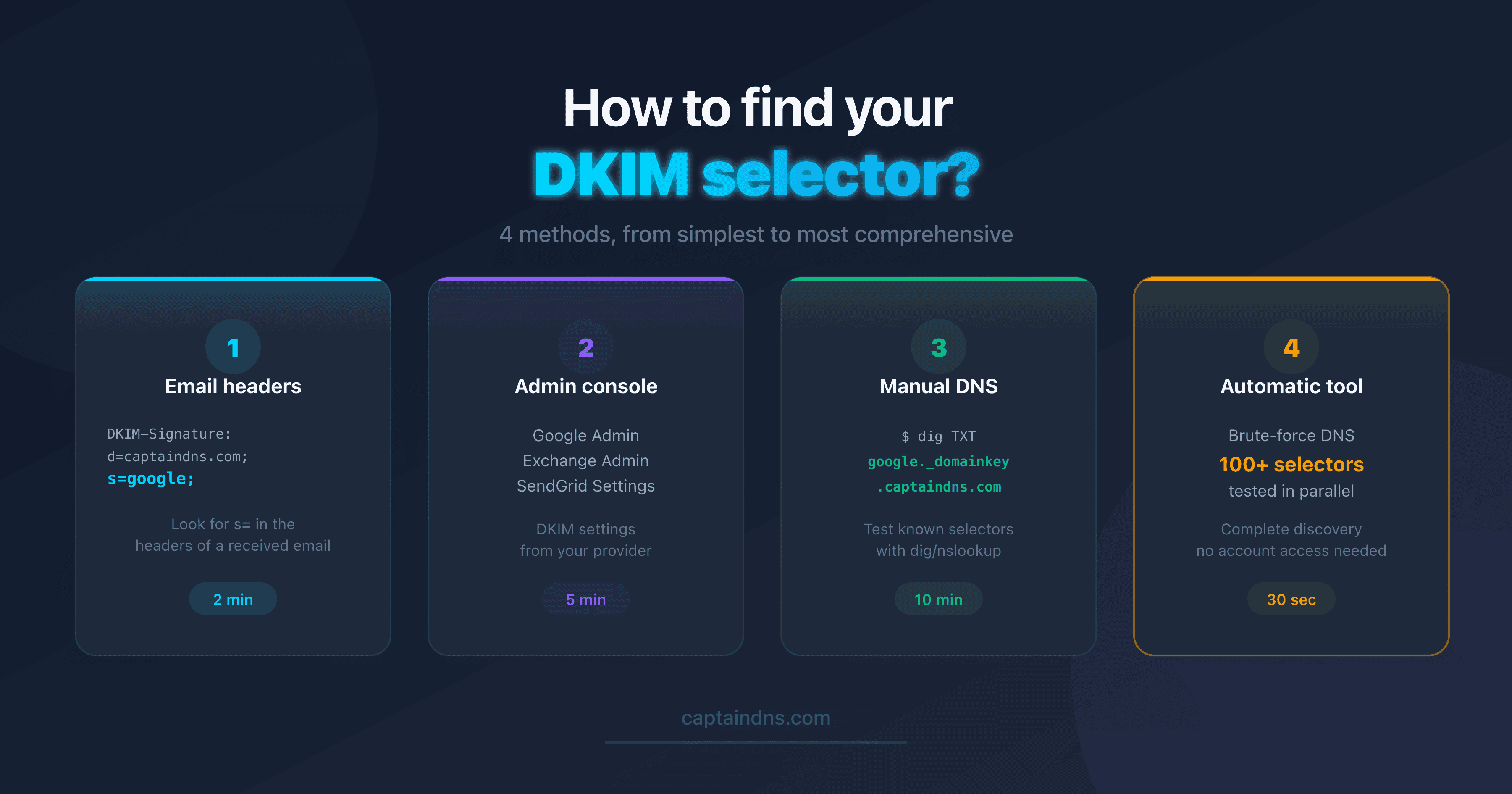
- The DKIM selector is a text identifier (e.g.,
google,selector1,k1) that locates the public key in DNS - Method 1: Open a received email's headers and look for
s=in theDKIM-Signatureline - Method 2: Check your email provider's admin console (Google, Microsoft, etc.)
- Method 3: Test manually with
digornslookupif you know the provider - Method 4: Use an automatic discovery tool to scan 100+ known selectors via DNS brute-force
You want to check your DKIM configuration, but the tool you're using asks for a "selector" and you have no idea what that is. You're not alone. This is the first obstacle most administrators face when they start exploring email authentication.
The DKIM selector is a text identifier used to locate the DKIM public key in a domain's DNS. Without it, verifying a DKIM signature is impossible. The good news: there are several ways to find it, even if nobody gave it to you.
This guide presents 4 practical methods, from simplest to most technical. Whether you're a system administrator, marketing manager, or developer, one of them will work for your situation.
What is a DKIM selector?
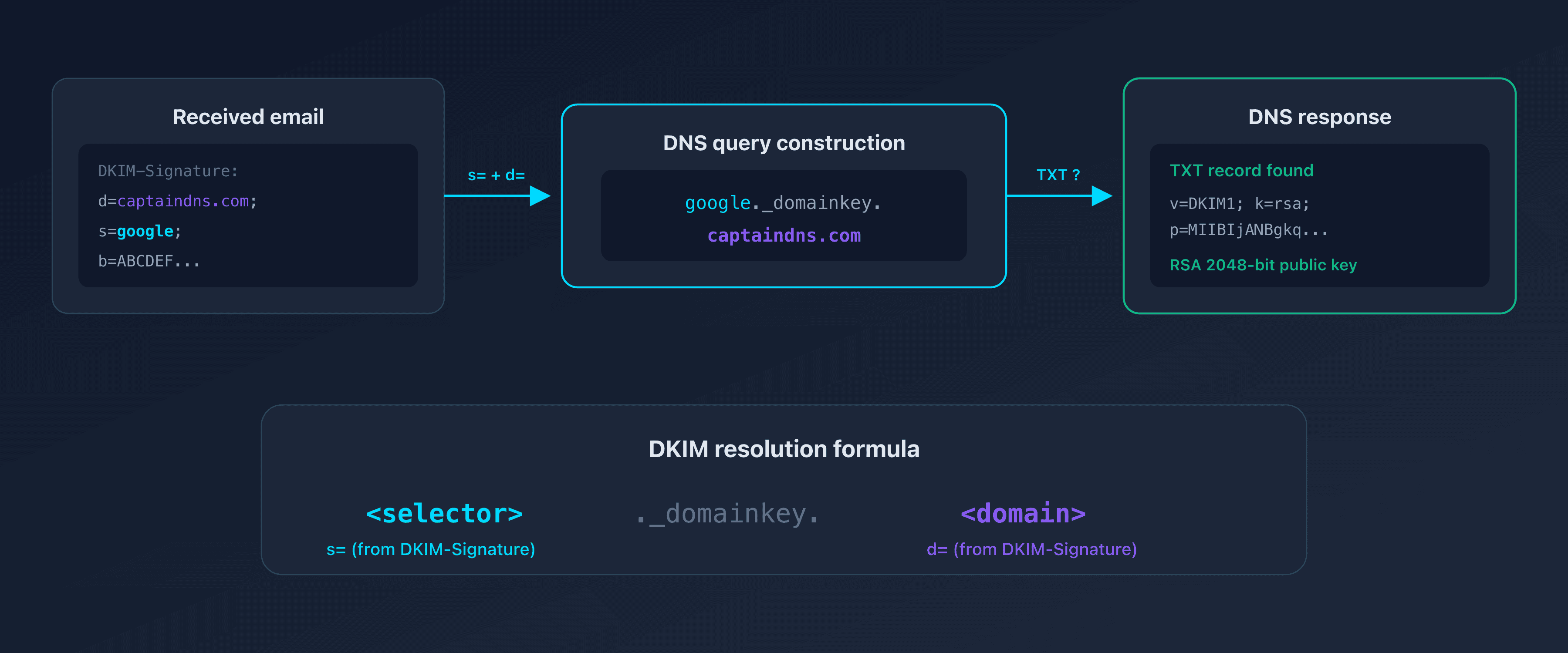
When an email server signs a message with DKIM, it adds a DKIM-Signature header that contains, among other things, two key pieces of information:
d=: the signing domain (e.g.,captaindns.com)s=: the selector (e.g.,google,selector1,s1)
The recipient combines these two values to look up the public key in DNS:
<selector>._domainkey.<domain>
For example, for the domain captaindns.com with the selector google:
google._domainkey.captaindns.com TXT "v=DKIM1; k=rsa; p=MIIBIj..."
Each email provider uses its own selector. A domain can have multiple selectors (one per sending service). That's why there is no universal "default" value.
Method 1: Extract the selector from email headers
This is the most reliable method. Every DKIM-signed email contains the selector in plain text within its headers.
Step 1: Open the full headers
| Email client | How to access headers |
|---|---|
| Gmail (web) | Open the message > Menu ⋮ > "Show original" |
| Outlook (web) | Open the message > Menu ⋯ > "View message source" |
| Apple Mail | View > Message > All Headers |
| Thunderbird | View > Headers > All |
Step 2: Find DKIM-Signature
In the headers, look for the line that starts with DKIM-Signature::
DKIM-Signature: v=1; a=rsa-sha256; c=relaxed/relaxed;
  d=captaindns.com; s=google; t=1739800000;
  h=from:to:subject:date:message-id;
  bh=abcdef123456...;
  b=ABCDEF789012...
Step 3: Read the s= value
The selector is the value after s=. In the example above: google.
Note: an email can contain multiple DKIM signatures (one per service it passed through). Look for the one where d= matches your domain.
When to use this method
- You have access to an email sent from the domain you want to verify
- You want the exact selector used in production
- You suspect the selector was recently changed
Method 2: Check the provider's admin console
Each email provider displays the DKIM selector in its admin console.
Google Workspace
- Open the Google Admin Console
- Menu > Apps > Google Workspace > Gmail
- "Email authentication" > click on the domain
- The selector is displayed (default:
google)
Microsoft 365
- Open the Exchange Admin Center
- Mail flow > Rules > DKIM
- Select the domain
- The selectors are displayed (default:
selector1andselector2)
Other providers
| Provider | Location | Default selector |
|---|---|---|
| SendGrid | Settings > Sender Authentication > Domain | s1, s2 |
| Mailchimp | Website > Domains > Authentication | k1, k2, k3 |
| Postmark | Sender Signatures > DNS Settings | pm |
| HubSpot | Settings > Domain & URLs > Email Sending | hs1, hs2 |
| Brevo | Settings > Senders > Domains | brevo1, brevo2, mail, mail2 |
When to use this method
- You are the email service administrator
- You are configuring DKIM for the first time
- You are looking for the selector before sending a first email
Method 3: Query DNS manually
If you know the email provider, you can test known selectors directly via a DNS query.
With dig (Linux/macOS)
dig TXT google._domainkey.captaindns.com +short
Result if the selector exists:
"v=DKIM1; k=rsa; p=MIIBIjANBgkqhkiG9w0BAQEFAAOC..."
Result if the selector does not exist: no output (NXDOMAIN).
With nslookup (Windows)
nslookup -type=TXT google._domainkey.captaindns.com
With PowerShell
Resolve-DnsName -Name "google._domainkey.captaindns.com" -Type TXT
Which selectors to test?
If you don't know which provider is being used, start with the most common ones:
dig TXT google._domainkey.captaindns.com +short
dig TXT selector1._domainkey.captaindns.com +short
dig TXT selector2._domainkey.captaindns.com +short
dig TXT s1._domainkey.captaindns.com +short
dig TXT k1._domainkey.captaindns.com +short
dig TXT default._domainkey.captaindns.com +short
When to use this method
- You have terminal/CLI access
- You know the likely provider
- You want to verify whether a specific selector exists in DNS
Method 4: Automatic discovery tool
If you don't know which provider is being used, or if you want a complete inventory, an automated DNS brute-force tool is the most efficient solution.
The concept: the tool automatically tests dozens of known selectors by querying DNS. It's exactly Method 3, but automated across 50 to 120 selectors.
How does it work?
- The tool detects your email providers via MX records
- It prioritizes known selectors for those providers
- It tests each selector in parallel via DNS TXT queries
- It analyzes each DKIM record found (key type, length, validity)
Advantages
| Advantage | Details |
|---|---|
| No email needed | Works with DNS only |
| No admin access needed | External verification |
| Discovers forgotten selectors | Old providers still configured |
| Automatic analysis | Alerts on weak keys (1024 bits) |
Limitations
DNS does not allow listing all subdomains of a zone. Custom selectors (e.g., campaign-2024-q3) or dynamically generated ones (hash, UUID) will not be detected by brute-force.
When to use this method
- You don't know the email provider
- You are auditing a third-party domain
- You want a complete inventory before deploying DMARC
p=reject
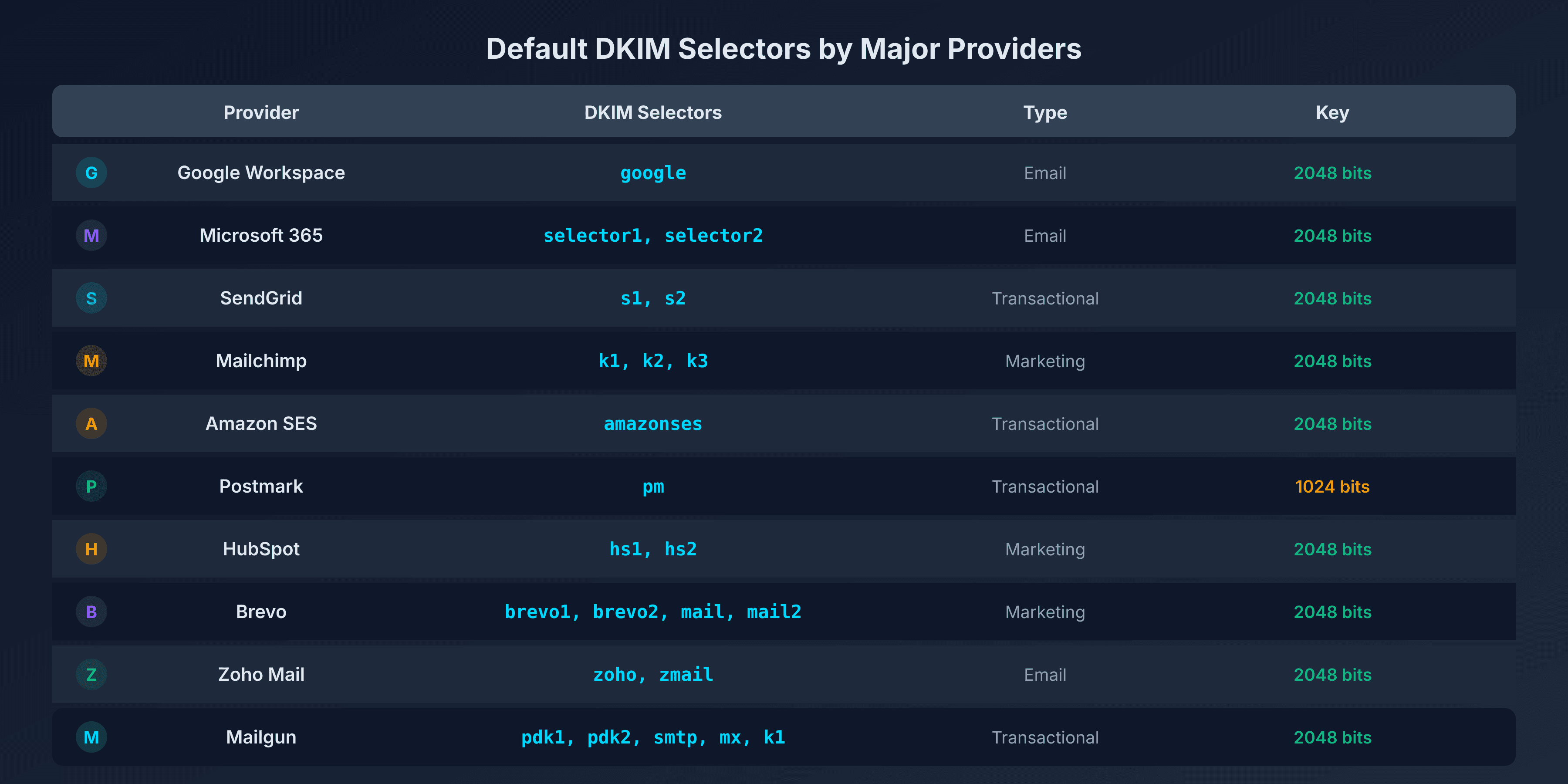
Default DKIM selectors: quick reference
| Provider | DKIM Selectors | Type |
|---|---|---|
| Google Workspace | google | |
| Microsoft 365 | selector1, selector2 | |
| SendGrid | s1, s2 | Transactional |
| Mailchimp | k1, k2, k3 | Marketing |
| Amazon SES | amazonses | Transactional |
| Postmark | pm | Transactional |
| HubSpot | hs1, hs2 | Marketing |
| Brevo (Sendinblue) | brevo1, brevo2, mail, mail2 | Marketing |
| Zoho Mail | zoho, zmail | |
| Mailgun | pdk1, pdk2, smtp, mx, k1 | Transactional |
An active domain typically uses 2 to 4 selectors: one for the main email service, one or two for marketing tools, and sometimes one for transactional email.
Comparing the 4 methods
| Criteria | Email headers | Admin console | Manual DNS | Automatic tool |
|---|---|---|---|---|
| Reliability | Very high | High | High | High |
| Access required | Received email | Admin account | Terminal | None |
| Discovers all selectors | No (1 per email) | No (1 provider) | No (1 per query) | Yes (50-120 tested) |
| Technical level | Low | Low | Medium | Low |
| Time | 2 min | 5 min | 10 min | 30 sec |
| Exact selector in production | Yes | Not always | If guessed | Yes |
Recommendation: start with Method 1 if you have an email on hand. Use Method 4 for a complete audit.
Recommended action plan
- Quick check: open a received email, look for
s=inDKIM-Signature(Method 1) - Complete inventory: run an automatic scan to discover all active selectors (Method 4)
- Validation: verify each selector found with a DKIM Checker to confirm the public key is valid
- Documentation: record your active selectors and the associated provider for future reference
- Cleanup: remove DNS records for DKIM selectors from providers you no longer use
FAQ
What is a DKIM selector?
A DKIM selector is a text identifier used to locate the DKIM public key in DNS. It is published at the address selector._domainkey.domain.com. Each email provider uses its own selector: Google uses google, Microsoft uses selector1 and selector2, SendGrid uses s1 and s2.
Where can I find the DKIM selector in an email?
Open the full headers of the email (in Gmail: menu ⋮ > "Show original"). Look for the DKIM-Signature: line and read the value after s=. That is your selector. Note that an email can contain multiple DKIM signatures if the message passed through multiple services.
How do I find the DKIM selector without an email?
Two options: check your email provider's admin console (Google Admin, Exchange, etc.), or use an automatic discovery tool that tests known selectors via DNS brute-force. The second option requires no account access.
What are the default DKIM selectors for Google Workspace?
Google Workspace uses the selector google by default. The DKIM record is published at google._domainkey.captaindns.com. Some advanced configurations may use a custom selector defined in the Google Admin Console.
What are the DKIM selectors for Microsoft 365?
Microsoft 365 uses two selectors: selector1 and selector2. They are published via CNAME records that point to Microsoft's servers. Rotation between the two selectors is managed automatically by Microsoft.
Can a domain have multiple DKIM selectors?
Yes, and it's quite common. An active domain typically uses 2 to 4 selectors: one for email (Google/Microsoft), one for marketing (Mailchimp/HubSpot), and one for transactional email (SendGrid/Postmark). Each selector has its own public key in DNS.
Is the DKIM selector confidential?
No. The DKIM selector is public information. It is visible in the headers of every sent email and points to a public DNS record. Knowing the selector does not compromise security. Only the private key (stored on the sending server) must remain confidential.
Glossary
- DKIM selector: a text identifier used to locate the DKIM public key in DNS at the address
selector._domainkey.domain. - DKIM-Signature: a header added to an email by the sending server, containing the cryptographic signature and metadata (domain, selector, algorithm).
- _domainkey: a DNS namespace reserved for DKIM keys. All DKIM records are published under
<selector>._domainkey.<domain>. - CNAME: a DNS record type used by some providers (Microsoft, SendGrid) to delegate DKIM key management to their own servers.
- DNS brute-force: a technique that tests a catalog of known selectors by querying DNS, in order to discover the selectors configured for a domain.
Discover your DKIM selectors in seconds: use the DKIM Selector Finder to automatically scan 100+ known selectors on your domain.
Related DKIM Guides
- What is a DKIM record? The complete guide: how signing works, DNS tags, RSA vs Ed25519, and key rotation.
- DKIM fail: all causes and how to fix them: body hash, invalid key, expired signature, forwarding, alignment, and step-by-step fixes.