Sending from aliases in Exchange Online: every accepted domain becomes a sending domain
By CaptainDNS
Published on October 11, 2026
Updated on October 11, 2026
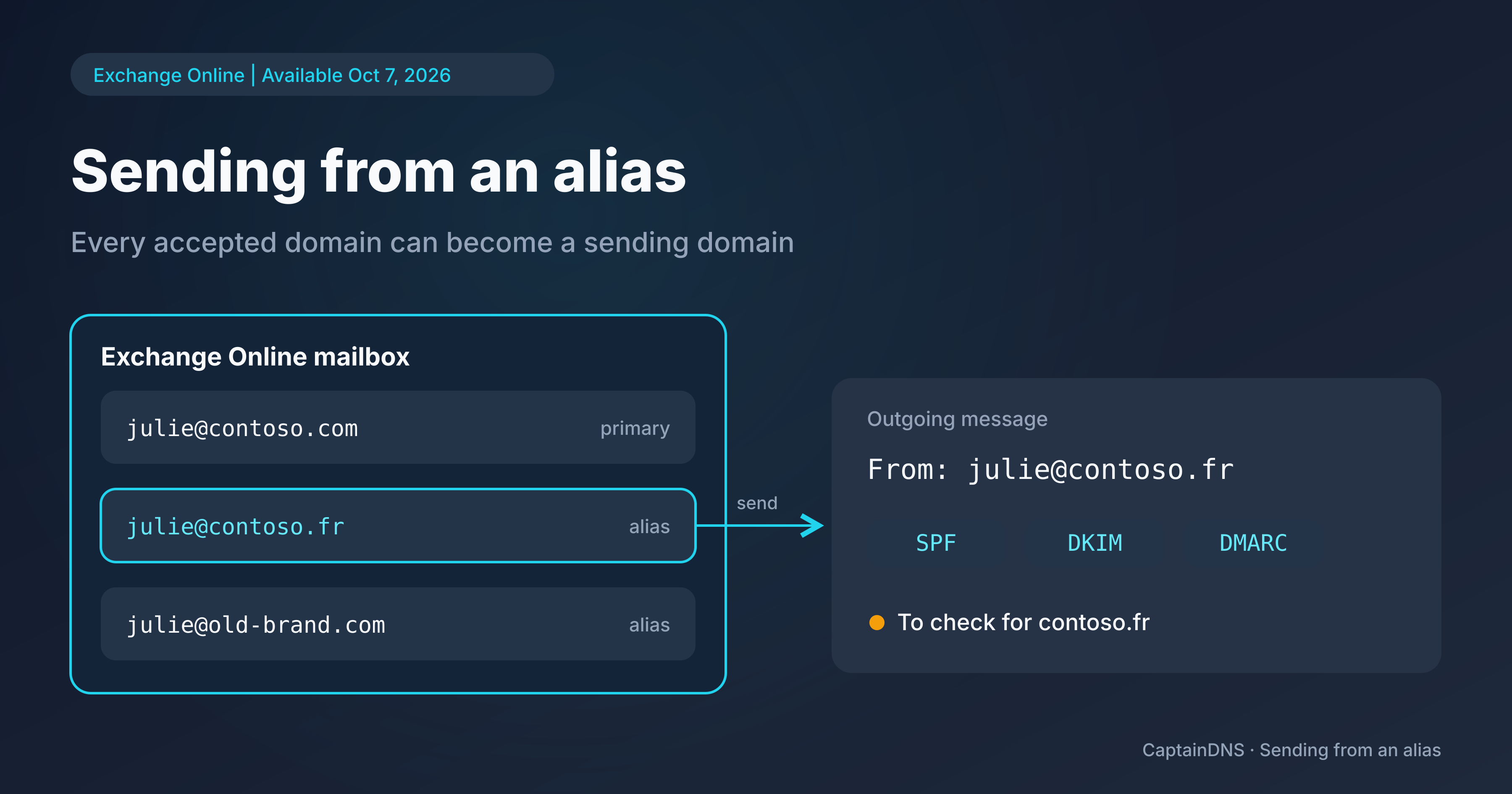
Until now, an Exchange Online alias could only receive mail, as Microsoft's October 7, 2026 announcement points out: "Previously, aliases could only receive mail, and all outgoing messages used the primary SMTP address of the mailbox." Sending from aliases is now generally available, so domains that have never sent a single message can show up in the From: of your outgoing mail.
- Exchange Online lets users send from any alias (proxy address) of a mailbox. The setting applies to the whole tenant and can take up to 60 minutes to apply.
- Every accepted domain that holds aliases can then appear in the
From:: check SPF, DKIM and DMARC before you enable it, or block sending on that domain (Receive Only,SendingFromDomainDisabled). - Review your mail flow, journaling and hygiene rules. In Message Trace, search on the alias.
Check the DMARC record of every alias domain
What Microsoft is changing: sending from a proxy address
The Exchange team announcement says the feature allows users "to send emails from any alias (proxy address) associated with their mailbox, not just their primary SMTP address". A mailbox julie@contoso.com that also holds julie@contoso.fr and julie@old-brand.com can send from each of these addresses.
Replies follow suit: "Replies automatically use the alias the message was sent to". A message received at julie@contoso.fr gets a reply sent from that address, without the user choosing anything. That is how mail starts leaving through domains nobody prepared.
The feature has been in public preview since January 2022 and reaches general availability with this announcement.
It only applies to Exchange Online mailboxes. In hybrid setups, a message sent from on-premises to Exchange Online carries the user's routing address on the tenant's onmicrosoft.com domain (Microsoft's example: mail.contoso.onmicrosoft.com). With sending from aliases enabled, Exchange Online keeps that address instead of resolving it to the primary address. An out-of-office reply can then go out from the routing address. To keep automatic replies from using that address, Microsoft points customers to a design change request (DCR) with the Outlook team. For a shared mailbox, sending from an alias only works in Outlook on the web (OWA), through "Open another mailbox", and not in the Outlook client.
Enabling it: one setting for the whole tenant
You enable it in Exchange Online PowerShell:
Set-OrganizationConfig -SendFromAliasEnabled $True
The setting is also available in the Exchange admin center (EAC): Settings > Mail Flow, option "Sending from Aliases". Microsoft warns: "It might take up to 60 minutes for this change to take effect in your tenant."
Once it is set to $True, every alias in the tenant can be used as a sending address, whatever its domain. The lever Microsoft documents is to block sending for an entire domain (see below). For finer-grained restrictions, for example on one alias or one user, the announcement points to mail flow rules or to an internal policy that users are expected to follow.
Every domain that holds aliases becomes a sending domain
Take stock of the accepted domains in your tenant: a former brand name, an acquired company, country variants, defensive domains registered against typosquatting. They have been receiving mail for years, and nobody ever asked whether they could send any. Now they can.
The alias domain becomes the domain of the visible From: (5322.From), the one recipients evaluate DMARC against. Microsoft's DMARC documentation is explicit: DMARC passes if SPF or DKIM succeeds and aligns with that domain, and a DKIM signature only aligns if it uses the custom domain.
For each domain involved, run three checks:
| Check | What you should see | If not |
|---|---|---|
| DKIM | Signing enabled for this domain in Exchange Online | The signature doesn't carry the domain name and can't align |
| SPF | A published SPF record that authorizes Exchange Online (include:spf.protection.outlook.com) | The domain doesn't authorize the servers that send on its behalf |
| DMARC | A published _dmarc record, with a rua address for reports | No policy to apply, and no reports to show what goes out |
Start with DKIM: a signature made with the alias domain is the reliable path to DMARC alignment. SPF only aligns if the envelope address (5321.MailFrom) uses that same domain; check it on a test message sent from the alias, in the smtp.mailfrom field of the received header.
To enable DKIM on an alias domain, follow our guide to DKIM on Office 365 and Google Workspace, then use the DKIM Selector Finder to confirm that selectors respond on that domain.
Without an aligned signature or an aligned SPF result, DMARC fails; if the domain publishes p=quarantine or p=reject, the recipient can quarantine or reject the message. At a Microsoft 365 recipient, the failure also shows up in the composite verdict (see compauth=fail on Microsoft 365). The nastiest case is a defensive domain already at p=reject, with no DKIM and no SPF record authorizing Exchange Online. It is well protected against spoofing, and for that very reason it will make DMARC fail for your users' legitimate messages, which can then be rejected.
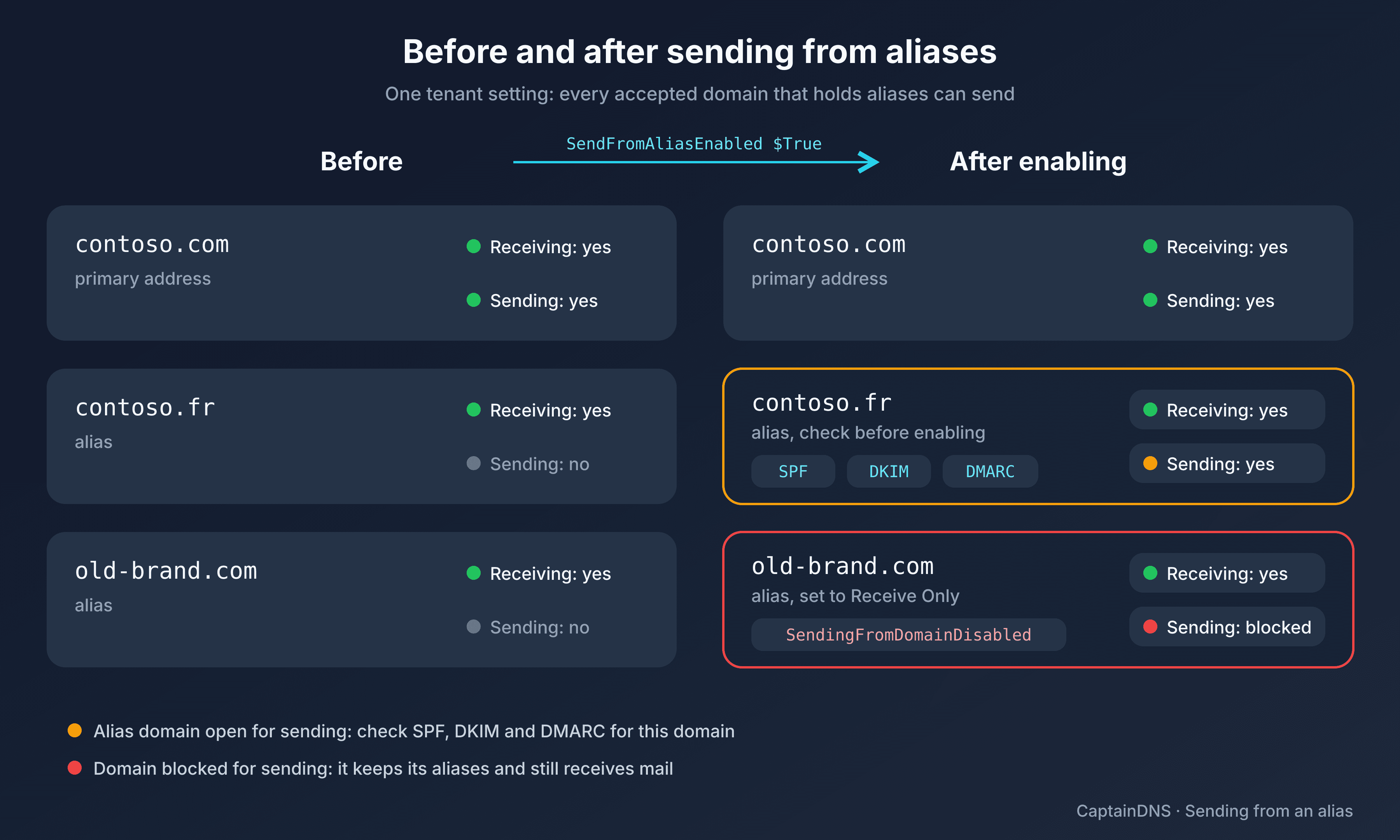
Blocking sending on domains that aren't ready
For a domain that must receive mail but never send any, Microsoft suggests setting the domain to "Receive Only" with the SendingFromDomainDisabled parameter of Set-AcceptedDomain. According to the cmdlet documentation, setting this parameter to $true prevents email from being sent from addresses in the domain; receiving depends on a separate parameter, SendingToDomainDisabled, which this command leaves unchanged:
Set-AcceptedDomain -Identity old-brand.com -SendingFromDomainDisabled $true
Do it before you enable SendFromAliasEnabled, for every domain whose SPF, DKIM and DMARC aren't ready: the domain keeps its aliases and its inbound mail, which depends on SendingToDomainDisabled, but can no longer be used as a sending address. It's the right default for defensive domains and retired brands.
After enabling: rules, Message Trace and DMARC reports
Microsoft warns: "Rules set up that do not account for aliases such as journaling or routing rules, may not work as expected." The announcement mentions hygiene, journaling and mail flow rules. A transport rule that adds a legal disclaimer to messages from julie@contoso.com may skip those sent from julie@contoso.fr: review every rule that filters on the sender.
In Message Trace, according to Microsoft, a search on the primary address doesn't return messages sent from an alias: search on the alias. Tell your first-line support before a "my message never went out" ticket starts going in circles.
During the first few weeks, follow the aggregate DMARC reports for each domain you opened: which sources send with it, and does DKIM align? CaptainDNS DMARC monitoring collects them in one place. For a one-off check, send a test message to an external mailbox and paste the received header into the email header analyzer: look for dkim=pass with header.d on the alias domain.
The steps, in order:
- List the accepted domains that hold aliases; for each one, decide whether to open or block sending.
- Blocked domains: set
SendingFromDomainDisabledto$true. - Open domains: enable DKIM, then check SPF and DMARC with the DMARC checker.
- Enable
SendFromAliasEnabled, wait up to 60 minutes, then test each domain. - Review mail flow rules and brief support about Message Trace.
FAQ
Does sending from an alias work with a shared mailbox?
Yes, but only in Outlook on the web (OWA), by opening the shared mailbox with "Open another mailbox". The Outlook client doesn't support it for shared mailboxes.
Do I need to enable DKIM separately for each alias domain?
Yes. Without DKIM enabled for the alias domain, the signature doesn't carry the From: domain and can't align for DMARC.
How do I block sending from an accepted domain without cutting off inbound mail?
Microsoft suggests setting it to "Receive Only": Set-AcceptedDomain -Identity <domain> -SendingFromDomainDisabled $true. According to the Set-AcceptedDomain documentation, this parameter prevents email from being sent from addresses in the domain; receiving depends on a separate parameter, SendingToDomainDisabled, and the domain keeps receiving mail on its aliases.
Related guides
- Misconfigured email routing: Microsoft's warning on internal spoofing
- End of Basic Auth SMTP on Microsoft Exchange Online
Sources
- Microsoft Exchange Team Blog: Sending From Email Aliases - General Availability (October 7, 2026)
- Microsoft Exchange Team Blog: Sending From Email Aliases - Public Preview (January 25, 2022)
- Microsoft Learn: DMARC documentation for Microsoft 365
- Microsoft Learn: Set-AcceptedDomain
- Microsoft Learn: Set up SPF to identify valid email sources for your Microsoft 365 domain