Test Email Deliverability: The Complete Guide Before Sending
By CaptainDNS
Published on March 27, 2026
Updated on August 22, 2026
- One in five emails never reaches the inbox, mainly due to missing or misconfigured SPF, DKIM, or DMARC authentication
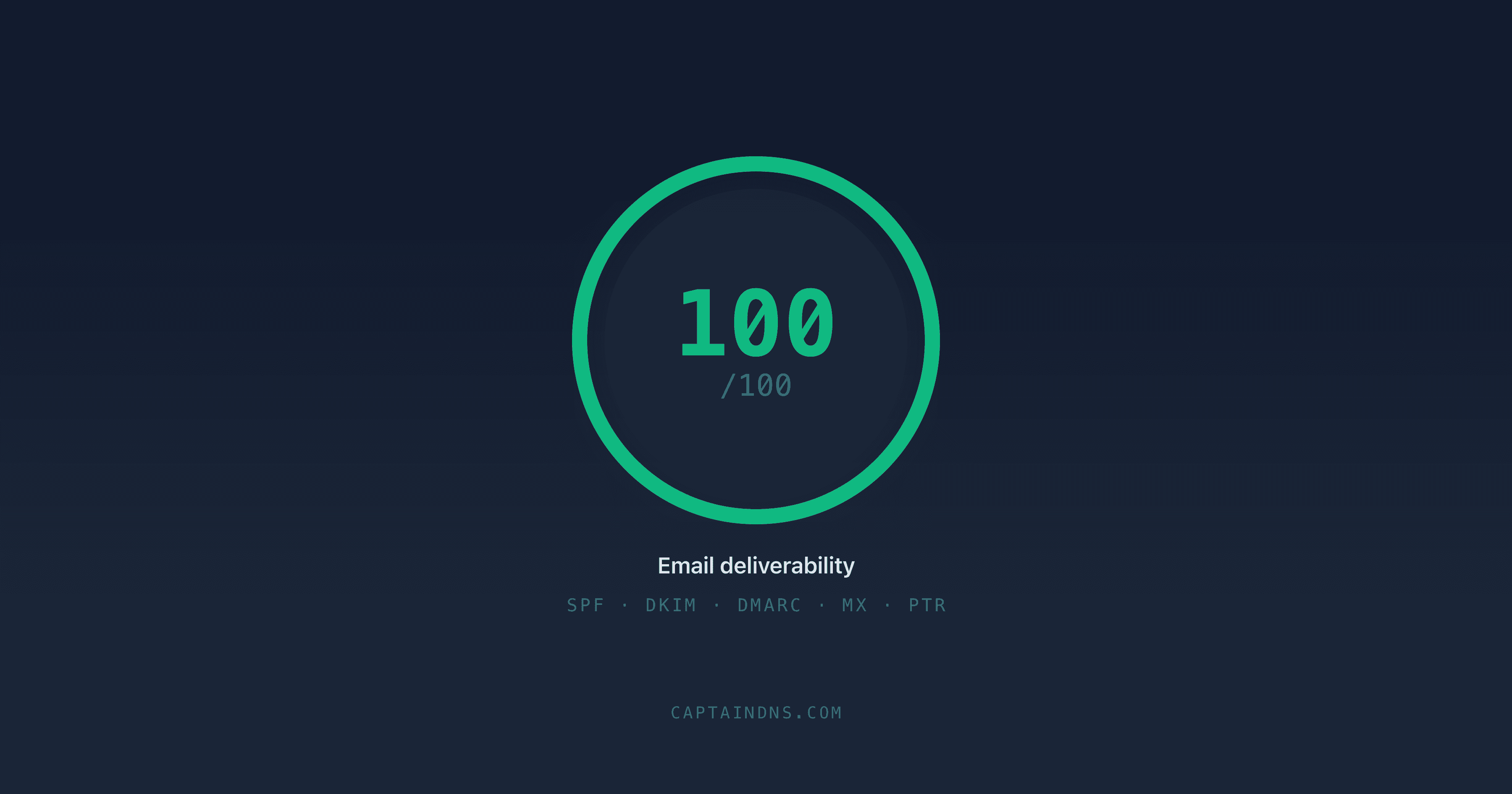
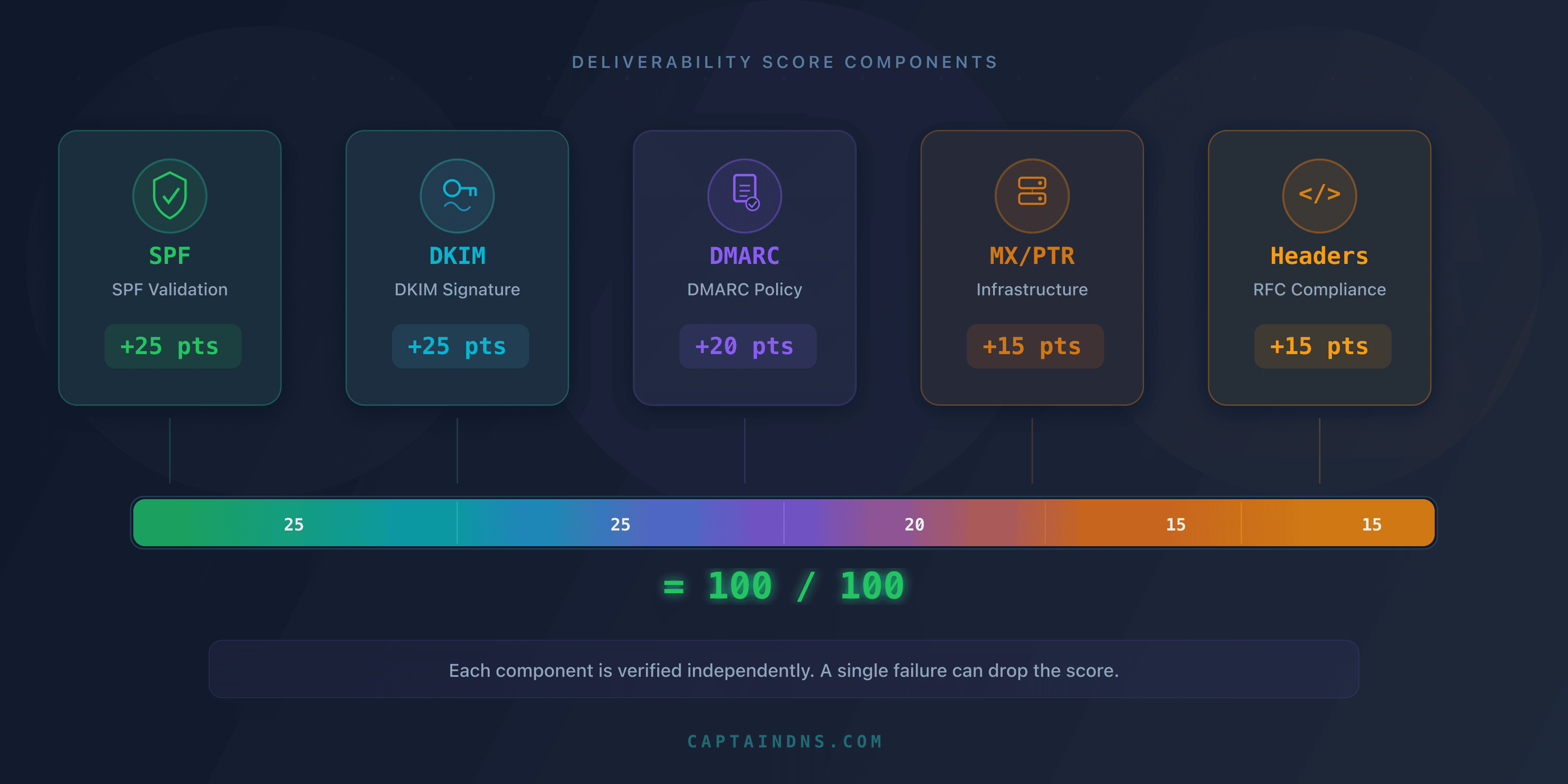
- Deliverability score: SPF (+25), DKIM (+25), DMARC (+20), MX/PTR (+15), headers (+15) = 100 possible points
- Since 2024: Gmail and Yahoo require mandatory SPF + DKIM, and DMARC for bulk senders (> 5,000 emails/day)
- Priority fix: a 30-second test identifies the exact problems, and this guide details how to fix them one by one
You just launched an email campaign. Everything is ready: the copy is polished, the design is flawless, and the recipient list is clean. Three days later, the stats come in: 22% of your emails never reached the inbox. No bounces. No visible errors. Your messages simply vanished into a spam folder or were silently rejected by the receiving server.
This is not an edge case. According to Validity (Sender Score) data, one in five emails sent worldwide never reaches the recipient's inbox. For businesses, the cost is direct: ignored invoices, lost order confirmations, wasted marketing leads, and a domain reputation that silently degrades.
The good news: most of these problems are detectable before you hit send. A deliverability test analyzes your DNS configuration (SPF, DKIM, DMARC), checks your IP reputation, inspects your email headers, and produces an overall score out of 100. In 30 seconds, you know exactly what works and what is blocking your emails.
This guide covers the full process: why you should test, how a deliverability test works, how to interpret each section of the score, and most importantly how to fix the issues identified to go from 40/100 to 100/100. Whether you are a system administrator, developer, or marketing manager, each section contains actionable steps.
Test your deliverability now
Why test deliverability before every send?
The invisible problem
Email deliverability is a silent issue. Unlike a website outage (visible immediately), an email landing in spam generates no alert. The sender assumes the message was delivered. The recipient does not know an email is waiting in their spam folder. Nobody complains because nobody knows.
Mailbox providers (Gmail, Outlook, Yahoo, Apple Mail) make filtering decisions in milliseconds, based on hundreds of signals. And those signals change constantly. A domain that passed every check six months ago can fail today because a vendor added an extra SPF include, or because DKIM key rotation was not performed.
The 5 checks of a deliverability test
A complete test verifies five distinct categories, each contributing to the overall score:
| Category | Points | What is checked |
|---|---|---|
| SPF | 25/100 | Valid DNS TXT record, sender IP authorized, lookup count |
| DKIM | 25/100 | Valid cryptographic signature, DNS public key accessible, domain alignment |
| DMARC | 20/100 | Published policy, SPF/DKIM alignment, reporting address configured |
| MX / PTR | 15/100 | MX records present, reverse DNS configured, IP not blacklisted |
| Headers | 15/100 | Consistent From/Reply-To, valid Message-ID, no suspicious fields |
A score below 70/100 means your emails have a significant probability of being classified as spam. Below 50/100, most providers will reject or filter your messages.
These five checks cover configuration and authentication; sender reputation, transport security and recipient engagement also weigh on delivery, as our guide to the email deliverability score breaks down.
Gmail and Yahoo 2024 requirements
Since February 2024, Gmail and Yahoo have made mandatory checks that were previously optional. These requirements apply to all senders, with additional rules for bulk senders:
For all senders:
- Valid SPF or DKIM (at least one of the two)
- PTR DNS record (reverse DNS) configured for the sending IP
- Spam rate reported in Google Postmaster Tools below 0.3%
For bulk senders (> 5,000 emails/day to Gmail):
- Valid SPF and DKIM (both required)
- DMARC published with at least
p=none - From domain alignment with SPF or DKIM
List-Unsubscribeheader with one-click unsubscribe (RFC 8058)- Formatting compliant with RFC 5322
Failing to meet these requirements triggers progressive rejection. Gmail does not block 100% of emails overnight: it starts by deferring 4% of messages (4xx code), then increases the percentage until permanent rejection (5xx code) if the issue is not fixed.
How does a deliverability test work?
A deliverability test reproduces the exact process a receiving server executes when it receives your email. Here are the four steps, in order.
Step 1: DNS resolution and SPF verification
The test starts by querying your domain's DNS to retrieve the SPF record.
# Retrieve the SPF record for captaindns.com
dig TXT captaindns.com +short | grep "v=spf1"
The SPF record is a DNS TXT record that starts with v=spf1. It lists the servers authorized to send emails for your domain. Here is a real-world example:
v=spf1 include:_spf.google.com include:sendgrid.net ip4:203.0.113.10 -all
The receiving server compares the IP of the sending server against the IPs authorized by your SPF. The process is recursive: each include: triggers a new DNS query to retrieve the IPs from the referenced subdomain.
Critical point: RFC 7208 limits the number of DNS queries (lookups) during SPF evaluation to 10. The include, a, mx, redirect, and exists mechanisms each count as one lookup. The ip4 and ip6 mechanisms do not count (they are direct values). At the 11th lookup, the server returns permerror and your SPF is considered invalid.
# Check how many lookups your SPF generates
# Each include generates at least 1 lookup
dig TXT _spf.google.com +short
# Result: "v=spf1 include:_netblocks.google.com include:_netblocks2.google.com ..."
# Each sub-include counts too!
Step 2: DKIM signature verification
DKIM (DomainKeys Identified Mail) adds a cryptographic signature to every email. The sending server signs the message with a private key. The receiving server verifies this signature by retrieving the corresponding public key from DNS.
The DKIM signature is present in the DKIM-Signature email header:
DKIM-Signature: v=1; a=rsa-sha256; d=captaindns.com; s=google;
  h=from:to:subject:date:message-id;
  bh=2jUSOH9NhtVGCQWNr9BrIAPreKQjO6Sn7XIkfJVOzv8=;
  b=AuUoFEfDxTDkHlLXSZEpZj79LICEps6eda7W3deTVFOk...
Key fields:
d=: the domain claiming the signature (must match the From domain for DMARC)s=: the selector, which identifies which public key to usea=: the signing algorithm (rsa-sha256ored25519-sha256)bh=: the hash of the message bodyb=: the signature itself
The test retrieves the public key via DNS:
# Retrieve the DKIM public key
# Format: selector._domainkey.domain
dig TXT google._domainkey.captaindns.com +short
The response contains a TXT record with the public key:
"v=DKIM1; k=rsa; p=MIIBIjANBgkqhkiG9w0BAQEFAAOCAQ8AMIIBCgKCAQEA..."
The receiving server uses this public key to verify the signature. If the message body or signed headers were modified after signing, verification fails.
RSA vs Ed25519: most servers use RSA-SHA256 with 2048-bit keys. Ed25519 is faster and generates shorter signatures, but receiver-side support is not yet universal. Google Workspace and Microsoft 365 only support RSA for outbound DKIM signing as of March 2026.
Step 3: DMARC evaluation and alignment
DMARC (Domain-based Message Authentication, Reporting, and Conformance) verifies that SPF and DKIM are not only valid, but also aligned with the domain visible in the email's From field.
# Retrieve the DMARC policy
dig TXT _dmarc.captaindns.com +short
Typical result:
"v=DMARC1; p=reject; rua=mailto:dmarc-rua@captaindns.com; ruf=mailto:dmarc-ruf@captaindns.com; adkim=r; aspf=r"
Let's break down each tag:
| Tag | Value | Meaning |
|---|---|---|
v=DMARC1 | required | Identifies the record as DMARC |
p= | none, quarantine, reject | Policy applied to failing emails |
rua= | email address | Destination for aggregate reports (daily statistics) |
ruf= | email address | Destination for forensic reports (failure samples) |
adkim= | r (relaxed) or s (strict) | DKIM alignment mode |
aspf= | r (relaxed) or s (strict) | SPF alignment mode |
pct= | 0-100 | Percentage of emails subject to the policy |
Relaxed vs strict alignment: in relaxed mode (adkim=r), the DKIM signing domain (d=) must share the same organizational domain as the From. Example: a signature with d=mail.captaindns.com is aligned with a From of contact@captaindns.com. In strict mode (adkim=s), domains must match exactly.
DMARC evaluation follows this logic:
- SPF passes and is aligned with the From? DMARC passes.
- DKIM passes and is aligned with the From? DMARC passes.
- If neither is aligned: DMARC fails, and the policy (
p=) applies.
A commonly misunderstood point: DMARC passes if at least one of the two mechanisms (SPF or DKIM) passes with alignment. Both do not need to succeed.
Step 4: additional checks (MX, PTR, headers, blacklists)
The test then verifies additional technical elements:
MX records: the domain must have valid MX records pointing to active mail servers. A domain without MX records signals a domain that is not configured to receive mail, which is suspicious for a sender.
dig MX captaindns.com +short
# 10 mx1.captaindns.com.
# 20 mx2.captaindns.com.
Reverse DNS (PTR): the sending server's IP must have a PTR record that resolves to a hostname, and that hostname must resolve back to the same IP. This is FCrDNS (Forward-confirmed reverse DNS) verification.
# Check the reverse DNS of an IP
dig -x 203.0.113.10 +short
# mail.captaindns.com.

# Verify that the forward matches
dig A mail.captaindns.com +short
# 203.0.113.10
Blacklists: the sending IP is checked against major blocklists (Spamhaus ZEN, Barracuda, UCEProtect, SpamCop). Being listed on a single major blacklist can be enough for most providers to reject your emails.
Email headers: the test verifies the consistency of From, Reply-To, Message-ID, Date headers and the presence of required fields per RFC 5322.
Interpreting results section by section
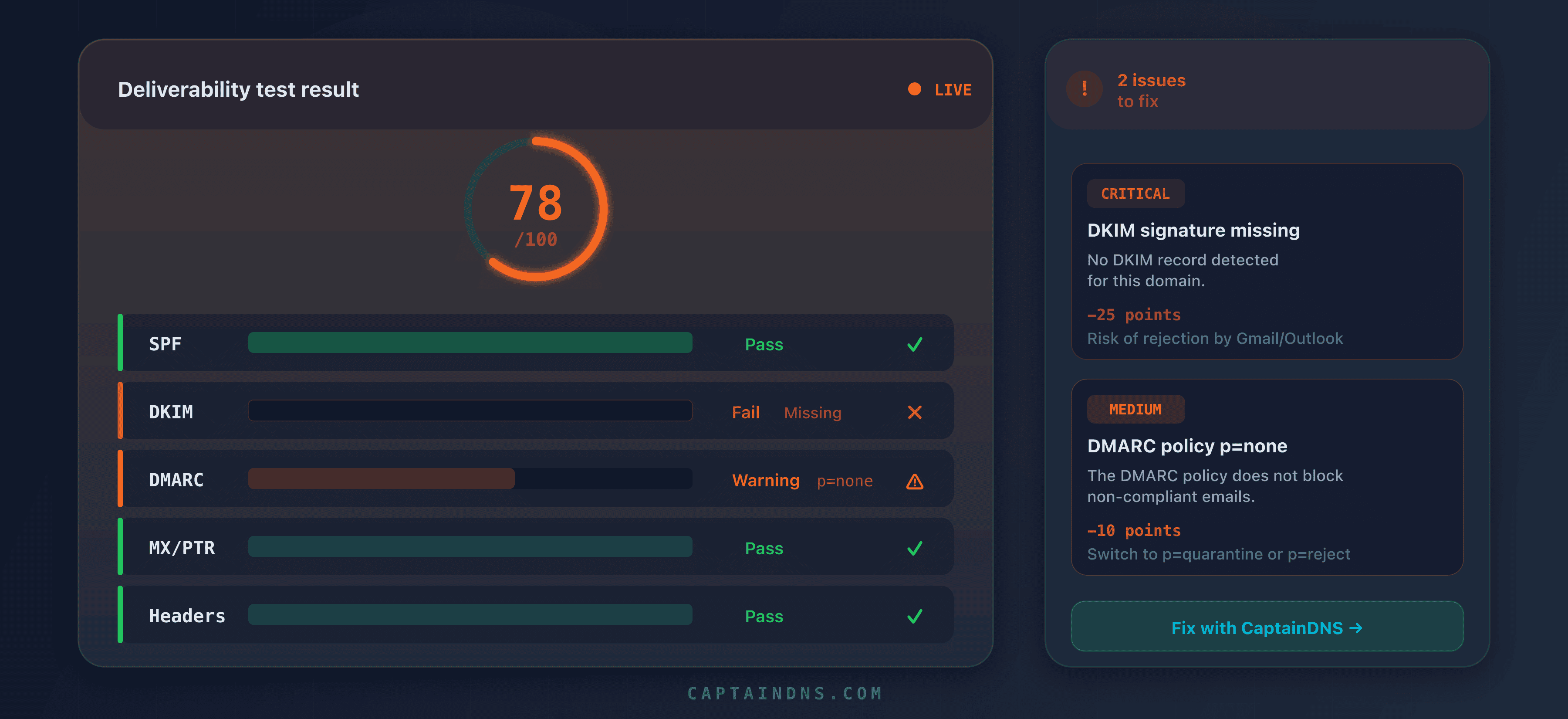
Once the test runs, the report displays an overall score and a breakdown by category. Here is how to read each section and identify priority actions.
SPF section (25 points)
| Result | Points | Meaning | Action |
|---|---|---|---|
pass | 25/25 | The sending IP is authorized by your SPF | No action needed |
softfail | 10/25 | The IP is not explicitly authorized (~all) | Switch to -all after verification |
fail | 0/25 | The IP is explicitly rejected by your SPF | Add the missing IP or include |
permerror | 0/25 | The SPF record is invalid | Fix the syntax or reduce lookups |
none | 0/25 | No SPF record found | Create an SPF record |
Common mistake: a softfail result gives the impression that "it still passes." In reality, modern servers treat softfail almost like a fail, especially combined with a DMARC policy set to quarantine or reject. Softfail should only be a transitional phase during initial SPF deployment.
DKIM section (25 points)
| Result | Points | Meaning | Action |
|---|---|---|---|
pass | 25/25 | Valid signature and public key found | No action needed |
fail | 0/25 | Invalid signature (body modified, incorrect key) | Diagnose the exact cause |
none | 0/25 | No DKIM signature in the email | Configure DKIM on the sending server |
permerror | 0/25 | Malformed or inaccessible public key | Check the selector's DNS record |
The dkim=fail result is the most complex to diagnose because the causes are numerous: body hash altered by an intermediate relay, public key missing from DNS, expired signature (x= tag exceeded), or wrong canonicalization algorithm. See the DKIM fail diagnostic guide for a complete decision tree.
DMARC section (20 points)
| Result | Points | Meaning | Action |
|---|---|---|---|
pass | 20/20 | SPF or DKIM aligned and valid | No action needed |
fail (p=none) | 5/20 | Failure but no consequence (monitoring mode) | Progress to quarantine then reject |
fail (p=quarantine) | 0/20 | Emails sent to spam | Fix SPF/DKIM alignment |
fail (p=reject) | 0/20 | Emails rejected | Fix SPF/DKIM alignment |
none | 0/20 | No DMARC record | Create a DMARC record |
The p=none trap: this policy is essential during the deployment phase, as it allows you to collect reports without impacting delivery. But staying on p=none indefinitely is equivalent to having no DMARC at all in terms of protection. Mailbox providers grant a trust bonus to domains that publish p=quarantine or p=reject.
MX / PTR section (15 points)
| Check | Points | Criterion |
|---|---|---|
| Valid MX | 5/15 | At least one MX record resolving to an active IP |
| PTR configured | 5/15 | Reverse DNS of the sending IP resolving to a hostname |
| FCrDNS | 3/15 | Forward-confirmed reverse DNS (IP/hostname round-trip) |
| No blacklist | 2/15 | IP absent from major blacklists |
Reverse DNS (PTR) is often overlooked because it depends on the IP range owner, not the domain owner. If you use a VPS or dedicated server, PTR is configured through your hosting provider's control panel. If you use a sending service (SendGrid, Mailgun, Brevo), PTR is normally managed by the provider on their dedicated IPs.
Headers section (15 points)
| Check | Points | Criterion |
|---|---|---|
| Valid From | 4/15 | Syntactically correct email address with a resolving domain |
| Message-ID | 3/15 | Present and in RFC 5322 format |
| Date | 3/15 | Present and within a reasonable range (not in the future, not > 7 days) |
| Consistent Reply-To | 3/15 | Same domain as From or a trusted domain |
| No suspicious X-Mailer | 2/15 | No known spam software in the headers |
A missing or malformed Message-ID header is a strong spam signal for filters. Every email must have a unique Message-ID in the format <identifier@domain>. Properly configured mail servers generate it automatically, but some PHP scripts or custom sending libraries omit it.
From 40/100 to 100/100: step-by-step fixes
You ran the test and the score is not good. Here is the exact order of fixes, ranked by impact on the score.
Priority 1: create or fix SPF (+25 points)
If your SPF is missing or invalid, this is the fix that brings the most points immediately.
Case 1: No SPF record
Create a DNS TXT record on your root domain:
captaindns.com. IN TXT "v=spf1 include:_spf.google.com -all"
Adapt the mechanisms to your sending services:
| Service | Include to add |
|---|---|
| Google Workspace | include:_spf.google.com |
| Microsoft 365 | include:spf.protection.outlook.com |
| SendGrid | include:sendgrid.net |
| Mailgun | include:mailgun.org |
| Brevo (formerly Sendinblue) | include:spf.brevo.com |
| Amazon SES | include:amazonses.com |
| OVHcloud | include:mx.ovh.com |
Case 2: SPF PermError (too many lookups)
The 10-lookup limit is the most common cause of PermError. Each include: counts as at least 1 lookup, and nested includes add up. Google Workspace alone consumes 4 lookups.
To diagnose the problem:
# Count your SPF lookups
dig TXT captaindns.com +short | grep "v=spf1"
# Then follow each include recursively
dig TXT _spf.google.com +short
# "v=spf1 include:_netblocks.google.com include:_netblocks2.google.com include:_netblocks3.google.com ~all"
# = 3 additional lookups for this single include
Reduction strategies:
- Replace
include:directives with directip4:andip6:addresses when IPs are stable (SPF flattening) - Use SPF macros (
%{i}andexists:) for advanced cases - Remove includes for services you no longer use
For a detailed guide on PermError, see the SPF PermError guide.
Case 3: Two SPF records on the same domain
RFC 7208 strictly forbids multiple TXT records starting with v=spf1 on the same domain. If you have two, the server immediately returns permerror.
# Check for duplicates
dig TXT captaindns.com +short | grep "v=spf1"
# If two lines appear: merge into a single record
Merge both records into one that contains all mechanisms.
Priority 2: configure DKIM (+25 points)
DKIM requires two elements: a private key installed on the sending server (which signs messages) and a public key published in DNS (which enables verification).
Setup with Google Workspace:
- Google Admin Console > Apps > Google Workspace > Gmail > Authenticate email
- Select your domain and click "Generate new record"
- Choose a key length of 2048 bits
- Copy the provided DNS CNAME or TXT record
- Publish it in your DNS zone as
google._domainkey.captaindns.com - Return to the console and click "Start authentication"
Setup with Microsoft 365:
Microsoft 365 uses two CNAME records per domain:
selector1._domainkey.captaindns.com  CNAME  selector1-captaindns-com._domainkey.captaindns.onmicrosoft.com
selector2._domainkey.captaindns.com  CNAME  selector2-captaindns-com._domainkey.captaindns.onmicrosoft.com
Post-configuration verification:
# Verify the public key is accessible
dig TXT google._domainkey.captaindns.com +short
# Should return a record containing "v=DKIM1; k=rsa; p=MII..."
If the command returns nothing, the issue is DNS: either the record has not yet propagated (wait 24-48h), or there is a naming error in the selector.
Key length: use 2048 bits minimum. 1024-bit keys have been considered weak since 2020. Some providers already reject signatures based on RSA keys shorter than 1024 bits.
Priority 3: publish and harden DMARC (+20 points)
DMARC deployment follows a three-phase cycle.
Phase 1: Monitoring (2 to 4 weeks)
_dmarc.captaindns.com IN TXT "v=DMARC1; p=none; rua=mailto:dmarc-rua@captaindns.com"
During this phase, no emails are blocked. Aggregate reports (rua=) arrive daily in XML format and contain authentication statistics from all servers that sent emails for your domain.
Analyze the reports to identify:
- Legitimate sources that are failing (billing server, CRM, marketing tool)
- Illegitimate sources (spoofing attempts)
- SPF and DKIM alignment rate
Phase 2: Quarantine (4 to 8 weeks)
_dmarc.captaindns.com IN TXT "v=DMARC1; p=quarantine; t=y; rua=mailto:dmarc-rua@captaindns.com"
The t=y is the DMARCbis test mode: receivers report failures but do not yet apply the quarantine. This is a safety net: if a legitimate source has not yet been fixed, its emails still get through. Drop t=y once the reports no longer show legitimate failures.
Phase 3: Reject
_dmarc.captaindns.com IN TXT "v=DMARC1; p=reject; rua=mailto:dmarc-rua@captaindns.com; ruf=mailto:dmarc-ruf@captaindns.com; adkim=r; aspf=r"
At this stage, any email that fails DMARC alignment is rejected by the receiving server. This is the most secure configuration and the one that earns the most trust from mailbox providers.
Priority 4: configure reverse DNS (+15 MX/PTR points)
MX records: if your domain has no MX record, add one pointing to your receiving server:
captaindns.com.  IN  MX  10  mx1.captaindns.com.
captaindns.com.  IN  MX  20  mx2.captaindns.com.
Reverse DNS: log into your hosting provider's administration panel and configure the PTR of your sending IP to point to your mail server's FQDN:
# After configuration, verify:
dig -x 203.0.113.10 +short
# Expected: mail.captaindns.com.
Blacklists: if your IP appears on a blacklist, the removal procedure depends on the list:
| Blacklist | Procedure | Timeframe |
|---|---|---|
| Spamhaus | Removal form on spamhaus.org | 24-48h after fix |
| Barracuda | Form on barracudacentral.org | 12-24h |
| SpamCop | Automatic expiration in 24h | 24h |
Priority 5: clean up headers (+15 points)
Header issues are often caused by custom sending scripts or misconfigured libraries.
Header checklist:
- The
Fromfield uses an address with your domain, not a generic domain Message-IDis present and in<unique-id@captaindns.com>format- The
Datefield is present and correct (timezone included) Reply-To, if present, uses a domain consistent with From- No
X-Mailerheader referencing a known spam tool Content-Typespecifies the charset (UTF-8 recommended)
If you use PHP mail(), switch to a library like PHPMailer or SwiftMailer that generates compliant headers. If you use a framework (Laravel, Django, Rails), headers are generally correct by default.
The most common mistakes
SPF PermError: the 10-lookup limit
This is the most widespread error. A domain that uses Google Workspace (4 lookups), SendGrid (2 lookups), Mailchimp (2 lookups), and an internal server (1 lookup with an a:) already reaches 9 lookups. Adding a single additional service triggers PermError.
The diagnosis is straightforward:
dig TXT captaindns.com +short | grep "v=spf1"
# Count each include, a, mx, redirect, exists
# Follow nested includes recursively
The fix depends on your situation:
- Remove unused services: verify that each include corresponds to an active service
- Use SPF flattening: replace includes with their final IPs (beware of maintenance overhead)
- Dedicate a subdomain: send marketing from
news.captaindns.comwith its own SPF
If your emails still end up in spam despite these fixes, the problem goes beyond SPF. See the complete spam diagnostic guide to analyze other causes (reputation, content, engagement).
DKIM fail: body hash did not verify
This error means the email content was modified after signing. The most common causes:
- Intermediate relay: a server between sending and receiving added a footer, rewrote URLs, or injected a tracking pixel
- Antivirus or DLP: security software modified the message body
- Mailing list: list servers (Listserv, Sympa) often add an unsubscribe footer that breaks the signature
The fix involves identifying which component in your sending chain modifies the message after DKIM signing, then reconfiguring the order of operations so the modification occurs before signing.
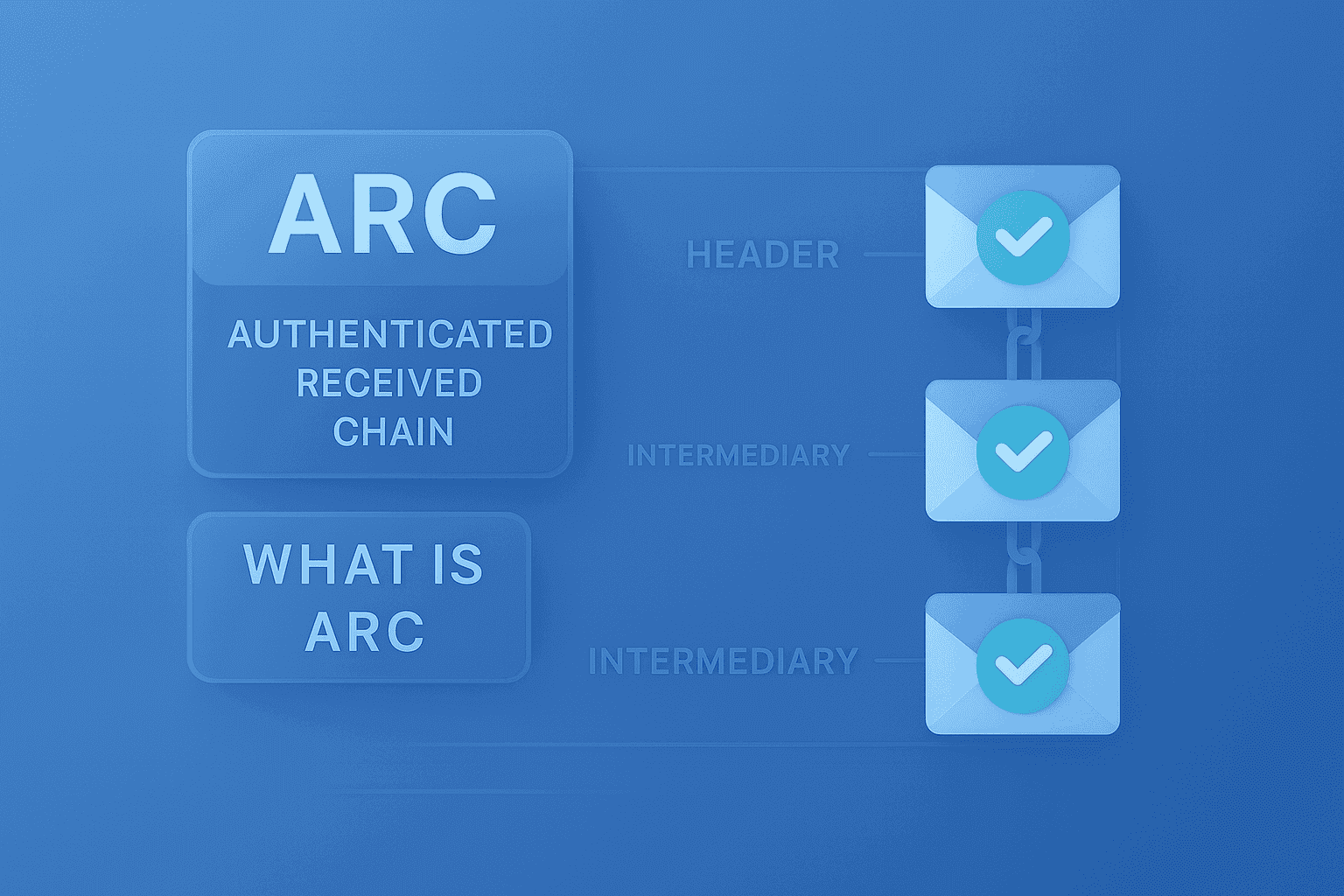
For mailing lists, the ARC (Authenticated Received Chain) protocol preserves authentication results across relays. Gmail and Microsoft have supported ARC since 2019.
DMARC fail: alignment failure
The most subtle error. SPF passes, DKIM passes, but DMARC still fails. The cause: neither is aligned with the From field domain.
Typical scenario: you send from contact@captaindns.com, but your sending provider signs with d=sendgrid.net (DKIM not aligned) and the SMTP envelope uses bounces@sendgrid.net (SPF not aligned). Result: both authentications pass technically, but neither is aligned with captaindns.com.
Fix:
- Configure your provider to sign with
d=captaindns.com(aligned DKIM) - Configure the return-path (SMTP envelope) to use a subdomain of your domain (aligned SPF)
Most sending providers (SendGrid, Mailgun, Brevo, Postmark) offer a "Domain Authentication" or "Sender Authentication" option that automatically configures DKIM and SPF alignment.
IP on a blacklist
Your MX/PTR score drops because of a blacklisted IP. The main causes:
- Shared IP: if you are on a shared IP with other clients of your hosting provider, another client's spam can affect you
- Compromise: a script on your server is sending spam without your knowledge (exploited contact form, compromised email account)
- IP history: the IP you just received was previously used by a spammer
Verification is instant:
# Check Spamhaus
dig +short 10.113.0.203.zen.spamhaus.org
# If a 127.0.0.x response appears, the IP is listed
Note that the IP is reversed in the DNS query (203.0.113.10 becomes 10.113.0.203).
When to test? The 5 critical situations
A deliverability test is not a one-time check. Here are the five moments when a test is essential.
1. Before launching an email campaign
Every marketing campaign should be preceded by a test. An authentication issue on a 50,000-email send means 50,000 potentially lost emails. The test takes 30 seconds and can save an entire campaign.
Send a test email to the address provided by the mail tester, review the report, and fix any issues before the bulk send.
2. After switching sending providers
Migrating from one sending service to another is the riskiest moment for deliverability. You need to update SPF (replace the old include with the new one), reconfigure DKIM (new selector, new key), and verify DMARC alignment.
Migration checklist:
- Update SPF: remove the old include, add the new one
- Configure DKIM with the new provider and publish the key in DNS
- Verify DMARC alignment with the new provider
- Test deliverability before switching traffic
- Keep the old SPF include for 48h (emails in transit)
3. After a DNS change
Any modification to your DNS zone can impact deliverability: TTL change, TXT record update, registrar migration, DNSSEC activation. Copy-paste errors in DNS records are common, and the result is a broken SPF or DKIM with no visible error message.
4. When open rates drop
A sudden drop in open rates (more than 10% variation over a week) can indicate a deliverability problem. Before looking for the cause in email content or subject lines, test your authentication. An SPF that suddenly exceeds 10 lookups (because a provider added a nested include) can cause an abrupt decline.
5. On a monthly schedule, for prevention
DNS configurations change, providers update their records, DKIM keys need to be rotated. A monthly test catches regressions before they impact your sends. Set a monthly reminder and verify that your score stays at 100/100.
Recommended action plan
-
Run a deliverability test using the CaptainDNS mail tester. Send a test email and get your detailed score broken down section by section.
-
Fix issues in order of impact: SPF first (25 points), then DKIM (25 points), then DMARC (20 points). Each fix immediately increases your score and your deliverability rate.
-
Verify your fixes by re-running the test after each DNS change. Wait for DNS propagation (5 to 60 minutes depending on TTL) before retesting.
-
Set up DMARC monitoring: aggregate reports (
rua=) automatically alert you when an authentication issue appears. Analyze them at least once a week during the ramp-up phase, then monthly. -
Schedule a monthly test to catch regressions. DNS configurations change silently (provider modifying their includes, DKIM key expiring, IP changing blacklist status). A monthly test costs 30 seconds and can prevent weeks of degraded deliverability.
FAQ
What is a mail tester and how does it work?
A mail tester is a tool that analyzes your email deliverability by checking your DNS configuration (SPF, DKIM, DMARC), your sending IP reputation, your email headers, and whether your IP appears on blacklists. You send a test email to an address provided by the tool, and it produces a detailed report with a score out of 100 and the fixes to apply.
What deliverability score should I aim for?
Aim for a score of 100/100. A score above 80/100 is acceptable for most transactional sends. Below 70/100, your emails have a significant probability of being classified as spam. Below 50/100, most providers (Gmail, Outlook, Yahoo) will reject or filter your messages.
Are SPF, DKIM, and DMARC all mandatory?
Since February 2024, Gmail and Yahoo require at least SPF or DKIM for all senders. For bulk senders (more than 5,000 emails per day to Gmail), all three are mandatory: valid SPF and DKIM, plus a published DMARC record. In practice, configuring all three is recommended for every domain, regardless of volume.
What is the SPF 10 DNS lookup limit?
RFC 7208 limits the number of recursive DNS queries during SPF record evaluation to 10. The include, a, mx, redirect, and exists mechanisms each count as one lookup. Nested includes add up: an include that itself contains 3 includes consumes 4 lookups total. Beyond 10, the server returns a PermError and your SPF is considered invalid.
Why does my DMARC fail when SPF and DKIM pass?
DMARC checks not only that SPF and DKIM pass, but also that they are aligned with the From field domain of the email. If your sending provider signs with its own DKIM domain and uses its own address in the SMTP envelope, neither SPF nor DKIM is aligned with your From domain. Configure your provider to use your domain (Domain Authentication) to resolve this issue.
How long do DNS corrections take to go into effect?
The delay depends on the TTL (Time To Live) of your DNS records. A TTL of 300 seconds (5 minutes) means receiving servers will see your change in under 5 minutes. A TTL of 86400 (24 hours) can require up to 24 hours. Before modifying a critical record, first reduce the TTL to 300, wait for this new TTL to propagate, then make the change.
How do I know if my IP is on a blacklist?
Query major blacklists via a reverse DNS lookup. For example, to check the IP 203.0.113.10 on Spamhaus: dig +short 10.113.0.203.zen.spamhaus.org. If a 127.0.0.x response is returned, the IP is listed. A blacklist checking tool automates this verification across several dozen lists simultaneously.
Should I test before every campaign send?
Yes, for bulk marketing campaigns. A test takes less than a minute and can prevent wasting an entire send. For transactional emails (confirmations, invoices), a monthly test is sufficient, unless you have changed your DNS configuration or sending provider. The goal is to catch regressions before they impact deliverability.
What is the difference between relaxed and strict alignment in DMARC?
In relaxed mode (adkim=r, aspf=r), the DKIM signing domain or SPF envelope domain must share the same organizational domain as the From. Example: a signature with d=mail.captaindns.com is aligned with a From of @captaindns.com. In strict mode (adkim=s, aspf=s), domains must match exactly. Relaxed mode is recommended for most deployments because it tolerates subdomain usage.
What if my score does not improve despite fixes?
Verify that DNS propagation is complete (wait at least the TTL of your records). Test each component individually: SPF alone (dig TXT captaindns.com), DKIM alone (dig TXT selector._domainkey.captaindns.com), DMARC alone (dig TXT _dmarc.captaindns.com). If the DNS records are correct but the score does not change, the problem may stem from IP reputation (blacklist) or the content of the test email.
Glossary
- SPF (Sender Policy Framework): email authentication protocol defined by RFC 7208 that lists the servers authorized to send emails for a domain via a DNS TXT record starting with
v=spf1. - DKIM (DomainKeys Identified Mail): email authentication protocol defined by RFC 6376 that adds a cryptographic signature to each email, verifiable via a public key published in DNS.
- DMARC (Domain-based Message Authentication, Reporting, and Conformance): protocol defined by RFC 7489 that verifies SPF and DKIM alignment with the From domain and defines the policy for handling failures (none, quarantine, reject).
- Alignment: in the DMARC context, the correspondence between the domain used by SPF or DKIM and the domain visible in the email's From field. Can be relaxed (same organizational domain) or strict (exact match).
- PermError: permanent error returned when an SPF record is structurally invalid (too many lookups, incorrect syntax, duplicates). The record cannot be evaluated.
- PTR (Pointer Record): DNS record that maps an IP address to a hostname (reverse DNS). Used by receiving servers to verify the sending server's identity.
- FCrDNS (Forward-confirmed reverse DNS): two-step verification. The reverse DNS of the IP yields a hostname, and resolving that hostname must return the original IP.
- Blacklist (DNSBL): DNS-based blocklist that catalogs IP addresses known for sending spam. The main ones are Spamhaus, Barracuda, SpamCop, and UCEProtect.
- DKIM Selector: identifier (character string) used to locate the DKIM public key in DNS. The record is published at
selector._domainkey.captaindns.com. - RFC 7208: official SPF protocol specification that defines record syntax, the 10-lookup limit, void lookups, and possible results.
- ARC (Authenticated Received Chain): protocol that preserves email authentication results across intermediate relays (mailing lists, forwards). Supported by Gmail and Microsoft.
- RFC 8058: specification for the one-click unsubscribe mechanism via the List-Unsubscribe-Post header, required by Gmail for bulk senders since 2024.
Test your deliverability now: use the CaptainDNS mail tester to get your score out of 100 and the exact list of fixes to apply. A test takes 30 seconds and can transform your delivery rates.