Setting Up DKIM on Office 365 and Google Workspace: A Practical Guide
By CaptainDNS
Published on March 5, 2026
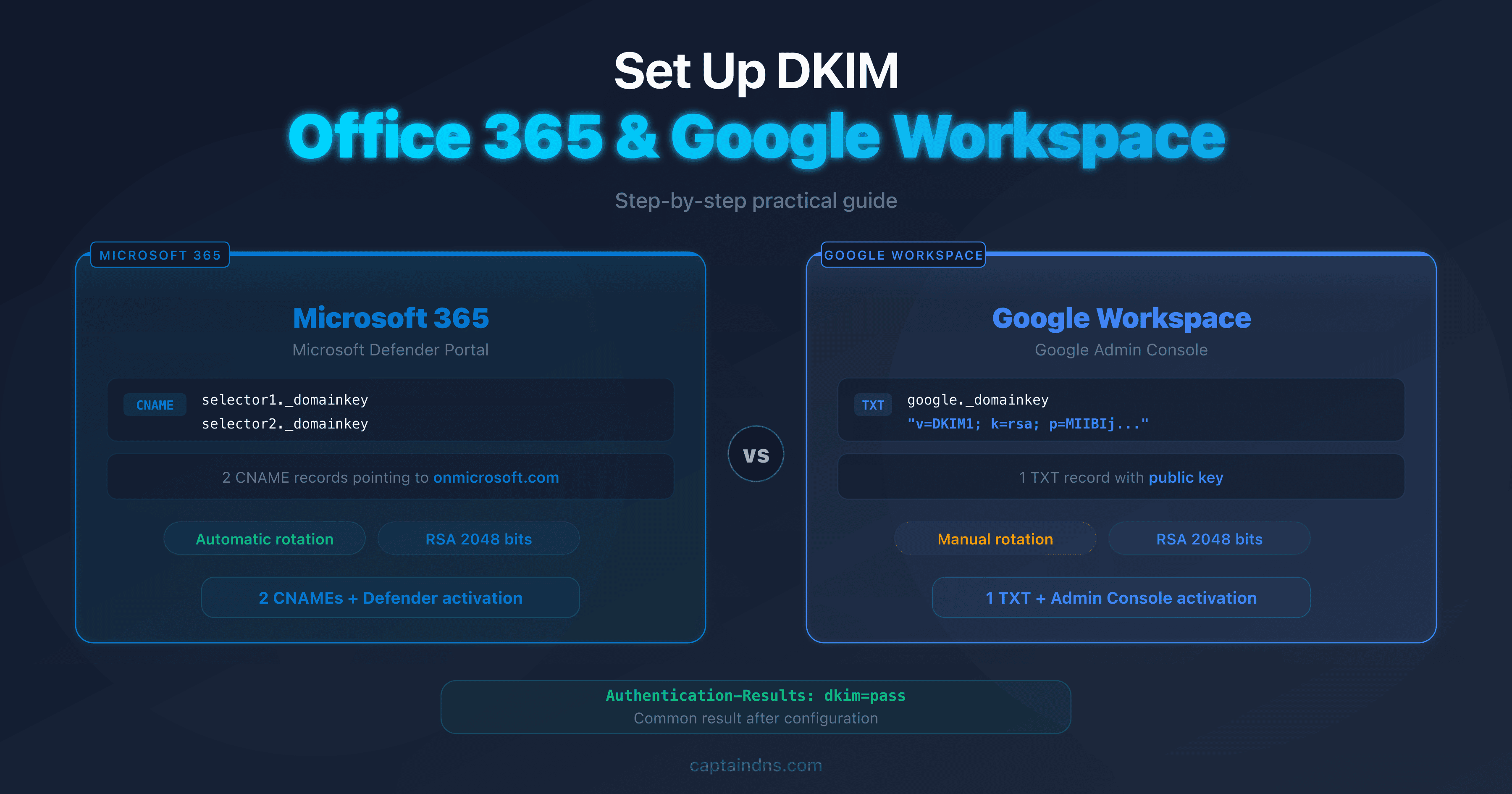
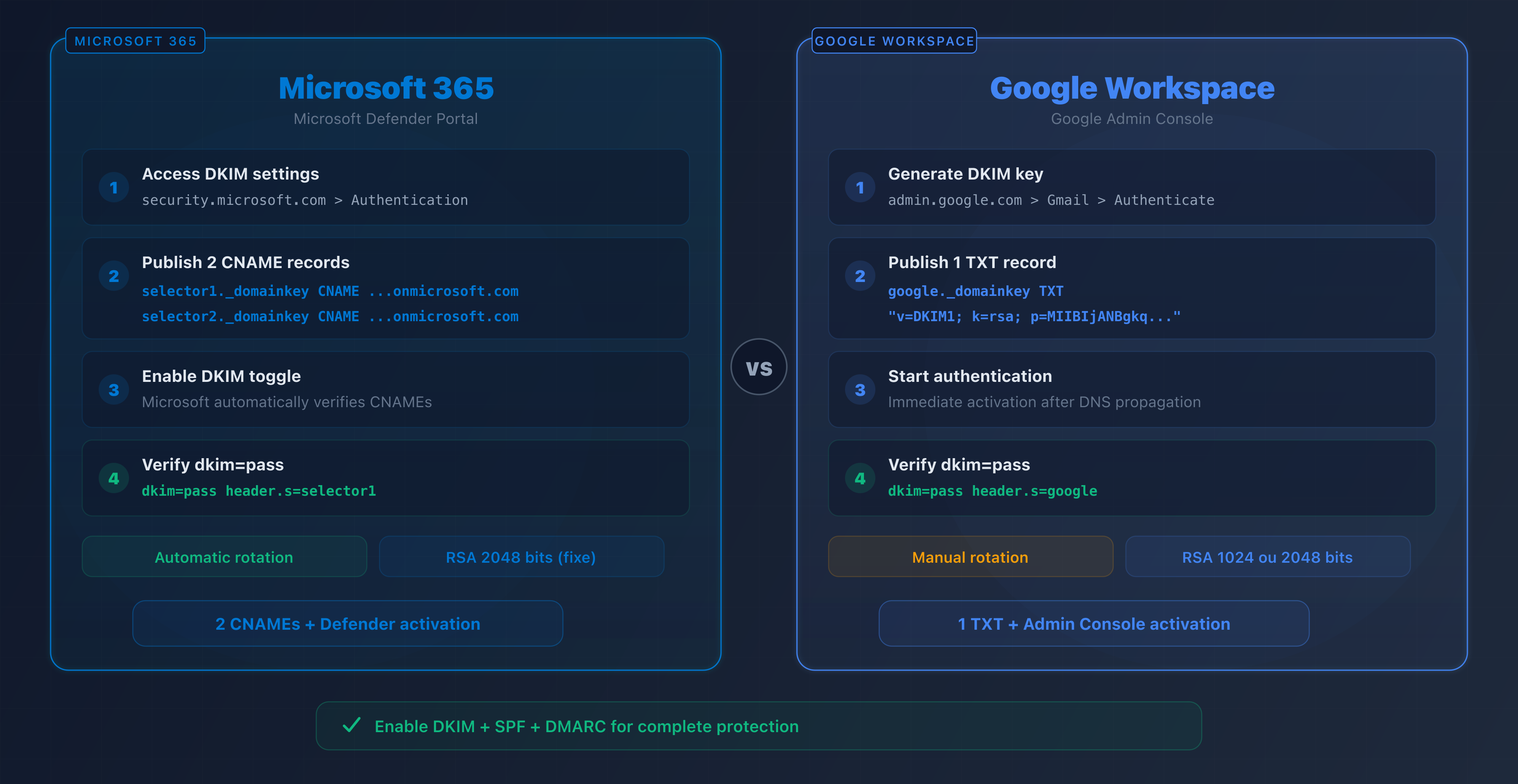
- Microsoft 365: DKIM is enabled through the Defender portal with two CNAME records per domain
- Google Workspace: DKIM is configured through the Admin Console with a single TXT record
- Both platforms use RSA 2048-bit keys by default, providing strong authentication
- DNS propagation takes between 15 minutes and 48 hours depending on your DNS host
- DKIM alone is not enough: combine it with SPF and DMARC for complete authentication
Your organization uses Microsoft 365 or Google Workspace for email. You may have already configured SPF, but your DMARC reports show DKIM authentication failures. The problem: DKIM is not enabled by default on these platforms.
Since February 2024, Google and Yahoo require DKIM for bulk senders. Microsoft followed suit in May 2025. Without DKIM, your emails risk landing in the spam folder, even with a properly configured SPF record.
This guide walks you through enabling DKIM on Microsoft 365 and Google Workspace step by step. Each step includes the exact DNS records to publish and the checks to perform.
DKIM on Microsoft 365: complete setup
Prerequisites
Before you begin, make sure you have:
- Administrator access to the Microsoft Defender portal (security.microsoft.com)
- Access to your domain's DNS zone
- A custom domain added to your Microsoft 365 tenant
Microsoft 365 signs emails by default using the onmicrosoft.com domain. To sign with your own domain, you must configure DKIM manually.
Step 1: access DKIM settings
- Sign in to the Microsoft Defender portal:
security.microsoft.com - Navigate to Policies & rules > Threat policies > Email authentication settings
- Select the DKIM tab
- Click on your custom domain (e.g.,
captaindns.com)
Step 2: publish the CNAME records
Microsoft uses a CNAME-based system rather than TXT records. You need to publish two CNAMEs in your DNS zone:
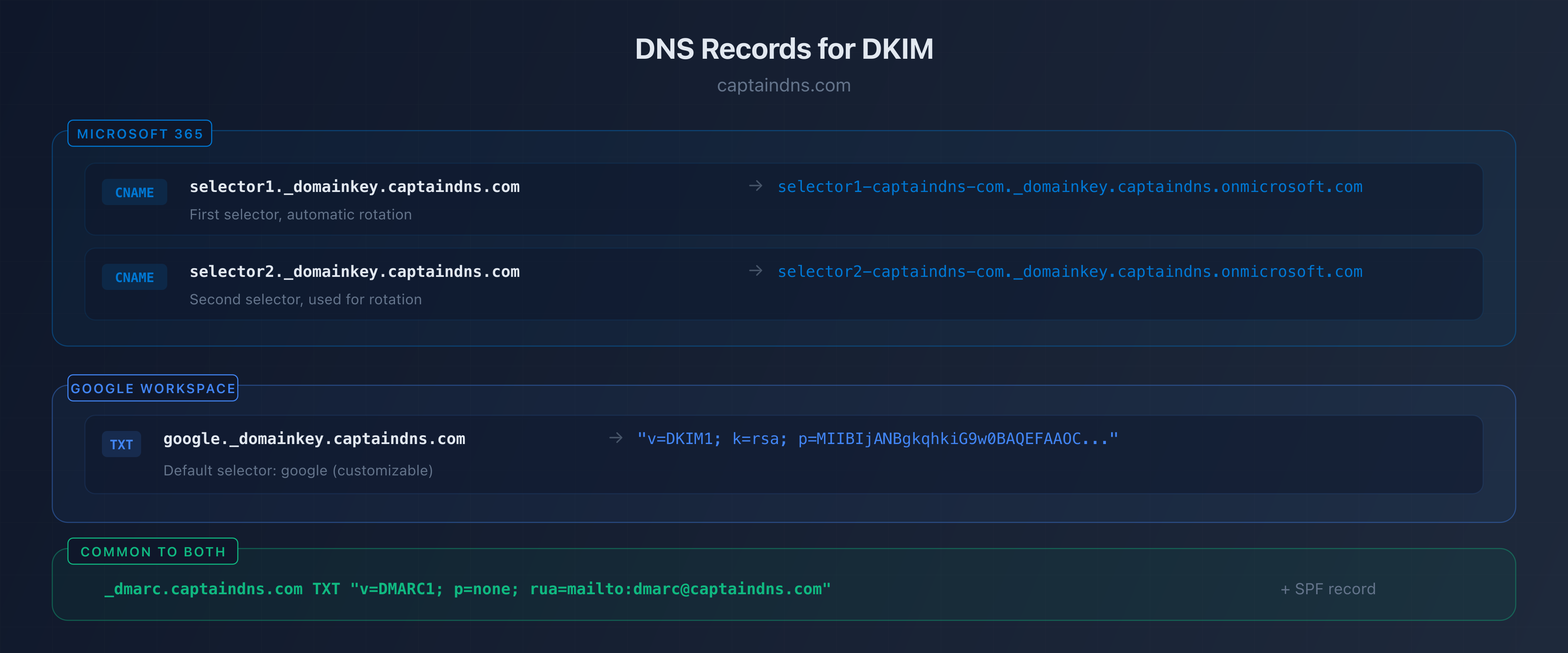
selector1._domainkey.captaindns.com  CNAME  selector1-captaindns-com._domainkey.captaindns.onmicrosoft.com
selector2._domainkey.captaindns.com  CNAME  selector2-captaindns-com._domainkey.captaindns.onmicrosoft.com
The target CNAME format follows this pattern:
| Parameter | Value |
|---|---|
| Selector | selector1 and selector2 |
| Host format | selectorN._domainkey.captaindns.com |
| Target format | selectorN-domain-tld._domainkey.tenant.onmicrosoft.com |
| TTL | 3600 (1 hour) |
The dots in your domain name are replaced with hyphens in the target CNAME value. For example, captaindns.com becomes captaindns-com.
Step 3: enable DKIM signing
- Go back to the Microsoft Defender portal
- On your domain's DKIM page, toggle the switch to Enabled
- Microsoft automatically verifies the CNAME records
- If the CNAMEs have not propagated yet, an error message appears: wait for propagation and try again
Step 4: verify it works
Send a test email from your Microsoft 365 domain to a Gmail address. In the received email, view the headers and look for:
Authentication-Results: mx.google.com;
  dkim=pass header.d=captaindns.com header.s=selector1
Use a DKIM checker to confirm your DNS record is correct.
DKIM on Google Workspace: complete setup
Prerequisites
- Super administrator access to the Google Admin Console (
admin.google.com) - Access to your domain's DNS zone
Google Workspace does not sign emails with your domain by default. Signing uses a Google domain (*.gappssmtp.com) until you enable DKIM manually.
Step 1: generate the DKIM key
- Sign in to the Admin Console:
admin.google.com - Navigate to Apps > Google Workspace > Gmail
- Click Authenticate email
- Select your domain
- Click Generate new record
- Choose the key length: 2048 bits (recommended)
- Keep the default selector
googleor choose a custom selector
Step 2: publish the TXT record
Google generates a TXT record that you need to publish in your DNS zone:
google._domainkey.captaindns.com IN TXT "v=DKIM1; k=rsa; p=MIIBIjANBgkqhkiG9w0BAQEFAAOC..."
| Parameter | Value |
|---|---|
| Host | google._domainkey (or selector._domainkey) |
| Type | TXT |
| Value | Public key provided by Google |
| TTL | 3600 (1 hour) |
Note: some DNS hosts limit TXT record size to 255 characters. If your RSA 2048 key is truncated, split it into multiple quoted strings.
Step 3: enable DKIM signing
- Go back to the Google Admin Console
- On the email authentication page, click Start authentication
- Google verifies the DNS record
- The status changes to Email authentication enabled
DKIM signing takes effect immediately. All emails sent from Gmail will carry the signature with your domain.
Step 4: verify it works
Send a test email from your Google Workspace account to an external address. Check the headers:
Authentication-Results: mx.google.com;
  dkim=pass header.d=captaindns.com header.s=google
Microsoft 365 vs Google Workspace comparison
| Criterion | Microsoft 365 | Google Workspace |
|---|---|---|
| DNS record type | 2 CNAMEs | 1 TXT |
| Default selector | selector1, selector2 | google |
| Key length | 2048 bits (fixed) | 1024 or 2048 bits (choice) |
| Automatic rotation | Yes (via dual selectors) | No (manual) |
| Activation delay | After CNAME propagation | Immediate after TXT propagation |
| Configuration interface | Microsoft Defender | Admin Console |
Microsoft 365 uses two selectors to facilitate automatic key rotation. When Microsoft renews the key, it switches from selector1 to selector2 without any action on your part.
Google Workspace requires manual rotation: you must generate a new key, update the DNS record, then activate the new key in the console.
Troubleshooting common errors
Microsoft 365
| Error | Cause | Solution |
|---|---|---|
| CNAME not found | CNAME not yet propagated or mistyped | Check spelling and wait 24-48 h |
dkim=fail in headers | DKIM disabled in portal | Enable the toggle in Defender |
Signing with onmicrosoft.com | Custom DKIM not configured | Publish CNAMEs and enable DKIM |
| Error during activation | DNS not propagated | Wait and retry after 1-4 h |
Google Workspace
| Error | Cause | Solution |
|---|---|---|
| TXT record not found | DNS not yet propagated | Wait 15 min to 48 h |
| Public key truncated | Host's 255-character limit | Split into multiple quoted strings |
dkim=fail despite activation | Old record conflict | Delete old DKIM records |
Signing with gappssmtp.com | DKIM not enabled for domain | Click Start authentication |
Universal verification
Regardless of your platform, use a DKIM selector discovery tool to identify all active selectors on your domain and verify that public keys are published correctly.
Integration with SPF and DMARC
DKIM is a pillar of email authentication, but it works as a trio with SPF and DMARC.
SPF for Microsoft 365
captaindns.com IN TXT "v=spf1 include:spf.protection.outlook.com ~all"
SPF for Google Workspace
captaindns.com IN TXT "v=spf1 include:_spf.google.com ~all"
DMARC for both platforms
Once SPF and DKIM are configured, publish a DMARC record:
_dmarc.captaindns.com IN TXT "v=DMARC1; p=none; rua=mailto:dmarc@captaindns.com; adkim=r; aspf=r"
Start with p=none to monitor, then gradually move to p=quarantine and p=reject once reports confirm everything is working.
Recommended action plan
- Identify your platform: Microsoft 365, Google Workspace, or both
- Check the current state: use a DKIM checker to see if DKIM is already configured
- Publish DNS records: CNAMEs for Microsoft 365, TXT for Google Workspace
- Enable DKIM in your platform's admin console
- Send a test email and verify
dkim=passin the headers - Set up DMARC if not already done
- Plan key rotation: quarterly for Google Workspace (automatic for Microsoft 365)
FAQ
How do I enable DKIM in Microsoft 365?
In the Microsoft Defender portal (security.microsoft.com), navigate to Policies & rules, Threat policies, Email authentication settings, then the DKIM tab. Publish the two CNAME records in your DNS zone, then enable the toggle for your domain.
How do I set up DKIM in Google Workspace?
In the Admin Console (admin.google.com), go to Apps, Google Workspace, Gmail, then Authenticate email. Generate a DKIM record with a 2048-bit key, publish the TXT record in your DNS zone, then click Start authentication.
What is the difference between Microsoft 365 and Office 365 for DKIM?
Microsoft 365 is the new name for Office 365. The DKIM configuration procedure is identical. The CNAME records use the selectorN-domain-tld._domainkey.tenant.onmicrosoft.com format regardless of your subscription version.
How do I verify that DKIM is working after setup?
Send a test email to a Gmail or Outlook address. View the received message headers and look for dkim=pass in the Authentication-Results field. You can also use an online DKIM checker to analyze the DNS record directly.
Do I need DKIM if I already have SPF?
Yes. SPF and DKIM are complementary. SPF verifies that the sending server is authorized, while DKIM verifies that the content has not been tampered with. For an effective DMARC policy, both must be configured. Google and Yahoo have required DKIM in addition to SPF since 2024.
How long does DKIM propagation take?
DNS propagation ranges from 15 minutes to 48 hours depending on your DNS host and the TTL value of your records. In practice, most hosts propagate within 4 hours. You can check propagation with an online DKIM checker.
Can I use DKIM with a custom domain on Microsoft 365?
Yes, and it is recommended. By default, Microsoft 365 signs emails with the onmicrosoft.com domain. To sign with your own domain, you need to publish the two CNAME records and enable DKIM in the Defender portal. This is essential for DMARC alignment.
Does Google Workspace enable DKIM by default?
No. Google Workspace signs emails with a Google domain (gappssmtp.com) by default. To sign with your own domain, you must generate a DKIM key in the Admin Console and publish the TXT record in your DNS zone. This step is required for DMARC alignment.
Glossary
- CNAME: a DNS record (Canonical Name) that creates an alias from one name to another. Microsoft 365 uses CNAMEs to host and manage DKIM keys for your domain.
- TXT: a DNS text record used to publish verification data such as DKIM public keys, SPF policies, and DMARC policies.
- DKIM selector: a text identifier (e.g.,
google,selector1) that locates the public key in DNS underselector._domainkey.domain. - Microsoft Defender: Microsoft 365's security portal (security.microsoft.com) that centralizes DKIM, SPF, and DMARC management.
- Google Admin Console: Google Workspace's administration interface (admin.google.com) for managing email settings including DKIM.
- DNS propagation: the time required for DNS changes to become visible to all servers on the Internet, typically between 15 minutes and 48 hours.
- Key rotation: the process of periodically replacing DKIM keys to limit the risk of compromise. Recommended every 3 months.
Related DKIM guides
- Complete DKIM Guide: understand DKIM from A to Z, how it works, configuration, and best practices
- RSA vs Ed25519 for DKIM: technical comparison of DKIM signing algorithms, provider support, and dual-signing strategy