Understanding email headers: the complete guide to reading and analyzing every field
By CaptainDNS
Published on March 29, 2026
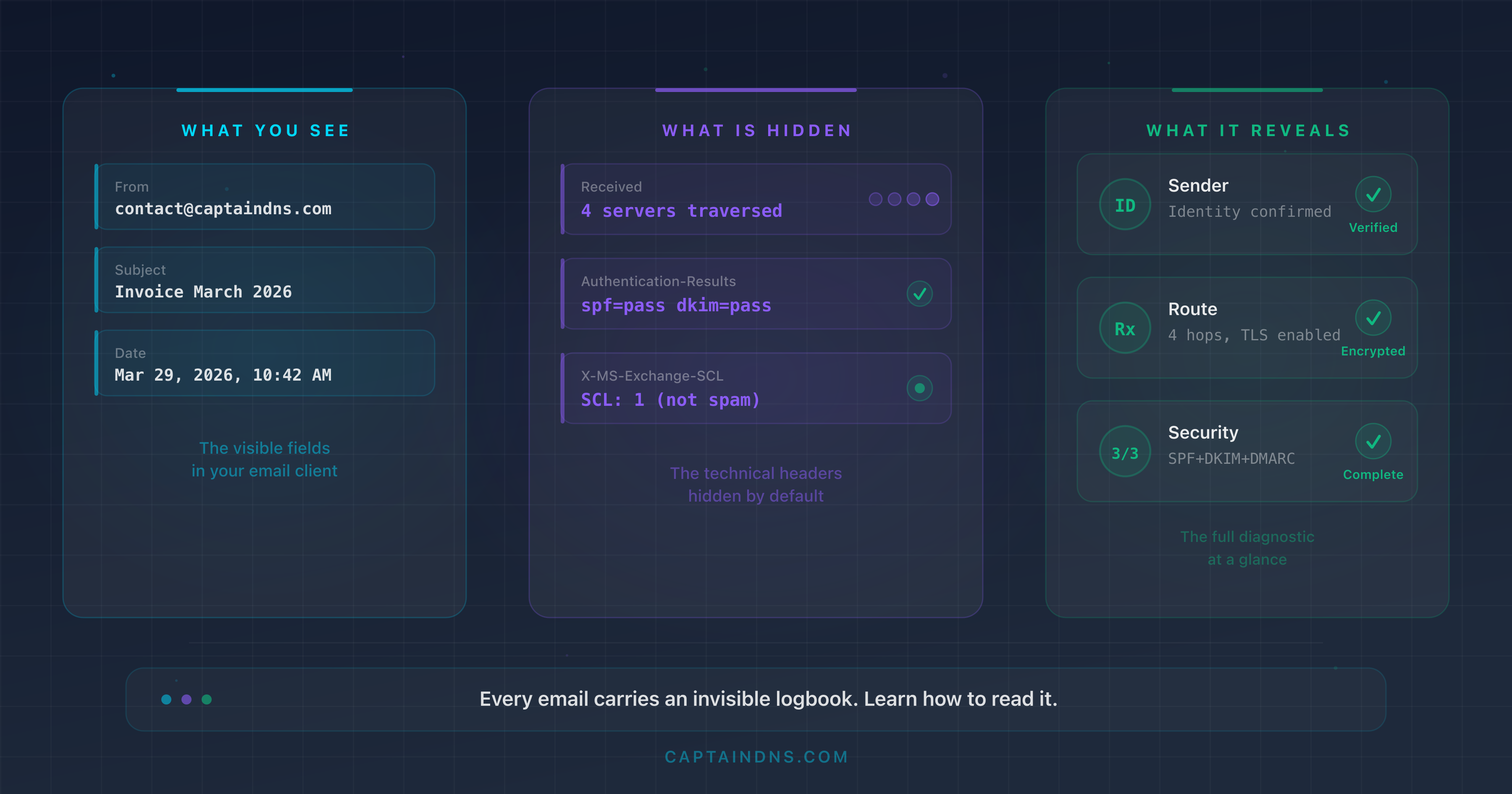
- Email headers are an invisible logbook that records every server traversed, every authentication check and every anti-spam decision
Receivedheaders are read from bottom to top: the oldest hop is at the bottom, the most recent at the top- Authentication-Results summarizes the SPF, DKIM and DMARC verdicts in a single line; it is the most important field for diagnosing a problem
- The
From,Return-PathandReply-Tofields can point to three different addresses, a potential sign of spoofing - An automated analysis tool turns dozens of technical lines into a readable diagnosis in seconds
You receive a suspicious email. The sender displays your bank's name, but something feels off. Or your own emails keep landing in spam at your clients' end, and you have no idea why. In both cases, the answer lies in the same place: the email headers. When you consider that 60% of confirmed breaches involve a human action (Verizon DBIR 2025) and that it takes an average of 207 days to detect a phishing compromise (IBM 2025), knowing how to read a header is no longer a technical luxury.
Every email carries a block of invisible metadata. That block contains the full route of the message (which servers it passed through, in what order), the authentication check results (SPF, DKIM, DMARC) and clues about how anti-spam filters processed the message. It is a complete logbook, but you need to know how to read it.
This guide teaches you how to extract those headers, understand every field, interpret the routing chain and diagnose the most common issues. Whether you are a system administrator, a marketing manager or simply curious about whether an email is legitimate, no prior knowledge is required: we start from scratch.
Analyze your headers automatically
What is an email header and why should you care?
The postal envelope analogy
When you send a letter, the envelope bears the sender's address, the recipient's address and the post office stamps. The letter's content is separate from this routing information.
An email works the same way. The message body (text, images, attachments) is separate from the headers that carry metadata. The difference: email headers contain far more information than a postal envelope. Every server the message passes through adds its own annotations, like a timestamped postmark.
Visible headers vs technical headers
Your email client displays a few headers in a readable form:
- From: the sender's address
- To: the recipient's address
- Subject: the message subject
- Date: the send timestamp
But beneath this surface, dozens of technical headers remain hidden. The most important ones:
| Header | Purpose |
|---|---|
Received | Traces the message path from server to server |
Return-Path | Bounce address (SMTP envelope) |
Authentication-Results | SPF, DKIM and DMARC verdicts |
DKIM-Signature | Cryptographic signature of the message |
Message-ID | Unique message identifier |
X-Spam-Score | Score assigned by the anti-spam filter |
Four reasons to read headers
1. Diagnose a deliverability issue. Are your emails landing in spam? The headers of the received message tell you exactly why: SPF failure, invalid DKIM signature, DMARC policy not met, or an anti-spam score that is too high.
2. Verify a sender's identity. An email claims to come from your CFO? Compare the From field with the Return-Path and check that DKIM is signed by the correct domain. A mismatch between these fields is a strong warning sign.
3. Detect spoofing and phishing. Attackers forge the From field to impersonate a legitimate domain. Authentication headers reveal whether the message was actually sent from the authorized server. A dmarc=fail combined with an spf=fail on an email claiming to come from your bank is a reliable indicator of fraud. And the problem is massive: 84.2% of phishing attacks pass DMARC checks (Egress 2024), either because the domain has no DMARC policy or because the policy is too permissive (p=none).
4. Trace a latency issue. Every Received header contains a timestamp. By comparing the timestamps of each hop, you can identify which server introduces an abnormal delay in the routing chain.
How to extract headers
Every email client hides technical headers by default. Here is how to display them.
Gmail (web)
- Open the email in question
- Click the three vertical dots menu (⋮) in the top right of the message
- Select "Show original"
- A new window displays the full headers with an SPF/DKIM/DMARC summary at the top
Gmail offers a "Copy to clipboard" button to grab all the headers at once. This is the fastest way to paste them into an analysis tool.
Outlook desktop (Windows/Mac)
- Open the email in a separate window (double-click)
- Go to File > Properties
- The headers appear in the "Internet Headers" field at the bottom of the window
The field is small: select all (Ctrl+A) then copy (Ctrl+C) to work more comfortably in a text editor.
Outlook web (OWA)
- Open the email in question
- Click the three dots menu (⋮) in the top right
- Select "View" then "View message source"
- The headers are displayed in a new window
Apple Mail (macOS)
- Select the email in the list
- In the menu bar, go to View > Message > All Headers
- The technical headers appear above the message body
To return to the normal display: View > Message > Default Headers.
Thunderbird
- Select the email
- Menu View > Message Source (or shortcut Ctrl+U, Cmd+U on Mac)
- The full source opens in a new window, headers included
Thunderbird also shows a header summary directly in the reading pane if you enable View > Headers > All.
Yahoo Mail
- Open the email in question
- Click the three dots menu (⋮) next to the Reply button
- Select "View raw message"
- The full headers and message body are displayed in a new tab
ProtonMail
- Open the email in question
- Click the three dots menu (⋮) in the top right of the message
- Select "View headers"
- ProtonMail displays the headers in a modal window. Use the copy button to grab everything
Note: since ProtonMail is a client-side encrypted service, the visible headers are those added during SMTP transit. Internal ProtonMail infrastructure headers remain limited.
Practical tip
Regardless of the method, copy all the headers and paste them into an email header analysis tool. The tool automatically breaks down each field, calculates delays between hops and highlights authentication issues.
Copy EVERYTHING. A professional email's headers often run between 50 and 200 lines. If you only copy the first few lines, you lose the oldest Received hops (which are at the bottom) and often the most revealing information.
Common mistake: do not confuse "View source" (which displays the complete message, headers + encoded body) with "View headers" (metadata only). For a complete diagnosis, the full source is preferable as it contains the verifiable DKIM signatures.
Header format and structure (RFC 5322)
The key: value format
Each header follows a simple format defined by RFC 5322:
Field-Name: field value
The field name is case-insensitive (From and from are identical), followed by a colon, then the value. Examples:
From: contact@captaindns.com
To: support@captaindns.com
Subject: DNS Monitoring Report - March 2026
Date: Sat, 29 Mar 2026 10:15:00 +0100
Message-ID: <20260329101500.abc123@mail.captaindns.com>
Folding (multi-line continuation)
When a value is too long to fit on a single line, it continues on the next line with indentation (space or tab). This is called folding. Example with a Received header:
Received: from mx-out.captaindns.com (mx-out.captaindns.com [203.0.113.10])
    by mx-in.captaindns.com (Postfix) with ESMTPS id ABC123DEF
    for <support@captaindns.com>; Sat, 29 Mar 2026 10:15:02 +0100
These three lines form a single Received header. The rule: any line that starts with whitespace is a continuation of the previous header.
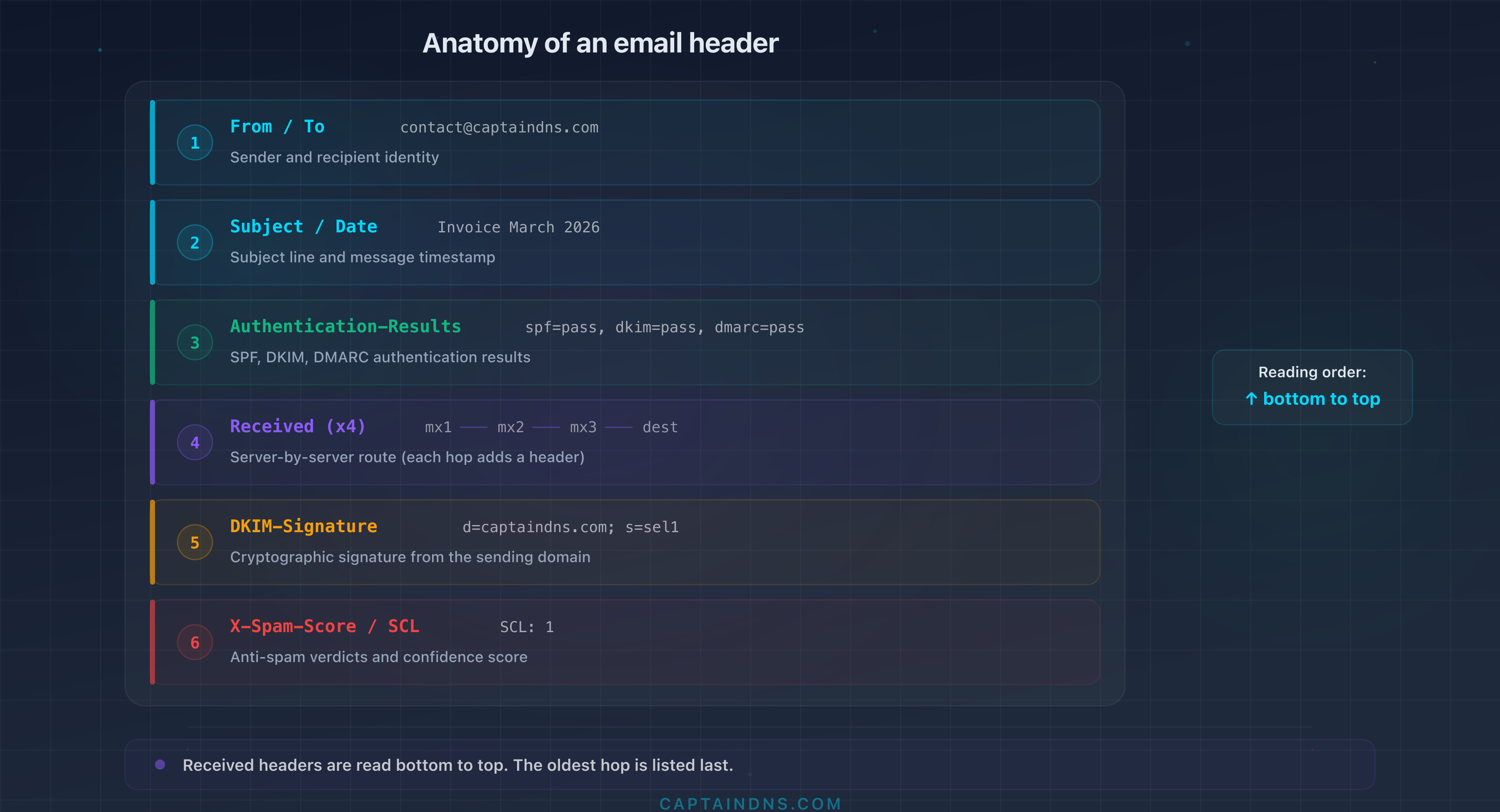
Reading order: bottom to top for Received
Here is the most important detail about email headers: Received headers are read from bottom to top.
Each SMTP server that handles the message adds its Received header above the existing headers. The result: the first hop (the origin server) is at the bottom, the last hop (the receiving server) is at the top.
Other headers (From, To, Subject, Date, Message-ID) are added once by the origin server. Their position in the block is fixed.
Key fields explained one by one
From
From: Marie Dupont <contact@captaindns.com>
Description: identifies the sender displayed in the email client. This is the field the recipient sees.
What it reveals: From is the most visible header, but also the easiest to forge. Any SMTP server can send an email with an arbitrary From. This is precisely why SPF, DKIM and DMARC exist: to verify that the From matches the server that actually sent the message.
Watch out for the display name. The From field contains two distinct elements: the display name and the actual address in angle brackets. In From: Marie Dupont <contact@captaindns.com>, your email client displays "Marie Dupont" in bold and the address contact@captaindns.com in smaller text. The problem: the display name is free-form text with no verification whatsoever. An attacker can write From: Chief Financial Officer <attacker@malicious-sender.com> and many mobile clients show only the name, not the address. Always check the address in the angle brackets, not the display name.
To and Cc
To: support@captaindns.com
Cc: tech@captaindns.com
Description: To lists the primary recipients. Cc (carbon copy) lists the recipients in visible copy.
What it reveals: if your address does not appear in either To or Cc, the message was sent to you as a blind copy (Bcc) or via a distribution list. Mass phishing campaigns often use a generic or empty To field.
Subject
Subject: =?utf-8?B?UmFwcG9ydCBkZSBtb25pdG9yaW5n?=
Description: the message subject. May be encoded in Base64 or Quoted-Printable when it contains non-ASCII characters (accents, special characters).
What it reveals: in its decoded form, this is the text you see in your inbox. The raw encoding in the headers is normal and does not indicate any problem.
Date
Date: Sat, 29 Mar 2026 10:15:00 +0100
Description: timestamp set by the sender's client at the time of sending. The format follows RFC 5322: day, date, time and UTC offset.
What it reveals: compare this date with the timestamps in the Received headers. A gap of several hours between the Date and the first Received may indicate an email sent by a misconfigured script or an attempt at timestamp manipulation.
Return-Path
Return-Path: <bounces@mail.captaindns.com>
Description: the address to which bounce messages are sent. This is the SMTP envelope address (MAIL FROM), added by the final receiving server.
What it reveals: the Return-Path can differ from the From. This is normal when a third-party service sends emails on your behalf. For example, an email sent through SendGrid will show Return-Path: <bounces+12345@em.sendgrid.net> even though the From is contact@captaindns.com. The same goes for Mailgun (bounces@mailgun.org) or Amazon SES (0123abcd@amazonses.com). These services handle bounces through their own infrastructure.
It is abnormal when an email claims to come from contact@captaindns.com but has a Return-Path pointing to an unknown domain with no connection to a legitimate sending provider. DMARC checks the alignment between the From domain and the Return-Path domain (or DKIM domain). Misalignment without a valid DKIM causes a DMARC failure.
Reply-To
Reply-To: replies@captaindns.com
Description: the address where the email client will send the reply when the recipient clicks "Reply". Optional.
What it reveals: a Reply-To different from the From is common for newsletters (sent from a marketing service, replies directed to support). It is suspicious when the Reply-To points to a completely different domain than the From, typical of Business Email Compromise (BEC) attacks.
Message-ID
Message-ID: <20260329101500.abc123@mail.captaindns.com>
Description: unique message identifier generated by the sending server. The typical format is a timestamp or random identifier followed by the server hostname, all enclosed in angle brackets.
What it reveals: the domain in the Message-ID indicates which server actually created the message. If an email claims to come from captaindns.com but has a Message-ID containing a different domain, that is a sign of spoofing. It is also a valuable indicator of the actual sending service: a Message-ID ending in @amazonses.com reveals an Amazon SES send, @smtpservice.net indicates SendGrid, @mail.gmail.com indicates Google Workspace. The Message-ID is one of the hardest headers to forge convincingly, since it is automatically generated by the SMTP server.
MIME-Version and Content-Type
MIME-Version: 1.0
Content-Type: multipart/alternative; boundary="boundary123abc"
Description: MIME-Version indicates the message uses the MIME format (almost always 1.0). Content-Type describes the body format: text/plain (plain text), text/html (HTML), multipart/alternative (both versions), multipart/mixed (with attachments).
What it reveals: an email that claims to be plain text but contains a Content-Type: multipart/mixed with an executable attachment is suspicious. The Content-Type helps you understand the actual structure of the message.
Received
Received: from mx-out.captaindns.com (mx-out.captaindns.com [203.0.113.10])
    by mx-in.captaindns.com (Postfix) with ESMTPS id ABC123DEF
    for <support@captaindns.com>; Sat, 29 Mar 2026 10:15:02 +0100
Description: each SMTP server that handles the message adds a Received header. This is the routing trace of the message.
What it reveals: the full route of the message, server by server. The details of each hop (server identity, protocol used, timestamp) allow you to verify the legitimacy of the routing. Dedicated section below.
The protocol indicated after with is an important security signal. with ESMTPS means the connection between the two servers was encrypted via TLS: this is the expected standard in 2026. with ESMTP (without the S) means the message traveled in the clear, unencrypted. If you see with ESMTP on an external hop (between two different organizations), that is a problem: the message content, attachments included, traveled readable by anyone intercepting the network traffic. with ESMTPSA indicates an authenticated and encrypted connection (typically an email client connecting to the SMTP server with login/password + TLS).
DKIM-Signature
DKIM-Signature: v=1; a=rsa-sha256; c=relaxed/relaxed;
    d=captaindns.com; s=s202603; t=1743238500;
    h=from:to:subject:date:message-id;
    bh=LjIq2t4u3qH0OwZ1E4fDn5t3nVz2Ay+KqR0kbD1XXXA=;
    b=dGVzdCBzaWduYXR1cmUgZXhhbXBsZQ==...
Description: cryptographic signature added by the sending server. The receiving server verifies this signature using the public key published in DNS.
What it reveals: the key tags are d= (signing domain), s= (key selector), a= (algorithm, rsa-sha256 is standard), h= (headers covered by the signature), bh= (body hash) and b= (the signature itself). If d=captaindns.com and Authentication-Results shows dkim=pass, the message is authenticated by the domain.
The bh= (body hash) tag is a cryptographic digest of the message body. The receiving server recomputes this hash and compares it to the value in the header. If the body was modified in transit (for example, by a mailing list that adds a footer), the hash no longer matches and DKIM fails. The c= (canonicalization) tag defines the tolerance for minor changes: relaxed/relaxed is the most permissive (ignores extra whitespace), simple/simple is strict.
Authentication-Results
Authentication-Results: mx.captaindns.com;
    spf=pass (sender IP is 203.0.113.10) smtp.mailfrom=mail.captaindns.com;
    dkim=pass (2048-bit key) header.d=captaindns.com header.s=s202603;
    dmarc=pass (p=reject dis=none) header.from=captaindns.com
Description: summary of the authentication checks performed by the receiving server. A single header that groups the SPF, DKIM and DMARC verdicts.
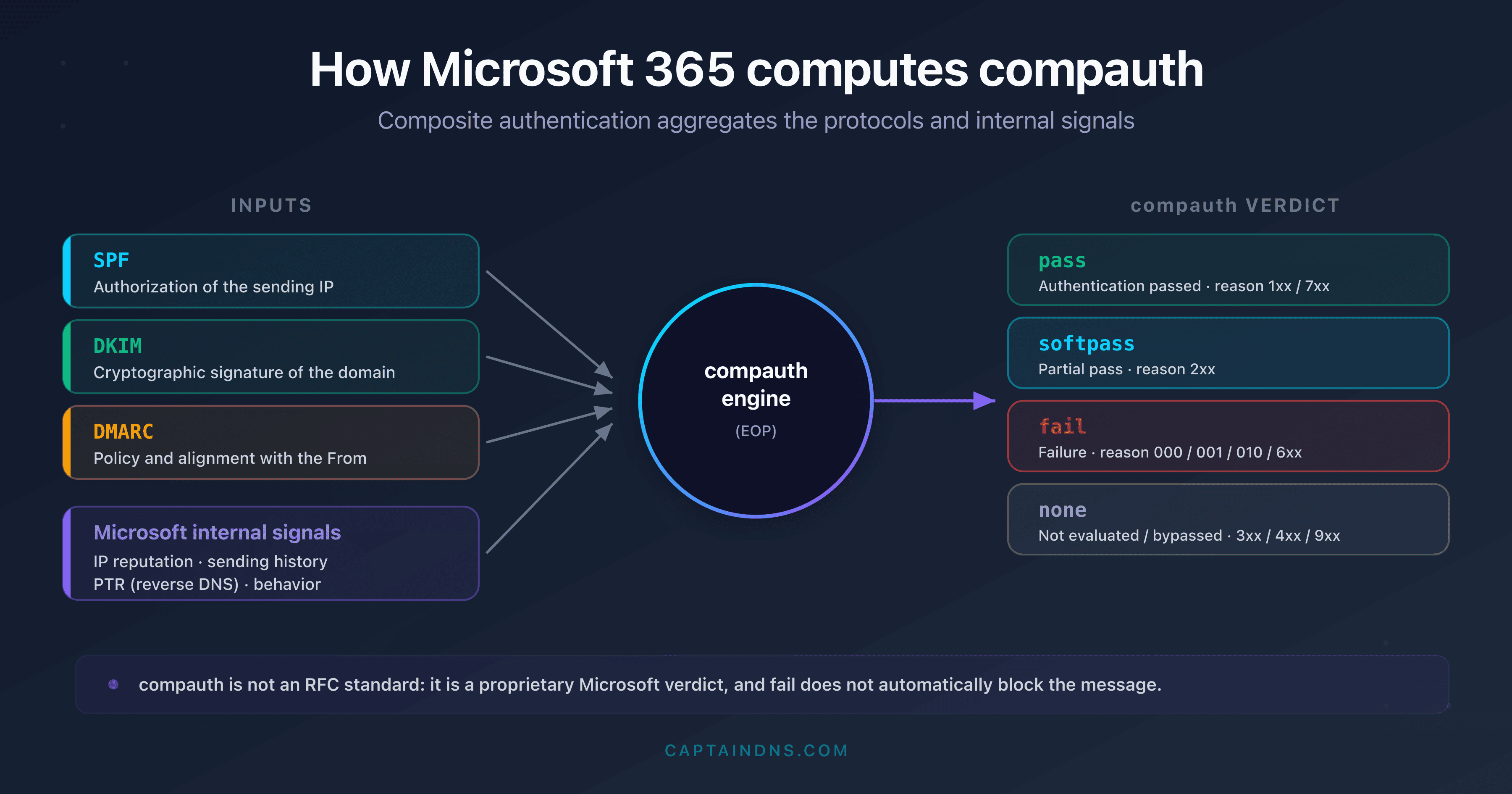
What it reveals: this is the most important field for diagnosing an email authentication issue. Dedicated section below. On Microsoft 365, this line also adds a proprietary compauth verdict (for example compauth=fail reason=001) that aggregates SPF, DKIM and DMARC: to decode it, see the guide on composite authentication and compauth reason codes.
X-Mailer and User-Agent
X-Mailer: CaptainDNS Mailer 2.1
Description: identifies the client software used to send the message. Optional and non-standardized field.
What it reveals: a professional email sent by an unusual X-Mailer (a raw Python script, a mass-mailing tool) may be suspicious. It is a supplementary clue, never a decisive criterion.
X-MS-Exchange-Organization-SCL
X-MS-Exchange-Organization-SCL: 1
Description: Spam Confidence Level assigned by Microsoft Exchange. Scale from -1 (trusted message) to 9 (definite spam). The default quarantine threshold is 5.
What it reveals: if you use Exchange or Microsoft 365, this score tells you directly how Microsoft's anti-spam filter assessed the message. An SCL of 5 or higher explains why an email was classified as junk.
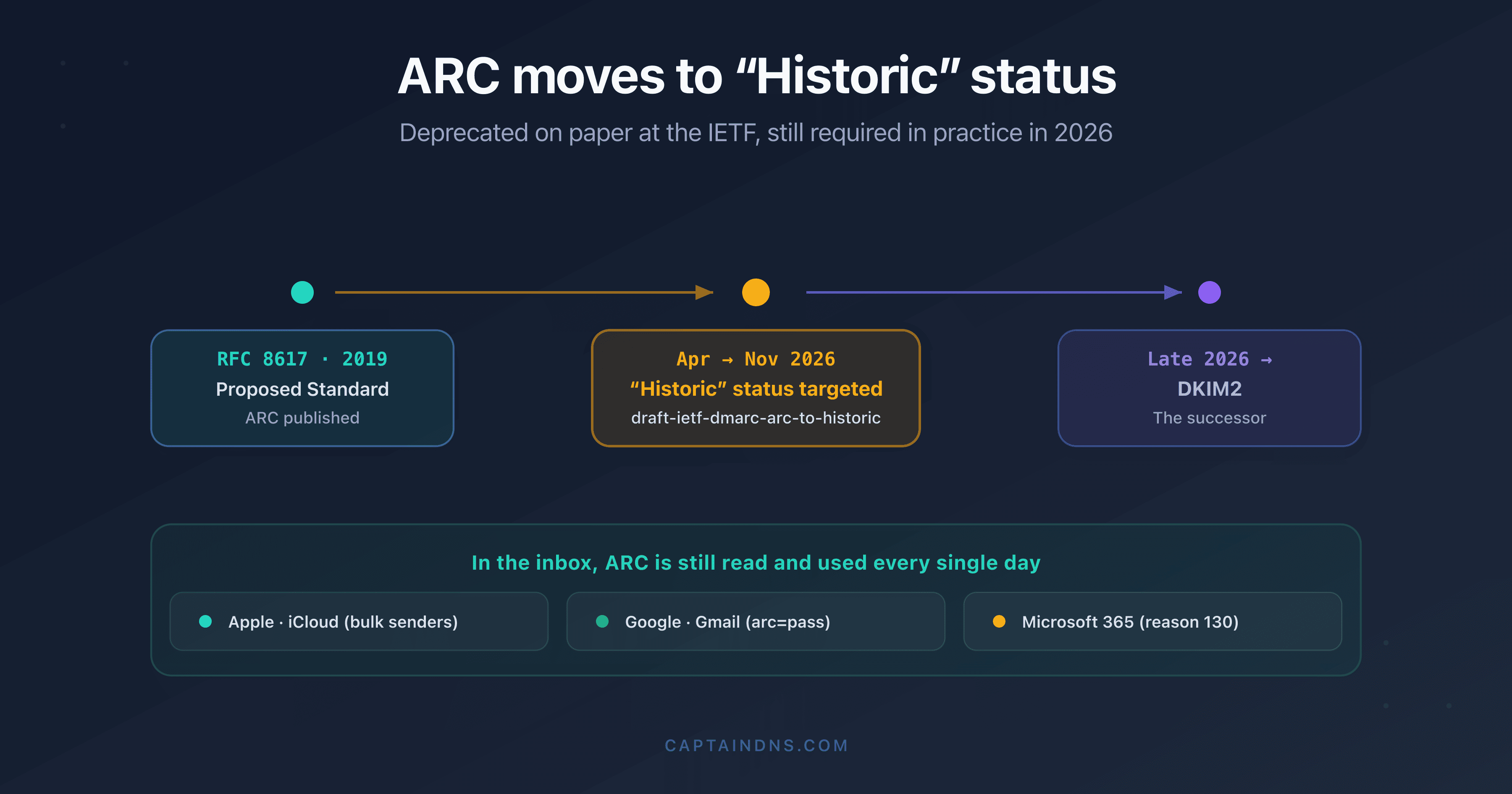
ARC headers
ARC-Seal: i=1; a=rsa-sha256; d=captaindns.com; s=arc202603; cv=none; ...
ARC-Message-Signature: i=1; a=rsa-sha256; d=captaindns.com; ...
ARC-Authentication-Results: i=1; mx.captaindns.com;
    spf=pass; dkim=pass; dmarc=pass
Description: ARC (Authenticated Received Chain) preserves authentication results when a message passes through intermediaries (mailing lists, automatic forwards). Three headers work together: ARC-Authentication-Results (results at the relay point), ARC-Message-Signature (message signature at that point) and ARC-Seal (chain seal).
What it reveals: when an email is forwarded and SPF/DKIM fail because of in-transit modification, ARC lets the final server verify that authentication was valid at the start. The cv= (chain validation) field indicates whether the chain is intact: none (first hop), pass (valid chain) or fail (broken chain). To learn more about how ARC works, see our guide to Authenticated Received Chain.
Headers that reveal a third-party service
When a company sends an email through a third-party service (marketing platform, CRM, transactional tool), the headers preserve traces of the actual sending infrastructure. This is a powerful way to identify who really sent an email, even when the From shows a corporate domain.
Signature table by provider
| Provider | Revealing headers | Typical Return-Path | Message-ID / DKIM |
|---|---|---|---|
| SendGrid | X-SG-EID, X-SG-ID | @sendgrid.net or @em.sendgrid.net | DKIM d=sendgrid.net (if no custom DKIM) |
| Amazon SES | X-SES-Outgoing | @amazonses.com | Message-ID: @amazonses.com, DKIM d=amazonses.com |
| Mailgun | X-Mailgun-Sid, X-Mailgun-Variables | @mailgun.org | DKIM d=mailgun.org |
| Google Workspace | Received: from mail-*.google.com | @*.google.com | Message-ID: @mail.gmail.com |
| Microsoft 365 | X-MS-Exchange-Organization-*, X-MS-Has-Attach | @*.outlook.com | DKIM d=*.onmicrosoft.com |
| Brevo (ex-Sendinblue) | X-Mailin-EID, X-Mailin-* | @mail-sib.com | DKIM d=sendinblue.com or custom |
| Postmark | X-PM-Message-Id | @pm.mtasv.net | DKIM d=pm.mtasv.net |
| Mailchimp | X-MC-User, X-Mailer: MailChimp Mailer | @mcsv.net or @mail*.suw*.mcdlv.net | DKIM d=*.mcsv.net |
How to use this table
When analyzing a suspicious email, look for non-standard X-* headers and the Return-Path domain. If an email claims to come from contact@captaindns.com and the headers contain X-SG-EID with a Return-Path ending in @sendgrid.net, you know the email went through SendGrid. That is not necessarily suspicious: you just need to verify that captaindns.com actually uses SendGrid as a sending provider.
On the other hand, if an email claims to come from your bank but the headers reveal it was sent from a small, unknown SMTP provider, with DKIM signed by an unrelated third-party domain, that is a red flag.
Reading the Received chain (bottom to top)
The chain of Received headers is the backbone of email routing. Every server that touches the message leaves its trace.
The principle: each server adds at the top
Imagine a stack of postal stamps. The origin post office applies the first stamp. Each intermediate office adds its own on top. The destination office ends up at the top of the stack.
This is exactly what happens with Received headers: the final receiving server adds its header at the very top. The origin server is at the very bottom. To reconstruct the chronological path of the message, read the Received headers from bottom to top.
Anatomy of a hop
Each Received header contains four key pieces of information:
| Element | Meaning | Example |
|---|---|---|
from | Server that transmitted the message | mx-out.captaindns.com |
by | Server that received the message | mx-in.captaindns.com |
with | Protocol used | ESMTPS (SMTP encrypted with TLS) |
| Timestamp | Date and time of reception | Sat, 29 Mar 2026 10:15:02 +0100 |
The with protocol is telling:
- ESMTPS: SMTP with TLS (encrypted, this is the expected standard)
- ESMTP: SMTP without TLS (unencrypted, potential problem)
- LMTP: local delivery protocol (last hop, normal)
Concrete example with 4 hops
Here is a realistic Received chain for an email received by captaindns.com, sent by an external collaborator via Gmail and filtered by Mimecast. The headers are shown in the order they appear in the raw message (most recent to oldest):
(1) Received: from mx2.captaindns.com (10.0.0.5)
        by exchange.captaindns.com (10.0.0.10) with ESMTP;
        Fri, 29 Mar 2026 10:42:15 +0100

(2) Received: from gateway.mimecast.com (91.220.42.50)
        by mx2.captaindns.com with ESMTPS id A1B2C3D4;
        Fri, 29 Mar 2026 10:42:13 +0100

(3) Received: from mail-sor-f41.google.com (209.85.220.41)
        by gateway.mimecast.com with ESMTPS id E5F6G7H8;
        Fri, 29 Mar 2026 10:42:11 +0100

(4) Received: from [192.168.1.100] by smtp.gmail.com with ESMTPSA
        id I9J0K1L2; Fri, 29 Mar 2026 10:42:09 +0100
Reading from bottom to top (chronological order):
- Hop 4 (10:42:09, the oldest, at the bottom): the sender transmits from their PC (private IP
192.168.1.100) via Gmail's SMTP server. TheESMTPSAprotocol confirms an authenticated and encrypted connection - Hop 3 (10:42:11): Gmail forwards the message to the Mimecast gateway.
ESMTPSindicates a TLS connection between Google and Mimecast (the recipient's anti-spam/security filter) - Hop 2 (10:42:13): Mimecast, after analyzing the message, forwards it to the captaindns.com MX server.
ESMTPSconnection, encryption maintained - Hop 1 (10:42:15, the most recent, at the top): the internal MX forwards to the final Exchange server for delivery to the recipient's mailbox.
ESMTPwithout TLS between internal servers, acceptable on a private network
Total transit time: 6 seconds. This is normal. Beyond 30 seconds between two consecutive hops, there is likely a performance issue on the server responsible for the delay.
Detecting anomalies in the chain
Inconsistent timestamps. Hop 3 dated before hop 2? This is either a desynchronized clock (common on misconfigured servers) or a Received header manually injected by an attacker. Check whether the server in question is legitimate.
Missing hops. The message goes from your server directly to an unknown server, without passing through your gateway? An unauthorized intermediary may have relayed the message, or a server in the chain does not generate a Received header (rare but possible).
Unknown servers. A hostname or IP you do not recognize in the chain? Check the reverse DNS of the IP. A legitimate server has a PTR record consistent with its hostname. A compromised server or open relay often has a generic or nonexistent PTR.
Private IPs mid-chain. Addresses in 10.x.x.x or 192.168.x.x are normal for the first hop (the sender's internal network). They are suspicious if they appear further along in the chain, as they suggest abnormal routing.
Authentication-Results: SPF, DKIM, DMARC
The Authentication-Results header is the email security dashboard. It summarizes in one line the results of the three authentication protocols. It is the first header to check when diagnosing an issue.
Field structure
Authentication-Results: mx.captaindns.com;
    spf=pass (sender IP is 203.0.113.10) smtp.mailfrom=mail.captaindns.com;
    dkim=pass (2048-bit key) header.d=captaindns.com header.s=s202603;
    dmarc=pass (p=reject dis=none) header.from=captaindns.com
The first element (mx.captaindns.com) identifies the server that performed the checks. Each verdict is separated by a semicolon.
| Field | Result | Meaning |
|---|---|---|
spf=pass | ✓ | The sending server is authorized by the SPF record |
dkim=pass | ✓ | The cryptographic signature is valid (selector: s202603) |
dmarc=pass | ✓ | SPF and DKIM are aligned with the From domain (policy: reject) |
SPF: is the server authorized?
SPF (Sender Policy Framework) checks whether the sending server's IP address is authorized by the domain's DNS SPF record.
| Verdict | Meaning | Typical action |
|---|---|---|
pass | The IP is explicitly authorized | Accepted |
fail | The IP is explicitly forbidden (-all) | Rejected or spam |
softfail | The IP is not authorized but not explicitly forbidden (~all) | Accepted with suspicion |
neutral | The domain expresses no opinion (?all) | No impact |
none | No SPF record published | No check possible |
temperror | Temporary DNS error | Retry later |
permerror | Syntax error in the SPF record | Varies by server |
The detail in parentheses (sender IP is 203.0.113.10) gives you the IP that was checked. The smtp.mailfrom field indicates the SMTP envelope domain.
DKIM: is the message intact?
DKIM verifies the cryptographic signature of the message. If the signature is valid, the content was not modified in transit and the signing domain is authenticated.
| Verdict | Meaning | Typical action |
|---|---|---|
pass | Signature valid | Authenticated |
fail | Signature invalid (message modified or incorrect key) | Suspect |
none | No DKIM signature present | No check possible |
neutral | Signature present but not verifiable | No impact |
temperror | Temporary DNS error when retrieving the key | Retry |
permerror | Error in the DKIM record | Varies |
The important details: header.d= indicates the signing domain, header.s= indicates the selector used. This information lets you verify which domain actually signed the message and with which key.
DMARC: is the alignment correct?
DMARC verifies that the From domain (visible to the recipient) is aligned with the domains authenticated by SPF and/or DKIM. It is the layer that prevents spoofing of the From field.
| Verdict | Meaning | Typical action |
|---|---|---|
pass | SPF or DKIM alignment verified | Accepted |
fail | No valid alignment | Applies the p= policy |
bestguesspass | No DMARC policy published, but the server considers the message legitimate | Accepted |
none | No DMARC policy published | No action |
DMARC details include:
p=: the policy published by the domain (none,quarantine,reject)dis=: the disposition actually applied by the serverheader.from=: theFromdomain that was checked
Combined example: complete reading
Here is a problematic Authentication-Results:
Authentication-Results: mx.captaindns.com;
    spf=softfail (sender IP is 198.51.100.42) smtp.mailfrom=notifications.captaindns.com;
    dkim=fail (signature verification failed) header.d=captaindns.com header.s=s202603;
    dmarc=fail (p=quarantine dis=quarantine) header.from=captaindns.com
Diagnosis:
- SPF softfail: the IP 198.51.100.42 is not in the SPF record for
notifications.captaindns.com. Possibly a new sending server not yet declared - DKIM fail: the signature is invalid. Possible causes: obsolete DNS key, message modified in transit, or key rotation not properly synchronized
- DMARC fail: neither SPF nor DKIM pass with alignment. The
quarantinepolicy is applied: the message is placed in spam
This type of result signals a configuration issue on the sender's side, not an attack. The fix involves updating the SPF record and verifying the DKIM key.
Anti-spam headers
Beyond SPF/DKIM/DMARC, anti-spam filters add their own headers to justify their decisions.
X-Spam-Score and X-Spam-Status
X-Spam-Status: No, score=-2.1 required=5.0
    tests=BAYES_00,DKIM_SIGNED,DKIM_VALID,DKIM_VALID_AU,SPF_PASS
X-Spam-Score: -2.1
SpamAssassin uses a cumulative scoring system. Each test adds or subtracts points. A score above the threshold (typically 5.0) classifies the message as spam.
Common tests:
| Test | Typical score | Meaning |
|---|---|---|
BAYES_00 | -1.9 | Content resembles ham (non-spam) according to the Bayesian filter |
DKIM_VALID_AU | -0.1 | DKIM valid and aligned with the author domain |
SPF_PASS | -0.0 | SPF passed |
HTML_MESSAGE | +0.0 | Message contains HTML (neutral) |
URIBL_BLOCKED | +0.0 | URI blocklists could not be queried |
BAYES_99 | +3.5 | Content strongly resembles spam |
MISSING_MID | +0.5 | No Message-ID (suspect) |
Exchange SCL score
The X-MS-Exchange-Organization-SCL header assigns a score from 0 to 9:
| SCL | Classification | Default action |
|---|---|---|
| -1 | Trusted sender (allow list) | Direct delivery |
| 0-1 | Not spam | Inbox |
| 2-4 | Probably not spam | Inbox |
| 5-6 | Likely spam | Junk folder |
| 7-9 | Definite spam | Reject or quarantine |
Google headers
Gmail does not expose an anti-spam score in the raw headers. However, you will find:
X-Google-DKIM-Signature: a DKIM signature added by Google in addition to the sender'sX-Gm-Message-State: internal message state within Google's infrastructure (encoded, not interpretable)X-Google-Smtp-Source: identifier of the Google server that processed the message
Gmail's "Show original" view displays an SPF/DKIM/DMARC summary at the top of the page, more readable than the raw headers.
How to interpret the verdicts
When an anti-spam filter classifies a message as spam, first look for the Authentication-Results header. If SPF, DKIM and DMARC all show pass, the problem is likely content-based (suspicious keywords, text-to-image ratio, shortened links). If one of the three fails, fix the authentication first before touching the content.
To understand how attackers exploit header weaknesses to bypass filters, see our article on red flags in email headers that indicate filter bypass.
6 practical diagnostic scenarios
Scenario 1: my email lands in spam
Headers to check: Authentication-Results, X-Spam-Score (or SCL)
Method:
- Ask the recipient to extract the headers from the message received in spam
- Check
Authentication-Results: ifspf=failordkim=fail, that is the likely cause - If SPF/DKIM/DMARC all show
pass, look at the anti-spam score. AnX-Spam-Scoreabove 5.0 or an SCL of 5+ indicates content-based filtering - Check your sending IP's reputation using a blocklist checker
Concrete example: here is the header that explains why a legitimate email ends up in spam.
Authentication-Results: mx.recipient.com;
    spf=pass smtp.mailfrom=mail.captaindns.com;
    dkim=pass header.d=captaindns.com;
    dmarc=fail (p=quarantine dis=quarantine) header.from=captaindns.com
Here, SPF and DKIM pass, but DMARC fails. The likely cause: the SPF domain (mail.captaindns.com) is not aligned with the From domain (captaindns.com) and DMARC requires strict alignment (aspf=s). The dis=quarantine disposition confirms the message was sent to spam.
Quick fix: publish or correct your SPF record, verify your DKIM signature, and deploy a DMARC policy set to at least p=none to start receiving reports.
Scenario 2: did this email really come from my CEO?
Headers to check: From, Return-Path, DKIM-Signature, Authentication-Results
Concrete example: an email that appears to come from your CEO but is actually a BEC attack.
From: Jean-Marc Duval - CEO <jm.duval@captaindns.com>
Return-Path: <jmduval.ceo@gmail.com>
Reply-To: jmduval.urgent@protonmail.com
Authentication-Results: mx.captaindns.com;
    spf=pass smtp.mailfrom=gmail.com;
    dkim=pass header.d=gmail.com;
    dmarc=fail header.from=captaindns.com
The display name shows "Jean-Marc Duval - CEO" and the From address shows captaindns.com. But the Return-Path points to a Gmail account, the Reply-To to ProtonMail, and DMARC fails because DKIM is signed by gmail.com, not captaindns.com. This is a classic Business Email Compromise attack.
Method:
- Compare the
Fromwith theReturn-Path. If they point to different domains without a legitimate reason (no known third-party sending service), that is a warning sign - Check
Authentication-Results: admarc=failon an email claiming to come from your company's domain confirms spoofing - Examine
DKIM-Signature: thed=should match your company's domain - Look at the
Reply-To: if it points to an external domain (gmail.com, protonmail.com), it is a classic BEC attack
Golden rule: if From says one thing and Authentication-Results says another, trust the authentication results. Only 4% of domains enforce a DMARC p=reject policy (Valimail 2025), leaving the door wide open for this type of spoofing on the vast majority of domains.
Scenario 3: how long has my email been in transit?
Headers to check: the timestamps of each Received header
Method:
- List all
Receivedheaders from bottom to top - Note the timestamp of each hop
- Calculate the delay between each pair of consecutive hops
- The hop with the largest delay is the bottleneck
Indicative thresholds:
- Less than 5 seconds between two hops: normal
- 5 to 30 seconds: acceptable for a busy server
- More than 30 seconds: greylisting, a saturated queue or slow DNS
- More than 5 minutes: the server probably queued the message and retried
Scenario 4: is my DKIM properly signed?
Headers to check: DKIM-Signature, Authentication-Results
Method:
- Locate the
DKIM-Signatureheader in the raw message - Verify that
d=matches your sending domain - Note the
s=selector and verify that the corresponding DNS record is published - Check the DKIM verdict in
Authentication-Results:dkim=passconfirms everything is working
Common causes of DKIM failure:
- DNS key deleted or improperly published
- Key rotation without updating the sending server
- Message modified in transit (by a mailing list or URL rewriting tool)
h=tag that does not cover all modified headers
Scenario 5: is this link a phishing attempt?
Headers to check: From, Reply-To, Return-Path, Authentication-Results, ARC-*
Method:
- Check the
From: is the domain exactly the one expected? Watch out for homoglyphs (captaindns.com vs captaindnss.com vs captaindns.co) - Compare with the
Return-Path: a completely different domain is suspicious - Check
Authentication-Results:spf=fail+dkim=fail+dmarc=failon a supposedly legitimate email is a strong phishing signal - If the message was forwarded, check the
ARC-Authentication-Resultsheaders to see if authentication was valid at the point of origin - A
Reply-Topointing to a free email domain (gmail.com, yahoo.com) on a corporate email is a phishing classic
To dive deeper into spoofing techniques during email routing, read our analysis on email routing spoofing and the Microsoft warning.
Scenario 6: a vendor claims they sent an email you never received
Headers to check: Received timestamps, Authentication-Results
Context: your vendor says they sent an invoice on March 15. You never received it. Who is right?
Method:
- Ask the vendor to forward you the complete headers of the original message (not a forwarded copy, but the headers of the sent message)
- Check the first
Received(at the bottom): it contains the initial send timestamp. If the timestamp matches March 15, the message was indeed submitted to the SMTP server - Follow the
Receivedchain hop by hop. If the last hop shows delivery to your MX server, the message was received by your infrastructure and the problem is on the filtering side - If the chain stops before your MX, check
Authentication-Results: anspf=failordmarc=failmay have triggered a silent rejection by your server
Tip: the timestamps in Received headers are timestamped technical evidence of the message's transit. In case of a dispute, they objectively document whether the email was sent, when, and how far it got in the routing chain.
Action plan: 5 steps to master email headers
You now have the theoretical knowledge. Here is how to put it into practice.
Step 1: extract and analyze a first email
Choose an email you sent yourself (or a test email). Extract the headers using the method suited to your email client. Paste them into the email header analysis tool and compare the automated result with your manual reading.
Step 2: verify your authentication
Send an email from your domain to a Gmail address. Open the headers and verify that SPF, DKIM and DMARC all show pass. If any of the three fails, identify and fix the cause before moving to the next step.
Step 3: learn to spot anomalies
Practice on legitimate emails to calibrate your sense of what is normal. When you know what a "healthy" email looks like, anomalies in a suspicious email become obvious: unknown servers in the Received chain, domains that do not match between From and Return-Path, invalid DKIM signatures.
Step 4: automate monitoring
Do not check headers manually on every email. Configure DMARC with rua= to receive daily aggregate reports. These reports automatically alert you when emails fail authentication for your domain.
Step 5: document your sending flows
List all the services that send emails on your behalf (CRM, marketing tool, ticketing, invoicing). For each one, verify that SPF and DKIM are correctly configured. A forgotten sending flow is the most frequent cause of unexpected DMARC failures.
Keep a shared document with your team that lists each service, the sending IP or domain, the DKIM selector used, and the date of the last check. This reference will save you from spending hours hunting down the cause of a DMARC failure when a colleague adds a new sending tool without notifying the technical team.
FAQ
What is an email header?
An email header is a metadata line in "Name: Value" format that accompanies every message. Headers contain routing information (servers traversed), authentication results (SPF, DKIM, DMARC), sender and recipient identity, and annotations added by anti-spam filters. The message body (text, images, attachments) is separated from the headers by a blank line.
How do I view headers in Gmail?
Open the email in question, click the three vertical dots menu in the top right of the message, then select "Show original". Gmail opens a new page with the full headers and a summary of SPF, DKIM and DMARC results at the top. You can copy all the headers with the "Copy to clipboard" button.
Why are Received headers read from bottom to top?
Each SMTP server that handles an email adds its Received header above the existing headers. The first server (origin) is therefore at the bottom and the last server (reception) is at the top. To reconstruct the chronological path of the message, you must read the Received headers from bottom to top. This is a mechanism defined by RFC 5321.
What does spf=softfail mean in Authentication-Results?
A spf=softfail verdict means the sending server's IP address is not explicitly authorized by the domain's SPF record, but is not explicitly forbidden either. This corresponds to the ~all (tilde) mechanism in the SPF record. The receiving server generally accepts the message but treats it with suspicion. It often indicates a sending server that was forgotten in the SPF configuration.
How can I detect a spoofed email through the headers?
Compare three elements: the From field (displayed address), the Return-Path (bounce address), and the domain in DKIM-Signature (d=). If the From shows a legitimate domain but the Return-Path points to a different domain and Authentication-Results shows dmarc=fail, the message is probably spoofed. An SPF fail combined with a DKIM fail confirms the sending server is not authorized by the displayed domain.
Can email headers be forged?
Some headers can be forged by the sender: From, Reply-To, Subject and even certain Received headers. However, headers added by the receiving server (Authentication-Results, the final server's Received, X-Spam-Score) are reliable because they are generated by your own infrastructure. This is why you should always rely on the receiving server's authentication results, not on headers set by the sender.
What is the difference between From and Return-Path?
From is the address displayed in the email client, set by the sender in the message headers. Return-Path is the SMTP envelope address (MAIL FROM), used for bounce notifications. They can legitimately differ when a third-party service sends emails on your behalf. DMARC checks the alignment between these two addresses: if the domains are too different without a valid reason, the message may fail DMARC verification.
How can I automate header analysis?
Paste your raw headers into an analysis tool like the one from CaptainDNS. The tool breaks down each field, calculates delays between Received hops, checks authentication results and highlights anomalies. For ongoing monitoring, configure DMARC with an rua= address to receive daily aggregate reports on the authentication of all emails sent from your domain.
Glossary
- Email header: a metadata line in "Name: Value" format that accompanies every message, containing routing, authentication and processing information.
- Received: a header added by each SMTP server the message passes through, forming the routing trace. Read from bottom to top to reconstruct chronological order.
- Return-Path: the SMTP envelope address (MAIL FROM) to which bounce messages are sent. Added by the final receiving server.
- Authentication-Results: a header added by the receiving server that summarizes the SPF, DKIM and DMARC verification verdicts.
- SPF (Sender Policy Framework): a protocol that checks whether the sending server's IP address is authorized by the sender domain's DNS (RFC 7208).
- DKIM (DomainKeys Identified Mail): a cryptographic signature authentication protocol that verifies the integrity and origin of a message (RFC 6376).
- DMARC (Domain-based Message Authentication, Reporting and Conformance): a protocol that checks the alignment of the From domain with the domains authenticated by SPF and DKIM (RFC 7489).
- ARC (Authenticated Received Chain): a mechanism that preserves authentication results when a message passes through intermediaries such as mailing lists.
- Folding: a technique for continuing a header across multiple lines, identified by indentation (space or tab) at the beginning of the following line.
- SCL (Spam Confidence Level): a spam score assigned by Microsoft Exchange, from -1 (trusted) to 9 (definite spam).
- Hop: the passage of a message from one SMTP server to another in the routing chain. Each hop is documented by a Received header.
- ESMTPS: Extended SMTP with TLS, indicating encrypted transmission between two servers.
Sources
- RFC 5322 - Internet Message Format
- RFC 7601 - Message Header Field for Indicating Message Authentication Status
- RFC 6376 - DomainKeys Identified Mail (DKIM) Signatures
- RFC 7208 - Sender Policy Framework (SPF)
- Google Support - View full message headers
- Verizon 2025 Data Breach Investigations Report (DBIR)
- IBM Cost of a Data Breach Report 2025
- Egress Email Security Risk Report 2024
- Valimail Email Authentication Report 2025