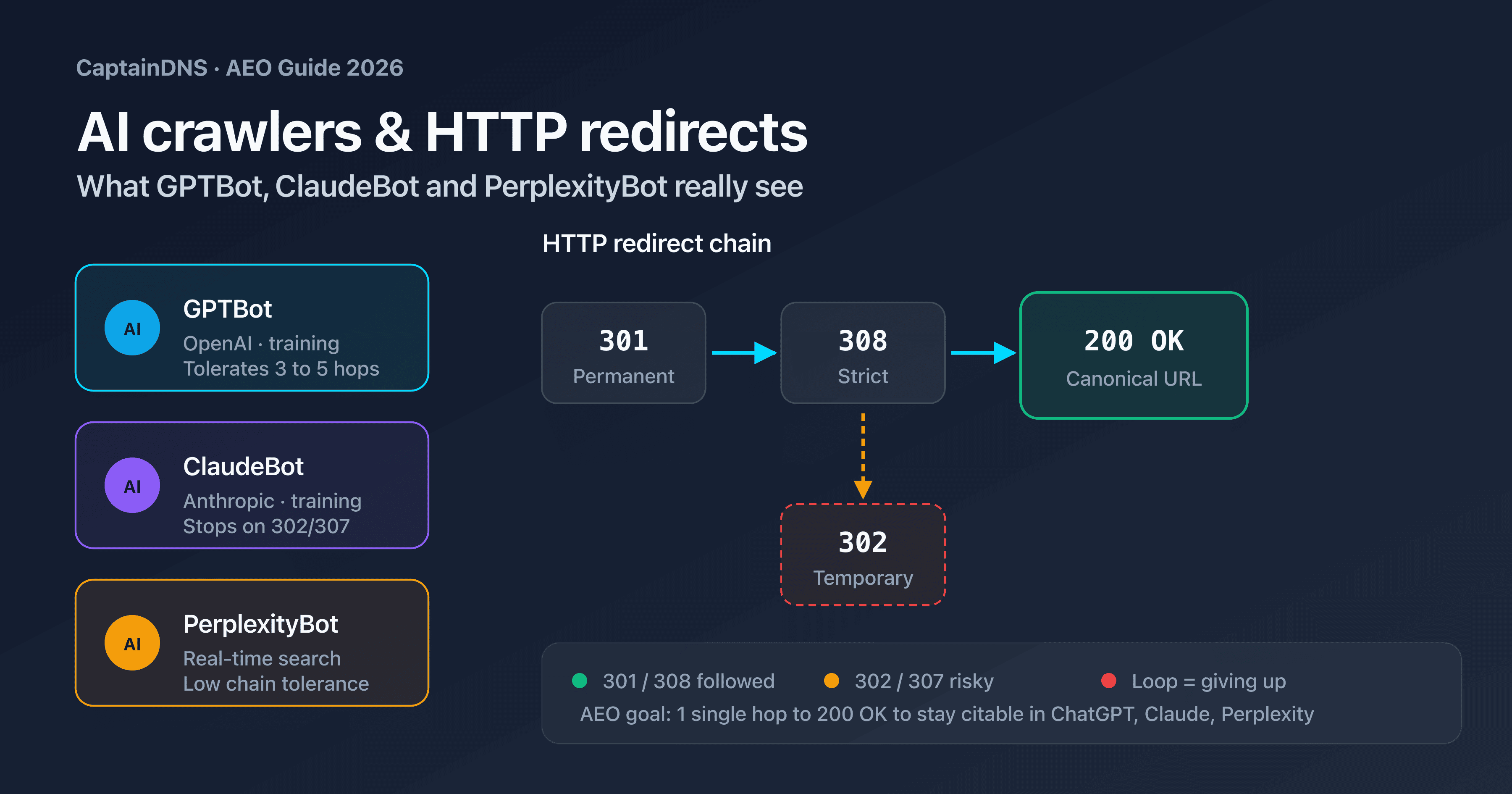
HTTP redirects: how to detect loops, chains and suspicious shortened links
By CaptainDNS
Published on March 20, 2026
Updated on September 15, 2026
- Redirect loops (
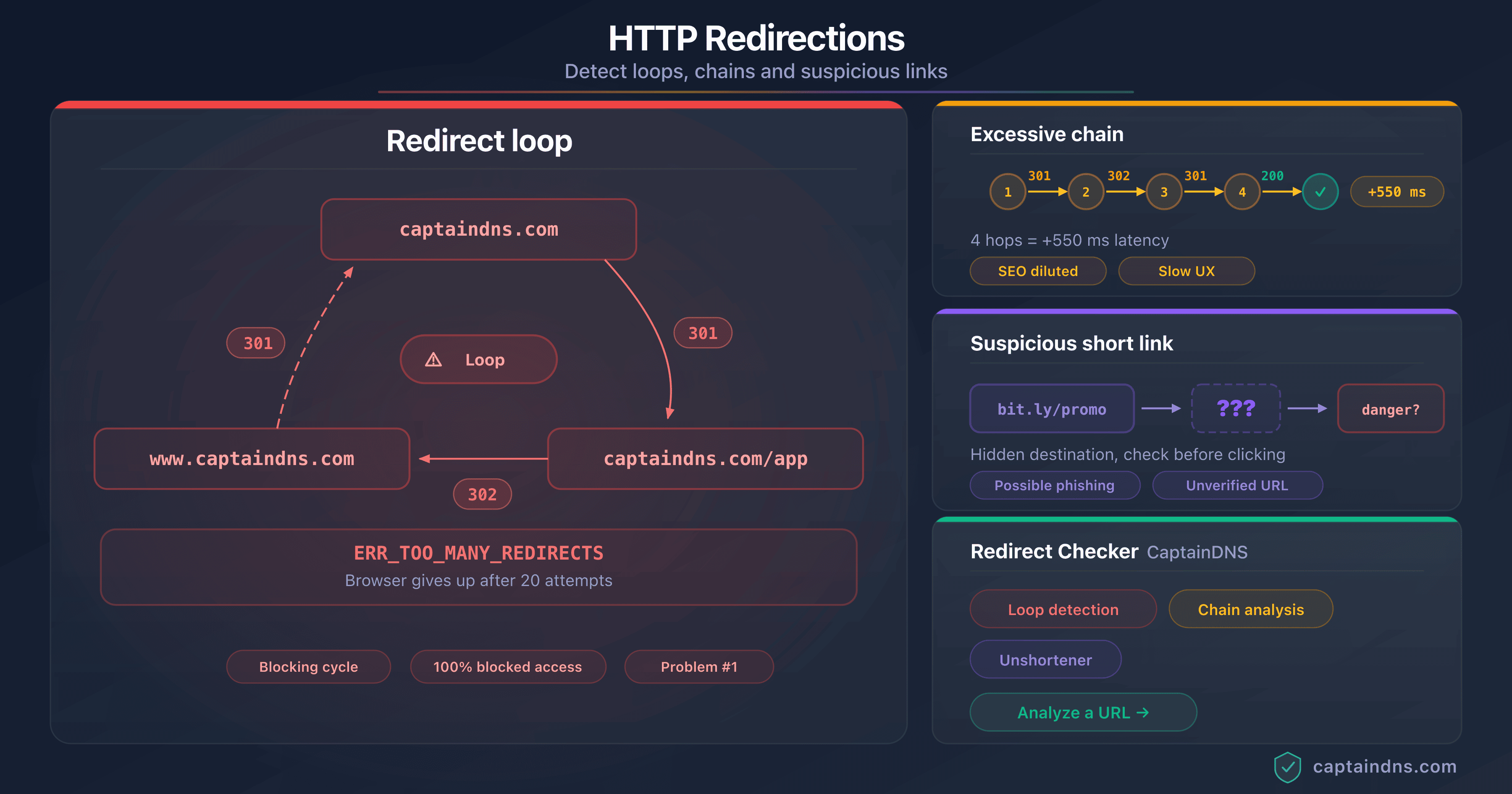
ERR_TOO_MANY_REDIRECTS) are caused by circular configurations between servers, CDNs or CMSs. - Excessive redirect chains (more than 3 hops) dilute SEO and add 100 to 500 ms of latency per hop.
- Shortened links (bit.ly, t.co) hide the real destination and can lead to phishing sites.
- The CaptainDNS Redirect Checker automatically detects all three problems in a single scan.
- Google follows a maximum of 10 redirects. Beyond that, the page is not indexed.
You click a link and your browser displays ERR_TOO_MANY_REDIRECTS. Or the page eventually loads, but only after a suspicious multi-second delay. Or a colleague sends you a shortened bit.ly link and you hesitate before clicking. These three situations share a common thread: they involve HTTP redirects that nobody sees, but that can conceal serious problems.
Redirects are a fundamental web mechanism. They let you move pages, enforce HTTPS, manage vanity URLs. But when misconfigured, they create three distinct categories of problems. Loops completely prevent access to the page. Excessive chains degrade SEO and performance without the visitor noticing. Shortened links hide the real destination and serve as a phishing vector in 1 out of 10 cases according to Palo Alto Networks research on Newly Registered Domains (NRDs).
This guide covers the diagnosis and resolution of all three problems. Each section explains the technical mechanism, the observable symptoms, and the concrete steps to fix the situation. The goal is to make you self-sufficient at identifying and correcting any redirect issue, whether you are a system administrator, developer or SEO manager.
Scan your URLs now
What is a redirect loop?
A redirect loop occurs when URL A redirects to URL B, which in turn redirects back to URL A. The browser follows the redirects in a circle, never reaching an actual content page. After a certain number of attempts, it gives up and displays an error message.
The simplest case is a two-element cycle: A redirects to B, B redirects to A. But loops can involve three, four or five intermediate URLs before returning to the starting point.
How does the browser react to a loop?
Each browser imposes a limit on the number of redirects it follows before giving up. When this limit is reached, the browser displays a specific error message.
| Browser | Redirect limit | Error message |
|---|---|---|
| Chrome | 20 | ERR_TOO_MANY_REDIRECTS |
| Firefox | 20 | "The page isn't redirecting properly" |
| Safari | 16 | "Safari can't open the page" |
| Edge | 20 | ERR_TOO_MANY_REDIRECTS |
The browser does not distinguish between a loop (cycle) and a very long chain (linear sequence). In both cases, if the limit is reached, loading is blocked. The difference is that a long chain will eventually resolve if you increase the limit, whereas a loop will never terminate.
From Googlebot's perspective, a loop is fatal for indexing. Google detects the cycle, marks the page as unreachable, and any backlinks pointing to it lose all SEO value.
Anatomy of a loop: the HTTP cycle in detail
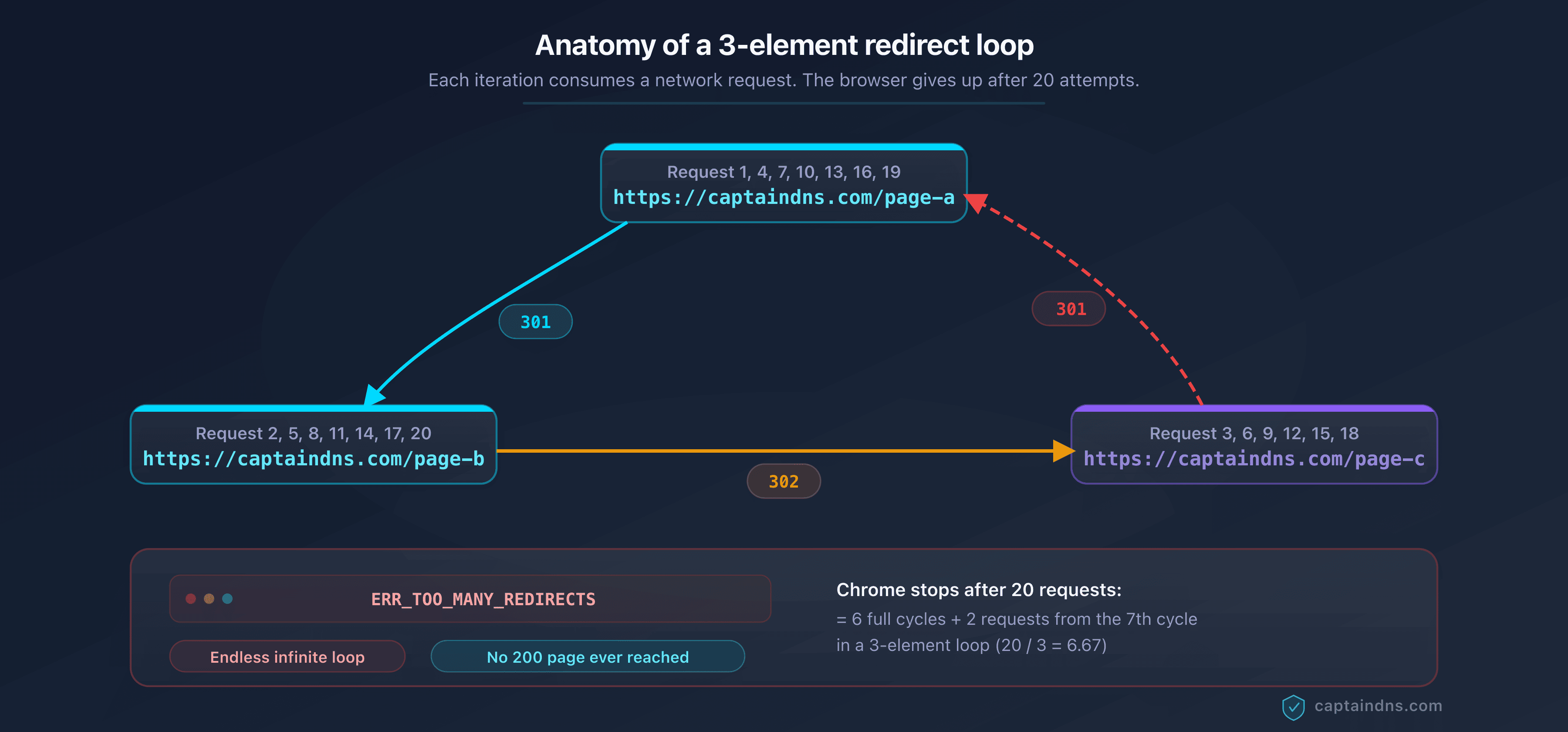
Here is the breakdown of a three-element loop at the network level.
1. GET https://captaindns.com/page-a
   → 301, Location: https://captaindns.com/page-b

2. GET https://captaindns.com/page-b
   → 302, Location: https://captaindns.com/page-c

3. GET https://captaindns.com/page-c
   → 301, Location: https://captaindns.com/page-a

4. GET https://captaindns.com/page-a   (back to the starting point)
   → 301, Location: https://captaindns.com/page-b

... (the cycle repeats)
Each iteration consumes a network request. Chrome and Firefox cut off after 20 requests, meaning 6 to 7 full cycles in a 3-element loop. The Location header is the thread to follow: by tracing it, diagnostic tools reconstruct the chain and detect the return point.
The 7 most common causes of ERR_TOO_MANY_REDIRECTS
Redirect loops are almost never intentional. They result from conflicts between multiple components, each trying to force a redirect. Here are the 7 most common causes, ranked by frequency.
1. HTTP/HTTPS conflict between CMS and server
Symptom: the site displays ERR_TOO_MANY_REDIRECTS on the homepage.
Mechanism: the CMS (WordPress, Joomla) is configured to enforce HTTPS in its internal settings. At the same time, the .htaccess file or Nginx configuration contains a rule that redirects HTTP to HTTPS. When the CMS redirects to HTTPS and the server redirects that request back to HTTP (or vice versa due to an intermediate proxy), a loop is created.
Diagnosis: check the site URL in the CMS settings (siteurl and home in WordPress). Compare with the web server redirect rules. If both force the protocol in opposite directions, you have found the source.
Fix: choose a single control point for the HTTP-to-HTTPS redirect. Best practice is to handle this redirect at the web server level (Nginx, Apache) or reverse proxy, and configure the CMS to use HTTPS in its URL without forcing the redirect itself.
2. Circular www/non-www redirect
Symptom: ERR_TOO_MANY_REDIRECTS only on the www or non-www variant of the domain.
Mechanism: DNS points www.captaindns.com to server A, and captaindns.com to server B. Server A redirects to the non-www version, server B redirects to the www version. The browser bounces between them indefinitely.
Diagnosis: test both variants separately with curl -I http://www.captaindns.com and curl -I http://captaindns.com. If each redirects to the other, the loop is confirmed.
Fix: align the configuration of both servers on a single canonical version. If you choose captaindns.com as the canonical version, configure www.captaindns.com to 301-redirect to captaindns.com, and make sure captaindns.com does not redirect to www.
3. WordPress cache or security plugin
Symptom: ERR_TOO_MANY_REDIRECTS after installing or updating a plugin.
Mechanism: certain security plugins (Really Simple SSL, Wordfence) or cache plugins (W3 Total Cache, WP Super Cache) add their own redirect rules in .htaccess or via PHP filters. These rules can conflict with existing redirects from the theme, CMS or server.
Diagnosis: disable plugins one by one via FTP (rename the plugin folder in wp-content/plugins/). When the site becomes accessible again, the last disabled plugin is the culprit.
Fix: reactivate the plugin and adjust its settings to avoid the conflict. If the plugin forces HTTPS and your server already does, disable that feature in the plugin. If the plugin adds .htaccess rules, verify they do not duplicate existing rules.
4. Cloudflare Flexible SSL combined with forced HTTPS on the server
Symptom: ERR_TOO_MANY_REDIRECTS after enabling Cloudflare.
Mechanism: Cloudflare's "Flexible SSL" mode means the connection between the visitor and Cloudflare is HTTPS, but the connection between Cloudflare and your server is HTTP. If your server is configured to redirect HTTP to HTTPS, it redirects Cloudflare's request to HTTPS. Cloudflare receives this redirect, but sends the request again over HTTP (Flexible mode). The server redirects to HTTPS again, and the cycle continues.
Diagnosis: check the SSL/TLS mode in the Cloudflare dashboard. If it is set to "Flexible" and your server forces HTTPS, you have found the cause.
Fix: switch the Cloudflare SSL/TLS mode to "Full" or "Full (Strict)". In Full mode, Cloudflare communicates over HTTPS with your server, which eliminates the conflict. Make sure your server has a valid TLS certificate (Let's Encrypt is sufficient).
5. Corrupted cookies or authentication loop
Symptom: ERR_TOO_MANY_REDIRECTS only for certain users, or only when logged in.
Mechanism: the application redirects unauthenticated users to the login page. The login page checks a session cookie, detects that the user is not logged in (cookie corrupted, expired or malformed), and redirects to the login page itself. Alternatively, after login, the application redirects to a protected page that does not recognize the cookie and sends the user back to login.
Diagnosis: test the site in a private browsing window (no cookies). If the problem disappears, cookies are the cause. Ask the affected user to clear their cookies for the domain.
Fix: if the problem is widespread, check the session cookie configuration (domain, path, Secure attribute, SameSite attribute). A cookie with Secure=true will not be sent over an HTTP connection. A cookie with the wrong domain (.www.captaindns.com instead of .captaindns.com) will not be read on the non-www variant.
6. .htaccess file with conflicting rules
Symptom: ERR_TOO_MANY_REDIRECTS on an Apache server, often after a manual edit to .htaccess.
Mechanism: the .htaccess file contains multiple RewriteRule blocks that contradict each other. For example, one rule redirects /page to /page/, and another redirects /page/ to /page. Or a generic catch-all rule captures URLs that were supposed to be excluded by an earlier rule, but the rule order is wrong.
Diagnosis: examine the .htaccess file at the site root and in all subdirectories. Look for RewriteRule blocks that target similar patterns.
Fix: simplify .htaccess. Group all redirects into a single block, order them from most specific to most generic, and add the [L] (last) flag to terminal rules.
Example of a clean .htaccess that handles HTTP to HTTPS and www to non-www without conflict:
RewriteEngine On
# Force HTTPS
RewriteCond %{HTTPS} off
RewriteRule ^(.*)$ https://%{HTTP_HOST}/$1 [R=301,L]
# Force non-www
RewriteCond %{HTTP_HOST} ^www\.(.+)$ [NC]
RewriteRule ^(.*)$ https://%1/$1 [R=301,L]
The order matters: force HTTPS first, then handle the www. The [L] flag ensures each rule is terminal: once triggered, Apache does not continue with the following rules.
7. Misconfigured CDN or reverse proxy
Symptom: ERR_TOO_MANY_REDIRECTS after setting up a CDN (Cloudflare, Fastly, AWS CloudFront) or a reverse proxy (Nginx, HAProxy).
Mechanism: the CDN or reverse proxy modifies request headers (protocol, host, path) before forwarding to the origin server. The origin server makes a redirect decision based on these modified headers and returns a response that triggers another redirect at the CDN level. The cycle repeats.
The classic case: the CDN terminates the TLS connection and forwards the request over HTTP to the origin server. The server sees HTTP and redirects to HTTPS. The CDN intercepts this redirect but sends the request over HTTP again.
Diagnosis: test the site by bypassing the CDN (access the server IP directly). If the site works without the CDN but not with it, the problem is in the proxy configuration.
Fix: configure the origin server to recognize proxy headers (X-Forwarded-Proto). On Nginx, use $http_x_forwarded_proto instead of $scheme. On Apache, check %{HTTP:X-Forwarded-Proto} in RewriteCond directives.
Nginx example with proxy support:
server {
    listen 80;
    server_name captaindns.com;

    # Redirect to HTTPS only if the request did not already arrive via HTTPS at the CDN
    if ($http_x_forwarded_proto != "https") {
        return 301 https://$server_name$request_uri;
    }
}
How to diagnose a redirect loop?
Once you know a loop exists (the browser displays the error), you need to pinpoint it precisely. Three complementary methods let you reconstruct the redirect chain and identify the return point.
Method 1: the CaptainDNS Redirect Checker
The fastest approach. Enter the URL in the Redirect Checker and run the analysis. The tool follows each redirect, recording the HTTP code, destination URL, response headers and response time of each hop. When it detects that a URL appears twice in the chain, it flags the loop and indicates exactly at which hop it begins.
The advantage: the tool follows up to 30 hops (compared to 20 for browsers), which allows it to detect long loops. It also displays the full HTTP headers, essential for diagnosing protocol conflicts and X-Forwarded-Proto issues.
Method 2: curl on the command line
For administrators who prefer the terminal, curl with the -v (verbose) and -L (follow redirects) options displays each step in the chain:
curl -v -L --max-redirs 25 https://captaindns.com/page-a 2>&1 | grep -E "^(< HTTP|< Location|> GET)"
This command displays the HTTP code and Location header of each response, as well as the GET request sent at each step. When the GET request URL matches a URL already seen earlier in the output, you have found the loop.
The --max-redirs 25 option increases curl's default limit (50) to a level sufficient for detecting most loops without generating overly long output.
For a more concise output, limit to headers only:
curl -sI -L --max-redirs 25 https://captaindns.com/page-a 2>&1 | grep -iE "^(HTTP/|Location:)"
Method 3: browser DevTools
Open the developer tools (F12), go to the "Network" tab, then load the problematic URL. The browser displays each HTTP request in chronological order. You will see a series of requests with 301 or 302 codes, each with a different URL, until the browser reaches its limit and displays the error.
The advantage of DevTools: they show the cookies sent and received with each request, which is essential for diagnosing authentication loops (cause 5). The limitation: the browser only displays the first 20 requests (16 on Safari).
Comparison of the three methods
| Criterion | Redirect Checker | curl | DevTools |
|---|---|---|---|
| Ease of use | High (web interface) | Medium (terminal) | Medium (browser) |
| Max hops | 30 | Configurable | 16 to 20 |
| Automatic loop detection | Yes | No (manual analysis) | No (manual analysis) |
| Cookie display | No | Yes (with -v) | Yes |
| Response time display | Yes (per hop) | Yes (with -w) | Yes |
| Requires installation | No | Yes (pre-installed on Linux/macOS) | No |
| Shareable results | Yes (report URL) | No | No (screenshot) |
For a quick diagnosis, start with the Redirect Checker. Supplement with DevTools if the problem involves cookies, or with curl for CI/CD pipeline automation.
Redirect chains: SEO and performance impact
A redirect chain is a linear sequence of successive redirects. Unlike a loop, the chain reaches a content page, but it passes through one or more intermediate URLs before getting there. The problem is not inaccessibility (the page eventually loads), but progressive degradation of SEO and performance.
How many hops before it becomes a problem?
A single redirect hop is perfectly normal. That is the standard case of an old link redirecting to the new URL. The problem starts when hops accumulate.
| Number of hops | Assessment | Impact |
|---|---|---|
| 1 | Normal | No measurable impact |
| 2 | Acceptable | Minimal impact, no action required |
| 3 | Warning | Noticeable latency, possible SEO dilution |
| 4 to 5 | Problem | 400 to 2,500 ms of added latency, likely SEO loss |
| 6 or more | Critical | Google may stop following, page potentially not indexed |
Google officially follows up to 10 redirects in a chain. However, John Mueller from the Google Search team has stated that SEO signal transfer can degrade well before reaching this limit. The practical recommendation is to never exceed 2 hops between the source URL and the final destination.
SEO impact: PageRank dilution and indexation loss
Each intermediate redirect in a chain creates an opportunity for SEO signal loss. While Google states that a single 301 redirect transfers 100 % of PageRank, behavior with multiple chained redirects is less documented and less reliable.
The concrete problem: when Googlebot encounters a chain of 5 redirects, it performs 6 HTTP requests. Each one consumes crawl budget. For large sites with thousands of chains, Google spends time following redirects instead of crawling new content.
If an intermediate redirect is a 302 instead of a 301, the PageRank transfer is interrupted at that point. A single 302 in a chain of 301s is enough to block authority transfer.
Performance impact: latency adds up
Each redirect hop adds a full network round trip between the browser and the server. In practice, this means 100 to 500 ms per hop, depending on network latency and the visitor's geographic location.
For a visitor in Europe accessing a server in North America, each hop adds 150 to 200 ms. A chain of 4 hops adds 600 to 800 ms before the content starts loading.
This impact is concentrated on LCP (Largest Contentful Paint), the Core Web Vitals metric that measures the time to display the main content. An LCP above 2.5 seconds is classified as "poor" by Google. If your page normally loads in 1.8 seconds but a chain of 3 redirects adds 600 ms, you move into the red zone.
Good news: 301 redirects cached by the browser have no impact after the first visit. This is an additional argument for preferring 301s over 302s in chains.
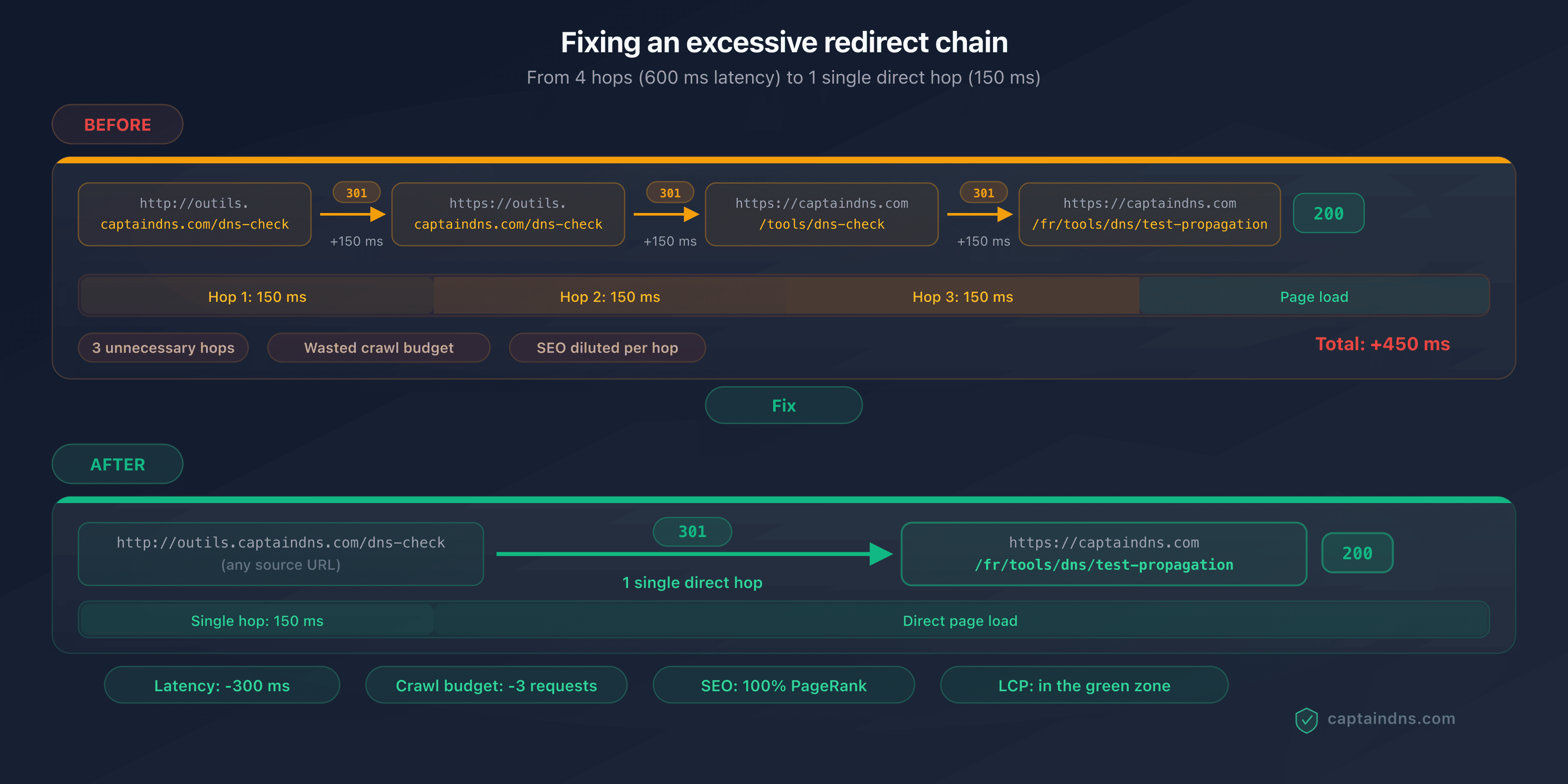
How chains form: the multi-step migration scenario
Redirect chains are rarely created intentionally. They accumulate over time with each migration, redesign or structural change.
Typical scenario:
- 2022: the site is at
http://captaindns.com. Switch to HTTPS. 301 redirect fromhttp://tohttps://. - 2023: site redesign. URL structure change. 301 redirect from
/tools/dns-checkto/en/tools/dns/test-propagation. - 2025: subdomain consolidation. 301 redirect from
https://tools.captaindns.com/dns-checktohttps://captaindns.com/tools/dns-check.
A backlink published in 2022 pointing to http://tools.captaindns.com/dns-check now traverses 3 redirects:
http://tools.captaindns.com/dns-check
→ 301 → https://tools.captaindns.com/dns-check
→ 301 → https://captaindns.com/tools/dns-check
→ 301 → https://captaindns.com/en/tools/dns/test-propagation
Each individual migration was correct. But the accumulation creates a 3-hop chain that consumes crawl budget and adds latency.
The solution: after each migration, update the old redirects to point directly to the final destination. In this example, the first redirect should be updated to https://captaindns.com/en/tools/dns/test-propagation, eliminating the two intermediaries.
How to detect chains on your site?
The most effective method is to test your critical URLs (high-traffic pages, pages with the most backlinks) with the Redirect Checker. The tool reports the number of hops for each URL and flags chains exceeding 2 hops.
For a large-scale audit, export your URL list from Google Search Console (the "Pages" report) and test them in batches. Prioritize URLs with the most organic traffic and backlinks.
You can also use the Page Crawl Checker to analyze redirect chains in the context of a full page crawl, including loaded resources (CSS, JavaScript, images) that may also traverse chains.
Shortened links: where do they really lead?
URL shortening services (bit.ly, t.co, tinyurl.com, ow.ly, goo.gl) replace a long URL with a short one that redirects to the destination. This operation is transparent to the legitimate user: they click, the service redirects, the page loads. But this transparency is also a major attack vector.
The security problem with shortened links
A shortened link completely hides the destination. Before clicking, the user cannot tell whether the link leads to a legitimate Google document or to a phishing site impersonating their bank's login page.
Attackers systematically exploit this opacity. A phishing email containing https://bit.ly/3xYz123 is much harder to detect than one containing an obviously suspicious URL. Anti-phishing filters struggle to analyze shortened links because the visible domain (bit.ly) is legitimate. It is the final destination that is malicious.
According to Palo Alto Networks (Unit 42) research, over 70 % of malicious domains were registered less than 32 days ago (Newly Registered Domains). Shortened links are the primary vector for distributing these recently registered domains.
Advanced obfuscation techniques
Attackers do not simply shorten a malicious link. They combine multiple techniques to make detection even harder.
Shortener chains: a bit.ly link redirects to tinyurl, which redirects to ow.ly, which leads to the phishing site. Each layer adds a barrier for detection tools. The Redirect Checker follows the complete chain and reveals the final destination.
Conditional redirects: the service redirects to a different site depending on the country, browser or time of day. Targeted visitors see the phishing page; others are redirected to a legitimate site.
Reused expired domains: the attacker purchases a domain that previously had a good reputation, installs malicious content on it, then distributes shortened links to that domain. The historical reputation fools security filters.
How the Redirect Checker unmasks shortened links
When you enter a shortened link into the Redirect Checker, the tool follows each redirect to the final destination, recording the HTTP code, destination URL, headers and response time of each hop. It automatically flags several risk indicators:
Newly Registered Domains (NRD): if the final destination is a domain registered less than 30 days ago, the tool issues a warning. NRD domains are statistically far more likely to be malicious than established domains.
Excessive number of redirects: a legitimate shortened link typically involves 1 or 2 redirects (the shortener to the destination). If the chain contains 4 or more redirects, that is a red flag.
Suspicious protocol change: if a redirect in the chain switches from HTTPS to HTTP, that is a risk indicator. Legitimate sites use HTTPS. A fallback to HTTP mid-chain may indicate a downgrade attempt to intercept traffic.
IDN homographs: when a domain looks like another
IDN (Internationalized Domain Name) homograph attacks exploit Unicode characters that visually resemble Latin letters. For example, the Cyrillic character "a" (U+0430) is visually identical to the Latin "a" (U+0061), but it is a different character.
An attacker can register cаptaindns.com (with a Cyrillic "a") that looks exactly like captaindns.com in the address bar. Behind a shortened link, this difference is completely invisible.
The Redirect Checker displays the Unicode form of an internationalized name already encoded as xn--, without an alert or any indication that it is not the expected domain; to see both forms of a name, use the Punycode converter.
To protect your brand, regularly check that homograph variants of your domain are not registered by third parties. The Phishing URL Checker checks threat lists to see whether a URL has already been flagged as dangerous, without comparing names that look alike.
How to fix redirect problems?
The diagnosis is done, the problem is identified. Here are the correction steps for each type of issue.
Fixing a redirect loop
Step 1: identify the entry point and the return point. Use the Redirect Checker to reconstruct the full chain. Note at which hop the URL reappears.
Step 2: identify the component responsible for the return. This is the server, CDN, CMS or plugin generating the redirect to the already-seen URL. Consult the "7 causes" section above to identify the pattern.
Step 3: break the cycle. Modify the configuration of the responsible component so it no longer generates the circular redirect. In most cases, this means removing or modifying a redirect rule in one of the involved components.
Step 4: test immediately. After the fix, clear the browser cache (301s can be cached) and test with the Redirect Checker. Verify that the chain ends with a 200 code and not a cycle.
Concrete example: loop between Cloudflare (Flexible SSL) and an Apache server that forces HTTPS.
Before fix:
https://captaindns.com → Cloudflare (HTTP to server) → Apache (redirects to HTTPS)
→ Cloudflare (HTTP to server) → Apache (redirects to HTTPS) → loop

Fix: switch Cloudflare to "Full (Strict)" mode

After fix:
https://captaindns.com → Cloudflare (HTTPS to server) → Apache (no redirect, code 200)
Fixing a redirect chain
Principle: shorten the chain to a single hop. Each source URL should point directly to the final destination, with no intermediary.
Step 1: list all redirects in the chain. Use the Redirect Checker to get the complete sequence.
Step 2: identify the final destination. This is the last URL in the chain, the one that returns a 200 code.
Step 3: update each intermediate redirect. Modify the configuration of each server or service involved so that intermediate URLs redirect directly to the final destination.
Example:
Before fix:
http://captaindns.com/old-page
→ 301 → https://captaindns.com/old-page
→ 301 → https://captaindns.com/en/old-page
→ 301 → https://captaindns.com/en/tools/new-page

After fix:
http://captaindns.com/old-page → 301 → https://captaindns.com/en/tools/new-page
https://captaindns.com/old-page → 301 → https://captaindns.com/en/tools/new-page
https://captaindns.com/en/old-page → 301 → https://captaindns.com/en/tools/new-page
Each source URL now points directly to the final destination in a single hop. The browser and Googlebot only have one redirect to follow.
If you own a domain that needs to point to another site, CaptainDNS domain redirect hosting lets you configure its destination with automatic HTTPS rather than diagnose a URL.
Post-fix verification
After each correction, systematically test with the Redirect Checker:
- Verify that the chain ends with a 200 code.
- Verify that the number of hops is 2 or fewer.
- Verify that all intermediate redirects use the 301 code (unless there is a specific reason for a temporary redirect).
- Verify that the final protocol is HTTPS.
- Test all 4 URL variants:
http://,https://,http://www.,https://www..
If you fixed multiple chains, wait 48 to 72 hours, then check in Google Search Console that redirect errors have disappeared from the "Pages" report.
Best practices to prevent future problems
Use a single control point for redirects. Do not configure the same redirect in two different places (web server and CDN, CMS and .htaccess). Choose a single component to manage each type of redirect.
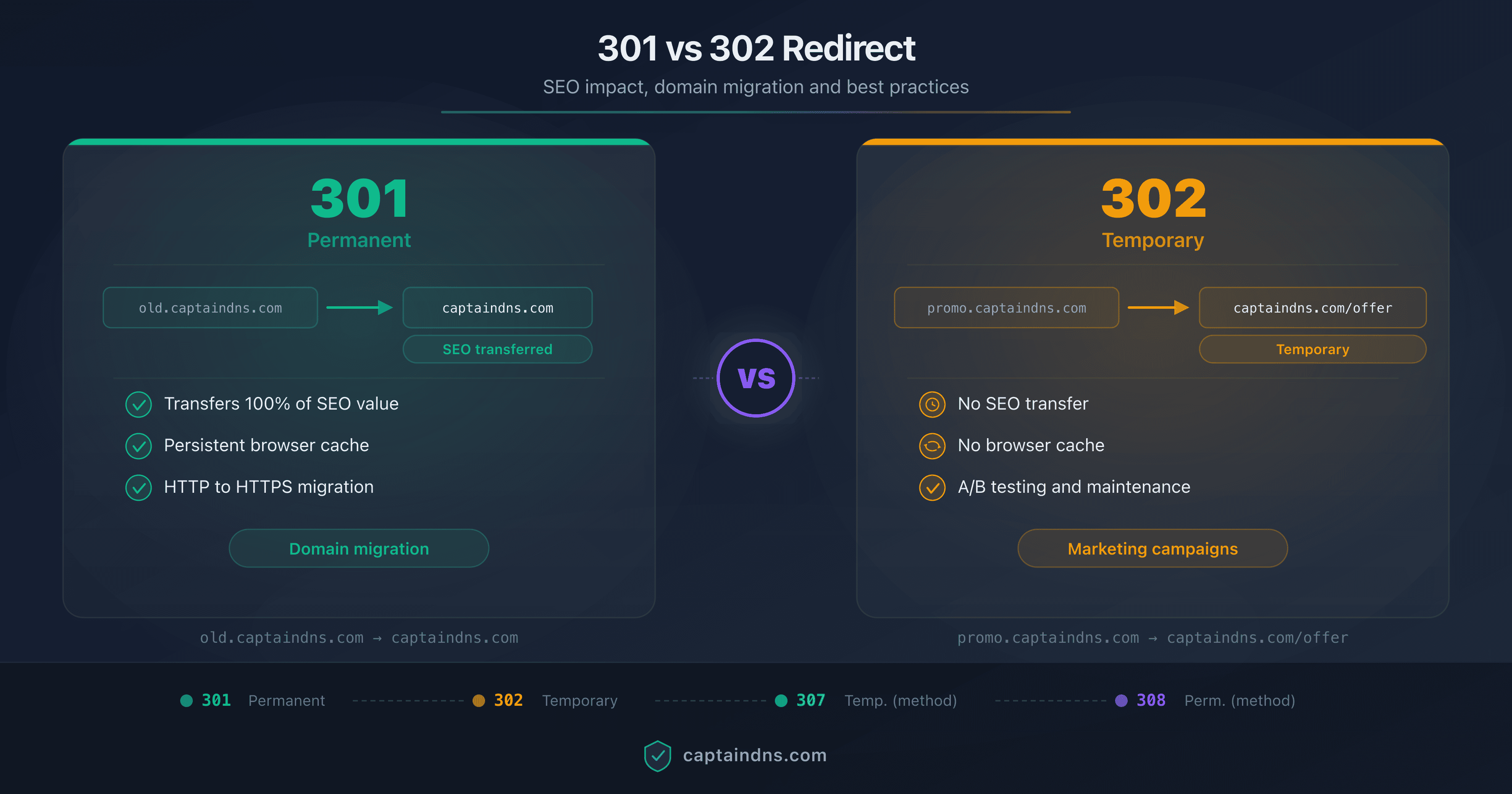
Always use 301s for permanent redirects. 302s do not transfer PageRank and are not cached by the browser. Unless there is a specific use case (conditional redirect, A/B test), 301 is the default choice.
Update old redirects after each migration. Do not let chains accumulate. After each URL structure change, revisit old redirects and update them to point directly to the final destination.
Document all active redirects. Maintain a summary table of all active redirect rules, including the source, destination, HTTP code and creation date. This table is essential for avoiding conflicts during future changes.
Test before deploying. Before pushing a new redirect rule to production, test it in a staging environment or with curl -I. Verify that the redirect works and does not conflict with existing rules.
Recommended action plan
Here is a 5-step checklist to audit and fix redirect problems on your site.
Step 1: scan critical URLs
Identify your 20 to 50 most important URLs: homepages, product pages, high-traffic blog posts, conversion pages. Test each with the Redirect Checker.
For each URL, note:
- The number of hops
- Whether a loop is present
- The HTTP code of the final destination (should be 200)
- The protocol of the final destination (should be HTTPS)
Step 2: identify loops and chains with more than 3 hops
Among the tested URLs, isolate those with a problem:
- Loop detected: highest priority, the page is unreachable
- 5 or more hops: high priority, significant SEO and performance impact
- 3 to 4 hops: medium priority, fix in the next maintenance cycle
- 1 to 2 hops: no action required
Step 3: fix server configurations
For each identified problem, apply the appropriate fix:
- Loop: identify the responsible component (see the 7 causes) and break the cycle
- Chain: update each intermediate redirect to point to the final destination
- CDN/server conflict: align the SSL/TLS configuration between the CDN and the origin server
.htaccessconflict: simplify the rules, add[L]flags, order from most specific to most generic
Step 4: check shortened links in your emails and newsletters
Review the shortened links in your newsletter templates, email signatures and active marketing campaigns. For each shortened link:
- Test the destination with the Redirect Checker
- Verify that the destination is your own site (and not a third-party domain)
- Replace shortened links with direct links when possible
- If a shortened link is necessary (tracking, QR code), verify that the chain does not exceed 2 hops
Step 5: re-test after fixes
After each correction, revisit the fixed URLs and verify that:
- The loop is resolved (200 code at the end of the chain)
- The chain is shortened (2 hops maximum)
- All 4 URL variants (HTTP/HTTPS, www/non-www) work correctly
- No new problems have been introduced
Schedule a follow-up audit at 30 days to verify that the fixes hold and no new chains have formed.
Practical cases: common diagnostics and solutions
Case 1: WordPress site unreachable after activating Really Simple SSL
Symptom: ERR_TOO_MANY_REDIRECTS immediately after plugin activation.
Diagnosis with the Redirect Checker:
Hop 1: https://captaindns.com → 301 → http://captaindns.com (plugin forcing HTTP?)
Hop 2: http://captaindns.com → 301 → https://captaindns.com (server forcing HTTPS)
Hop 3: https://captaindns.com → 301 → http://captaindns.com
→ Loop detected at hop 3
Cause: the wp-config.php file contains define('FORCE_SSL_ADMIN', false) or the site URL in the database is set to HTTP, which conflicts with the plugin trying to force HTTPS.
Solution: disable the plugin via FTP (rename its folder), update the siteurl and home options in wp_options to use HTTPS, add define('FORCE_SSL_ADMIN', true) to wp-config.php, then reactivate the plugin.
Case 2: shortened link in an email leading to a phishing site
Symptom: an employee receives an email with a link https://bit.ly/3Ab4Cd5 claiming to lead to a shared document.
Diagnosis with the Redirect Checker:
Hop 1: https://bit.ly/3Ab4Cd5 → 301 → https://tinyurl.com/y7x8z9
Hop 2: https://tinyurl.com/y7x8z9 → 301 → https://docs-google-verification.com/login
→ Final destination: https://docs-google-verification.com/login
→ ALERT: domain registered 3 days ago (NRD)
→ ALERT: domain mimics "docs.google.com" (potential homograph)
Risk indicators: two shorteners in a chain (obfuscation technique), destination domain registered 3 days ago (NRD), domain name mimicking a legitimate service (Google Docs), URL containing "/login" (credential theft attempt).
Action: do not click. Report the email as phishing. Alert the security team. If the link was clicked, immediately change the password for the impersonated service and enable two-factor authentication.
Redirects and security: redirect-based attacks
Redirects are not just a configuration problem. They are also an attack vector actively exploited by cybercriminals.
Open redirect: when your own site becomes an attack vector
An "open redirect" vulnerability exists when your site accepts a URL parameter that controls the redirect destination, without validating that parameter. Example: https://captaindns.com/login?redirect=https://malicious-site.com. If your application blindly redirects to the value of the redirect parameter, an attacker can use your legitimate domain as the first step in a phishing chain.
Protection: always validate redirect URLs server-side. Only accept redirects to your own domain or to an allow list of authorized domains.
Redirect chain attacks
An attacker can exploit legitimate redirects to build chains that bypass security filters. The typical chain: an email contains a link to a legitimate shortener (bit.ly), the shortener redirects to a reputable site that has an open redirect flaw, the open redirect sends to the phishing site. Each step passes the filters individually. It is the combination that is malicious. Only a tool that follows the complete chain to the final destination can detect the attack.
Security best practices for redirects
- Never click a shortened link without checking it first. Use the Redirect Checker to reveal the destination before clicking.
- Audit your own site for open redirects. Search all endpoints that accept a URL parameter as a redirect destination.
- Check for NRD domains in emails. A domain less than 30 days old in an email link is a strong warning signal.
- Educate your teams. Shortened links in internal emails should always be accompanied by the full destination URL in plain text.
FAQ
What does ERR_TOO_MANY_REDIRECTS mean?
This error message means the browser reached its limit of successive redirects (20 for Chrome and Firefox, 16 for Safari) without reaching a content page. The cause is either a redirect loop (two or more URLs redirecting to each other) or an excessively long redirect chain. To identify the exact cause, test the URL with the Redirect Checker, which follows the full chain and automatically flags loops.
How do I fix a redirect loop on WordPress?
WordPress loops are typically caused by a conflict between a plugin (Really Simple SSL, Wordfence, W3 Total Cache) and the server configuration. The 4-step fix: 1) disable plugins one by one via FTP (rename the folder in wp-content/plugins/) to identify the culprit; 2) verify that the siteurl and home URLs in the wp_options table use the correct protocol (HTTPS); 3) clean up the .htaccess file to remove duplicate redirect rules; 4) reactivate the plugin and adjust its settings so it does not duplicate the server's redirects.
How many redirects can Google follow?
Google officially follows up to 10 redirects in a chain. Beyond that, Googlebot gives up and the final page is neither crawled nor indexed. In practice, John Mueller recommends never exceeding 2 hops. Each redirect consumes crawl budget and can dilute the SEO signal, especially if a 302 slips into a chain of 301s.
Are shortened links dangerous?
Shortened links are not inherently dangerous, but they hide the real destination, making them a preferred vector for phishing and malware distribution. According to Palo Alto Networks research, over 70 % of malicious domains were registered less than 32 days ago, and shortened links are the primary means of distributing these domains in emails. Best practice is to always verify the destination of a shortened link before clicking, using a tool that follows the redirect chain to the end.
How can I find out where a bit.ly link goes?
Several methods exist. The most reliable is to use the CaptainDNS Redirect Checker: enter the bit.ly link and the tool follows all redirects to the final destination, displaying each intermediate hop. You can also append a "+" to the end of the bit.ly URL (for example https://bit.ly/3xYz123+) to access the bit.ly statistics page that shows the destination, but this method does not work with all shorteners and does not follow multiple redirects.
What is the difference between a redirect loop and a redirect chain?
A loop is a cycle: URL A redirects to B, which redirects to C, which redirects back to A. The browser goes in circles and never reaches a content page. The result is an ERR_TOO_MANY_REDIRECTS error. A chain is a linear sequence: A redirects to B, which redirects to C, which returns a 200 code (content page). The chain resolves, but each intermediate hop adds latency and can dilute the SEO signal. Loops are blocking (the page is unreachable), chains are degrading (the page loads, but less efficiently).
Does the Redirect Checker work with shortened links?
Yes. The Redirect Checker follows all HTTP redirects, regardless of the source domain. When you enter a bit.ly, tinyurl.com, t.co or any other shortener link, the tool follows the complete chain to the final destination. It displays each intermediate hop with the HTTP code, destination URL and response time. It also flags Newly Registered Domains (NRD) and abnormally long chains that may indicate an obfuscation attempt.
How do I detect a masked phishing link?
Several clues help detect a phishing link behind a shortener. Check the destination with the Redirect Checker and look for these warning signs: 1) the destination domain was registered less than 30 days ago (NRD); 2) the chain contains more than 2 redirects (obfuscation technique); 3) the domain mimics a well-known service (IDN homograph or typosquatting); 4) the final URL contains words like "login", "verify", "secure" or "update"; 5) the protocol switches from HTTPS to HTTP mid-chain. The presence of 2 or more of these indicators strongly suggests a malicious link.
Can meta refresh redirects create loops?
Yes, meta refresh redirects can create loops exactly like HTTP redirects. Page A contains a <meta http-equiv="refresh"> tag that redirects to page B, and page B contains a similar tag redirecting to A. The difference is that meta refresh redirects are slower (the browser must download and parse the HTML before redirecting) and harder to diagnose because they are not visible in HTTP headers. Command-line tools like curl do not detect them without a specific option.
How do I prevent redirect chains from accumulating over time?
Best practice is to update old redirects after each migration. When you add a new redirect layer (domain change, URL structure change, HTTPS switch), revisit previous redirects and update them to point directly to the final destination. Document all active redirects in a centralized table with the source, destination, HTTP code and date. Schedule a quarterly audit of your main URLs with the Redirect Checker to detect chains before they become problematic.
Glossary
- Redirect loop: a cycle where two or more URLs redirect to each other. The browser displays
ERR_TOO_MANY_REDIRECTSafter 16 to 20 attempts. - Redirect chain: a linear sequence of successive redirects. The chain resolves, but it degrades SEO and performance.
- ERR_TOO_MANY_REDIRECTS: error message from Chromium browsers when the redirect limit is reached. Equivalent to "The page isn't redirecting properly" on Firefox.
- NRD (Newly Registered Domain): a domain registered less than 32 days ago. Statistically more likely to be malicious.
- IDN homograph: an internationalized domain using Unicode characters visually similar to Latin letters to impersonate a legitimate domain.
- Meta refresh: the HTML tag
<meta http-equiv="refresh">that triggers a client-side redirect. Discouraged by Google for SEO. - Shortened link: a short URL (bit.ly, t.co, tinyurl.com) that redirects to a longer destination while hiding the real URL.
- Open redirect: a vulnerability where an application accepts a URL parameter as a redirect destination without validation, enabling phishing.
Sources
- RFC 7231, section 6.4: HTTP Redirection: official definition of HTTP redirect codes 301, 302, 303 and 307
- Google Search Central: URL redirections: official Google documentation on how the search engine handles redirects
- Palo Alto Networks Unit 42: Newly Registered Domains: research on the malicious use of newly registered domains