301 vs 302 redirect: understand the differences, SEO impact and succeed with your domain migration
By CaptainDNS
Published on March 16, 2026
Updated on July 30, 2026
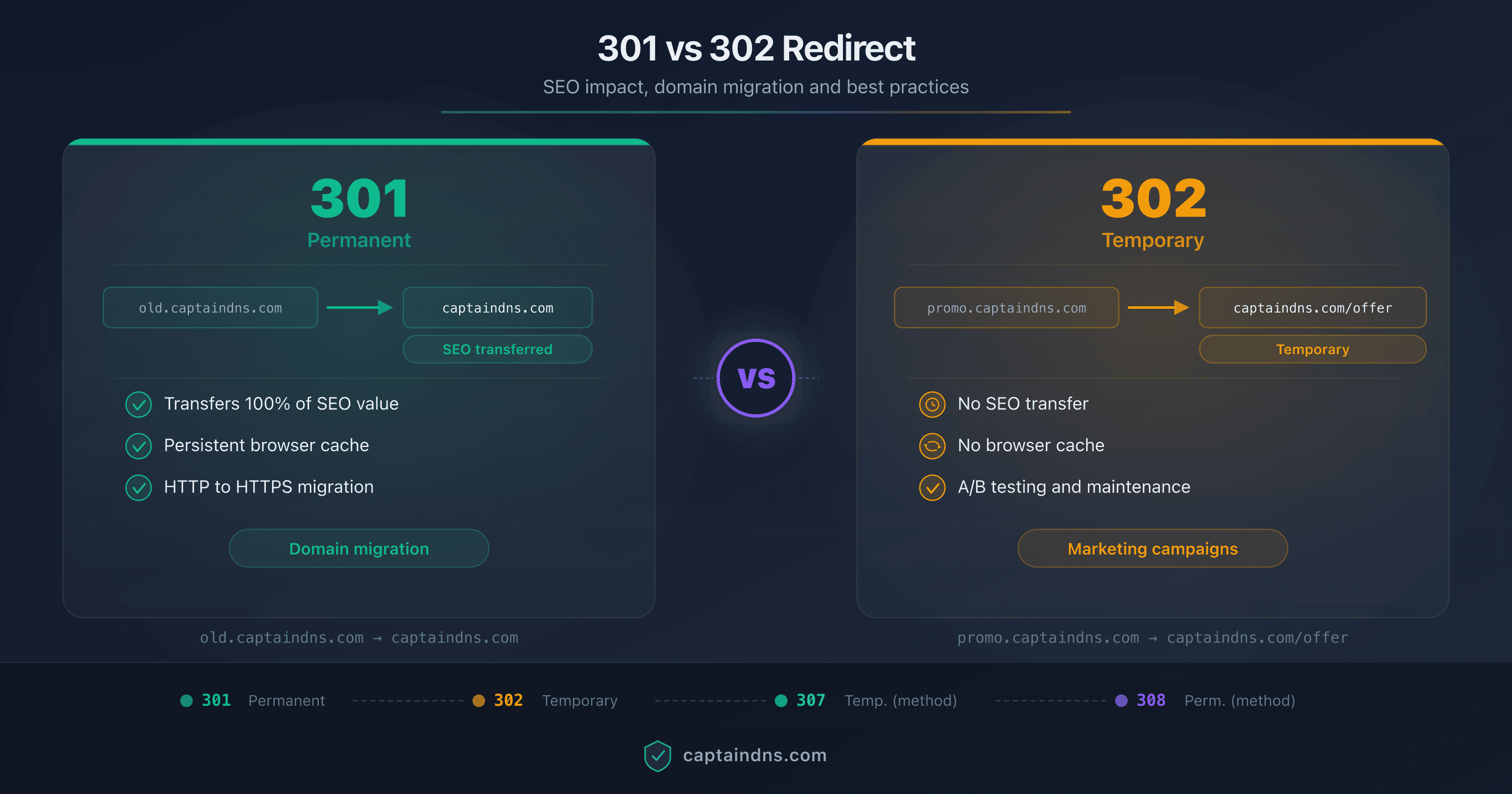
- 301 = permanent redirect, transfers 100 % of SEO ranking to the destination
- 302 = temporary redirect, Google continues indexing the source URL
- A domain migration requires 301 redirects on every URL, not just the root
- Codes 307 and 308 exist to preserve the HTTP method (POST, PUT)
- CaptainDNS Redirect Hosting manages 301/302 redirects with automatic HTTPS
Changing a domain name, merging two sites, switching from HTTP to HTTPS: all of these operations rely on HTTP redirects. Misconfigured, they cause a loss of 30 to 50 % of organic traffic in the weeks following the migration. Properly configured, they pass your full SEO authority to the new destination.
The question "should I use a 301 or a 302?" comes up constantly in SEO forums and developer discussions. The answer depends on context, but the consequences of the wrong choice are real: Google indexes the wrong URL, PageRank gets diluted, backlinks lose their value. According to a Moz study conducted on 30,000 domains, 12 % of domain migrations use 302 redirects instead of 301s, causing an average organic traffic loss twice as high as correctly configured migrations.
This guide covers the 4 HTTP redirect codes, explains the SEO impact of each in detail, and provides a complete checklist for a successful domain migration. Whether you manage a small business site or a portal with 50,000 pages, the principles remain the same.
One last note: this guide covers server-side redirects (HTTP status codes). JavaScript redirects and meta refresh tags are not discussed here because they pose fundamental problems for crawling and indexing. For marketing use cases (vanity URLs, link tracking, QR codes), a companion guide is available in the "Related guides" section at the end of this article.
Set up your redirects now
The 4 HTTP redirect codes
The HTTP protocol defines four main redirect codes. Each communicates a different intent to browsers and search engines.
301 Moved Permanently
The 301 code means the resource has been permanently moved to a new URL. The server responds with a Location header containing the destination.
HTTP/1.1 301 Moved Permanently
Location: https://captaindns.com/en/tools
Browser behaviour: the browser caches the redirect and automatically redirects future requests to the destination, without contacting the origin server again. This cache persists even after the browser is closed.
Defined in RFC 7231, section 6.4.2, the 301 code allows HTTP clients to transform a POST request into a GET during the redirect. This behaviour, inherited from early HTTP implementations, is the reason the 308 code was created.
302 Found
The 302 code means the resource is temporarily available at another URL. The server responds in the same way:
HTTP/1.1 302 Found
Location: https://captaindns.com/en/maintenance
Browser behaviour: the browser does not cache the redirect. Each request goes back to the origin server, which can return a different destination or stop redirecting.
Defined in RFC 7231, section 6.4.3, the 302 code has a complicated history. In HTTP/1.0, it meant "Moved Temporarily". Browsers historically transformed POST requests into GET on a 302, which did not match the specification. The 303 (See Other) code was created to formalise this behaviour, and the 307 code to preserve the HTTP method.
307 Temporary Redirect
The 307 code is the strict equivalent of the 302, but with a guarantee: the HTTP method is preserved. If the client sends a POST, the redirect returns a POST to the destination.
HTTP/1.1 307 Temporary Redirect
Location: https://captaindns.com/api/v2/submit
This code is defined in RFC 7231, section 6.4.7. It is primarily used for forms and REST APIs where method preservation is critical. For standard web page redirects (GET), the difference between 302 and 307 is zero.
308 Permanent Redirect
The 308 code is the strict equivalent of the 301, but with the same guarantee as the 307: the HTTP method is preserved.
HTTP/1.1 308 Permanent Redirect
Location: https://captaindns.com/api/v2/submit
Defined in RFC 7538, the 308 code is the correct choice for permanent API redirects where the HTTP method must be preserved. For web page redirects (GET), 301 and 308 are functionally identical.
Comparison table of the 4 codes
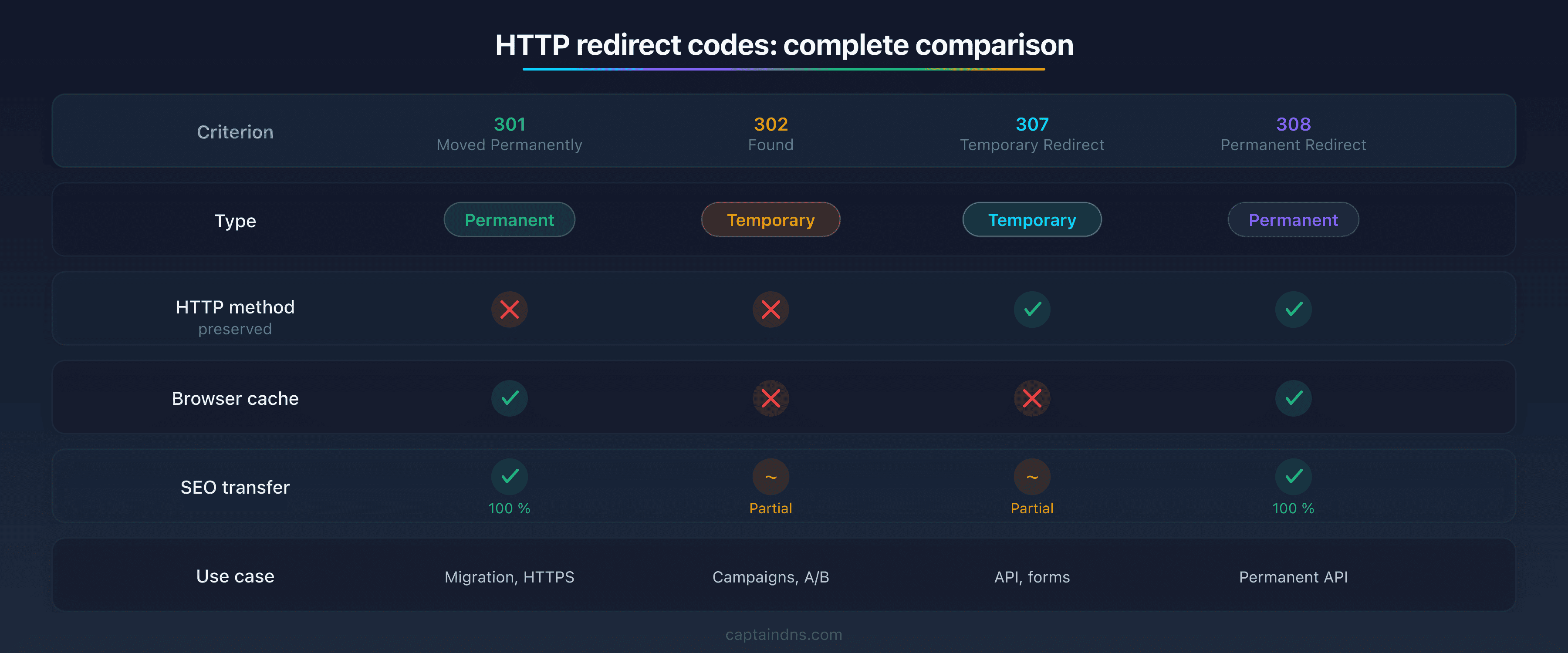
| Code | Type | HTTP method preserved? | Browser cache? | SEO transfer? |
|---|---|---|---|---|
| 301 | Permanent | No (POST may become GET) | Yes | Yes (100 %) |
| 302 | Temporary | No (POST may become GET) | No | Partial (Google indexes the source) |
| 307 | Temporary | Yes | No | Partial (same behaviour as 302) |
| 308 | Permanent | Yes | Yes | Yes (same behaviour as 301) |
In practice, for web page redirects (GET requests), only codes 301 and 302 are relevant. Codes 307 and 308 are reserved for technical contexts where HTTP method preservation is necessary.
Server-side redirects vs JavaScript
Codes 301, 302, 307 and 308 are server-side redirects: the server sends an HTTP Location header and the browser follows immediately. But there are also client-side redirects, implemented in JavaScript or via a meta refresh tag.
Server-side redirects (HTTP): Google detects and follows them immediately during crawling. SEO signal transfer is reliable and fast. This is the method recommended by Google Search Central for any URL change.
JavaScript redirects (window.location, window.location.replace): Google must first download the HTML page, execute the JavaScript in its rendering engine (based on Chromium), then discover the redirect. This process adds significant delay. Google classifies this method as a last resort, to be used only when server-side redirect is impossible.
Meta refresh redirects (<meta http-equiv="refresh" content="0;url=...">): Google can follow them, but formally discourages them. The behaviour is similar to a JavaScript redirect: the page must be downloaded and parsed before the redirect is detected.
| Method | Detection by Google | SEO transfer | Use case |
|---|---|---|---|
| Server-side (301/302) | Immediate | Full (301) or partial (302) | Migrations, URL changes |
| JavaScript | After rendering | Uncertain, often partial | SPA (Single Page Applications) |
| Meta refresh | After download | Discouraged by Google | No recommended use case |
The main risk with JavaScript redirects: if page rendering fails (JS error, timeout, blocked resource), Google simply does not see the redirect. The source page remains indexed, the destination is ignored. For Single Page Applications (SPA) where server-side redirect is technically impossible, JavaScript is the only option, but you should then regularly test that Googlebot detects the redirect (via the URL Inspection tool in Search Console).
How browsers handle redirects
When a browser receives a redirect code, it automatically makes a new request to the URL specified in the Location header. This process is transparent to the user: they see only a slight loading delay.
For 301 redirects, the browser stores the mapping in a local cache. Subsequent visits to the old URL are redirected directly by the browser, without contacting the origin server. This cache is persistent: it survives browser restarts and is only cleared by manual cache clearing or expiration defined by Cache-Control headers.
For 302 redirects, the browser does not cache the mapping. Each visit to the old URL triggers a request to the origin server, which can respond differently each time. This is what makes the 302 suitable for dynamic redirects (geolocation, A/B tests, temporary campaigns).
This caching difference has a direct impact on performance. A 301 saves a network request on every subsequent visit. A 302 systematically adds the latency of an extra HTTP round trip.
Other HTTP status codes to know
Three other HTTP codes are sometimes confused with redirects:
- 200 OK: the page exists and returns content. No redirect. If the page displays "You will be redirected...", that is a client-side redirect (JavaScript or meta refresh), not an HTTP redirect.
- 404 Not Found: the page does not exist. If you delete a page without configuring a redirect, visitors and Googlebot receive a 404. Backlinks to that page lose all their value.
- 410 Gone: the page has been permanently removed and will not be replaced. Google treats 410 as a strong signal to remove the page from the index. Use 410 when there is no relevant destination page for a redirect.
301 vs 302: detailed SEO impact
This is the most important section of this guide. The technical difference between 301 and 302 seems minor (permanent vs temporary), but the SEO consequences are significant. Understanding these differences is essential before configuring any redirect.
PageRank and authority transfer
PageRank is the authority score Google assigns to each page based on incoming links. When site A links to your page, it passes a fraction of its own PageRank.
With a 301: Google transfers 100 % of the PageRank from the old URL to the new one. This was not always the case. Before 2016, Google applied a 15 % penalty on PageRank passed through a 301. Since an update confirmed by Gary Illyes of the Google Search team, this penalty has been removed. A 301 now transfers full authority.
With a 302: Google does not transfer PageRank to the destination. The logic is simple: if the redirect is temporary, the source URL is expected to come back. Google therefore keeps the authority on the source URL. The problem arises when a 302 stays in place for months or years. Google eventually treats it as a de facto 301, but the delay is unpredictable and the transition period causes ranking loss.
Indexation and canonicalisation
The choice between 301 and 302 determines which URL Google shows in its results:
With a 301: Google removes the old URL from its index and indexes the destination. Search results display the new URL. This process typically takes a few days to a few weeks depending on crawl frequency.
With a 302: Google continues indexing the source URL and shows it in its results. The destination is known to Google, but it is not considered the canonical version. Result: your visitors see the old URL in Google, click, are redirected to the new page, but SEO signals (backlinks, age, authority) remain attached to the old URL.
Browser cache and visit counting
The 301 is cached by the browser. After the first visit, the browser redirects directly to the destination without contacting the origin server. Consequence: you cannot track the number of redirects, because subsequent visits no longer pass through your server.
The 302 is not cached. Every visit passes through the origin server, which can count requests, log visitor information, and even change the destination on the fly. This is why vanity URLs and tracking links use 302s.
Redirect chains: the silent loss
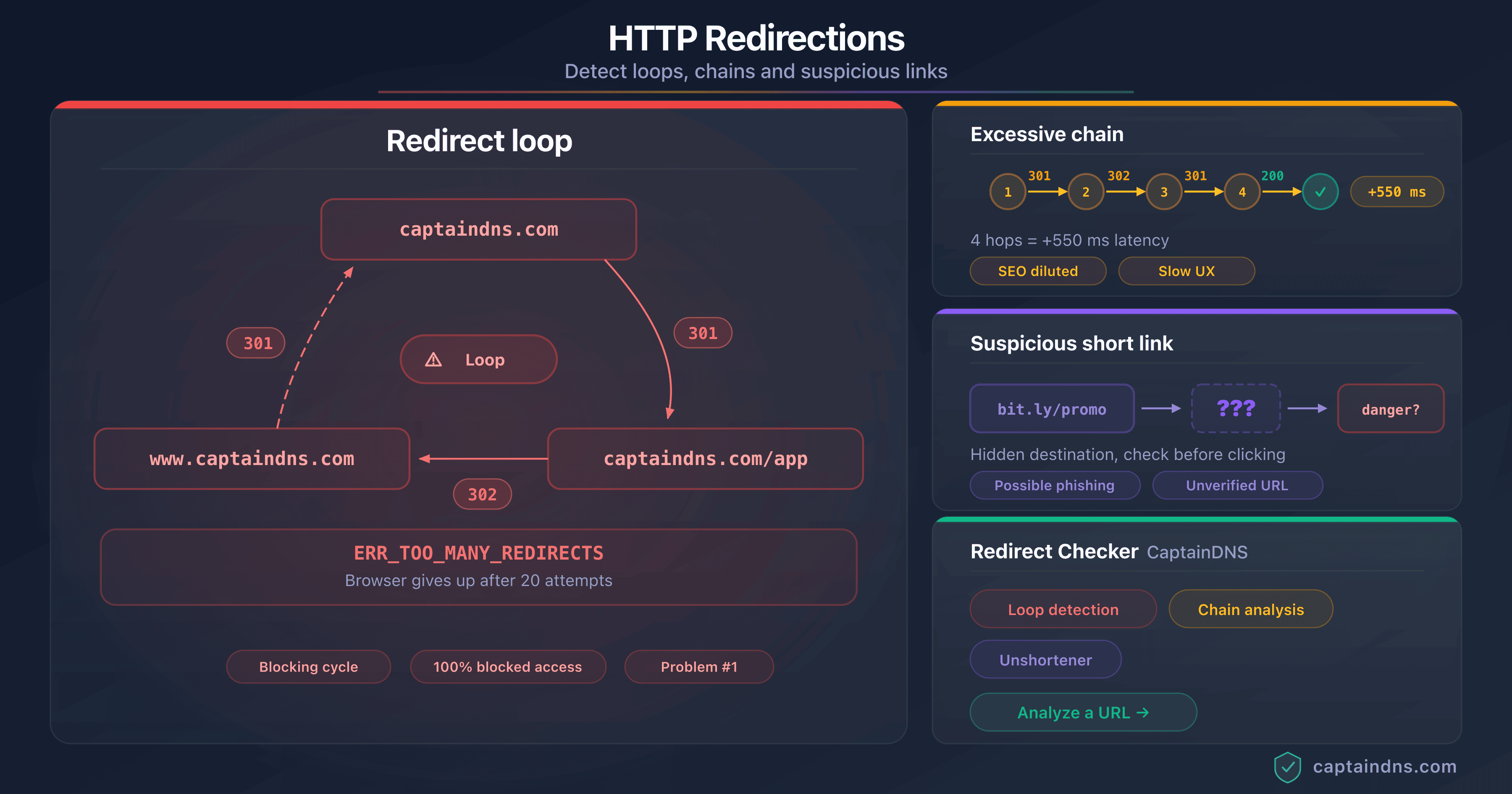
A redirect chain occurs when one URL redirects to a second URL, which itself redirects to a third, and so on. Each hop in the chain consumes a crawl request and adds latency.
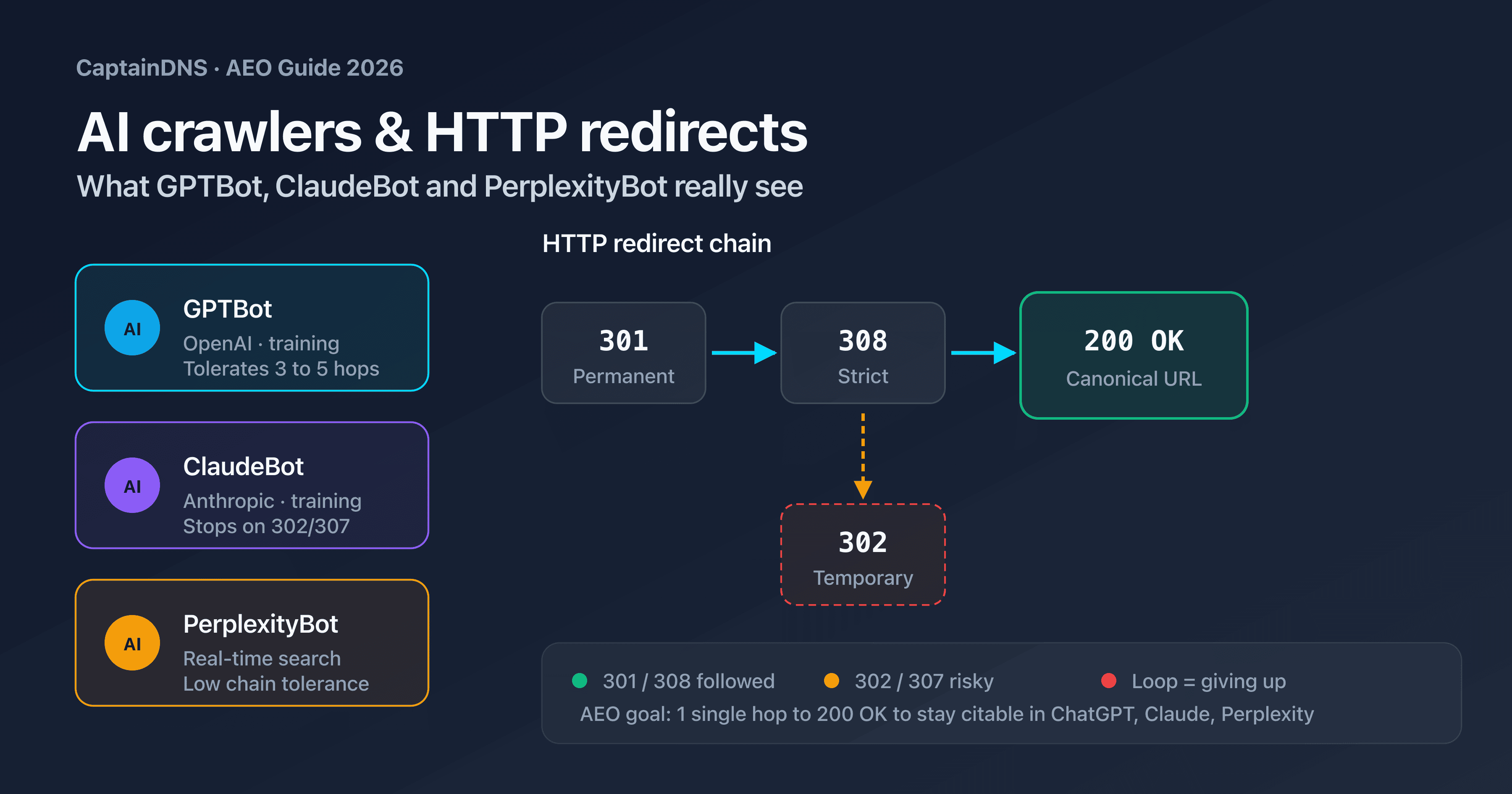
Google follows redirect chains, but not indefinitely. Past a certain number of hops, Googlebot gives up and the final page is neither crawled nor indexed.
Well before that limit, each intermediate redirect potentially dilutes the SEO signal. The recommendation is to limit any chain to 2 hops maximum: the source redirects to the final destination, full stop.
You can check for redirect chains on your pages with the Page Crawl Checker.
Myths vs reality
Myth: 302 penalises SEO. Reality: the 302 does not directly penalise SEO. It is simply not designed to transfer authority. Google does not apply a penalty, but it indexes the wrong URL and keeps the authority in the wrong place. The result looks like a penalty, but it is a configuration issue.
Myth: a 301 causes PageRank loss. Reality: since 2016, a 301 transfers 100 % of PageRank. This has been confirmed by Google on multiple occasions. The old 15 % penalty no longer exists.
Myth: Google treats long-standing 302s as 301s. Reality: this is partially true. Google may, after an extended period, decide to treat a 302 as a 301. But the delay is unpredictable (weeks, months) and during the transition, your SEO suffers. Do not count on this behaviour. Use the correct code from the start.
Myth: client-side redirects (JavaScript, meta refresh) are equivalent. Reality: no. Google can follow JavaScript redirects, but with an additional delay (the page must be rendered by the rendering engine). Meta refresh redirects are discouraged by Google. Only server-side redirects (301, 302, 307, 308) are processed immediately and reliably.
Myth: 301s are instant for SEO. Reality: no. After configuring a 301, Google must re-crawl the old URL, discover the redirect, then update its index. This process takes a few days to several weeks depending on your site's crawl frequency. Pages with high traffic and many backlinks are re-crawled faster than deep pages with few visits.
HTTPS and redirects: an essential prerequisite
The server hosting the redirects must support HTTPS. If a backlink points to https://old.captaindns.com/page and the redirect server only supports HTTP, the browser will display a certificate error instead of the redirect.
With CaptainDNS Redirect Hosting, the TLS certificate is generated and renewed automatically via Let's Encrypt. No manual configuration is needed. The redirect server responds over HTTPS on all configured domains.
For manual configurations on your own server (Nginx, Apache, Caddy), make sure that:
- The TLS certificate covers all source domains (old domain, www variants, subdomains).
- Certificate renewal is automated (Let's Encrypt with certbot or acme.sh).
- HTTP-to-HTTPS redirects are configured in addition to domain redirects.
301, canonical or both? Choosing the right approach
301 redirects and rel=canonical tags are two tools that serve a similar purpose: telling Google which URL is the preferred version. But they work very differently and are not used in the same situations.
When to use a 301 instead of a canonical tag
The distinction is simple: a 301 physically redirects the visitor, a canonical does not.
A 301 redirect removes access to the source URL. The visitor who types the old URL is automatically sent to the destination. The old page is no longer accessible. This is the correct choice when the source URL has no reason to exist.
A canonical tag (rel=canonical) leaves both URLs accessible. The visitor can still access the source URL and see its content. The canonical is a hint to Google: among these two pages with identical or similar content, here is the one you should index. Google may follow this hint or ignore it.
| Criterion | 301 redirect | Canonical tag |
|---|---|---|
| Visitor redirected? | Yes | No, both pages are accessible |
| Signal for Google | Strong directive (mandatory) | Hint (suggestion, may be ignored) |
| Both URLs exist? | No, only the destination is accessible | Yes, both remain online |
| PageRank transfer | 100 % to the destination | Google consolidates signals on the canonical URL |
| Primary use case | Deleted URL, migration, permanent change | Duplicate content, URL parameters, paginated versions |
In summary: if the old URL no longer serves a purpose, use a 301. If the old URL has a reason to exist (printable version, page with sort parameters, regional variant), use a canonical.
Combining 301 and canonical
After a domain migration, Google recommends using both signals together when possible. The 301 physically redirects visitors and bots. The canonical tag on the destination page reinforces the signal by confirming that this URL is indeed the preferred version.
In practice, after configuring your 301 redirects from the old domain to the new one, add a self-referencing canonical tag on each destination page:
<link rel="canonical" href="https://captaindns.com/en/tools" />
This dual signal is particularly useful when your content is accessible via multiple paths (redirected old domain, www variant, HTTP version). Google receives a consistent message from all sources: the destination is the canonical URL.
The 301 + canonical combination is not mandatory, but it speeds up convergence in the Google index and reduces the risk that Google picks the wrong URL as the canonical version during the transition period.
When to use a 301
The 301 is the default choice for any permanent redirect. Here are the most common use cases.
Permanent domain migration
You are changing your domain name. The old domain will no longer be used for content. Every URL on the old domain must be redirected via 301 to its equivalent on the new domain.
old-site.captaindns.com/blog/article-1
→ 301 → captaindns.com/en/blog/article-1
Consolidating multiple domains
You own multiple domains (spelling variants, country extensions, marketing domains) and want to concentrate SEO authority on a single one.
captaindns.fr → 301 → captaindns.com
captaindns.de → 301 → captaindns.com
Permanent URL change
Site redesign, CMS change, new URL architecture. The old URLs no longer exist and will not return.
captaindns.com/products/dns-check
→ 301 → captaindns.com/en/tools/dns/test-propagation
HTTP to HTTPS migration
The switch from HTTP to HTTPS is permanent. All HTTP URLs must be redirected via 301 to their HTTPS equivalent.
http://captaindns.com/en/tools
→ 301 → https://captaindns.com/en/tools
Naked domain to www (or vice versa)
You choose a canonical version of your domain. The other version redirects via 301.
www.captaindns.com → 301 → captaindns.com
or vice versa:
captaindns.com → 301 → www.captaindns.com
Summary table: 301 use cases
| Situation | Example | Why 301? |
|---|---|---|
| Domain migration | old.captaindns.com to captaindns.com | The source domain will no longer serve content |
| Multi-domain consolidation | captaindns.fr to captaindns.com | Concentrate SEO authority on a single domain |
| URL change (redesign) | /products/ to /en/tools/ | The old URL structure is abandoned |
| HTTP to HTTPS | http:// to https:// | The switch to HTTPS is permanent |
| www vs non-www | www.captaindns.com to captaindns.com | A single canonical version of the domain |
When to use a 302
The 302 is the correct choice when the redirect is temporary: you plan to restore the source URL to its original state.
Temporary marketing campaigns
You create a vanity URL for a time-limited campaign. The redirect will be deactivated at the end of the campaign.
promo.captaindns.com → 302 → captaindns.com/en/pricing
(during the March 2026 campaign)
A/B tests
You redirect a fraction of traffic to a page variant to test a new design or new content. The redirect will be removed once the test is finished.
Planned maintenance
Your site is under maintenance. You temporarily redirect traffic to an information page. The site will return to normal after maintenance.
captaindns.com/en/tools → 302 → captaindns.com/en/maintenance
Geolocation and language detection
You redirect visitors to a localised version of your site based on their IP address or browser language. The redirect is conditional and must not be cached, as the same user might visit from a different country.
captaindns.com → 302 → captaindns.com/fr/ (French visitor)
captaindns.com → 302 → captaindns.com/en/ (English visitor)
Conditional redirects (mobile/desktop)
You redirect mobile visitors to a dedicated version. This practice is less common today (responsive design has largely replaced it), but it still exists on some sites.
Summary table: 302 use cases
| Situation | Example | Why 302? |
|---|---|---|
| Marketing campaign | promo.captaindns.com to landing page | Temporary redirect, will be deactivated |
| A/B test | 50 % of traffic to variant B | Time-limited test |
| Maintenance | Site to maintenance page | The site will return |
| Geolocation | Root to local version | Conditional, must not be cached |
| Mobile redirect | Site to mobile version | Conditional based on device |
Domain migration: the complete checklist
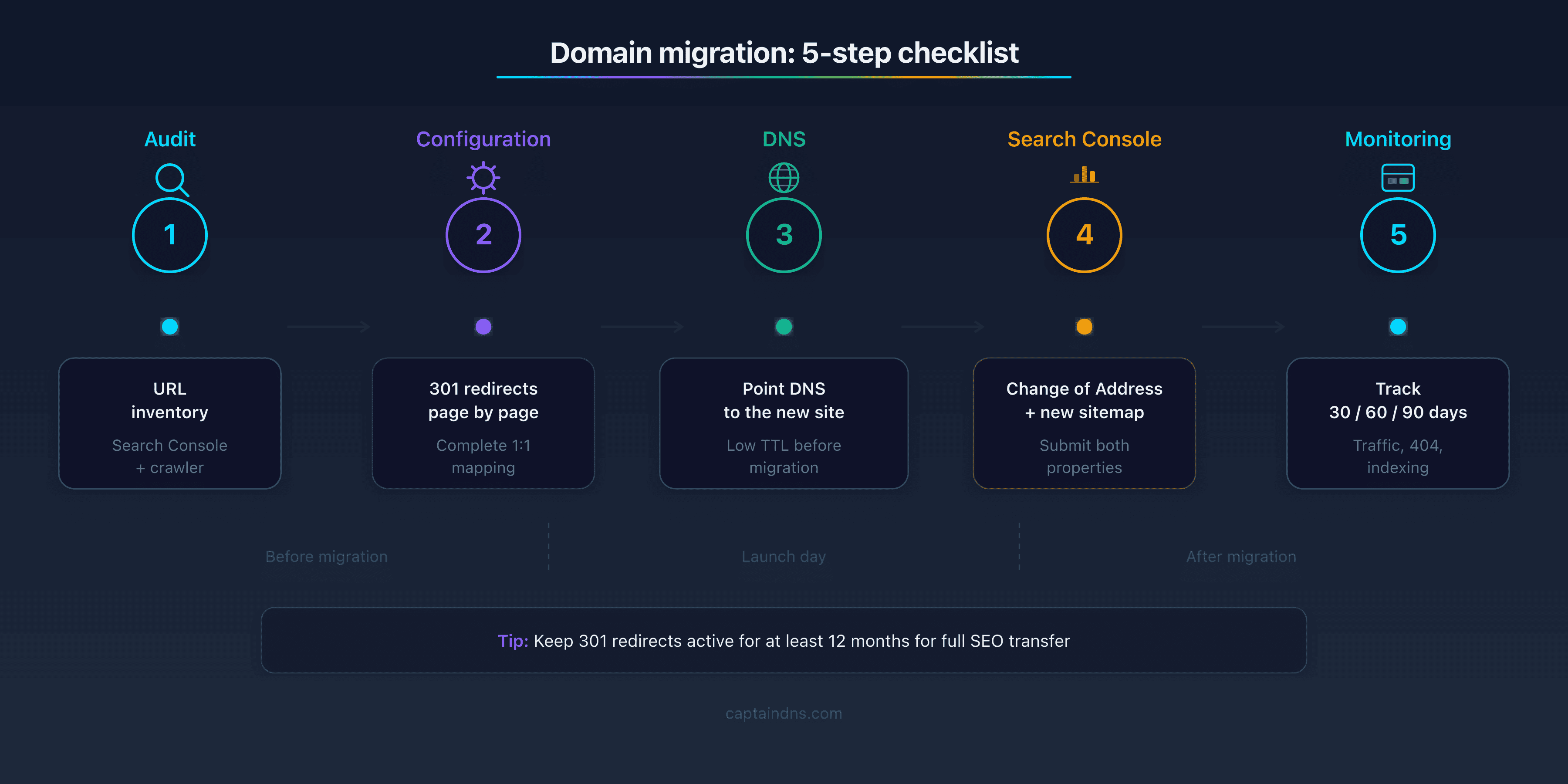
Domain migration is the riskiest operation in SEO. Here is the complete checklist to minimise losses.
Before migration: audit and inventory
1. List all indexed URLs
Export the full list of indexed URLs from Google Search Console (Pages report). Supplement with a full crawl of your site (Screaming Frog, Sitebulb or any other crawler).
The goal: have an exhaustive inventory of every URL that receives traffic or backlinks.
2. Identify high-value pages
Rank your URLs by organic traffic (Google Analytics) and by number of backlinks (Ahrefs, Moz, Semrush). The 20 % of pages that generate 80 % of the traffic are your absolute priority. Any redirect error on these pages will have an immediate and visible impact.
3. Create the 1:1 redirect plan
Every URL on the old domain must correspond to a URL on the new domain. No generic redirect to the homepage. A simple spreadsheet is sufficient:
| Source URL | Destination URL | Status |
|---|---|---|
| old.captaindns.com/ | captaindns.com/en/ | To configure |
| old.captaindns.com/blog/article-1 | captaindns.com/en/blog/article-1 | To configure |
| old.captaindns.com/contact | captaindns.com/en/contact | To configure |
If some pages have no equivalent on the new domain, redirect them to the most relevant page (not the homepage by default).
4. Verify new domain content
Before activating the redirects, make sure that each destination page exists and works. A 301 redirect to a 404 page is worse than no redirect at all: Google sees an error page and demotes the URL.
5. Back up existing data
Before making any changes, export a complete snapshot:
- CSV export of all indexed URLs from Search Console
- Search position export (Semrush, Ahrefs or other tracking tool)
- Backlink export for the old domain
- Screenshot of organic traffic statistics for the last 90 days
This data will serve as a reference to measure the migration impact and detect anomalies after the switch.
Configure 301 redirects
6. Set up redirects on every URL
The fundamental rule: every URL must be redirected individually. Redirecting only the root (old.captaindns.com to captaindns.com) is not enough. Deep pages, blog posts, product pages must each have their own redirect.
If your new site preserves the same URL structure, you can use a path forwarding rule. The path from the old URL is automatically appended to the destination:
old.captaindns.com/* → 301 → captaindns.com/*
With CaptainDNS Redirect Hosting, enable the "Path forwarding" option to automatically pass the source URL path to the destination.
7. Handle the 4 variants of each URL
Each URL potentially exists in 4 versions:
http://old.captaindns.com/pagehttps://old.captaindns.com/pagehttp://www.old.captaindns.com/pagehttps://www.old.captaindns.com/page
All 4 versions must lead to the same destination. Forgetting a variant means leaving backlinks without a redirect.
Verify DNS
8. Configure DNS records
For redirects to work, the source domain must resolve to the redirect server. If you use CaptainDNS Redirect Hosting, create a CNAME or A/AAAA record pointing to the redirect service.
9. Check DNS propagation
After modifying DNS records, verify that propagation is effective in all regions with the DNS propagation test. Full propagation can take from a few minutes to 48 hours depending on the previous TTL.
Google Search Console: Change of Address tool
10. Declare the change in Google Search Console
Google provides a dedicated tool in Search Console: "Change of Address" (Settings > Change of Address). This tool:
- Verifies that 301 redirects are correctly configured
- Speeds up the Google index update
- Transfers signals from the old domain to the new one
Prerequisite: both domains (old and new) must be verified in Google Search Console.
11. Submit the new sitemap
Submit the new domain's XML sitemap in Google Search Console. Verify that all URLs in the sitemap return a 200 code. Remove the old domain's sitemap once the migration is complete and the index is updated.
Post-migration monitoring
12. Monitor organic traffic (30/60/90 days)
A temporary drop in organic traffic (10 to 20 %) is normal in the 2 to 4 weeks following a migration. Beyond that, there is a problem. Monitor:
- Week 1-2: Google starts crawling the new domain. Traffic may drop by 10 to 30 %.
- Week 3-4: traffic should stabilise and start recovering.
- Month 2-3: traffic should return to pre-migration levels, or even exceed them if the new site is of better quality.
13. Check errors in Search Console
Review the Pages report in Google Search Console to identify 404 errors, redirect errors and indexing issues. Immediately fix URLs that return errors.
14. Monitor backlinks
Verify that backlinks from the old domain are properly redirected to the new one. Use Ahrefs or a similar tool to identify backlinks that return a 404 error instead of a 301 redirect.
15. Check search positions
Track your strategic keywords in a position tracking tool (Semrush, Ahrefs, Sistrix). Compare positions before and after migration. A keyword that drops more than 10 positions after 4 weeks probably indicates a redirect error on the corresponding page.
Create a tracking table with your 50 most important keywords:
| Keyword | Position before | Position D+7 | Position D+30 | Position D+90 |
|---|---|---|---|---|
| dns redirect | 5 | 8 | 6 | 4 |
| dns propagation test | 3 | 7 | 4 | 3 |
| spf email verification | 12 | 18 | 14 | 11 |
A gradual recovery is a sign that the migration is proceeding correctly. Stagnation at D+30 requires investigation (missing redirects, modified content, technical issues).
How long to keep redirects
16. How long should redirects be maintained?
Google recommends keeping 301 redirects permanently if possible. In practice:
- Minimum 6 months: below this, Google has not had time to re-crawl all your pages and update its index.
- Recommended 1 year: the vast majority of SEO signals will have been transferred.
- Ideal: permanent: as long as the old domain is active, the redirects should work. Backlinks on third-party sites will continue pointing to the old domain for years.
If you let the old domain expire, the redirects obviously stop working. Backlinks that pointed to the old domain will return a DNS error. This is why it is recommended to keep the old domain and renew its registration for as long as possible.
An additional risk exists: if your old domain expires and a third party buys it, they can capture the backlinks that still pointed to the old domain. In the best case, they display unrelated content. In the worst case, they exploit the reputation of your old backlinks to host malicious content or spam. Renew the registration of your old domain for at least 3 years after migration.
Week-by-week planning
A domain migration should be prepared several weeks in advance. Here is a typical schedule to structure the steps and avoid oversights.
| Week | Action | Verification |
|---|---|---|
| W-4 | Full URL audit, backlink inventory | Exhaustive list exported |
| W-3 | Configure 301 redirects on the server | Test each redirect with curl |
| W-2 | Declare the new domain in Search Console | Ownership verification validated |
| W-1 | Final tests, backup old domain sitemap | All redirects working |
| D-0 | Activate redirects, submit Change of Address | Verify the first hours in real time |
| W+1 | Monitor indexation and traffic daily | Search Console and Analytics checked daily |
| W+4 | First review at 30 days | Compare traffic before and after migration |
| W+8 | Second review at 60 days | Expected stabilisation of organic traffic |
| W+12 | Final review at 90 days | Decision: keep or adjust redirects |
This schedule is indicative. For large sites (several thousand pages), allow an extra week for the audit and URL mapping.
Real-world case: HTTP to HTTPS migration
The switch from HTTP to HTTPS is the most common migration. Google considers HTTP and HTTPS as two separate sites. Every HTTP URL must be redirected via 301 to its HTTPS equivalent.
The process is identical to a standard domain change:
- Obtain a TLS certificate for your domain (Let's Encrypt, or any other provider)
- Configure the server to respond over HTTPS
- Redirect every HTTP URL via 301 to HTTPS (not just the homepage)
- Update internal links to point to HTTPS URLs
- Declare the HTTPS version in Google Search Console
- Submit the sitemap with HTTPS URLs
Common mistake: only redirecting the HTTP homepage to HTTPS and forgetting internal pages. Result: deep pages remain accessible over HTTP, Google considers them duplicates, and SEO authority is fragmented between both versions.
Important point: Google Search Console treats HTTP and HTTPS as distinct properties. You must submit both versions (HTTP property and HTTPS property) to have a complete view of indexation during the transition. Use the Change of Address tool to speed up the process.
Impact on crawl budget and Core Web Vitals
Redirects do not only affect indexation and authority transfer. They also have a measurable impact on two technical aspects of SEO: crawl budget and loading performance.
Crawl budget and redirects
Googlebot has a limited crawl budget for each site: a number of pages it can explore within a given time interval. This budget depends on the site's size, popularity and the server's ability to respond quickly.
Each redirect consumes one unit of this budget. When Googlebot encounters a 301, it counts one request for the source URL (which returns the redirect) then a second request for the destination. A chain of 3 redirects therefore consumes 4 requests for a single content page.
For small sites (a few hundred pages), the impact is negligible. For large sites with thousands of active redirects, crawl budget consumption can become significant. Googlebot spends time following redirects instead of crawling new content.
Recommendations:
- Minimise the number of redirects on high-traffic, high-SEO-value pages
- Eliminate redirect chains by pointing directly to the final destination
- After a migration, once the index is updated (6 to 12 months), redirects consume less crawl budget because Googlebot progressively learns the new URLs
Impact on Core Web Vitals
Core Web Vitals are the user performance metrics measured by Google: LCP (Largest Contentful Paint), INP (Interaction to Next Paint) and CLS (Cumulative Layout Shift). These metrics have influenced ranking since 2021.
Each redirect adds a network round trip (RTT) between the browser and the server. In practice, this represents an additional 100 to 300 ms per hop, depending on network latency and the visitor's geographic location.
Impact by metric:
- LCP: directly affected. The loading time of the main content increases by 100 to 300 ms per redirect. On mobile with a slow connection, the impact can exceed 500 ms per hop.
- CLS: no impact. Redirects occur before the page is displayed, they do not cause visual shifts.
- INP: no impact. Redirects do not affect page responsiveness once loaded.
Good news: 301 redirects cached by the browser have no impact on Core Web Vitals after the first visit. The browser redirects locally, without a network round trip. This is an additional argument in favour of 301s over 302s for permanent redirects.
To measure the real impact of redirects on your Core Web Vitals, use Chrome DevTools (Performance tab) or field data in Google Search Console (Core Web Vitals report).
Common mistakes that destroy SEO
Using 302 instead of 301 for a migration
This is the most common mistake. A developer configures 302 "temporary" redirects for a permanent migration. Result: Google continues indexing the old domain, PageRank is not transferred, and the new domain starts from zero in terms of authority.
The fix is simple: change all 302 redirects to 301s. The effect is not immediate (Google must re-crawl the URLs), but the authority transfer will eventually happen.
Redirecting all URLs to the homepage
You redirect old.captaindns.com/blog/article-1, old.captaindns.com/blog/article-2 and old.captaindns.com/contact to captaindns.com. Google considers these redirects as soft 404s: the destination page content does not match what the old URL promised.
Result: Google ignores these redirects and demotes the URLs. Backlinks that pointed to your blog posts lose their value, because they redirect to an unrelated page.
The solution: a 1:1 redirect. Each old URL redirects to the equivalent page on the new domain. If a page has no exact equivalent, redirect it to the thematically closest page. For example, a deleted blog post can be redirected to a related article covering the same topic, or to the corresponding category page.
Redirect chains
Typical situation: during a first migration, site-v1.captaindns.com was redirected to site-v2.captaindns.com. During a second migration, site-v2.captaindns.com was redirected to captaindns.com. Result: a 3-hop chain.
site-v1.captaindns.com → 301 → site-v2.captaindns.com → 301 → captaindns.com
Each hop adds latency and consumes a crawl request. A chain that runs too long stops being followed at all. Even at 3 hops, the SEO signal gets diluted.
Fix by updating the old redirects to point directly to the final destination:
site-v1.captaindns.com → 301 → captaindns.com
site-v2.captaindns.com → 301 → captaindns.com
Redirect loops
A redirect loop occurs when URL A redirects to URL B, which redirects back to URL A. The browser displays the error ERR_TOO_MANY_REDIRECTS. The Google crawler gives up immediately.
Loops are often caused by conflicts between redirect rules. Classic examples:
- The server redirects
httptohttps, and a plugin redirectshttpstohttp. - The server redirects
wwwtonon-www, and the CDN redirectsnon-wwwtowww. - Two redirect rules overlap in the
.htaccessfile or Nginx configuration.
The solution: test each URL in an incognito browser and check response headers with curl -I or the Page Crawl Checker.
Forgetting www, non-www, HTTP, HTTPS variants
A site accessible via 4 different URLs (http://, https://, http://www., https://www.) must redirect the 3 non-canonical variants to the chosen version.
Forgetting a variant means that backlinks pointing to that version are not redirected. They return either an error or a non-canonical page that Google may index as a duplicate.
Systematically check all 4 combinations for each domain involved in the migration.
Here is a concrete test example for a domain:
curl -I http://captaindns.com/en/tools       → should return 301 to https://captaindns.com/en/tools
curl -I http://www.captaindns.com/en/tools    → should return 301 to https://captaindns.com/en/tools
curl -I https://www.captaindns.com/en/tools   → should return 301 to https://captaindns.com/en/tools
curl -I https://captaindns.com/en/tools       → should return 200 (canonical URL)
Removing redirects too early
Some teams remove 301 redirects after a few weeks, thinking Google has had time to update its index. In reality, Google does not re-crawl all pages at the same rate. Deep pages with few backlinks may not be re-crawled for several months.
Backlinks on third-party sites are also outside your control. A blog post published in 2020 that links to your old domain will continue generating clicks for years. If the redirect is removed, these visitors land on a 404 error or, worse, on a domain purchased by a third party.
Not monitoring after migration
The migration is in place, the redirects work, the sitemap is submitted. Job done? No. Without monitoring, you will not detect problems that appear in the following weeks:
- 404 pages on the new domain (deleted content or misconfigured URL)
- Broken redirects (expired certificate, redirect server down)
- Blocked indexation (robots.txt too restrictive on the new domain)
- Abnormal traffic drop on certain site sections
Check Google Search Console every week for the first 3 months. Set up alerts for significant traffic drops in Google Analytics.
Ignoring emails and newsletters containing links to the old domain
Your marketing emails, archived newsletters and PDF documents contain links to the old domain. These links will continue to be clicked for months, even years. If the redirects are not in place, your subscribers land on errors.
Take inventory of all channels that distribute links to your domain: email signatures, newsletter templates, PDF brochures, PowerPoint presentations, social media profiles. Update links where possible, but rely on redirects for everything you cannot change (already sent emails, already downloaded PDFs).
Do not forget links in mobile apps, partner integrations and widgets embedded on third-party sites. These sources are often invisible in backlink audits but generate significant traffic.
Using JavaScript redirects instead of server redirects
Some teams implement redirects via meta refresh or window.location instead of configuring server-side redirects. This choice is problematic for SEO.
JavaScript redirects require the search engine to download the HTML page, execute the JavaScript, then discover the redirect. Google can do this (its crawler uses a rendering engine based on Chromium), but with a significant delay. Other search engines (Bing, Yandex) do not always follow JavaScript redirects.
Concrete result: during the transition period, indexation is slower, SEO signal transfer is uncertain, and some bots simply do not see the redirect. If you have access to server configuration (Nginx, Apache, Caddy, CDN), always use server-side HTTP redirects. Reserve JavaScript for cases where server-side redirect is technically impossible, such as Single Page Applications hosted on a static CDN.
Not informing Google via Search Console
The Change of Address tool in Google Search Console is specifically designed to accelerate domain migrations in the Google index. Yet many migrations are performed without using this tool.
Without Change of Address, Google must discover the migration on its own by crawling the old domain and following the redirects. This process can take several weeks, even several months for large sites. During this time, the old domain remains in the index and the new domain does not yet inherit all the authority.
With Change of Address, Google receives an explicit signal: the old domain has migrated to the new one. Google verifies that 301 redirects are in place, then accelerates the index update. The tool is available in Search Console, Settings section, then Change of Address. Both domains (old and new) must be verified in Search Console.
Concrete use cases with CaptainDNS
Subdomain migration to the main domain
You host your blog on blog.captaindns.com and decide to bring it under captaindns.com/en/blog to consolidate SEO authority.
Configuration:
- Create a 301 redirect with path forwarding on
blog.captaindns.com - Destination:
captaindns.com/en/blog - Enable path transfer so that
blog.captaindns.com/article-1redirects tocaptaindns.com/en/blog/article-1
Result: backlinks to the blog, which previously strengthened only the subdomain, now benefit the main domain. Domain authority is concentrated on a single entity instead of being dispersed.
Points to watch:
- Update internal links on the main site to point to the new URLs (
/en/blog/...) and not to the old subdomain. - Update the sitemap to include blog URLs under the main domain.
- If the blog had its own Search Console profile, declare the change of address.
Consolidating multiple subdomains
You own shop.captaindns.com, docs.captaindns.com and status.captaindns.com. You decide to group everything under captaindns.com.
Configuration:
| Subdomain | Destination | Path forwarding |
|---|---|---|
| shop.captaindns.com | captaindns.com/en/pricing | Yes |
| docs.captaindns.com | captaindns.com/en/docs | Yes |
| status.captaindns.com | captaindns.com/en/status | No (single page) |
Each subdomain is configured as a 301 with CaptainDNS Redirect Hosting. Path forwarding preserves the URL structure for the first two subdomains.
SEO benefit: instead of spreading domain authority across 4 distinct entities (main domain + 3 subdomains), all authority is consolidated on the main domain. Backlinks acquired by the documentation or shop now strengthen the entire site.
Pitfall to avoid: if your subdomains had separate TLS certificates, make sure the main domain's certificate also covers the destination paths. A wildcard certificate (*.captaindns.com) simplifies management.
Redesign with URL structure change
You switch from a flat structure (captaindns.com/dns-check) to a hierarchical structure (captaindns.com/en/tools/dns/test-propagation).
This case requires a 1:1 redirect plan, because the structure changes completely. Path forwarding is not enough.
| Old URL | New URL |
|---|---|
| captaindns.com/dns-check | captaindns.com/en/tools/dns/test-propagation |
| captaindns.com/spf-check | captaindns.com/en/tools/email-authentication/spf-check |
| captaindns.com/dkim-check | captaindns.com/en/tools/email-authentication/dkim-check |
Create an individual 301 redirect for each URL. No shortcuts possible.
CMS migration with new URLs
You migrate from WordPress (captaindns.com/2025/03/my-article) to a headless CMS with clean URLs (captaindns.com/en/blog/my-article).
CMS changes often modify blog URL structures. WordPress permalinks include the date, the new CMS uses a simple slug. Every old WordPress URL must be redirected via 301 to the new URL.
captaindns.com/2025/03/my-article → 301 → captaindns.com/en/blog/my-article
captaindns.com/2025/04/other-article → 301 → captaindns.com/en/blog/other-article
Export the complete list of WordPress permalinks and map each one to the new URL before shutting down the old CMS.
Tip: if your new CMS uses the same slugs as WordPress (the article title in lowercase with hyphens), you can create a rewrite rule that removes the date prefix and adds the /en/blog/ prefix. This significantly reduces the mapping work for sites with hundreds of articles.
Internationalisation and language-based redirect
You launch localised versions of your site. The URL /tools/dns-check becomes /fr/tools/dns-check, /en/tools/dns-check, /de/tools/dns-check, etc.
For old URLs without a language prefix, two approaches:
Approach 1: 301 redirect to the default locale
Redirect old URLs to the main language version:
captaindns.com/tools/dns-check → 301 → captaindns.com/en/tools/dns-check
Simple to configure, but English-speaking visitors who had a backlink to /tools/dns-check land on the English version, while French-speaking visitors may prefer the French version.
Approach 2: 302 redirect with language detection
Redirect old URLs to the localised version based on the browser's Accept-Language header. Use a 302 because the redirect is conditional:
captaindns.com/tools/dns-check → 302 → captaindns.com/fr/tools/dns-check (FR visitor)
captaindns.com/tools/dns-check → 302 → captaindns.com/en/tools/dns-check (EN visitor)
More complex to configure, but offers a better user experience. Make sure to implement hreflang tags on the destination pages to help Google understand the multilingual structure.
Recommended action plan
-
Audit your existing URLs: export the list of indexed pages from Google Search Console and identify high-value pages (traffic, backlinks).
-
Choose the right redirect code: permanent migration = 301. Temporary campaign = 302. When in doubt, ask yourself: will the old URL ever come back? If not, use a 301.
-
Create the 1:1 redirect plan: every old URL must correspond to a destination URL. No generic redirect to the homepage.
-
Configure the redirects: use CaptainDNS Redirect Hosting to create 301/302 redirects with automatic HTTPS and path forwarding.
-
Verify DNS propagation: confirm that DNS records point to the redirect server with the DNS propagation test.
-
Declare the change in Google Search Console: use the "Change of Address" tool and submit the new sitemap.
-
Monitor for 90 days: track organic traffic, crawl errors and positions in Search Console. Immediately fix any detected problems.
Configure your redirects now: use CaptainDNS Redirect Hosting to create 301/302 redirects with automatic HTTPS and path forwarding.
FAQ
What is the difference between a 301 and 302 redirect?
The 301 is a permanent redirect: it tells browsers and search engines that the URL has permanently changed. The 302 is a temporary redirect: it indicates that the current URL is temporarily available at another address. The main difference for SEO is that the 301 transfers authority (PageRank) to the destination, while the 302 keeps the authority on the source URL.
Does a 302 redirect penalise SEO?
No, the 302 does not penalise SEO in the strict sense. Google does not apply a penalty. The problem is that Google continues indexing the source URL and does not transfer the authority. If you use a 302 for a permanent migration, Google indexes the wrong URL and your new domain does not benefit from the backlinks. It is not a penalty, but the result is similar: loss of organic traffic.
How long should redirects be maintained after a migration?
Minimum 6 months, recommended 1 year, ideally permanent. Google needs time to re-crawl all your pages and update its index. Backlinks on third-party sites will continue pointing to the old domain for years. As long as the old domain is registered, the redirects should remain active.
What happens if I use a 302 instead of a 301?
Google continues indexing the old URL and does not transfer PageRank to the destination. Your new domain does not benefit from the authority accumulated by the old one. Over time, Google may end up treating the 302 as a 301, but the delay is unpredictable. The fix is to replace all 302s with 301s. Google will re-crawl the URLs and update its index.
Do redirect chains affect SEO?
Yes. Each hop in a redirect chain consumes a crawl request and adds latency. Googlebot eventually gives up on a chain that runs too long, and the final page is then neither crawled nor indexed. Well before that threshold, the SEO signal can already get diluted. Limit any chain to 2 hops maximum and fix old redirects to point directly to the final destination.
How can I verify that a redirect works correctly?
Several methods. From the command line, use curl -I URL to display the HTTP response headers and check the status code (301 or 302) and the Location header. In a browser, open the developer tools (Network tab) and observe the request chain. You can also use the Page Crawl Checker to verify redirects and detect chains.
Should every URL be redirected individually?
Yes, ideally. Every old URL should redirect to the equivalent page on the new domain (1:1 redirect). If the URL structure is preserved, path forwarding simplifies configuration: the old URL path is automatically passed to the destination. If the structure changes, you must map each URL manually.
Does Google follow JavaScript redirects?
Google can follow JavaScript redirects, but with limitations. The page content must first be rendered by Google's rendering engine, which adds a delay. Not all JavaScript redirects are detected reliably. Google recommends using server-side redirects (301, 302) for important URL changes.
What is the difference between 301 and 308?
Both are permanent redirects with full SEO transfer. The difference is technical: the 301 allows the browser to transform a POST request into a GET during the redirect, while the 308 preserves the original HTTP method (a POST remains a POST). For standard web pages (GET requests), 301 and 308 are functionally identical. The 308 code is primarily used for APIs.
How many redirects does Google follow before giving up?
Googlebot gives up past a certain number of hops, and the final page is then neither crawled nor indexed. Google's own redirect documentation, cited at the end of this article, is the authority on that threshold. It is not the right yardstick anyway: the SEO signal dilutes well before it. The recommendation is to never exceed 2 hops to guarantee optimal signal transfer.
Can a 301 redirect be reversed?
Technically yes, you just need to remove the redirect rule on the server. But in practice, browsers that have cached the 301 will continue redirecting automatically until their cache expires. Google also needs to re-crawl the URL to see that the redirect no longer exists. The delay to return to normal can be several weeks.
How do you handle a migration with thousands of URLs?
Export the full list of indexed URLs from Google Search Console. Use a spreadsheet to create the 1:1 mapping. If the structure is preserved, a single redirect rule with path forwarding is sufficient. If the structure changes, group URLs by pattern and create rewrite rules (regex) on your server or CDN. Test a sample before deploying everything.
What is the difference between a 301 redirect and a canonical tag?
The 301 physically redirects the visitor to a new URL: the old page is no longer accessible. The canonical tag (rel=canonical) leaves both pages accessible but tells Google which one to index preferentially. Use a 301 when the source URL no longer has a reason to exist. Use a canonical when both URLs should remain online (duplicate content, URL parameters, paginated versions).
Does a redirect slow down my site?
Yes. Each redirect adds a network round trip (100 to 300 ms per hop). The impact is concentrated on LCP (Largest Contentful Paint), the loading speed metric. 301 redirects cached by the browser no longer have an impact after the first visit, because the browser redirects locally without contacting the server.
Does Google follow meta refresh redirects?
Yes, Google can follow meta refresh redirects, but with a delay. The HTML page must be downloaded and parsed before Google detects the redirect. Google discourages this method and recommends server-side redirects (301, 302). Meta refresh also poses a problem for other search engines, which do not always follow them.
Glossary
- 301 redirect: permanent HTTP redirect. Indicates that the URL has permanently changed and transfers SEO authority to the destination.
- 302 redirect: temporary HTTP redirect. Indicates that the URL is temporarily available at another address. SEO authority remains on the source URL.
- 307 redirect: temporary redirect that preserves the HTTP method. Strict equivalent of the 302 without POST-to-GET transformation.
- 308 redirect: permanent redirect that preserves the HTTP method. Strict equivalent of the 301 without POST-to-GET transformation.
- PageRank: Google algorithm that measures the importance of a web page based on the quantity and quality of incoming links.
- Canonical tag: HTML tag
rel=canonicalthat tells Google which version of a URL is the preferred version among multiple pages with identical or similar content. - Canonicalisation: process by which Google chooses the preferred URL among multiple URLs that access the same content.
- Redirect chain: sequence of successive redirects where one URL redirects to a second, which redirects to a third, etc.
- Redirect loop: situation where two URLs redirect to each other, creating an infinite cycle.
- Path forwarding: mechanism that passes the source URL path to the destination during a redirect.
- Soft 404: page that returns a 200 HTTP code but whose content indicates an error page. Google treats it as a 404 for indexing purposes.
- Change of Address: Google Search Console tool that allows you to officially declare a domain change and accelerate the migration in the Google index.
- Crawl budget: number of pages Googlebot can explore on a site within a given time. Redirects consume crawl budget, especially redirect chains.
- Core Web Vitals: set of Google metrics (LCP, INP, CLS) measuring user performance of a web page. Redirects primarily impact LCP by adding network latency.
- CNAME: type of DNS record that creates an alias from one domain to another. Used to point a domain to a redirect server.
Related domain redirect guides
- Vanity URLs, link tracking and QR codes: the complete guide to marketing redirects: create branded links, track clicks and measure offline-to-online traffic
Sources
- RFC 7231 - Hypertext Transfer Protocol (HTTP/1.1): Semantics and Content, section 6.4: official definition of HTTP redirect codes 301, 302 and 307
- RFC 7538 - The Hypertext Transfer Protocol Status Code 308: definition of the 308 permanent redirect code
- Google Search Central - Redirects and Google Search: official documentation on how Google handles redirects
- Google Search Central - Change of Address tool: official guide for declaring a domain change
- Google Search Central - Avoid creating duplicate content: best practices for redirects and duplicate content